5 steps to launch your first Terraria dedicated server
Terraria is a sandbox adventure game that offers an expansive world where multiple players can connect and play together. But, while joining someone else’s game through the host & play option is convenient, it often comes with limitations, such as lag and stability issues, especially as more players join the fun.
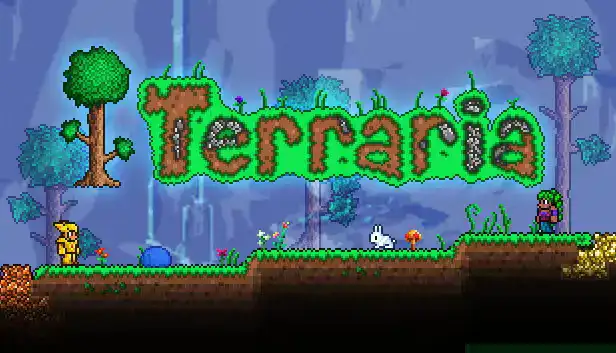
That’s why you should opt for hosting Terraria on a dedicated server instead. It allows you to host your own game on a separate machine that is optimized for performance. Unlike the host & play method, where one player’s system bears the weight of the server, a dedicated server runs independently, offering advantages such as:
- Enhanced performance – dedicated resources ensure smoother gameplay, especially with larger worlds or more players.
- Customization – easily install mods, adjust settings, and configure the server to your liking.
- Scalability – accommodate more players and larger worlds without compromising performance. Enhanced stability, customization, and control.
So, without further ado, let’s get right into it and walk you through setting up your own Terraria dedicated server.
Just want to jump in?
Get your own, private sandbox so you can explore, craft, build, and take down bosses on your own terms.
Step 0: Prerequisites and choosing a Terraria dedicated server provider
Before you do anything, it’s important to ensure you have all the prerequisites in place to successfully launch your Terraria dedicated server. Here’s what you’ll need:
A dedicated server via a hosting provider
A dedicated server is a physical or virtual machine entirely used to host your Terraria server, unlike shared hosting, where multiple users share resources. Choosing the right hosting provider is crucial for your Terraria server’s performance. Consider factors like server reliability, ease of use, and customer support.
Hardware requirements
The recommended hardware requirements for a smooth Terraria experience, especially with larger worlds or more players (10+), are:
- CPU – quad-core processor with 3 GHz or higher clock speed.
- RAM – 4 GB or more (2 GB is often cited as an absolute minimum).
- Storage – 5 GB or more for worlds, backups, and logs.
- Network – 10 Mbps or faster upload speed for smooth gameplay.
It’s worth noting that Terraria server software primarily utilizes a single core/thread, making CPU clock speed particularly crucial. Servers with clock speeds below 3 GHz may experience issues like teleporting enemies and item pickup lag.
Operating system
Some providers offer a choice between Windows and Linux-based servers. While either can run Terraria effectively, Linux is often more resource-efficient for dedicated server purposes.
The runtime environment requires:
- .NET Framework for Windows.
- Either Mono (for older versions) or .NET runtime (for newer versions or if using TShock) for Linux.
Many hosting providers pre-install these dependencies, but it’s worth confirming before selection.
Step 1: Download and install server files
If you’ve purchased Terraria via Steam, you can easily download the dedicated server files directly from the Steam client. Here’s how:
- Open Steam and navigate to your Library.
- Scroll down to Tools in the left sidebar.
- Search for “Terraria Dedicated Server”.
- Right-click on the item and select Install.
Steam will automatically download and install the server files for you. These files will be placed in a folder in your Steam directory, typically located at C:\Program Files (x86)\Steam\steamapps\common\Terraria.
If you don’t use Steam or are running a Linux server, you can still download the server files directly from Terraria’s official website. Then, extract the files to a folder of your choice where you want the server to run from.
Once the server files are downloaded:
- For Windows users: The files are ready to be run from the Steam directory. If you downloaded the server separately, you’ll need to extract the contents and place them in a folder.
- For Linux users: You will need to use a terminal to navigate to the directory where the files were extracted. From there, you can run the server using the terminal commands specified on Terraria’s site or in the README files included with the server download.
Once the files are in place, it’s time to start the server. For Windows users, you can launch the server by double-clicking the .exe file (typically called TerrariaServer.exe). This will open up a command prompt window that runs the server.
For Linux, you’ll start the server via terminal using a command like:
./TerrariaServer.bin.x86_64
Or, for 32-bit systems:
./TerrariaServer.bin.x86
Make sure the file is executable by running:
chmod +x TerrariaServer.bin.x86_64
This is the most straightforward method for Linux servers.
This initial run will generate configuration files and set up a default world for the server. You’ll be prompted to create a new world or load an existing one, as well as set up some basic settings like server name and password.
Step 2: Configure server settings
When you run the Terraria server for the first time, several configuration files will be generated. These files are where you can make all your adjustments.
The main configuration file is called serverconfig.txt. This file contains various settings such as the server’s name, password, and world settings. You can edit this file using a simple text editor like Notepad++ (Windows) or Nano (Linux).
If you’re creating a new world, you can adjust the world’s settings directly from the server interface. If you’re using an existing world, the settings are automatically pulled from that world’s configuration file.
Here are some important settings you may want to adjust in the serverconfig.txt file:
- Server name: This is the name that will appear in the server list, allowing players to identify your server.
- Password: Set a password to restrict access to your server. If you want to make it public, you can leave it blank.
- Port: The port number used for communication with the server. By default, this is set to 7777, but you can change it if needed.
- Max players: Control how many players can join your server at once. Set this to a value based on the hardware capabilities of your server and your personal preferences.
- World settings: If you are creating a new world, you can choose the size of the world (Small, Medium, or Large) and the world’s difficulty. You can also choose between a corruption or crimson world type.
- PvP settings: If you want to enable or disable Player vs. Player combat on your server, you can do so here.
- Hardcore mode: If you want your server to be hardcore (where death is permanent), you can enable this setting.
For more advanced players, you may want to customize additional settings, such as enabling or disabling mods, changing server rules, or modifying the game difficulty. There are various server-side mods available that can enhance the experience, such as adding custom items or changing game mechanics. You can modify these by editing the mods directory or by using tools like the Terraria ModLoader (TModLoader).
Once you’ve made your changes in the configuration file, be sure to save the file before restarting the server. If you made the changes through the server console, you might need to restart the server for the new settings to take effect.
Step 3: Port forwarding and firewall configuration
Port forwarding is a process that tells your router how to direct incoming internet traffic to the correct device (in this case, your Terraria server) on your local network. Without proper port forwarding, players outside your local network will be unable to connect to your server.
By default, Terraria uses port 7777 for communication. You’ll need to forward this port to your server’s internal IP address – here’s how:
- Open a web browser and enter your router’s IP address in the address bar (e.g., 192.168.1.1 or 192.168.0.1). You can typically find the router’s IP address on a label on the device itself or in the router’s manual.
- Look for the Port Forwarding, Virtual Server, or NAT section of your router’s settings. The location of this can vary depending on your router model.
- Create a new rule for port forwarding:
- Service name – give the rule a name like “Terraria Server”.
- Port range – enter “7777” as both the start and end port.
- Protocol – choose TCP, UDP, or both.
- Internal IP address – enter the internal IP address of the computer running the Terraria server. You can find this by opening the command prompt (Windows) or terminal (Linux) and typing ipconfig (Windows) or ifconfig (Linux).
- Internal port – enter “7777” (the default Terraria port).
- External port – again, use “7777” for the external port.
- After creating the port forwarding rule, save the settings and apply the changes.
Then, it’s time to ensure that your firewall allows incoming traffic to the server on port 7777. For a Windows firewall:
- Open the Windows Firewall settings by typing firewall in the Windows search bar and selecting Windows Defender Firewall.
- Click on Advanced Settings on the left.
- In the left-hand menu, click Inbound Rules and then click New Rule on the right.
- Choose Port, click Next, and select TCP.
- Enter “7777” in the Specific local ports field, then click Next.
- Choose Allow the connection, and proceed to the next screen to apply the rule to all profiles.
- Give the rule a name (e.g., “Terraria Server”) and click Finish.
Linux firewall:
- Open the terminal and use the following command to allow traffic on port 7777:
sudo ufw allow 7777/tcp
sudo ufw allow 7777/udp - Enable the firewall if it’s not already enabled:
sudo ufw enable
Step 4: Launch the server
This is the exciting part where you’ll open the server to players and begin hosting your own world:
- For Windows: Navigate to the directory where you installed the Terraria server files. Double-click the TerrariaServer.exe file to start the server. This will open a command window where you can enter server commands and see logs.
- For Linux: Open a terminal in the directory where you extracted the server files and run:
./TerrariaServer.bin.x86_64
When the server window opens, you’ll be prompted to either Create a New World or Load an Existing World. If you’re creating a new world, you’ll be asked to choose the world’s size (Small, Medium, or Large) and type (Corruption or Crimson).
You’ll also be prompted to set a server name, password, and max players. Once you’ve made all your selections, press Enter to start the server. The server will load the world, and players will now be able to connect.
Now that the server is running, you’ll want to ensure it stays active and accessible to players:
- For Windows: The server will run as long as the command window remains open. If you close it, the server will stop. To keep it running indefinitely, you can use third-party software like NSSM (Non-Sucking Service Manager) to run the server as a background service.
- For Linux: You can use tools like screen or tmux to run the server in the background. For example:
screen -S Terraria
./TerrariaServer.bin.x86_64
You can detach from the session by pressing Ctrl+A, followed by D. To return to the session, use the command:
screen -r Terraria
As the server is running, you can manage it directly through the command window. The server console will display useful information, such as connected players, server performance, and any errors that occur.
(Bonus) Here are common server commands:
- /ban [player] – ban a player from your server
- /kick [player] – kick a player off the server
- /save – save the server world
- /exit – exit the server
You can also monitor the server’s performance and make adjustments as needed, such as tweaking server settings or adding new mods.
Step 5: Connect to the server
Now that your Terraria dedicated server is running smoothly, it’s time to join in on the action and connect to your server. Whether you’re the host or a player joining someone else’s server, the process is simple:
Connecting to your own server (local connection)
If you’re hosting the server on the same machine that you’re playing on (local connection):
- Launch the Terraria game client on your computer.
- From the main menu, click on the Multiplayer option.
- Choose Join via IP:
- If you’re on the same machine as the server, simply enter 127.0.0.1 or localhost in the IP address field.
- If you’re on a local network but not the host machine, use the internal IP address of the server (found earlier when you configured the router for port forwarding). This would look something like 192.168.x.x.
- If you set a password for your server, enter it when prompted.
- Hit Join to connect to the server.
You should be in the world in just a few moments!
Connecting from an external network (public connection)
If you want players from outside your local network to connect to your server, follow these steps:
- You’ll need your public IP address so that external players can connect to your server. You can find this using a service like WhatIsMyIP.com.
- Provide your friends with your public IP address and the port number (default 7777). The connection string will look like this:
[Your Public IP Address]:7777 - From the Terraria main menu, go to Multiplayer > Join via IP, and enter the provided IP address and port. For example, 123.456.78.90:7777.
- If you set a password, the players will need to input that password to connect.
- Once the player enters the information and clicks Join, they’ll be connected to your server.
Troubleshooting common Terraria server issues
Players can’t connect to the server
If players are unable to connect, there could be a few reasons behind this issue:
- Port forwarding issues: If you’ve set up port forwarding incorrectly, players won’t be able to reach your server. Double-check that you’ve correctly forwarded port 7777 (both TCP and UDP) to the internal IP address of the server machine. You can also use online tools like CanYouSeeMe.org to check if the port is open.
- Firewall settings: A firewall may block the connection to the server. Ensure that your computer’s firewall is configured to allow traffic on port 7777. Similarly, check your router’s firewall settings to ensure the port is open.
- Incorrect IP address: Make sure players are using the correct public IP address (if connecting from an external network). Remember, local players on the same network should use the internal IP address, while external players need the public one.
- Server is not running: Sometimes, the server might not be running or crash unexpectedly. Verify that the server is up by checking the command window (for Windows users) or the terminal output (for Linux users). If necessary, restart the server to resolve any temporary issues.
Server crashes or unexpected shutdowns
Occasionally, the Terraria server may crash or shut down unexpectedly. Here’s what you can do to minimize the risk:
- Check for server updates: Ensure that both your Terraria client and the server files are up to date. Updates often include bug fixes and performance improvements, which can help prevent crashes.
- Review the server log: In the command window or terminal, look at the server’s log output to identify any error messages or crashes. Sometimes, a specific mod, world corruption, or even player actions can trigger crashes. Identifying the error will allow you to address the issue directly.
- Mods and custom content: If you’re using mods or custom content, they could be causing crashes. Try running the server without mods to see if the issue persists. If it resolves the problem, re-enable mods one at a time to identify the culprit.
Server won’t start or hangs during initialization
If your Terraria server hangs or doesn’t start at all, it could be due to:
- Insufficient permissions: Make sure you’re running the server with the necessary permissions. On Linux, you may need to run the server with sudo if you’re encountering permission issues. On Windows, try running the server as an administrator.
- Missing or corrupt files: Occasionally, the server files can become corrupt during installation. Reinstall the server by deleting the server folder and re-downloading the server files to ensure they are up to date and not corrupted.
- Conflicting software: Other software running on your system (such as security software or resource-hogging applications) could be conflicting with the Terraria server. Close any unnecessary applications and try running the server again.
Getting started with Terraria server hosting
For a truly seamless Terraria experience, you need a business-class dedicated server for your gaming environment, and that’s where Liquid Web comes in.
With Liquid Web’s managed dedicated servers, you can enjoy 24/7 uptime, top-tier hardware, and expert support, ensuring that your server runs smoothly without the technical headaches. Whether you’re hosting a small private world or a bustling public server, Liquid Web provides the reliability and performance you need to keep your game running at its best.
Click through below to see gaming servers or start a chat with one of our expert support members right now!
Just want to jump in?
Get your own, private sandbox so you can explore, craft, build, and take down bosses on your own terms.
Additional resources
How to start selling Minecraft servers →
Turn a hobby into a side-hustle
Latency and rage-quitting →
Liquid Web’s industry study on latency and gaming
Dedicated vs. listen servers →
Pros and cons of each so you can decide what you need