◦ Comprehensive security
◦ Support
WordPress Guide → Build → iFrame
How to embed iframe code in WordPress

Need to embed an iframe on your WordPress site? Learn how to use iframes on your WordPress site with this in-depth tutorial. Below we will cover the basics of an iframe and how you can embed iframe code in WordPress.
What are iframes?
An Inline Frame, also known as an iframe, allows for one webpage to be embedded inside of another webpage. This can be helpful when, say, displaying a map of your organization’s physical address (such as a storefront) on your WordPress website. Map tools will commonly provide embed code, such as an iframe, to display a map as a part of a page on your website.
The use of an iframe is also popular with adding embedded YouTube videos on your website. If you click the “share” button under a video on YouTube, there is an “embed” option — alongside the typical social network platforms — that you can use on a WordPress page or post.
Can I use iframes in WordPress?
Yes, WordPress iframes are supported as a means by which to embed content into a post or page of your website. There are a couple of options to consider when adding external content to your site, with an iframe being a popular option that is supported by WordPress.
What is the difference between iframe and embed?
While iframe is a technology for embedding content on your site, WordPress also offers a feature, known simply as an embed, that is configured for common content sources, such as YouTube.
That said, you may want to consider the “embed” feature of the WordPress block editor, which supports many sites and services out of the box, before reaching for an iFrame directly.
How to use iframes with WordPress
Block editor
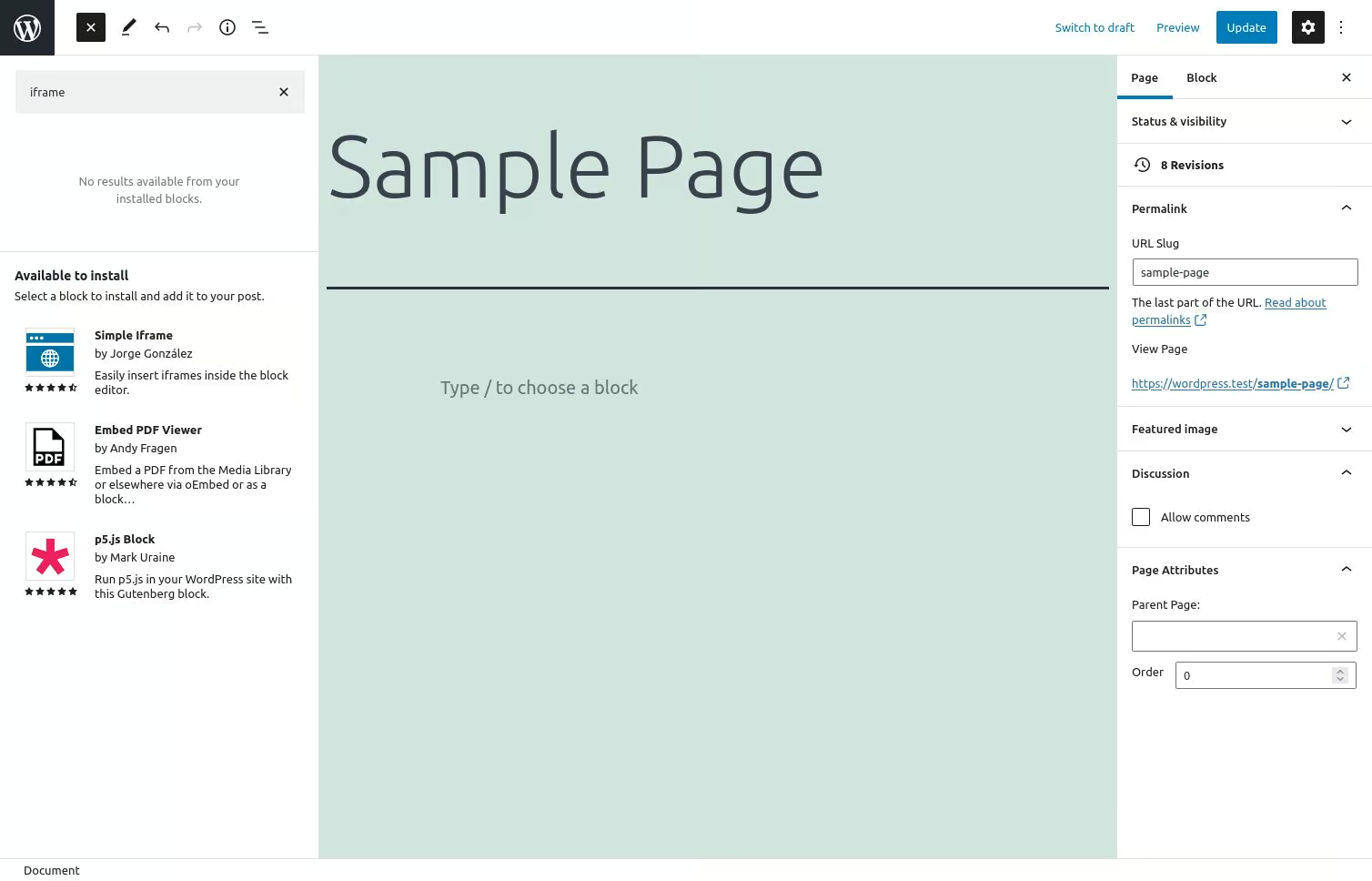
While the WordPress block editor does not have a default block for adding iframe, there are a number of plugins that support adding iframe to your WordPress posts and/or pages. Using a block would be the preferred method for adding an iframe to the page.
If you do not already have a plugin with an iframe block installed on your WordPress site, blocks can be searched and installed directly from the block editor. Alternatively, you can install the plugin using the WordPress admin dashboard and then return to editing your page/post.
Shortcode
If your website is using the classic editor, as opposed to the newer block editor, then you can add iframe to your pages and posts using a shortcode, which is provided by a number of plugins. Similar to the iframe block mentioned above, a shortcode can be used to add an iframe to your website.
Implementation example
To add iframe functionality via shortcode, you can add this code snippet to your theme’s functions.php file or a custom plugin:
function custom_iframe_shortcode($atts) {
    $attributes = shortcode_atts(
        array(
            'src' => '',
            'width' => '100%',
            'height' => '450',
            'scrolling' => 'no',
            'frameborder' => '0',
            'allowfullscreen' => 'allowfullscreen'
        ),
        $atts
    );

    return '<iframe src="' . esc_url($attributes['src']) . '"
                   width="' . esc_attr($attributes['width']) . '"
                   height="' . esc_attr($attributes['height']) . '"
                   scrolling="' . esc_attr($attributes['scrolling']) . '"
                   frameborder="' . esc_attr($attributes['frameborder']) . '"
                   ' . esc_attr($attributes['allowfullscreen']) . '></iframe>';
}
add_shortcode('iframe', 'custom_iframe_shortcode');
Once registered, you can easily embed content using this syntax:
[iframe src="https://www.youtube.com/embed/VIDEO_ID" width="560" height="315"]For Google Maps integration, simply adjust the parameters:
[iframe src="https://www.google.com/maps/embed?pb=!1m18!..." width="600" height="450"]Embed code (HTML)
Sometimes, a site’s embed code isn’t as simple as a URL. In such a case, the embed code can be added to a WordPress page using the HTML block. If this is necessary, then the site or service will provide the embed code that can be copied and pasted onto the page. In WordPress, this would use either the custom HTML block in the block editor or the HTML tab of the classic editor.
Real-world example: YouTube embedding
Here’s how to embed a YouTube video using the HTML block:
<iframe
  width="560"
  height="315"
  src="https://www.youtube.com/embed/dQw4w9WgXcQ"
  title="YouTube video player"
  frameborder="0"
  allow="accelerometer; autoplay; clipboard-write; encrypted-media; gyroscope; picture-in-picture"
  allowfullscreen>
</iframe>
Adding this to your WordPress page is straightforward:
1. Add a new Custom HTML block in the block editor
2. Paste the iframe code into the block
3. Preview and publish your changes
Real-world example: Google Maps
Similarly, you can embed Google Maps with this HTML code:
<iframe
  src="https://www.google.com/maps/embed?pb=!1m18!1m12!1m3!1d387193.3059390053!2d-74.2598688260!3d40.6971494059!2m3!1f0!2f0!3f0!3m2!1i1024!2i768!4f13.1!3m3!1m2!1s0x89c24fa5d33f083b%3A0xc80b8f06e177fe62!2sNew%20York%2C%20NY!5e0!3m2!1sen!2suk!4v1631013896758!5m2!1sen!2suk"
  width="600"
  height="450"
  style="border:0;"
  allowfullscreen=""
  loading="lazy">
</iframe>
Limitations of iframes
Keep in mind that not all web pages can be embedded. Some sites specifically prevent themselves from being embedded in another page.
If that is the case, check if the site or service has an alternative method that is recommended for embedding its content.
WordPress iframe FAQs
What is iframe Code?
iFrame stands for inline frame. iFrame code is HTML that embeds an element, such as a video, ads, or interactive content, into your page. Using iframe code on your site enables you to essentially feature content from another site on your page.
Does iframe work in WordPress?
Yes, iframe works in WordPress. To add iframe to WordPress, you can use a number of different methods, such as Embed Blocks, HTML, shortcodes, or plugins. Simply copy and paste the embed code into one of these elements to add iframe to your WordPress website.
How do I create an iframe embed code in WordPress?
It’s easy to create an iframe embed code in WordPress. Simply add an HTML block to your WordPress page, then paste in the iframe code, which may come from a YouTube video or a map, for example. Then, preview your changes to see the iframe embedded on your page.
How do I get an iframe embed code?
iFrame code typically comes from a third party, such as YouTube or a widget. To get an iframe embed code on your website, follow these steps:
- Add an HTML block to your page.
- Paste in your embed code.
- Save and publish your changes.
How do I embed code in WordPress?
It is easy to embed code in WordPress. You can embed code for videos, tweets, images, and more by using the Block Editor. Simply paste the URL into an Embed Block. You can also use the Code Embed plugin or an HTML block on your site.
Getting started with iframes in WordPress
iFrames can create some wins for your site by showing content that’s hosted elsewhere and improving the user experience with engaging content. Ultimately, however, the speed and efficiency of your site come down your server and hosting provider.
That’s where Liquid Web comes in.
Fully managed WordPress hosting from Liquid Web brings out the best in your site. With Liquid Web, you:
- Get premium tools at your disposal.
- Stay secure with Solid Security Pro.
- Load fast with built-in image compression, advance caching, and CDN.
And just in case something goes amiss, Liquid Web WordPress experts are there for you. Check out our fully managed WordPress hosting plans to get started today.
Additional resources
How to build a WordPress site →
A complete beginner’s guide that covers 9 key steps to a successful launch
WordPress shortcodes →
A comprehensive guide to get you started with shortcodes in WordPress
How to change a WordPress font →
Three different ways to get the look you want on your site

Kyle Johnson is a Senior Software Engineer at GiveWP. He spends evenings with his wife, wrestling JSON, their black lab.