◦ Comprehensive security
◦ 24/7 support
WordPress Guide → Build → Gutenberg Blocks
Gutenberg blocks 101: a complete beginner’s guide

Editing WordPress content used to mean staring at a plain text box and fumbling with shortcodes. Now, thanks to Gutenberg blocks, creating posts and pages feels more like using a modern website builder.
If you’re just getting started, blocks can seem a little overwhelming—but once you understand how they work, they’ll become second nature.
Get fast, reliable hosting for WordPress
Power your site with the industry’s fastest, most optimized WordPress hosting
What are Gutenberg blocks?
Gutenberg blocks are modular pieces of content you can add to a WordPress post or page. Each element—like a paragraph, heading, image, button, or video—lives inside its own “block.” Instead of typing everything into a single text box, you now build pages piece by piece.
The block editor (commonly called Gutenberg) was introduced in WordPress 5.0 to replace the Classic Editor. It allows you to drag, drop, and rearrange elements without coding. Think of it like building with LEGO pieces: every block is an individual brick, and together they form your page layout.
How Gutenberg blocks work
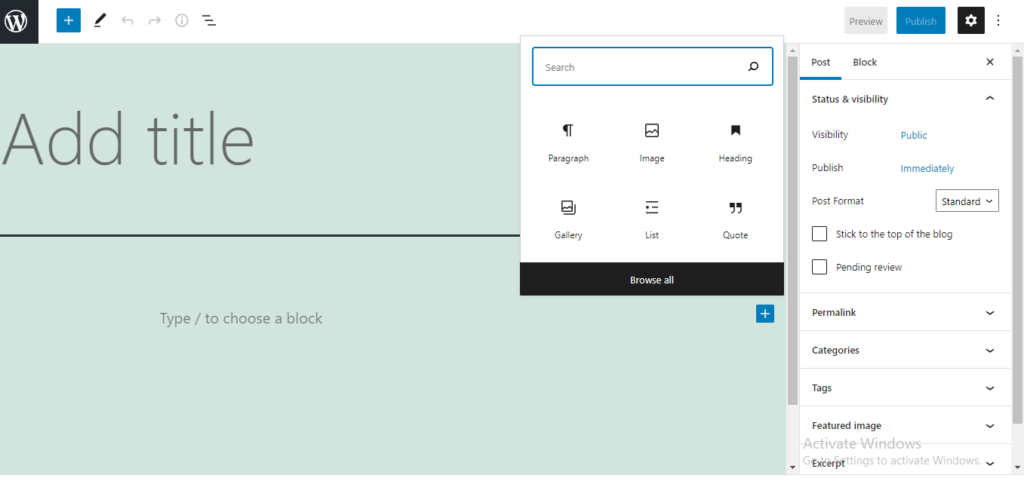
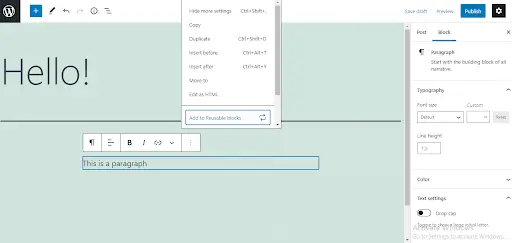
When you open the block editor, every new paragraph you type automatically becomes a block. You can add more by clicking the plus (+) icon, then choosing from a menu of available blocks.
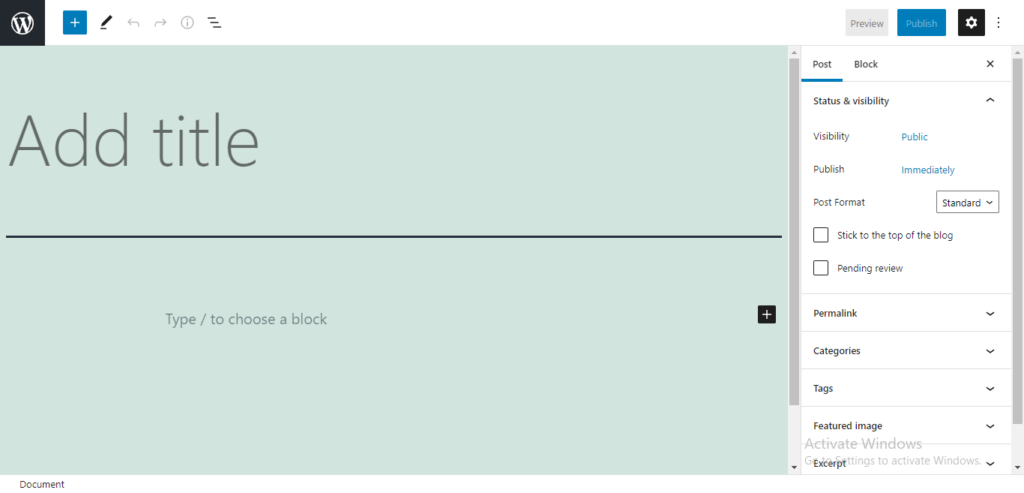
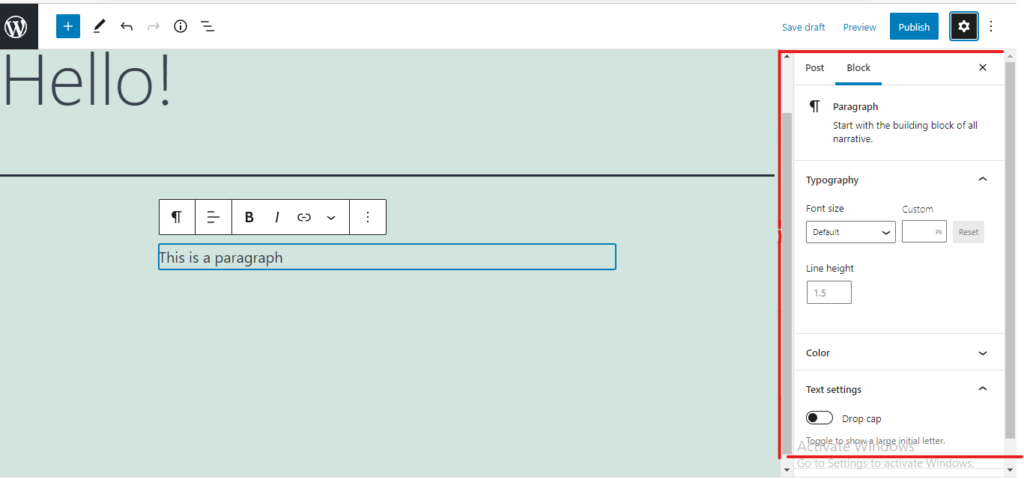
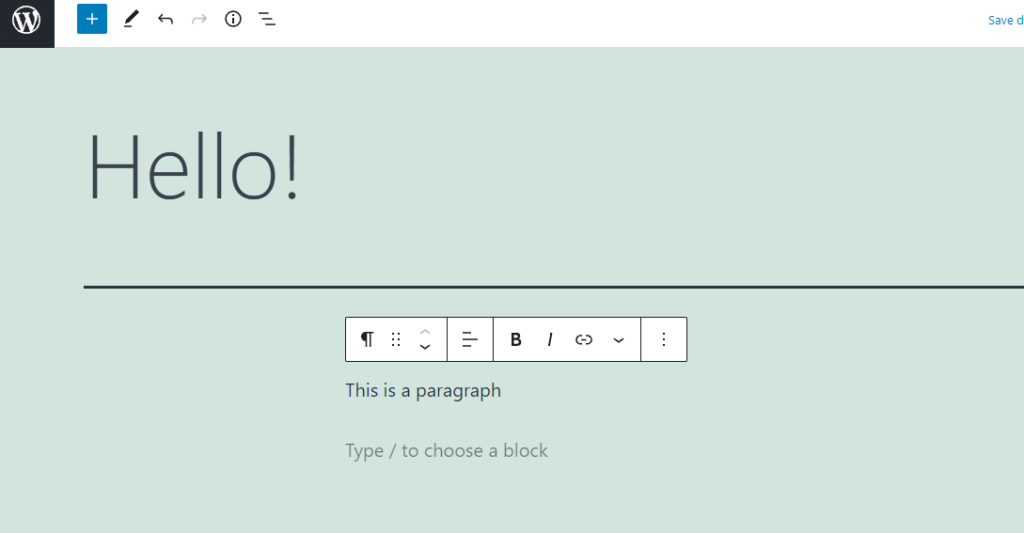
Each block has two sets of controls:
A small toolbar that appears above or beside the block. This lets you do quick edits like bold text, change alignment, or convert a block type.
A settings panel in the right-hand sidebar with more options—things like colors, typography, and spacing.
Blocks can also be moved up or down, grouped into sections, or transformed into different block types. For example, you can change a plain paragraph into a heading, or drop in a YouTube URL and instantly get a video embed.
Types of Gutenberg blocks
WordPress comes with a wide selection of built-in blocks, organized by category:
- Text and content: Paragraphs, headings, lists, quotes, and code snippets.
- Media: Images, galleries, videos, audio, and file downloads.
- Design/layout: Columns, buttons, spacers, separators, and cover images.
- Widgets: Things like latest posts, categories, shortcodes, and search bars.
- Embeds: Drop in a URL from YouTube, Twitter, Instagram, Spotify, or dozens of other platforms to display content automatically.
On top of that, you can create reusable blocks—saved elements you can use across multiple posts or pages, like a newsletter signup box or a disclaimer.
Benefits of using Gutenberg blocks
Gutenberg blocks make content creation faster and more flexible. Instead of wrestling with HTML or relying on a heavy page builder plugin, you can:
- Create professional-looking layouts without code.
- Control spacing, alignment, and design at the block level.
- Enjoy seamless compatibility with modern WordPress themes.
- Publish content faster by dragging and dropping blocks instead of formatting manually.
Advanced Gutenberg block features
As you get more comfortable, you’ll notice Gutenberg offers more than just basic text and images. Some features worth exploring include:
- Block patterns: Pre-designed block arrangements, like a pricing table or a call-to-action section, that save time.
- Reusable blocks: Save frequently used content and add it anywhere with a click.
- Group and cover blocks: Combine blocks to create sections with background colors, images, or videos.
- Global styles and theme.json: Newer WordPress themes let you control block design site-wide, ensuring a consistent look.
- Full Site Editing (FSE): In block-based themes, you can even design headers, footers, and templates with blocks.
Extending Gutenberg blocks with plugins
The default set of blocks is powerful, but you can add more with plugins. Popular block libraries like Spectra, Kadence Blocks, and Stackable expand your toolbox with advanced layouts, sliders, pricing tables, and more.
These plugins work just like core blocks but give you more design flexibility. If you need custom layouts or advanced design elements, they can save you from installing a bulky page builder.
Common Gutenberg block challenges (and solutions)
New users sometimes run into hiccups when working with blocks. A few common ones include:
- Alignment issues: If content doesn’t line up correctly, check the block’s alignment and spacing settings in the right-hand panel.
- Theme conflicts: Some themes don’t fully support Gutenberg styling. Switching to a block-ready theme usually solves this.
- Too many block options: Installing multiple block plugins can be overwhelming. Stick to one or two well-supported libraries.
- Cluttered layouts: Keep things simple. Use group blocks and patterns to stay organized.
Best practices for working with Gutenberg blocks
To make the most of Gutenberg, keep these tips in mind:
- Prioritize simplicity—complex layouts can confuse readers and slow your site down.
- Use reusable blocks for repeated content like disclaimers or signup forms.
- Combine layout blocks (like columns and groups) to design sections without needing CSS.
- Always update your theme and plugins for smooth compatibility with Gutenberg.
Gutenberg blocks vs page builders
Many WordPress site owners wonder whether Gutenberg can replace tools like Elementor, Divi, or Beaver Builder. The short answer: it depends.
Gutenberg is lighter, faster, and fully integrated into WordPress. For blogs, small business sites, and simple layouts, it’s usually all you need.
Page builders still offer more advanced design control and pre-built templates, so they’re helpful for complex sites. But Gutenberg is improving quickly, and for most beginners, it’s the better place to start.
How to publish a post on WordPress with Gutenberg
Once you are done editing, you have to publish or make your post go live on your website. You can start with the publishing process by clicking on the “publish” button at the top right corner of your Gutenberg page. After clicking on the publish button, there will appear a few options you can alter to your liking.

Visibility settings help you control and restrict who can view your content. You can also schedule posts to go live at a specific date or time. This way, you don’t have to manually push the publish button whenever you want your post to go live. Adding tags is also recommended because they can help viewers find your content.
Before you go ahead and publish your post, Gutenberg allows you to preview how it will look on different screens like desktop, tablet, and mobile.

When you make sure that everything looks great, you are ready to publish your content.
Gutenberg block FAQs
Next steps for Gutenberg blocks
Gutenberg blocks make it easier than ever to design and publish in WordPress. They give beginners the tools to create professional-looking content without coding or expensive page builders.
If you’re just starting out, experiment with the built-in blocks first. Once you’re comfortable, try adding reusable blocks and patterns, or explore a block library plugin for extra design power.
Ready to upgrade your WordPress experience? Professional hosting improves speeds, security, and reliability for a website and a brand that people find engaging and trustworthy. Liquid Web’s WordPress hosting options configure business-class servers and support plans specifically for WordPress websites.
And if you don’t want to deal with server management and maintenance, our fully managed hosting for WordPress is the best in the industry. Our team are not only server IT experts, but WordPress hosting experts as well. Your server couldn’t be in better hands.
Click through below to explore all of our hosting for WordPress options, or chat with a WordPress expert right now to get answers and advice.
Additional resources
How to build a WordPress site →
A complete beginner’s guide that covers 9 key steps to a successful launch
How to edit a WordPress footer→
Design and build a professional footer for your
What is managed WordPress hosting? →
What it means, how it can help, and how to decide if it’s right for you