

◦ Comprehensive security
◦ 24/7 support
What is WordPress? A beginner’s guide
If you’re starting your first website, you might be wondering what is WordPress? You’ve almost certainly seen the name WordPress around. It powers around 43% of all websites on the internet, from personal blogs to global news outlets. In fact, the website you’re reading this on is a WordPress site.
But what is WordPress, exactly? Is it free? Do you need to know how to code? And what’s the difference between WordPress.org and WordPress.com? This guide answers all of that in plain English, with no technical jargon.
What is WordPress? An overview
WordPress is a free and open-source content management system originally built for blogging and now used for almost every type of website. It started in 2003 when Matt Mullenweg and Mike Little created a fork of b2/cafelog, an abandoned blogging platform. A ‘fork’ simply means they took the existing open-source code and built their own version on top of it.

Today, WordPress is the most used content management system in the world. It powers around 43% of all websites and holds roughly 60% of the CMS market, more than every other content management system combined.
So what’s behind that dominance? A big part of the answer is that WordPress is free and open-source software. Anyone can use it however they please, with no licensing costs.
You only pay for the things you’d pay for with any website: hosting, your domain name, and any premium plugins or themes you choose to add.
How does WordPress work?
WordPress gives you a user-friendly dashboard for managing every part of your website: content, plugins, themes, users, and settings. The WordPress admin is the control panel where site owners spend most of their time.
WordPress runs on PHP and a MySQL database (or its drop-in replacement, MariaDB). You don’t need to know either to use it. The WordPress core handles the heavy lifting, and the dashboard gives you a visual interface for everything.
For writing and editing pages, WordPress uses the block editor, also known as Gutenberg. Each piece of content (a paragraph, image, button, or gallery) is a block you can drag, drop, and rearrange. It’s closer to a modern website builder than the plain text editor WordPress shipped with for its first 15 years.
What is WordPress used for?
WordPress is used for just about everything. It started life as a blogging platform, but the same software now runs online stores, business websites, news sites, portfolios, podcasts, job boards, and much more.
Some of the most common types of websites you can build with WordPress:
- Blog. A site dedicated to sharing thoughts, photos, reviews, tutorials, recipes, and so on. Blogs typically display the most recent posts first.
- Ecommerce website. Sell goods or services online and accept payments. The most popular WordPress ecommerce plugin is WooCommerce, which adds full online store functionality to any WordPress site.
- Business website. Most businesses benefit from having their own website. Customers can learn about you, contact you, request a quote, or book an appointment.
- Membership website. Put content behind a paywall or login. WordPress handles this with plugins.
- Portfolio website. Show off your work with a portfolio built on WordPress. Designers, photographers, and developers all use it for this.
- Event website. Share event details and sell tickets in one place.
- E-learning website. Run online courses, track student progress, and sell access. A WordPress LMS plugin like LearnDash makes this possible.
If you can think of a type of website, you can probably build it with WordPress. That’s a big reason why so many web developers default to WordPress for client projects.

What is a WordPress website?
Any website that uses WordPress as its content management system (CMS) is a WordPress website. There are a lot of them, including some you’d recognize.
NASA, Rolling Stone, the Meta Newsroom, and the famous Copenhagen restaurant Noma are all featured in the WordPress.org showcase as live WordPress sites. On the enterprise side, WordPress VIP case studies document Ubisoft, Katie Couric Media, ADWEEK, and Recurrent Ventures running on WordPress.

In short, WordPress is used by individuals, small businesses, and Fortune 500 brands. The same software that powers a personal travel blog also runs major news outlets and global corporate websites.
WordPress.org vs. WordPress.com: What’s the Difference?
If you search for ‘WordPress,’ you’ll quickly run into two domains: WordPress.org and WordPress.com. They sound similar, but they’re very different products.
What is WordPress.org?
WordPress.org is the WordPress most people mean when they say ‘WordPress.’ It’s the free, open-source software that powers around 43% of the web. This is what we’ve been talking about for most of this article.
WordPress.org is also called self-hosted WordPress. You download the software for free, then install it on your own web hosting account. Most hosting providers offer one-click WordPress installation, so the technical side is handled for you.
Once it’s running, you have full access to all available themes, plugins, and customization options. There are no real limitations with self-hosted WordPress. You can build whatever you want, add any plugin, install any theme, and modify the code however you like.
What is WordPress.com?
WordPress.com is a hosting service from Automattic, the company founded by WordPress co-founder Matt Mullenweg.
The free WordPress.com plan gives you limited hosting, a small selection of themes and plugins, and a WordPress-branded subdomain (like yourname.wordpress.com). WordPress.com displays its own ads on free sites, and you don’t earn any revenue from them. The free version is fine for hobbyists who want a basic blog for friends and family.
Paid WordPress.com plans (Personal, Premium, Business, and Commerce, as of this writing) lift many of these restrictions. The higher tiers open up more themes, plugins, and customization options. Even so, they don’t quite match the freedom of running self-hosted WordPress from WordPress.org.

Is WordPress right for me?
Here’s why so many people choose WordPress (WordPress.org) as their website platform of choice:
- Simplicity. You can publish content and build pages quickly, even as a beginner. If you can use a word processor, you can use WordPress.
- Free to use. The WordPress software itself is free to download and use. You only pay for web hosting and a domain name.
- Flexibility. WordPress works for personal blogs, online stores, business websites, news sites, and almost everything in between.
- Open-source software. WordPress is licensed under the GNU General Public License (GPL). It isn’t owned by a single company, and hundreds of developers and users contribute to improving it. Open source means constant updates, accountability, and free use for everyone.
- No code required. You don’t need to know HTML, CSS, or PHP to build a WordPress website. The platform handles the technical side.
- Extendable with WordPress plugins. Plugins add new features to your site, from contact forms and SEO tools to backups and ecommerce. There are over 70,000 free plugins on the WordPress.org plugin directory, plus a large premium plugin industry.
- Customizable with WordPress themes. Themes control the design and layout of your site. Switch themes and the entire look changes with one click. More advanced themes act like full website builders, giving you control over every layout.
- An active community. Local WordPress meetups, WordCamps, and online communities are full of people willing to help. The WordPress community is known for being welcoming and innovative.
- A premium plugin and theme industry. Free plugins and themes are great, but most serious site owners eventually buy one or two premium ones. Paid plugins and premium themes fund ongoing development and support, and tend to be more reliable for production use.
Why should I use WordPress?
The single biggest reason most people use WordPress is that it’s easy to use. The second is the sheer amount of free help available. Whatever problem you run into, someone has already written a tutorial or recorded a YouTube video about it.
However, WordPress isn’t perfect for every project. Here are the trade-offs.
Pros of WordPress
- It can be as simple or complex as you need. No formal training is required to get a basic site running.
- The ecosystem is mature. Hosting providers, analytics tools, SEO plugins, and design integrations all support WordPress out of the box.
- The CMS itself is free. You only pay for hosting, a domain name, and any premium add-ons you want.
- Its source code is open. You can change anything you like, or hire a developer to do it for you.
- Themes and plugins make it easy to add design and functionality without writing code, resulting in a smoother user experience for both you and your visitors.
Cons of WordPress
- You’re responsible for site maintenance, backups, security, and updates. Managed WordPress hosting can take most of this off your plate, but the responsibility is yours.
- Some advanced customizations might need a little HTML or CSS knowledge.
- Themes and plugins vary in quality. A poorly built theme can be slow or non-mobile-responsive, and a buggy plugin can break things.
- WordPress isn’t a drag-and-drop builder by default. Page builder plugins like Elementor or Beaver Builder add this functionality if you want it.
Is WordPress safe to use?
WordPress itself is well-maintained and updated regularly by a dedicated security team. The risk for most sites comes from outdated plugins and themes, not from WordPress core.
Around 90% of WordPress security vulnerabilities originate in third-party plugins and themes rather than the core software. Hackers also target WordPress more than any other CMS, simply because it’s the most widely used. The same popularity that makes WordPress an easy choice also makes it a frequent target.
The fix is straightforward. Keep WordPress, your plugins, and your themes updated. Use a security plugin like Kadence Security to harden your site. Pick a hosting provider that takes security seriously, and avoid plugins from unknown sources.
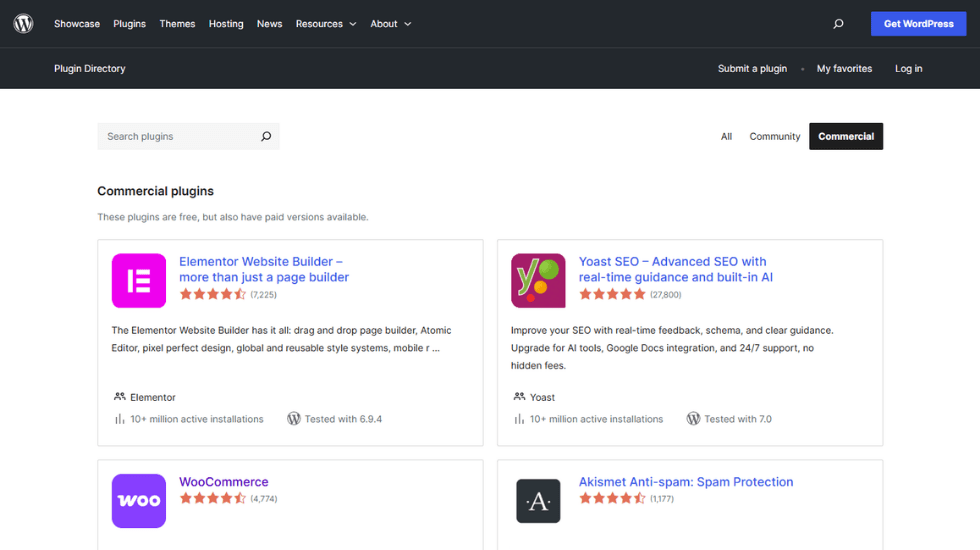
What is a WordPress plugin?
A WordPress plugin is a package of code you upload to your website to add new features or integrations.
You can install plugins from the Plugins menu in your WordPress dashboard. The built-in search lets you browse the WordPress.org plugin directory, where you’ll find tens of thousands of free plugins.
You can also upload plugins as zip files through the same menu. This is how you install premium plugins purchased from third-party developers.
Must-have WordPress plugins for all WordPress sites
Most WordPress websites benefit from these plugin types:
- A WordPress backup plugin. WordPress doesn’t have a built-in backup feature, so a backup plugin is essential. Kadence Backups lets you back up, restore, or move your site between hosts.
- WordPress security plugin. A security plugin like Kadence Security closes common vulnerabilities and hardens your site against attacks by hackers. With WordPress being the most-used CMS, it’s also the most-targeted, so security is non-negotiable.
- A SEO plugin. An SEO plugin like Yoast SEO or Rank Math adds search engine optimization features that help your content rank.
- A WordPress form plugin. A form builder adds contact forms, surveys, file upload forms, and more.
- WordPress ecommerce plugin. If you want to sell online, a WordPress ecommerce plugin like WooCommerce gives you a full online store.
- WordPress donations plugin. Give lets you accept donations through customizable forms, view donor data, and integrate with major payment gateways.

What is a WordPress theme?
A WordPress theme provides the design framework for your website.
Most themes give you:
- The overall look, feel, and style of your site.
- Site-wide font choices.
- A color scheme.
- Styles for blog posts and archive pages.
- Page layouts and templates.
- Widget locations.
- Smaller stylistic details.
Some themes act as page builders themselves, letting you create custom layouts without touching code.
You can install themes from the Appearance > Themes menu in your WordPress dashboard. The built-in search lets you browse free themes from WordPress.org, and you can also upload premium themes as zip files through the same menu.

One of the most-used WordPress themes: Kadence
If you’re picking a theme, Kadence is a fantastic one to get you set up and running quickly. It’s built for sites that need design freedom and strong performance without custom code.
Kadence covers the core look and feel of your site, but the real flexibility comes from the surrounding products. Kadence Blocks adds drop-in design blocks to the WordPress block editor for building custom layouts. Shop Kit gives WooCommerce stores extra tools for product displays, checkout flows, and conversions. Kadence Conversions handles popups, banners, and slide-ins for growing email lists or running promotions.

How do I get started with WordPress?
Launching a WordPress site is easier than most people expect. There’s a slightly involved manual route and a much simpler one, but either way, you’ll need to:
- Find a trusted web host (ideally one that specializes in WordPress hosting).
- Buy a domain name.
- Install WordPress.
You can download WordPress from WordPress.org and follow their step-by-step instructions to install it manually. Or you can take advantage of the one-click WordPress installation that most major hosting providers offer.
With Liquid Web’s managed WordPress hosting, the WordPress CMS is ready when you log in, with pre-installed plugins and update management built in. You also get expert support from a team that knows WordPress inside out.
Getting started can feel intimidating, but it doesn’t have to be. If you’d rather not worry about hosting, learn how Liquid Web’s managed WordPress hosting can get your site up and running.
Additional resources
What is managed WordPress hosting? →
Get details and decide if managed WordPress hosting is right for you.
How to build a WordPress site →
9 detailed steps to help walk you through your first setup
A complete guide to WordPress shortcodes →
Shortcodes make life easier. Learn how to get started!