 David Singer
 In this article we will briefly cover the basics of monitoring your server via WHM. By following this process you will learn how to find: service status, resource usage, and Apache stats.
Step 1.
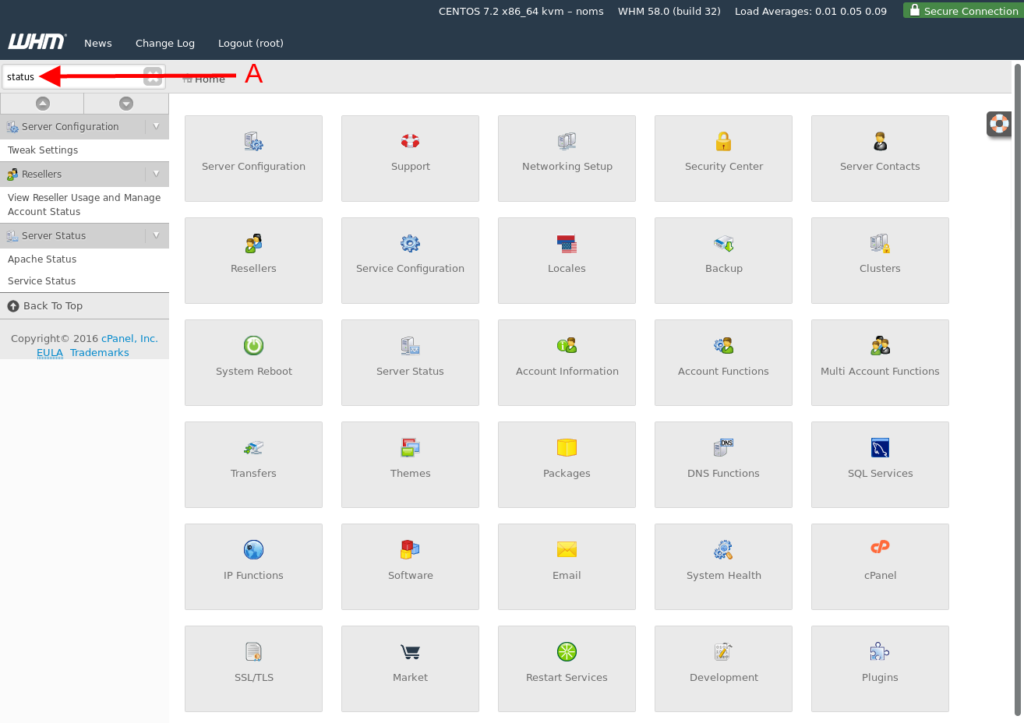
With WHM open in your web browser, (a) type “status” into the search box. This should sort the list to only a few items.
Step 2.
Click “Service Status” from the list. This will open the service status page, here you can view the status of various services and server info.
[su_box title=”Note:” style=”glass” box_color=”#3ac6eb” radius=”20″]If there is a problem the green checkmark icon will turn into a red ‘x’ icon.[/su_box]
Step 3.
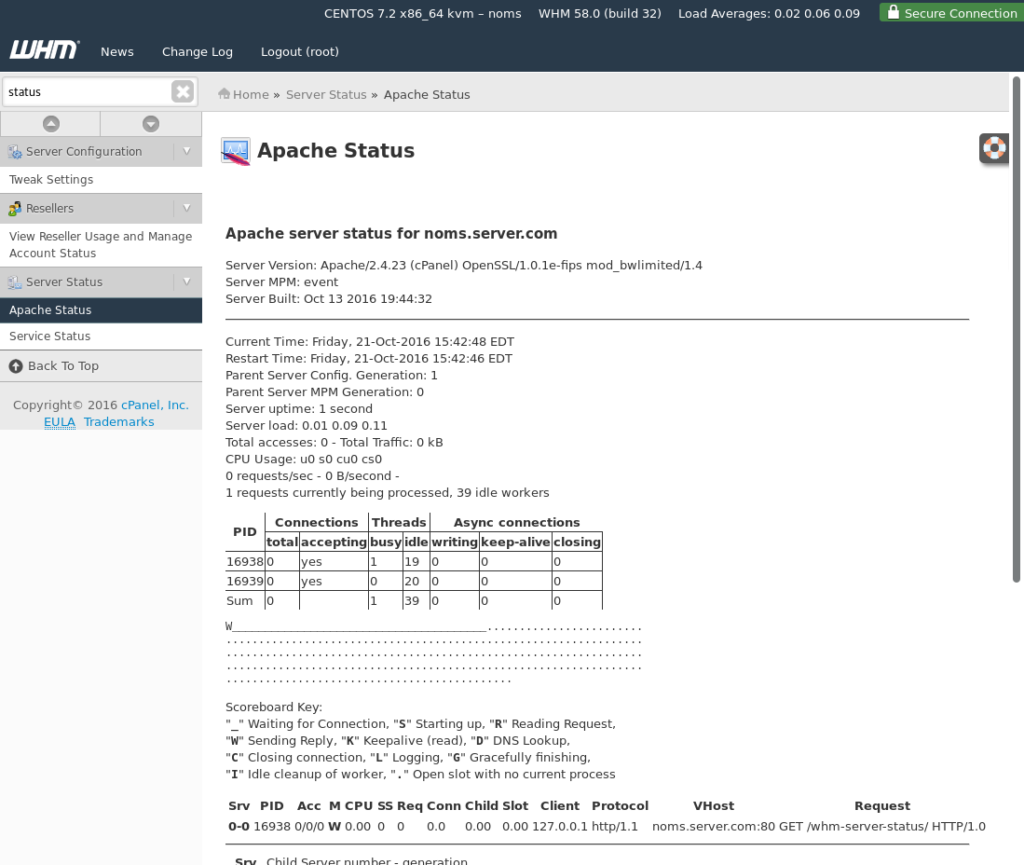
Now, with the same search, click “Apache Status” from the list. This will show you the current state of Apache on the server.
Conclusion
By following this tutorial you should now know how to monitor your Server’s overall status and the status of various services. As always for our Liquid Web customers the dedicated Sonar Monitoring™ team is monitoring your server 24/7.
Talk To An Expert Today!
Our Support Teams are replete with talented Linux technicians and System administrators who have an intimate knowledge of multiple web hosting technologies, especially those discussed in this article.
If you are a Fully Managed VPS server, Cloud Dedicated, VMWare Private Cloud, Private Parent server or a Dedicated server owner and you are uncomfortable with performing any of the steps outlined, we can be reached via phone @800.580.4985, a chat or support ticket to assisting you with this process.