 Ronald Caldwell
 The cPane IP Blocker is a useful tool that allows you to block your site from a single IP address, domain, or range of IP addresses. Knowing how to use the IP Blocker in cPanel can add another layer of security to your website.
Requirements
- A server running cPanel, like Liquid Web’s cPanel VPS.
- Login credentials for cPanel.
Use the IP Blocker in cPanel
1. Login to cPanel.

2. Under Security, click IP Blocker.

3. Under Add an IP or Range, enter the IP address, domain, or range of IPs based on the given formatting and click Add.
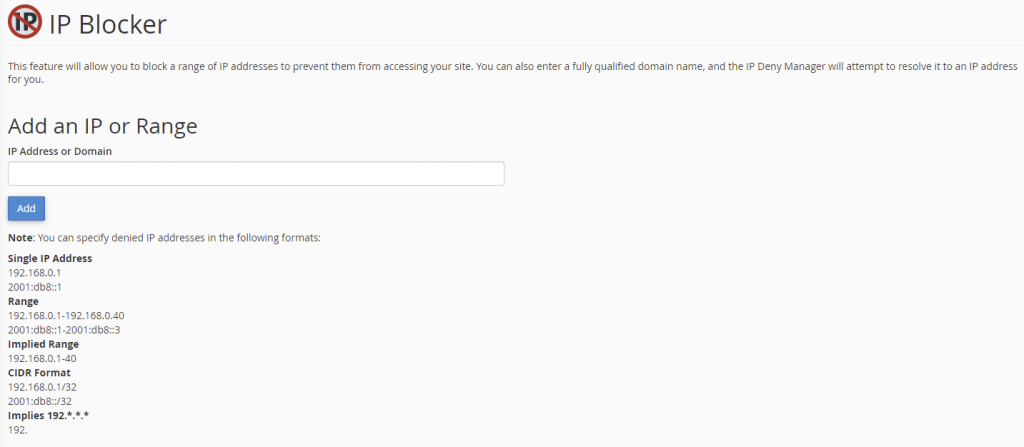
4. A green confirmation appears confirming the IP or range is blocked from accessing your website.

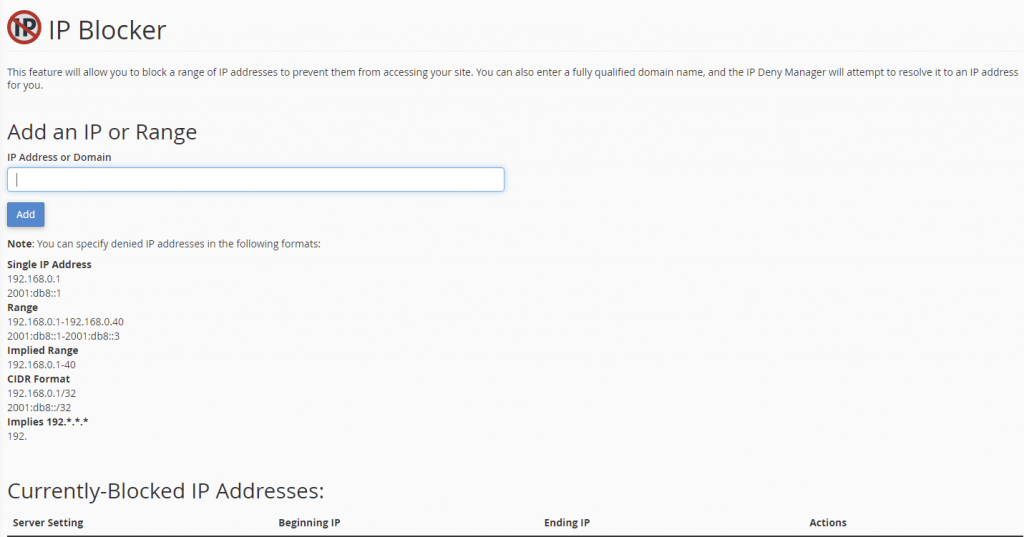
5. Navigate back to the main IP Blocker page to view and manage currently blocked IP addresses.
Wrapping Up
Securing your site is vital in today’s environment. This guide highlights one of many tools used to fight unwanted traffic. Make sure your system administration team knows how to use the IP Blocker in cPanel to provide your website with the necessary security.
Liquid Web provides existing cPanel customers with 24/7/365 support for operations such as these. Make sure you have the managed experience on our VPS hosting, cloud dedicated servers, anddedicated servers with cPanel by contacting our sales team today.