 Jason Dobry
WinSCP allows you to securely upload and download files to and from your Nexcess server. Use the method below to set up
- Download WinSCP and install the application.
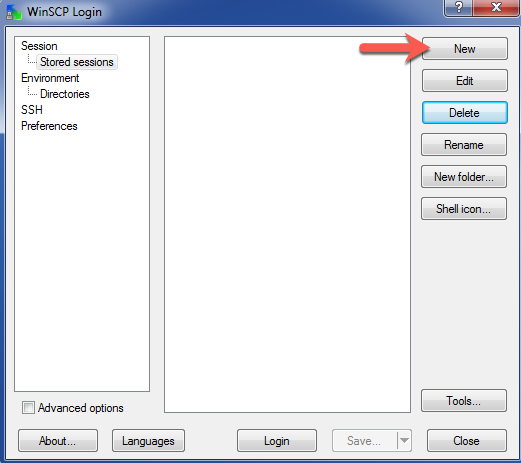
- Start the application. When the login panel appears, click New.

- Click New.
- In the WinSCP Login panel:
- From the File protocol drop-down list, select SFTP.
- Go to the Hostname field and type the server name, for example, demo.nexcess.net.
- In the Port number field, enter either 22 or 24. If your username resembles an email address, enter Port 24. If it does not, enter Port 22.
- In the Username field, type the SSH username.
- In the Password field, type the password provided by Nexcess.
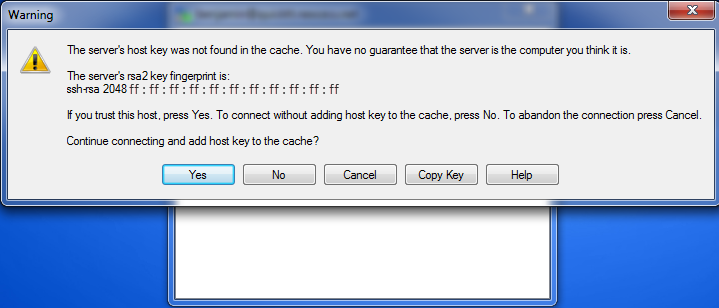
- You will see a warning to notify you that you are connecting to a remote machine. Click Yes.

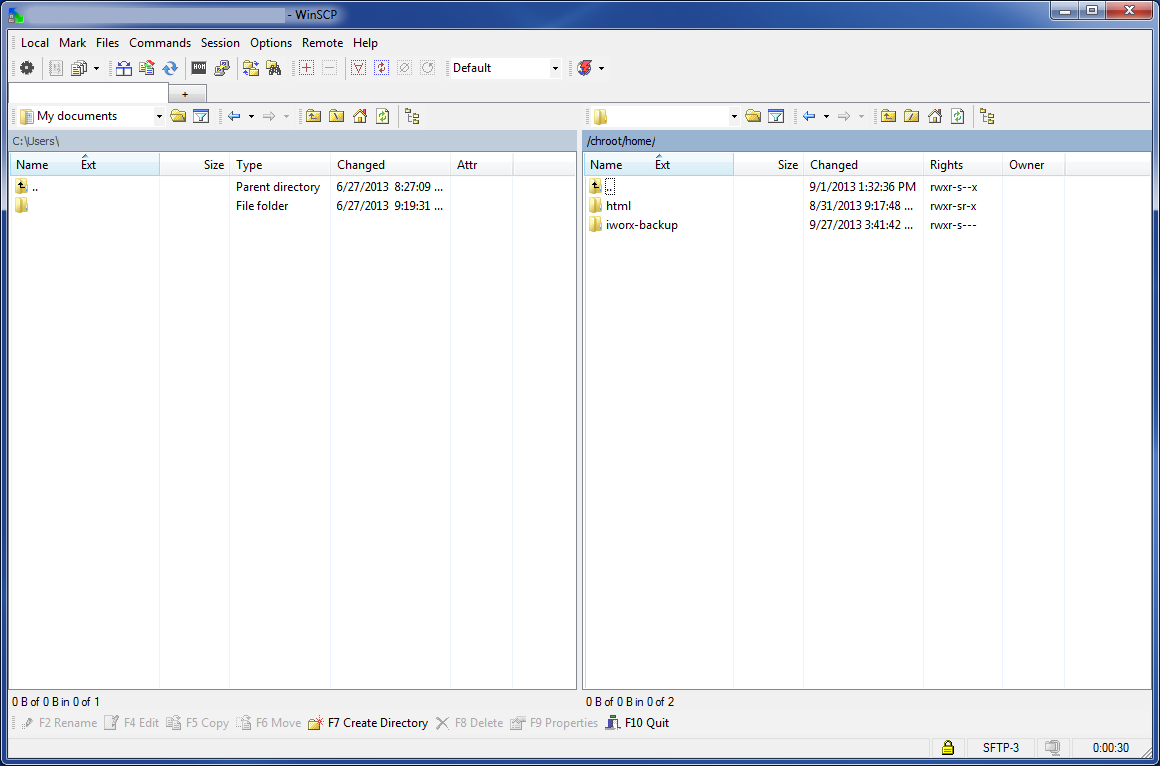
- WinSCP will connect you to the Nexcess server and you will see two panes. You may now copy files to and from your server by click-and-dragging files from one pane to the other.

For 24-hour assistance any day of the year, contact our support team by email or through your Client Portal.