 Ronald Caldwell
 There are instances when it is necessary to send traffic from one domain or page to another. Knowing how to set up domain redirects in cPanel helps you accomplish this. Send visitors from to one site or page to another URL using this tutorial.
Requirements
- A server running cPanel, such as Liquid Web’s VPS for cPanel.
- Login credentials for cPanel.
Set Up Domain Redirects in cPanel
1. Login to cPanel.

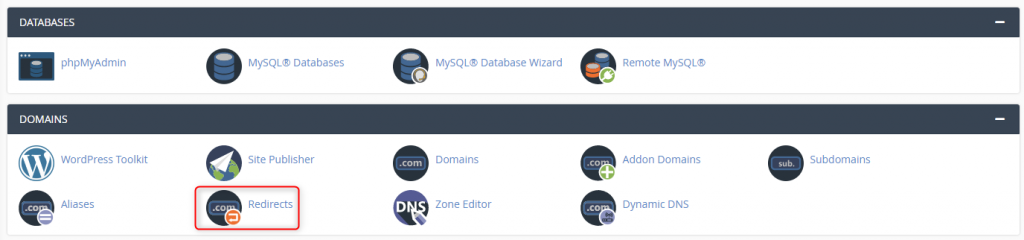
2. Under Domains, click Redirects.
3. Under Type, choose Permanent or Temporary from the dropdown menu for the duration of the redirect. From the https?://(www.)? dropdown menu, select the URL to redirect. You can choose specific ones from your account or All Public Domains.

4. Under Redirects to, enter the destination URL to which you want to redirect. Then select the radio button for how you want to handle www. redirection. Once complete, click Add. You receive a green confirmation message.
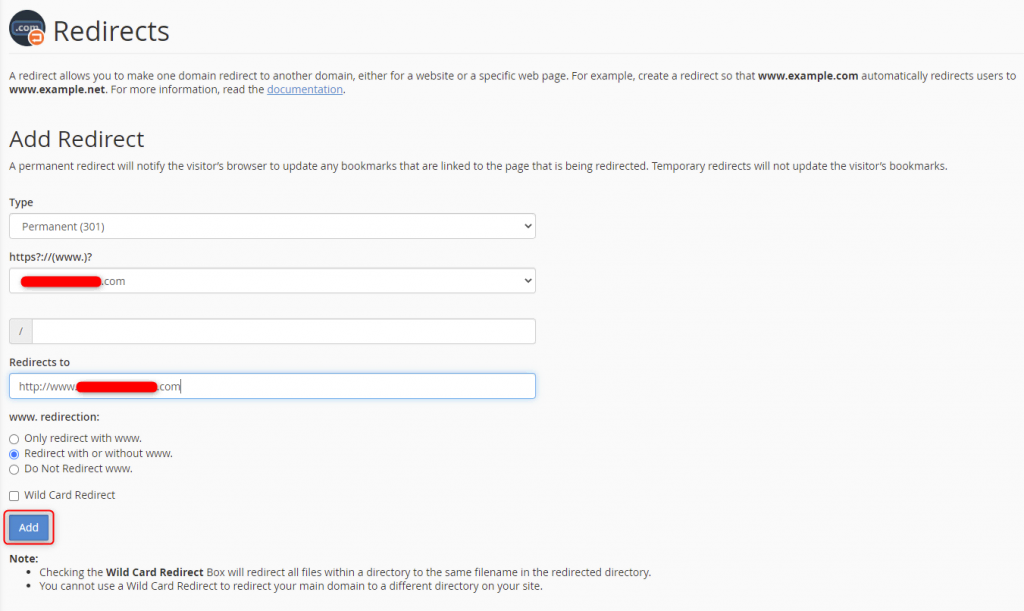
The redirect is entered and traffic will redirect to the desired location.
Wrapping Up
Use this guide to set up domain redirects in cPanel. Your traffic will redirect as you instruct, allowing you to send traffic away from one domain and send it to another.
Get cPanel on Liquid Web’s VPS hosting, cloud servers, and dedicated servers. Contact our sales team for more information on getting set up.