
 Amritha Varshini
 One of the most inexpensive ways to host your business online without having to contend with the hassles of a dedicated server is using a virtual private server (VPS). Whether your VPS is Linux- or Windows-based, you should be well-versed in the tools used to connect and work with it. This article will explore the options you have for remotely logging into a VPS of any kind as a system administrator. The primarily software tools required will be described for the reader’s benefit.
As your business expands, you will probably outgrow shared hosting and begin to feel restricted by it. Dedicated hosting, meanwhile, can still be too costly for your company. The ideal solution for your requirements might be to choose a VPS hosting package over dedicated hosting.
As you educate yourself with regard to VPS hosting, you should be aware that each instance of VPS security is separate from the other server settings. In the case of shared hosting, your website is vulnerable to other websites’ vulnerabilities since it shares resources with them. VPS hosting provider protect you from resource-intensive attacks. By including firewalls, antivirus programs, and other software safeguards, you may further increase the security of your virtual server:
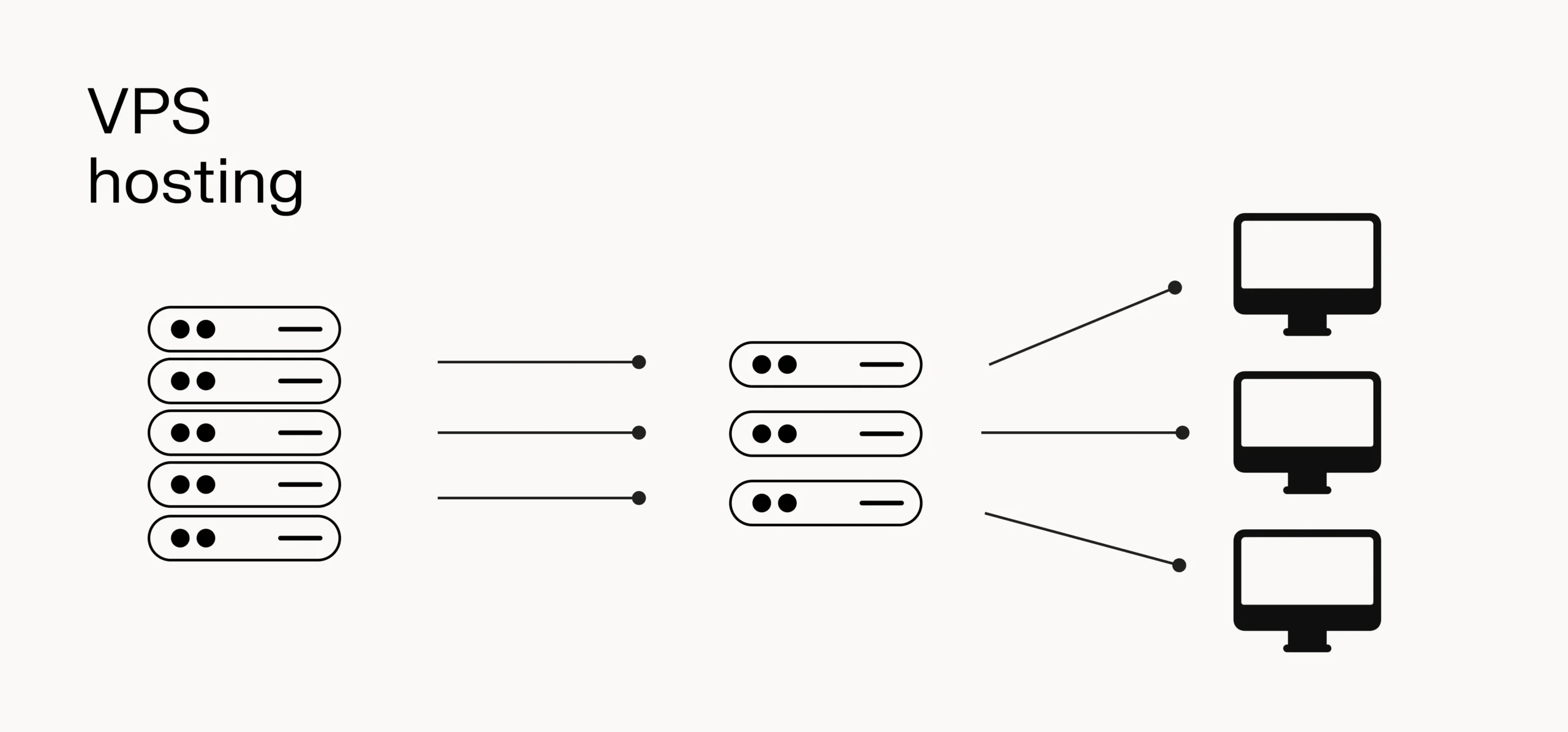
In such instances, a virtual private server (VPS) serves as an intermediary solution, offering you greater freedom at a reduced expense. With a Secure Shell (SSH) connection, you may easily access and control your virtual private server (VPS) from any computer — regardless of its flavor of operating system.
There are various benefits associated with VPS hosting. It provides increased performance, security, cost-effectiveness, scalability, and flexibility.
Key points in this article
The following key points are discussed in this post:
- What is SSH?
- What is PuTTY?
- How do you connect to a Linux-based VPS from a Windows machine?
- How do you connect to a Linux-based VPS from a Linux machine?
- How do you connect to a Windows-based VPS from a Windows machine?
- Guidance on where to look for instructions with regard to connecting to a Windows-based VPS from a Linux machine
An overview — how to connect to a VPS using Linux or Windows
A Linux virtual private server (VPS) is just a virtual private server running a Linux distribution in terms of the operating system used for web hosting, like Debian, Ubuntu, CentOS, Red Hat Enterprise Linux (RHEL), etc. In an equivalent form of a configuration, a VPS can be set up to run on a Windows server.
Visit our comprehensive blog post on what is a VPS to learn more about this category of web servers and their applications. The, continue reading this document to learn how to connect to a VPS using Linux or Windows in the following scenarios:
- Connecting remotely to a Linux-based VPS from a Windows machine
- Connecting remotely to a Linux-based VPS from a Linux machine
- Connecting remotely to a Windows-based VPS from a Windows machine
- Searching for information on connecting remotely to a Windows-based VPS from a Linux machine
What is SSH?
Users can access a Linux server’s command line directly with SSH or Secure Shell, an extremely strong and secure network protocol as you understand how to connect to a VPS. This allows you to operate files and apps on your VPS server and run Linux commands from the comfort of your home or place of business. Remember that port 22 will always be used by SSH by default. However, for security reasons, we advise you to change the port, as this is the first port that potential hackers would attempt to use during an attack.
Windows does not have SSH by default; it is already integrated into Linux and macOS. For this reason, before trying to connect to a server running Linux from a machine running the Windows operating system, you must first install an SSH client like PuTTY.
How do you connect to a Linux-based VPS from a Windows machine?
Connecting via PuTTy and Windows is straightforward. To establish an SSH connection to your server, you can use PuTTY, a free software program for Microsoft Windows operating systems. When learning how to connect to a VPS, knowing the ins and out of the PuTTY utility is fundamental.
What is PuTTY?
Initially created for Windows by Simon Tatham, PuTTY is an SSH and telnet client. PuTTY is volunteer-driven software that is available for download and development. We will be using this third-party PuTTY program to connect to the Linux server from a Windows device.
Using Windows to connect to a Linux-based VPS — step #1
Open the PuTTY terminal application. After doing so, the following PuTTY Configuration window will appear:

Using Windows to connect to a Linux-based VPS — step #2
Enter the parameters for your connection:
- Name of Host: Enter IP address of your server
- Port: 22 (default)
- Connection Type: SSH (default)
Using Windows to connect to a Linux-based VPS — step #3
To initiate the SSH session, click Open. You should get a terminal prompt asking for your username as soon as the SSH connection is open.
Using Windows to connect to a Linux-based VPS — step #4
Input root as the root username on your server.
Using Windows to connect to a Linux-based VPS — step #5
After that, enter your password. It is available through the client portal. Once you’ve entered it, press the Enter key.
How do you connect to a Linux-based VPS from a Linux machine?
You can use Linux to establish a connection with a server. Follow the instructions in the next section.
Using Linux to connect to a Linux-based VPS — step #1
Launch the terminal. You can accomplish this by simultaneously pressing the Ctrl+Alt+T keys on the keyboard or by typing “terminal” into the search bar.
Using Linux to connect to a Linux-based VPS — step #2
Enter the command ssh username@serveripaddress, where serveripaddress is the IP address of the server you are connecting to, and username is the name of the user you are connecting to the system with (use root if you want root access). Next, click Enter.
Using Linux to connect to a Linux-based VPS — step #3
Type the chosen user’s password and press the Enter key.
How do you connect to a Windows-based VPS from a Windows machine?
Windows users can use a Remote Desktop Connection (RDC) or Remote Desktop Protocol (RDP) client to establish a connection to a Windows virtual private server (VPS). Let’s review how to connect to a VPS using Windows.
Establishing an RDP connection to a Windows VPS
An individual can access a desktop computer remotely via the Remote Desktop Protocol (RDP). The remote user can access, open, and edit desktop files even when the source desktop is far away. This feature enables remote users to connect to and use desktop computers separated by distance. The instructions laid out it the next sections will show you how to connect to an RDP VPS on Windows 10 successfully. The steps provided should be similar those involved for Windows 11 as well.
Using Windows to connect to a Windows-based VPS — step #1
Log into your local system, then click the Start menu or the press the Windows button on the keyboard.
Using Windows to connect to a Windows-based VPS — step #2
Go to Windows Accessories > Remote Desktop Connection from the Programs menu.
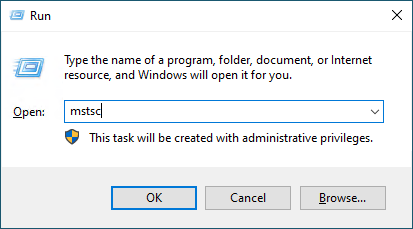
Alternatively, you can choose Run from the Programs menu found within the Windows desktop interface. Then when the Run dialog box appears, type “mstsc” in the resulting text field with the label Open and click the OK button:
Using Windows to connect to a Windows-based VPS — step #3
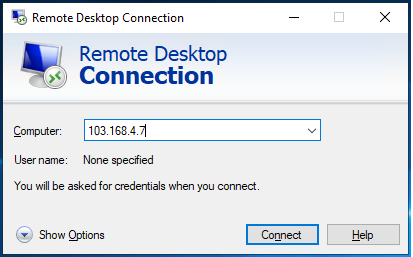
After being prompted to input the computer name or your server IP address, click the Connect button:
Using Windows to connect to a Windows-based VPS — step #4
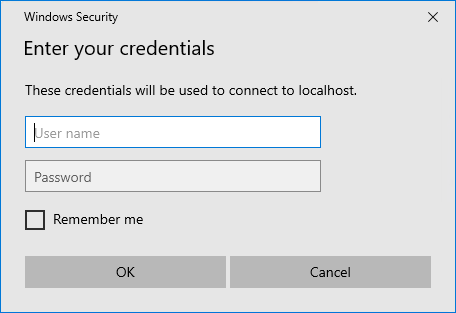
You will be asked to enter your VPS username and password in a new window.
You can enable the system to remember your login credentials by checking the Remember Me checkbox, which can speed up future connections. In that case, you won’t have to enter these credentials when using the saved ones. After that step, just click the OK button to continue.
After the procedure is finished, you will be successfully logged into the Windows VPS, allowing you to access another PC remotely:
Wrapping up
Although it is less frequently used, and therefore not covered in this article, there are a few different ways to use a Linux machine to connect to a Windows-based VPS. A Google search on the topic will yield several helpful results.
Without feeling limited by shared hosting, a virtual private server (VPS) is a practical and adaptable approach to managing the data and information for your company’s online presence. Once you decide on using a VPS, select a quality VPS provider and hosting package, then you will want to become an expert with regard to all the nuances of optimal VPS management.
For beginners, Linux and Windows server management can be quite difficult. We hope the article helped you better understand SSH and virtual servers.
This in-depth tutorial helped you initiate the process of learning how to log in and manage your Linux system. For those with managing a Windows-based web server, there some specifics that you will need to be aware of.
For example, Remote Desktop Protocol (RDP) is a simple method for connecting to a Windows virtual private server (VPS). It enables users to securely manage and access their remote desktops or servers from a distance. Users can connect to their Windows VPS from a Windows operating system by following the above-described methods.
Not hosting with Liquid Web yet?
In case you weren’t aware, Liquid Web offers an array of VPS hosting plans —including ASP.NET VPS — backed by the best customer service in the industry.
Our team of experts is available 24/7/365 to address any problems, concerns, or questions you may have.
Check out our VPS plans to get started today, or reach out to chat.