 Ronald Caldwell
 Managing DNS can be a daunting, but rewarding task. For those managing DNS on their server, it is vital to know how to add a record with DNS Zone Editor in cPanel. This knowledge proves necessary and helps DNS management easier.
Use this guide to learn how to add a record with the DNS Zone Editor in cPanel.
Requirements
For this guide, you need the following:
- A server with cPanel running. We’re using Liquid Web’s cPanel VPS.
- Login credentials and permissions for cPanel.
How to Add a Record With the DNS Zone Editor in cPanel
1. Login to cPanel.

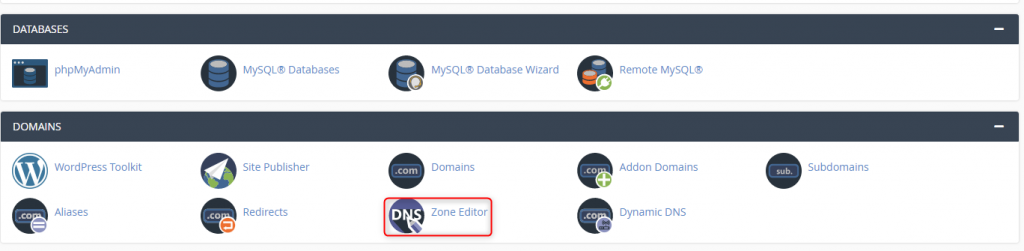
2. Click Zone Editor.
3. Next to the domain for which you want a record created, click the type of record. For this tutorial, an A Record is created.
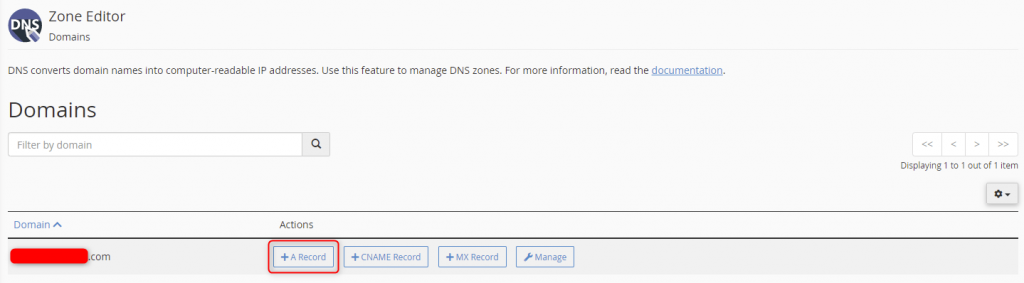
4. A message box appears to enter the name for the record followed by the IP address to which you want it to point. Once you have completed all fields, click Add An A Record.

5. A green confirmation appears in the upper right-hand corner of the interface.

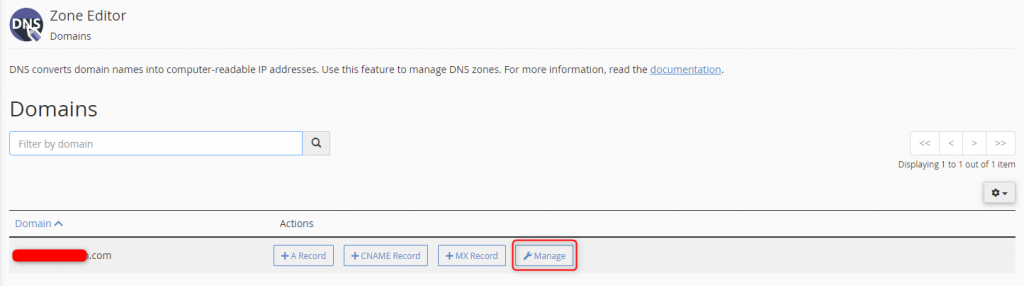
The A Record creation was successfully created for your domain. To view and manage records for that or any other domain, navigate to the Zone Editor screen and click Manage next to the domain.
To add a different kind of record, repeat these steps and select the appropriate record.
Wrapping Up
Managing DNS on cPanel does not have to be a stressful endeavor. This tutorial on how to add a record with the DNS Zone Editor in cPanel should be a tool in your system administration arsenal.
Another tool you need is Liquid Web’s 24/7/365 support for cPanel servers. If you’re not getting the managed experience, our VPS hosting, dedicated cloud servers, and dedicated servers with cPanel are an excellent starting point. Contact our sales team today.