◦ Comprehensive security
◦ 24/7 support
WordPress Guide → Hosting → AWS
How to host a WordPress site on Amazon Web Services (AWS)

AWS is the world’s largest provider of cloud hosting services, with a vast global infrastructure spanning multiple continents. This network of data centers and edge locations means your WordPress site can be served from locations closest to your visitors, resulting in faster page loads and better user experience. It hosts popular companies such as Apple, Netflix, and Twitter, leveraging this infrastructure to deliver content globally.
So, if you’re looking for a potential host for your WordPress website, AWS could be worth considering, although it requires more work than standard hosting providers and website builders.
For those wanting to learn how to host a WordPress site on AWS, we explore that and more in this step-by-step guide.
If you’re confident AWS is right for you, you’ll have enough information in this article to launch your WordPress site via the AWS platform. But the right web hosting platform is as individual as your site itself. Choosing AWS simply because it’s the most popular may not be the best decision for you or your business.
Stick around and we’ll show you why Liquid Web may be a better choice for your online hosting needs.
Get fast, reliable hosting for WordPress
Power your site with the industry’s fastest, most optimized WordPress hosting
What is Amazon Web Services (AWS)?
Amazon Web Services is an on-demand suite of comprehensive cloud computing tools Amazon offers. It features over 200 services, including various infrastructure, platforms, and software tools, which can help your business increase its computing power, database storage, and content delivery services.
Part of the allure of AWS is that it leverages Amazon’s extensive network. Customers can access its enterprise software solutions, like Lightsail and WordPress, in data centers worldwide. This global infrastructure means your WordPress site can benefit from reduced latency, as content is served from the nearest data center to your visitors, resulting in faster page load times and better user experience.
What is Amazon Lightsail?
Amazon Lightsail is one of the many services offered under AWS. It’s a Virtual Private Server (VPS) that lets you build and run websites and web applications in a secure, efficient, and cost-effective environment.
If you’re a small business, student, or web developer, you can use Lightsail to launch and deploy projects quickly and affordably.
It also works for hosting AWS WordPress instances as it contains load balancers, DNS management, and containers. You can seamlessly run a blog website, ecommerce store, or web application.
While Lightsail is an excellent choice for many WordPress sites, AWS offers other deployment options too. You can use Amazon EC2 (Elastic Compute Cloud) for more advanced setups that need additional AWS services like S3 for media storage, RDS for database management, and Lambda for serverless functions. Alternatively, you can deploy pre-configured WordPress installations from the AWS Marketplace, such as the popular Bitnami package, which offers a middle ground between Lightsail’s simplicity and EC2’s flexibility.
Costs of using Amazon AWS
If you’re just starting out with Amazon (AWS) WordPress hosting, you’ll find that AWS takes a unique approach to pricing its services. You don’t pay a fixed fee or follow a tiered pricing structure.
Instead, AWS charges per hour or minute. This pay-as-you-go structure has both upsides and downsides. On the one hand, you can pay as little as $0.50 a month to host a static website, a price you’ll get at no other hosting service.
But the opposite is also true.
If you opt for a complex server setup, you might pay upwards of $250 monthly. That fee includes a Windows Server License, multiple vCPUs, and massive RAM usage.
That’s not all.
You may also incur extra charges for exceeding your account limits. For instance, if you exceed your account’s allocated outbound data transfer limit, you could end up with “surprise” charges on your bill.
To help estimate your potential costs before committing, AWS provides a helpful pricing calculator. This tool lets you input your expected usage patterns and see estimated monthly costs, helping you avoid any surprise charges. You can access the calculator at calculator.aws.amazon.com to plan your WordPress hosting budget effectively.
Pros of Lightsail and WordPress
There are many reasons to opt for Amazon Lightsail for your Amazon (AWS) WordPress hosting needs. Let’s explore the most compelling ones:
Ideal for beginners
Amazon Lightsail is user-friendly and intuitive, even for absolute beginners transitioning from shared hosting to VPS. Unlike traditional shared hosting where resources are split among many users, your VPS on Lightsail gives you dedicated computing power and memory. This means better performance and security, without the complexity of managing a full EC2 setup.
You can set up your Amazon Lightsail account in minutes and have your WordPress website up and running, while still benefiting from the robust AWS infrastructure.
Once inside, the Lightsail management console lets you access all essential controls and configuration settings for hosting AWS WordPress instances in a single location. You can set up your DNS, static IP address, and server by yourself.
However, this process may still be more intricate than it should be, compared to other similar website builders.
Scalable
AWS allows you to increase your website’s resources when you feel ready to grow and expand. You can allocate more RAM, increase storage capacity, and increase vCPUs for your AWS instance. You can also opt for a smaller Lightsail instance if you need to scale down.
For larger sites needing more complex scaling options, you can migrate from Lightsail to EC2, where you can leverage additional AWS services like Auto Scaling groups, Elastic Load Balancing, and Amazon CloudFront for content delivery. This flexibility ensures your WordPress site can grow alongside your business.
Affordable
You can set up a maximum monthly cost for your Lightsail Instance. Your plan won’t exceed this maximum monthly cost unless you exceed your set resources.
Cons of Lightsail and WordPress
Being the “most popular” WordPress hosting platform is not without its drawbacks. The sheer size and customer scope of AWS’s platform creates some challenges for users. Let’s explore them in more detail down below.
Limited technical support
Like other WordPress hosting services, you enjoy 24/7 customer support with your Amazon Lightsail account.
However, this customer service doesn’t include technical support. You’ll need to purchase a separate support package to get help with technical problems, which may cost upward of $29 a month.
Manual scaling may lead to lost customers
While Amazon Lightsail is flexible, its flexibility relies on you, the customer. Unlike EC2 which can use Auto Scaling groups, the resources for your Lightsail account won’t autoscale once you hit the upper limit of your instance.
For high-traffic WordPress sites that need automatic scaling, you might want to consider migrating to EC2 where you can implement:
- CloudWatch for monitoring and automated responses
- Auto Scaling groups for handling traffic spikes
- Elastic Load Balancing for distributing traffic
- RDS for managed database scaling
Similarly, Lightsail won’t adjust your plan downward if you use fewer resources. It’s up to you to adjust the settings of your account or contact a Lightsail representative. If your website grows rapidly, you may lose customers before you have the chance to login and change your Lightsail settings.
Choosing the right AWS deployment method
While this guide focuses on Lightsail, it’s worth understanding your options for hosting WordPress on AWS:
1. Lightsail: Best for small to medium websites and developers who want a straightforward VPS solution with predictable pricing. It provides everything you need to run WordPress in one package.
2. EC2: Ideal for high-traffic websites that need fine-grained control over their infrastructure. With EC2, you can:
- Store media files in S3 for better performance
- Use RDS for managed database services
- Implement Lambda functions for custom functionality
- Set up CloudFront for global content delivery
3. AWS Marketplace: Perfect for those who want pre-configured solutions. Options like the Bitnami WordPress stack provide a middle ground between Lightsail’s simplicity and EC2’s flexibility.
How to host a WordPress site on AWS using Lightsail
Here are the steps to hosting a WordPress website on AWS.
1. Assess the cost of Lightsail
Before you begin, consider using the AWS pricing calculator to estimate your monthly costs. For a typical WordPress site on Lightsail, you’ll want to calculate:
- Instance costs (computing resources)
- Storage costs
- Data transfer costs
- Optional services like load balancers
This will help you choose the right instance size and avoid unexpected charges as your site grows.
Once you’ve arrived on the site, click ‘create estimate’.
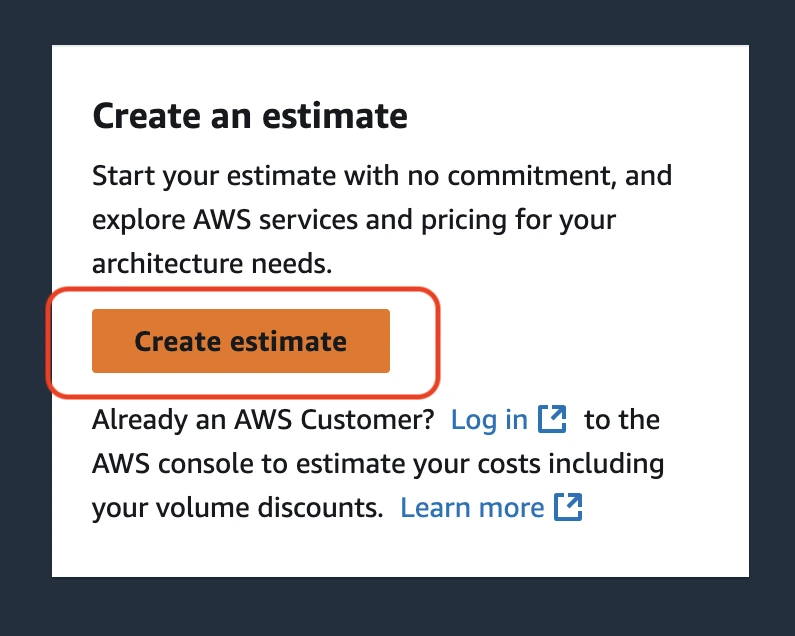
Next, search for Lightsail in the ‘Find service’ search bar. The service will appear below. Click on ‘configure’.

Next, you’ll be directed to a page where you can configure your estimate. This includes providing a description, choosing a region, and specifying your server requirements.

Once you’re happy with your selection, click ‘Save and view summary’. You’ll then be taken to a page with your AWS Lightsail estimate.

2. Purchase a domain
Once you’ve assessed the cost, you’ll need to register a domain name.
- Purchase a domain from the available domain name options.
- Go to a domain registration service.
- Enter your desired domain name.
3. Set up your AWS account
Log in to your AWS account. If you don’t already have one, you can take advantage of their 12-month free tier plan.
You’ll also get a 30-day free trial of Amazon Lightsail.
Please note that it may take up to 24 hours after signing up for some or all AWS services to become active. In case it takes longer, contact AWS customer support for help.
4. Create a WordPress instance in Lightsail
Once you’ve created and activated your AWS account, create a WordPress instance.
To begin, open the Lightsail console. To access the console, select build using virtual servers from the build a solution section.
From the Lightsail console, create a Lightsail instance.
Lightsail detects your AWS region and availability zone to build this WordPress instance. Amazon does this to provide optimum settings for your website based on their global infrastructure. Choose a region closest to your target audience for the best performance – AWS’s worldwide network of data centers ensures low-latency access to your site. If you prefer different settings, you may change these values.
Once you’ve selected your ideal instance location and availability zone, Lightsail will direct you to choose an instance image. Under this section, select Linux/Unix. Lightsail will ask you to select a blueprint for your instance. Select WordPress.
As your final step, Click on the create instance button.
5. Configure your WordPress instance
Although your WordPress instance has already been created, you’ll need to configure it before building your WordPress website.
On your AWS Lightsail console, click on the instances tab and select the instance you created. Click on the SSH-quick-connect icon next to it to open a browser-based SSH client in a separate window. In this SSH window, enter:
cat $HOME/bitnami_application_passwordThe SSH client will display your password to the WordPress dashboard. Write down this password before closing the SSH client.
6. Log in to the WordPress admin dashboard
From your Lightsail console, check the public IP address displayed at the bottom right of the WordPress instance card. Type this IP address into the address bar of a new tab in your browser. That’ll lead you to a WordPress login page.
Log in to your WordPress account using your AWS email address and the WordPress password retrieved from the SSH client earlier.
7. Add a custom domain to your Lightsail WordPress instance
From your Lightsail dashboard, select the networking tab and click on the select DNS zone button.
Add your custom domain to the address box and click on the create DNS zone button.
Next up, you need to change DNS server settings with your domain registrar. This process varies from one provider to another, so read their official documentation for further details.
Once you change DNS settings with your domain registrar and save your changes, you’re ready.
8. Create a static IP address and map the root of your domain
From the networking tab, select create static IP.
Open the attach an instance dropdown and select your new WordPress instance to this static IP address. Give this static IP address a unique name and click the create button.
Once done, go to the DNS records tab and click Add record.
In the subdomain box, type @ to map the root of your domain.
Next, click on the resolves to box and choose the static IP address you attached to your new WordPress instance.
Save your changes.
Please note that it may take up to 24 hours for your internet DNS to propagate across the internet.
Growing beyond Lightsail
As your WordPress site grows, you may find yourself needing more advanced AWS services. Here’s when to consider each option:
Stay with Lightsail when:
- Your traffic is predictable
- You don’t need advanced AWS services
- You prefer simplified management
- Your budget benefits from fixed pricing
Consider EC2 when
- You need auto-scaling capabilities
- Your site requires custom server configurations
- You want to use services like RDS, S3, or Lambda
- You need advanced monitoring and logging
Consider AWS Marketplace when:
- You want pre-configured optimizations
- You need specific security configurations
- You want managed updates and patches
- You prefer a middle-ground solution
AWS isn’t your only choice
Learning how to host a WordPress site on AWS takes hard work, dedication, and a lot of technical skill. Add to that AWS’s lack of technical support, and it’s easy to see why going with a “popular” big-name provider may amount to more headaches than it’s worth.
If you’re in the market for a hosting provider for your site, you owe it to yourself to check out Liquid Web fully managed WordPress hosting before committing to a “big box” provider like AWS.
Liquid Web offers fast, secure, and scalable hosting services for businesses large and small. No site is too complex, as Liquid Web managed WooCommerce can easily handle the most complex ecommerce sites – providing the insights and sleek, simple design features you need to keep your ecomm customers coming back again and again.
Our customers also receive 24/7 support from our team of experts and can rest easy knowing their site is protected by “always-on” 24/7 security. Can AWS do all that? We didn’t think so.
Getting started with AWS
Ready to take the training wheels off your WordPress site? Upgrade to professional hosting and see how better speeds, security, and reliability provide a foundation for a website and a brand that people find engaging and trustworthy. Liquid Web’s WordPress hosting options configure business-class servers and support plans specifically for WordPress websites.
Click through below to explore all of our WordPress hosting options, or chat with a WordPress expert right now to get answers and advice.
Additional resources
What is managed WordPress hosting? →
Get details and decide if managed WordPress hosting is right for you.
Complete guide to using WordPress with a CDN (content delivery network) →
Discover how a CDN improves WordPress performance by reducing load times and enhancing global content delivery.
A complete guide to WordPress shortcodes →
Shortcodes make life easier. Learn how to get started!