

Blended Learning
Blended learning combines online course content with scheduled virtual or in-person sessions. This format supports regulatory or accreditation requirements by allowing course creators to designate specific Lessons, Topics, or Quizzes as external learning events.

Feature Capabilities
- Designate a Lesson, Topic, or Quiz as Virtual (e.g., Zoom) or In‑Person
- Enable or disable Required Attendance
- Allow Admins or Group Leaders to track attendance and manually complete the step
Before You Begin
Ensure each external content piece meets one of these conditions:
- You have a scheduled virtual platform (Zoom, Teams, etc.).
- You have access to a physical classroom.
- You have at least one Admin or Group Leader available to verify attendance and mark completion.
How To Use Blended Learning
- In the WordPress dashboard, go to LearnDash LMS → Lessons (or Topics/Quizzes).
- Edit the item to designate as external.
- Click the Settings tab.
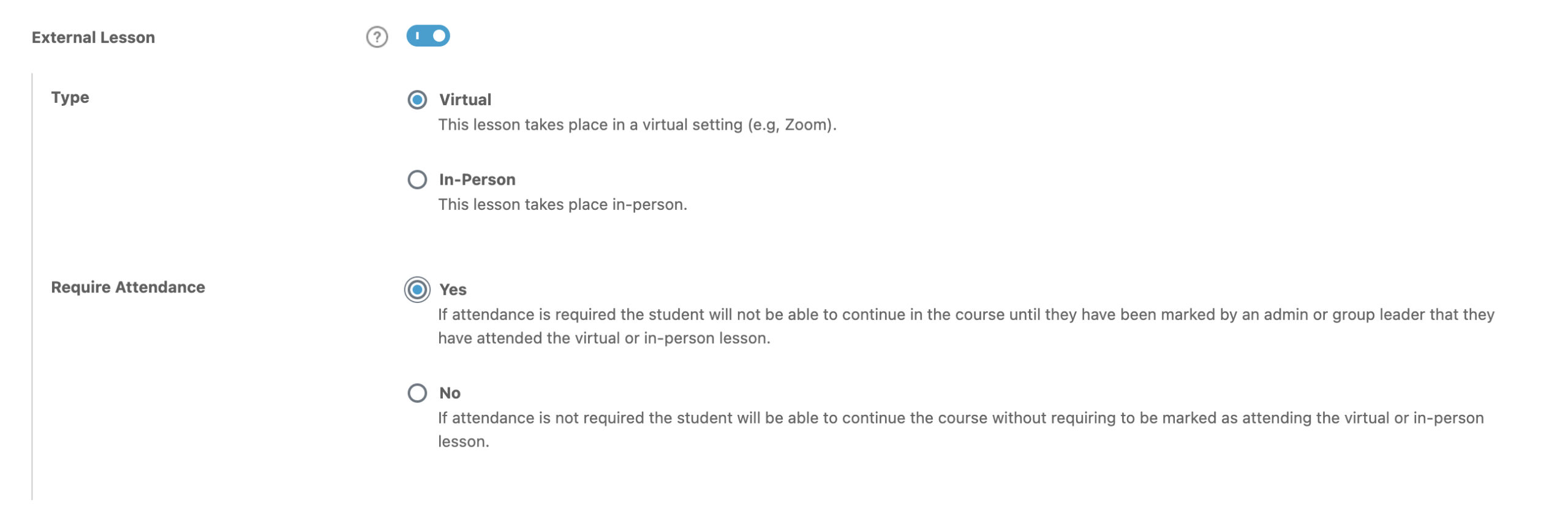
- Find Access Settings, then enable External Lesson/Topic/Quiz.
Under Type, choose:- Virtual – for online sessions (e.g., Zoom, Teams)
- In-Person – for onsite sessions
- Set Require Attendance:
- Yes – students must be marked as attended by an Admin or Group Leader before they can continue:
- Students cannot continue to the next course step (if Linear Course Progression is enabled) until an Admin or Group Leader marks them as attended
- The Mark Complete button will not appear on the page
- The Admin or Group Leader must manually mark the step as complete from each student’s User Profile in the backend
- Important: Each student must be marked individually—bulk marking is not supported
- No – students can proceed without being marked as attended:
- Students will see a Skip Event button that functions the same as Mark Complete, allowing them to move forward
Marking Attendance
Admins or Group Leaders are responsible for marking attendance when Require Attendance is set to Yes. This is done manually from each student’s User Profile in the WordPress dashboard.
Important: There is no bulk action available. Each course step must be marked completed one student at a time.
How to Mark Attendance in a User Profile:
- Go to Users > All Users in the WordPress admin panel
- Click the username of the student whose progress you want to update
- Scroll down to the Course Progress section
- Click the (details) link next to the course name to view the student’s lesson, topic, and quiz progress.
- Find the relevant step (Lesson, Topic, or Quiz)
- Check the box to mark the step as complete
- Click Update to save the changes
- Once saved, the student will be able to continue with the course (if Linear Progression is enforced)