 Maddy Osman
 If you’ve frequently noticed the 503 Service Temporarily Unavailable error on your website, here’s some reassurance: it’s a common issue for enterprises and large businesses, especially those growing rapidly.
When your website begins to outgrow its hosting, this issue is bound to appear. 503 errors can also trigger due to regular server maintenance, haywire plugins, and other causes you’ll soon identify.
A temporary service outage may not seem like a big deal — in fact, large businesses lose an average of $1 million for each hour of downtime. At that rate, even one minute of downtime is a huge chunk of change.
To save yourself stress in the future, let’s review what a 503 error is, what causes it, troubleshooting tactics, and how to stop it from happening again.
Here’s what we’ll cover:
- What is a 503 error?
- What causes the 503 Service Temporarily Unavailable error?
- How to fix 503 Service Temporarily Unavailable
- How to prevent 503 Service Unavailable errors
- Final thoughts: How to fix the 503 Service Temporarily Unavailable error
What is a 503 error?
The 503 Service Unavailable error code indicates that a website won’t load because the server cannot handle the request. That’s usually because the host server is overloaded with requests, but it could also be offline entirely. There are other reasons this HTTP response status code can trigger, but they’re less common.

You may have seen variations in wording for the 503 Service Temporarily Unavailable error, such as:
- HTTP error 503.
- 503 Service Unavailable.
- Error 503: Service Unavailable.
- Unavailable for scheduled maintenance.
For context, there are five classes of HTTP status codes. Errors 500 through 599 all relate to server errors — hence, error 503 indicates a server-side problem and everyone who tries to load the website will see this error.
This makes the 503 status a big deal. When internet users encounter a website error, most will instantly leave and look elsewhere. That’s how businesses lose leads, loyalty, and revenue. Plus, it skyrockets your bounce rate, which hurts your SEO.
Now that you know what this error is, it’s time to dig into the root of the issue.
What causes the 503 Service Temporarily Unavailable error?
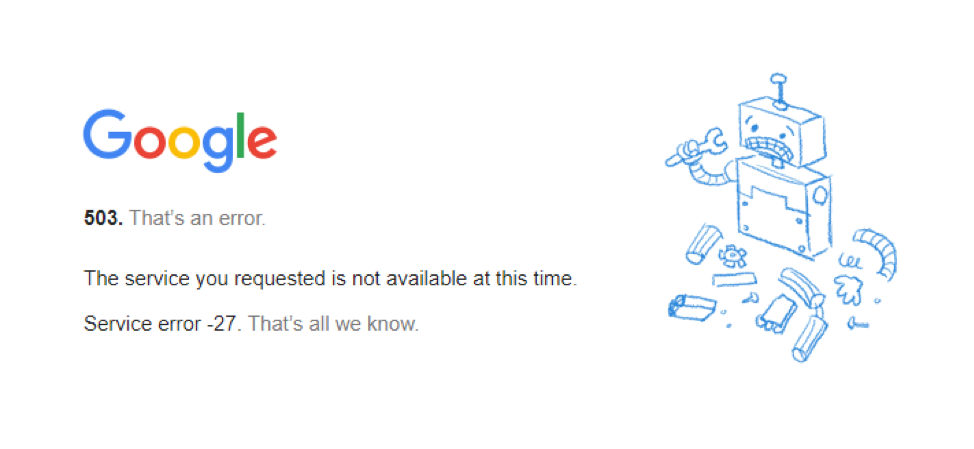
Knowing what causes error 503 will help you determine which fixes to try first. Here are the most common triggers.
Resource exhaustion and traffic spikes
While many potential causes exist, the culprit is often an overloaded web server.
Likely, you’ve outgrown your web host’s service plan. When you max out your allotted server capacity, 503 errors will crop up — the server is failing to stay ahead of the load due to throttled resources.
Resource exhaustion could stem from a sudden and temporary spike in traffic, for instance, a major holiday or your website going viral.
Many of Liquid Web’s hosting plans — including managed cloud, managed WordPress, and managed WooCommerce — include autoscaling to prevent resource exhaustion. Whenever your website’s resource consumption shifts or spikes, your server allotment will automatically adapt.
Finally, 503 errors can result from a distributed denial of service (DDoS) attack: A hacker targets your website, overwhelms it with fake traffic, and typically demands a ransom to stop doing so. This scenario typically afflicts enterprises.
To determine if these triggers are relevant in your case, ask yourself these questions:
- Has my business gotten notably more popular lately? Has the business recently made it on the news or gone viral online?
- Has my website been getting slower gradually and increasingly facing downtime?
- Is it a holiday or a key date in my industry?
- Am I getting alerts from my web host about downtime or overuse of resources?
Server maintenance and technical issues
Error 503 often appears when a server is undergoing routine maintenance. It can also occur during minor server blips. This is no cause for concern: Usually, it’s out of your control and resolves within a few minutes.
Enterprise-level web hosts like Liquid Web will perform scheduled maintenance only after they move your website onto unaffected servers, avoiding downtime during the maintenance.
Plugin, theme, and code errors
The culprit could be malformed code from a plugin, broken API, or malware injected into your website. Any HTML or PHP code that makes too many requests could cause a 503 Service Temporarily Unavailable error.
Ask yourself this:
- Have I recently installed a new theme or plugin?
- Have there been major code changes lately?
- Has a new API been implemented recently?
- Has my website shown signs of being hacked or infected by malware?
At this point, you should have a hunch about what’s causing your website’s error. It’s time to try setting it straight.
How to fix 503 Service Temporarily Unavailable
- Check for downtime or maintenance.
- Check resource usage.
- Scan for malware.
- Check error log files.
- Disable plugins and themes.
- Limit the WordPress Heartbeat API.
- Check your CDN configuration.
- Restore a backup.
- Reboot your server.
- Contact your web host.
Let’s consider each of these solutions further. Remember to back up your website and database before making significant file changes.
Check for downtime or maintenance
Downtime and scheduled maintenance are a common cause of the 503 error. These will quickly resolve themselves without input, so the first thing to do is check if this is the cause.
Server hosts typically have a webpage displaying whether maintenance or a server outage is happening. Liquid Web has a status page in addition to an incident history page.
Additionally, double-check that you haven’t accidentally left a maintenance mode toggle on in your website’s back end, especially if you’re using multiple plugins that support maintenance mode.
Check resource usage
Most web hosts have an admin panel where you can check your resource usage trends and see whether traffic spikes occurred, either naturally or maliciously.
If you begin to suspect a traffic spike triggered the 503 Service Temporarily Unavailable error, enable autoscaling or activate a content delivery network (CDN). Liquid Web offers a CDN powered by Cloudflare, which handles your website on thousands of points of presence and global server locations across almost all continents, drastically reducing the risk of one getting overloaded.
With other hosts, if their server struggles to handle the traffic, you may be forced to buy a pricier plan to keep your website online.
Scan for malware

Some malware is obvious: It redirects users to another website, injects spam, and defaces pages. Other malware infiltrates your website to steal server resources inconspicuously.
Run a malware scan to check if your website is infected. A simple website scanner can do the trick for less advanced malware, but consider scanning the server. For the latter, you’ll typically need to ask your web host unless you have direct access to the server files.
If you suspect malware but can’t locate or remove it, you may need to comb through your code.
If you have audit logs, check them to see if there are suspicious changes or users you don’t recognize.
Check error log files

If you know how to read website logs, they can point you toward the root cause of your 503 errors. Did you know WordPress has built-in logging? You can turn on debug mode to enable it.
To be even more thorough, Liquid Web clients can access server logs or client-side portal logs and view errors to see what’s to blame. Other web hosting providers may not provide logging.
Disable plugins and themes
Temporarily deactivate your theme and plugins, especially if you started getting the 503 error after installing or updating them.
As helpful as plugins are, there’s room for conflict when you have dozens of third-party code modules. It could be that a glitch or bad interaction between plugins is responsible for the 503 Service Unavailable error.
Deactivate everything, then wait to see whether the issue resolves. If so, reactivate each plugin one by one until you’ve narrowed down the culprit.
If you can’t access your website’s back end, use FTP to access your website’s files. Navigate to /wp-content/plugins/ and rename each plugin’s folder to deactivate them. Do the same with your theme, which you’ll find in /wp-content/themes/.
Limit the WordPress Heartbeat API
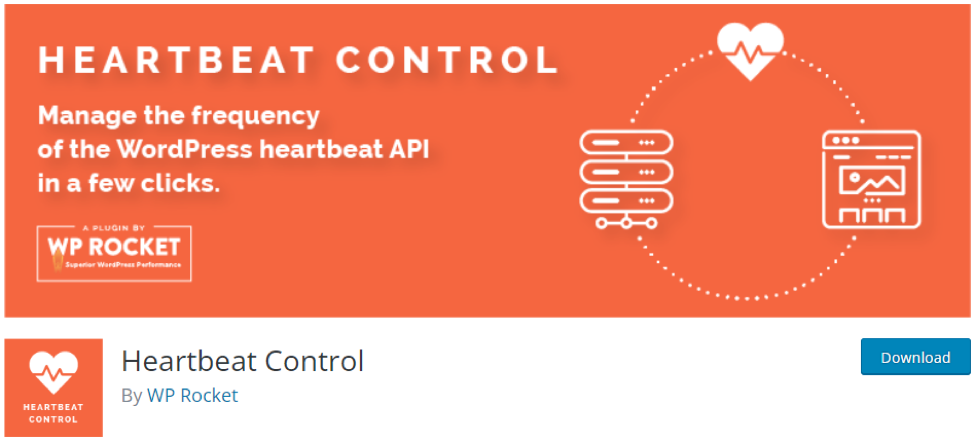
WordPress users should take into consideration the platform’s Heartbeat API. Heartbeat is instrumental in controlling things like post autosaving and real-time admin notifications. However, it increases the volume of requests made, which can contribute to resource exhaustion.
Turn off the API by using the Heartbeat Control plugin, then see if the error remains. If the issue resolves, continue using this plugin to limit the requests WordPress can send.
Check your CDN configuration
If you’re already using a CDN, misconfigurations can cause the 503 Service Temporarily Unavailable error, often due to overaggressive rate limiting.
If your CDN detects malicious requests, it’s normal for the program to be temporarily aggressive in blocking and limiting traffic. But it should return to normal in time — if it doesn’t, it needs reconfiguring.
To rule out the root cause being a misconfiguration or CDN outage, temporarily turn off your content delivery network. If the problem resolves, contact the CDN provider to fix the server-side error.
Restore a backup
If a recent code change caused the 503 error, rolling back to a prior date would instantly fix it. If you’re unsure where the culprit code is, returning to progressively earlier versions of your website can work in a pinch.
Reboot your server
When it comes to technical problems, turning it off and on again is a cliche with some truth to it. However, rebooting your server configuration is more serious than restarting a computer and should be done as a last resort.
If nothing else helps, try rebooting your server — all of them, if you have multiple. Liquid Web clients can restart their server by contacting the support team for help.
Contact your web host
Don’t hesitate to rely on your web host for help. Contact the support team and explain the issue. Liquid Web clients receive assistance via live chat, email, or support ticket 24/7.
How to prevent 503 Service Unavailable errors
How can you prevent a 503 Service Temporarily Unavailable error? The best way is to partner with an enterprise-level host. If you’re using a hosting plan that’s currently unable to handle your business’s workload, it will continually struggle to deliver the resources you need.
In contrast, Liquid Web is more than equipped to enable enterprise websites. From day one, you’ll enjoy an array of features every enterprise needs, including:
- CDN power by Cloudflare: No matter how high your traffic, expect fast, scalable, and secure service.
- 24/7 support: Offload your server management and troubleshooting to our web experts.
- Cybersecurity monitoring: Intrusion detection and threat monitoring include real-time alerts, anomaly detection, and continuous analysis of network traffic to detect and mitigate potential threats.
- Daily backups: Set your own timing and frequency for added peace of mind.
Final thoughts: How to fix the 503 Service Temporarily Unavailable error
Insufficient server resources are often to blame if you constantly notice a 503 Service Unavailable error on your large business website.
Even if the root cause is a DDoS attack, a misconfigured program, or conflicting plugins, Liquid Web can help you set it straight. For your peace of mind, partner with an enterprise-level host that puts a 24/7 support team behind you.