
 Liquid Web
 If you’ve ever encountered the dreaded “500 Internal Server Error” while working on your WordPress site, you’re not alone. It’s a generic HTTP status code indicating that something went wrong on the server’s side, but the server isn’t able to specify what the exact problem is.
This error is one of the most frustrating hurdles a site owner can face. Its vague nature – telling you something is wrong but not what – can make troubleshooting feel like finding a needle in a haystack. It can also disrupt user experience, damage SEO rankings, and even lead to lost revenue.
But don’t worry! You’re in the right place to unravel this mystery. You’ll learn everything you need to know about diagnosing and resolving the infamous WordPress error 500. By understanding the common causes and applying the practical solutions outlined in this article, you can address the issue quickly and confidently!
Key points
- The WordPress 500 Internal Server Error often stems from corrupted .htaccess files, plugin or theme conflicts, exhausted PHP memory limits, incorrect file permissions, corrupted core files, caching issues, or server-side problems.
- To fix it, start by refreshing the page, clearing browser and WordPress caches, or deactivating plugins/themes. These simple steps can often resolve the error without deeper troubleshooting.
- Advanced solutions include:
- Checking and fixing a corrupted .htaccess file.
- Adjusting WordPress file and folder permissions.
- Increasing PHP memory limits or re-uploading core WordPress files to replace corrupted ones.
- Enabling debugging in the wp-config.php file to pinpoint errors through detailed logs, identifying specific issues like plugin conflicts or coding errors.
- Use Liquid Web’s managed WordPress hosting with features like automatic backups, performance monitoring, and 24/7 support to minimize downtime and avoid recurring server errors.
Common causes of WordPress 500 internal server error
(HTTP) 500 internal server errors may show up in various ways. Here are 11 common ways you can expect to sBefore diving into solutions, it’s important to understand what might be causing the 500 internal server error on your WordPress site. This error acts as a catch-all for server-side issues, so pinpointing the exact problem can save you from wasting time on trial and error. Here are the most common culprits:
- Corrupted .htaccess file: The .htaccess file is a critical configuration file in WordPress that handles permalink structures and other server directives. A small corruption or misconfiguration can lead to the 500 error, leaving your site temporarily inaccessible.
- Plugin or theme conflicts: Plugins and themes enhance the functionality and design of your WordPress site, but sometimes they don’t play nicely together. Outdated, poorly coded, or incompatible plugins and themes can cause server issues, resulting in a 500 error.
- Exhausted PHP memory limit: Every WordPress site has a PHP memory limit set by the hosting server. When your site exceeds this limit – usually due to heavy plugins, excessive traffic, or resource-intensive processes – the server might return a 500 error as it struggles to keep up.
- Incorrect file or folder permissions: Your WordPress files and folders need specific permissions to function properly. If these permissions are too restrictive or too lenient, the server may block access, leading to a 500 error.
- Corrupted core files: WordPress core files can sometimes become corrupted during an update or accidental file overwrites. This corruption can disrupt the site’s normal operations and trigger server errors.
- Cache issues: Cache is meant to speed up your site, but misconfigured or outdated cache – whether it’s browser cache, WordPress cache, or server-side cache – can sometimes interfere with the server’s functionality, leading to an error.
Server-side problems: Sometimes, the issue isn’t with WordPress at all. Hosting server misconfigurations, downtime, or overloaded resources can be the root cause of the 500 error.
Quick fixes to try first
Often, the issue can be resolved with a few simple steps. Start with these quick fixes before diving into more complex troubleshooting:
Refresh the page
Temporary server hiccups or timeouts can trigger a 500 error. Now, it might sound too easy to be true, but sometimes, all your site needs is a simple refresh.
To do this, press Ctrl + R (Windows) or Cmd + R (Mac) on your keyboard to reload the page. Alternatively, click the refresh icon in your browser. If the error persists, try waiting a few minutes and refresh again.
While this won’t fix deeper issues, it’s a quick way to rule out temporary glitches.
Clear your browser cache
Sometimes, your browser holds onto outdated files that conflict with your site’s updated resources. Clearing your browser cache ensures you’re seeing the most recent version of your site. To do this in Chrome (the steps might vary slightly if you’re using a different browser):
- Open your browser settings.
- Navigate to the Privacy and security section and click on Clear browsing data.
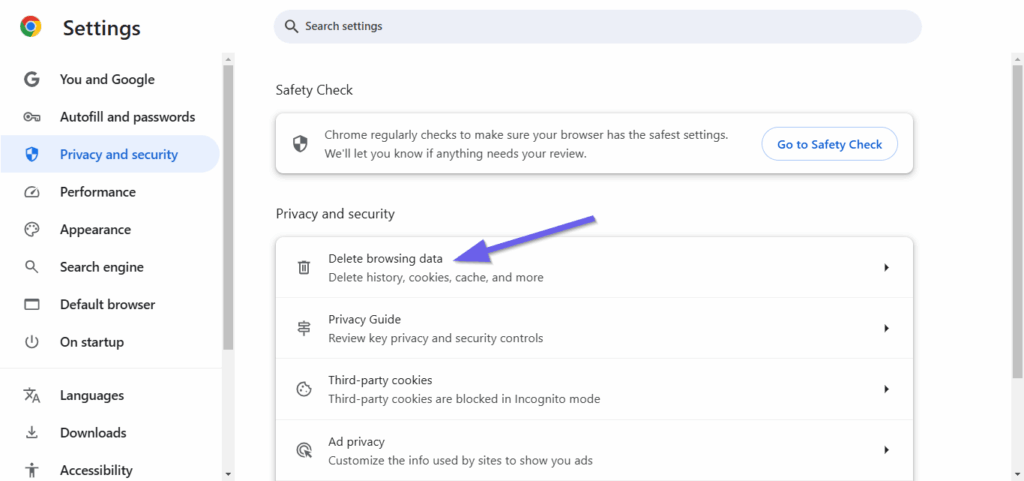
- Select Cached images and files and hit Clear Data.
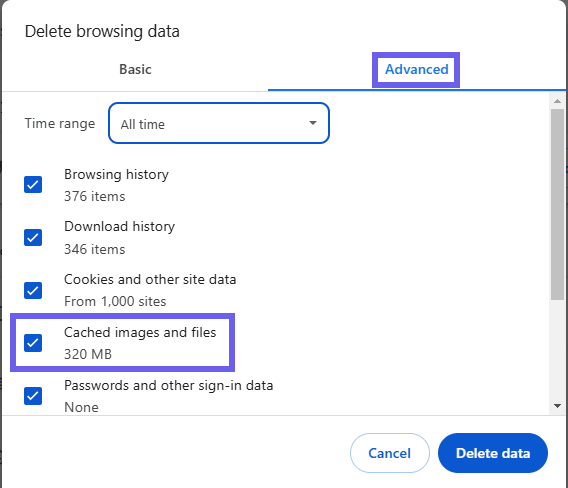
- Refresh your site after clearing the cache.
If the error is gone, it was likely a caching issue, and you just fixed it.
Clear your WordPress cache
WordPress caching plugins like WP Super Cache or W3 Total Cache can sometimes store corrupted or outdated data. Clearing this cache might resolve the error:
- Log in to your WordPress dashboard.
- Go to the caching plugin’s settings page.
- Look for an option to Clear Cache or Purge Cache and click it.
If you can’t access your dashboard, manually delete the cache files via SFTP:
- Connect to your server using an SFTP client like FileZilla.
- Navigate to the /wp-content/ folder.
- Locate and delete the cache folder.
- Reload your site to check if the error persists.
Check for plugin and theme conflicts
Conflicts between plugins, themes, or even WordPress itself are a common cause of the 500 error. To troubleshoot:
Deactivate plugins
- Access your WordPress dashboard.
- Navigate to Plugins > Installed Plugins.
- Deactivate all plugins by selecting them, choosing Deactivate from the bulk actions menu, and clicking Apply.

If the error is gone, reactivate plugins one by one to identify the culprit.
Switch themes
- Go to Appearance > Themes in your dashboard.
- Activate a default theme like Twenty Twenty-Five.
Manual reset via SFTP
- Connect to your server using your SFTP client.
- Rename the /wp-content/plugins/ folder to /plugins-old/ to deactivate all plugins.
- Rename it back after testing.
If a specific plugin or theme is causing the error, update or replace it with an alternative.
Advanced troubleshooting steps
If the quick fixes didn’t resolve the 500 internal server error, it’s time to roll up your sleeves and dive into more advanced troubleshooting.
Check for and fix a corrupted .htaccess file (if using Apache)
The .htaccess file controls important settings, like permalinks, for your WordPress site. A corrupted .htaccess file can often be the root cause of a 500 error. Here’s how to fix it:
- Use an SFTP client like FileZilla or your hosting provider’s file manager.
- Navigate to the root directory of your WordPress installation. This is typically named public_html or /www.
- The .htaccess file is usually hidden, so ensure that Show Hidden Files is enabled in your settings.
- Rename the .htaccess file to something like .htaccess_old to effectively disable it. This prevents the server from reading potentially corrupted rules.
- Refresh your website in a browser. If the error is resolved, the .htaccess file was the source of the problem, and you’ll need to regenerate it.
- Log in to your WordPress dashboard.
- Navigate to Settings > Permalinks and click Save Changes without altering the settings. This action generates a new .htaccess file with default WordPress rules.
⚠️ If your .htaccess file contains custom configurations (e.g., security rules, redirects, caching settings) that are vital to your site, regenerating will overwrite them. In such cases, back up the existing .htaccess file and manually merge necessary custom rules into the newly generated file.
If the problem persists after these steps, there may be additional issues in your server configuration or WordPress files. For example, plugins or custom scripts might conflict with the .htaccess rules.
Check file and folder permissions
Incorrect file or folder permissions can prevent your server from accessing the necessary files. Here’s how to check and correct permissions:
- Locate your WordPress files and folders. The file permissions are typically displayed in a numeric format.
- To change your file permissions using the host’s file manager, right-click on a folder or file and select File Permissions (or a similar option). If you’re using an SFTP client, right-click a file or folder, choose File Permissions, and enter the appropriate value. Standard permissions for WordPress are:
- Folders: 755 (read, write, execute for the owner; read and execute for others).
- Files: 644 (read and write for the owner; read-only for others).
- Reload your site to see if the error is resolved.
⚠️ If you have specific requirements for your site folders and files, consult your hosting provider or a WordPress expert before changing the permissions.
Increase the PHP memory limit
If your site is running out of PHP memory, increasing the limit can resolve the error. Follow these steps:
- Navigate to the root directory of your WordPress site, find the wp-config.php file, and download it to your computer or edit it directly in the file manager.
- Open the wp-config.php file in a text editor (e.g., Notepad++, VS Code).
- Insert the following line just before the comment
/* That's all, stop editing! Happy publishing. */:
define('WP_MEMORY_LIMIT', '256M');This sets the memory limit to 256 MB, which is sufficient for most websites.
- Save the changes to the file. If you edited it locally, upload the updated wp-config.php file back to your server, replacing the old version.
- Refresh your site to see if the error is resolved.
⚠️ Some hosting providers impose a server-level memory limit that overrides your settings in wp-config.php. Contact your hosting provider and request they increase the PHP memory limit for your account.
Re-upload core WordPress files
Corrupted WordPress core files can cause the 500 server error. Re-uploading these files can resolve the issue:
- Go to the official WordPress.org website and download the latest version of WordPress. This ensures you’re using the correct and unaltered core files.
- Unzip the downloaded file on your computer. Inside the extracted folder, you’ll see several files and directories, including:
- wp-admin (core admin files).
- wp-includes (core functionality files).
- Other files like wp-config-sample.php (no need to deal with these for this process).
- Before proceeding, back up your entire website, including all the files and the database. This ensures you can restore your site in case of issues.
- Navigate to your WordPress installation directory. Upload and replace only the wp-admin and wp-includes folders.
- Overwrite the existing directories on your server with the fresh ones from the downloaded copy.
- Do not replace the wp-content folder, as it contains your themes, plugins, and uploads, which should remain untouched.
- After uploading the files, check your website.
- If your site is running an older version of WordPress, ensure your database is compatible by completing the update process through the WordPress dashboard.
This process:
- Only replaces core WordPress files and does not affect your content (posts, pages, images, or customizations stored in the database).
- Does not overwrite plugins or themes, but you should ensure they are up-to-date and compatible with your WordPress version.
⚠️ If the corruption was caused by malware, replacing files may not be sufficient. Perform a security scan with tools like Wordfence or Sucuri.
Debug the wp-config.php file
Debugging your WordPress configuration can help identify deeper issues. To enable debugging:
- Download the wp-config.php file using your SFTP or host’s file manager and open it with Notepad++ or VS Code.
- Look for this line in the wp-config.php file:
define('WP_DEBUG', false);- Change false to true and add the following lines immediately after:
define('WP_DEBUG', true);
define('WP_DEBUG_LOG', true); // Logs errors to a file
define('WP_DEBUG_DISPLAY', true); // Displays errors from the front end
@ini_set('display_errors', 0); // Ensures error display is disabled
This setup ensures errors are logged in the debug.log file in the /wp-content/ folder and are not displayed to visitors.
- Save your changes to the wp-config.php file.
- Re-upload it to your server, replacing the original file.
- Navigate to the /wp-content/ directory of your WordPress site and look for a file named debug.log.
- Open debug.log with a text editor to see detailed error messages and traces. These logs will help identify the root cause of the issue (e.g., a plugin conflict or coding error).
⚠️ After you’re done, turn off debugging. Leaving debugging enabled on a live site can expose sensitive information to visitors and slow down your site. Also, make sure to always debug in a staging environment or after temporarily disabling caching plugins to avoid interference.
Keep your WordPress site error-free with managed hosting
While resolving a 500 error is entirely possible, it can be time-consuming and stressful, especially if you’re new to WordPress or on a tight schedule. That’s where choosing a reliable hosting provider can make all the difference.
Liquid Web’s managed WordPress hosting simplifies your life with powerful features designed to minimize errors and downtime. With 24/7 expert support, you’ll always have a team of WordPress specialists ready to diagnose and resolve server-side issues, including the dreaded 500 internal server error. Plus, automatic backups, performance monitoring, and one-click restore options give you peace of mind knowing your site is protected.
Don’t let server errors hold you back. Choose Liquid Web’s managed WordPress hosting today and keep your site running smoothly, no matter what!