Lottie Animations Block
The Kadnece Lottie Animations Block lets you add lightweight, vector-based animations to your pages or posts. Lottie animations scale smoothly and load quickly, helping you create engaging motion effects without slowing down your site.
- You can choose how the animation behaves. From playing automatically, triggers on scroll, looping continuously, and more..
- Add animations using a remote URL from platforms like LottieFiles, or upload your own local JSON file for full control over speed, hosting, and playback settings.
Here’s an example of the Lottie Animations Block in action:
For a complete walkthrough on downloading, uploading, and managing Lottie animations in Kadence Blocks, view the Using GIFs and Lottie Animations with Kadence Blocks guide
Getting Started
To get started, ensure you have the Kadence Blocks Plugin installed and activated on the website. From the Block Editor, add a new Lottie Animations Block to the page.
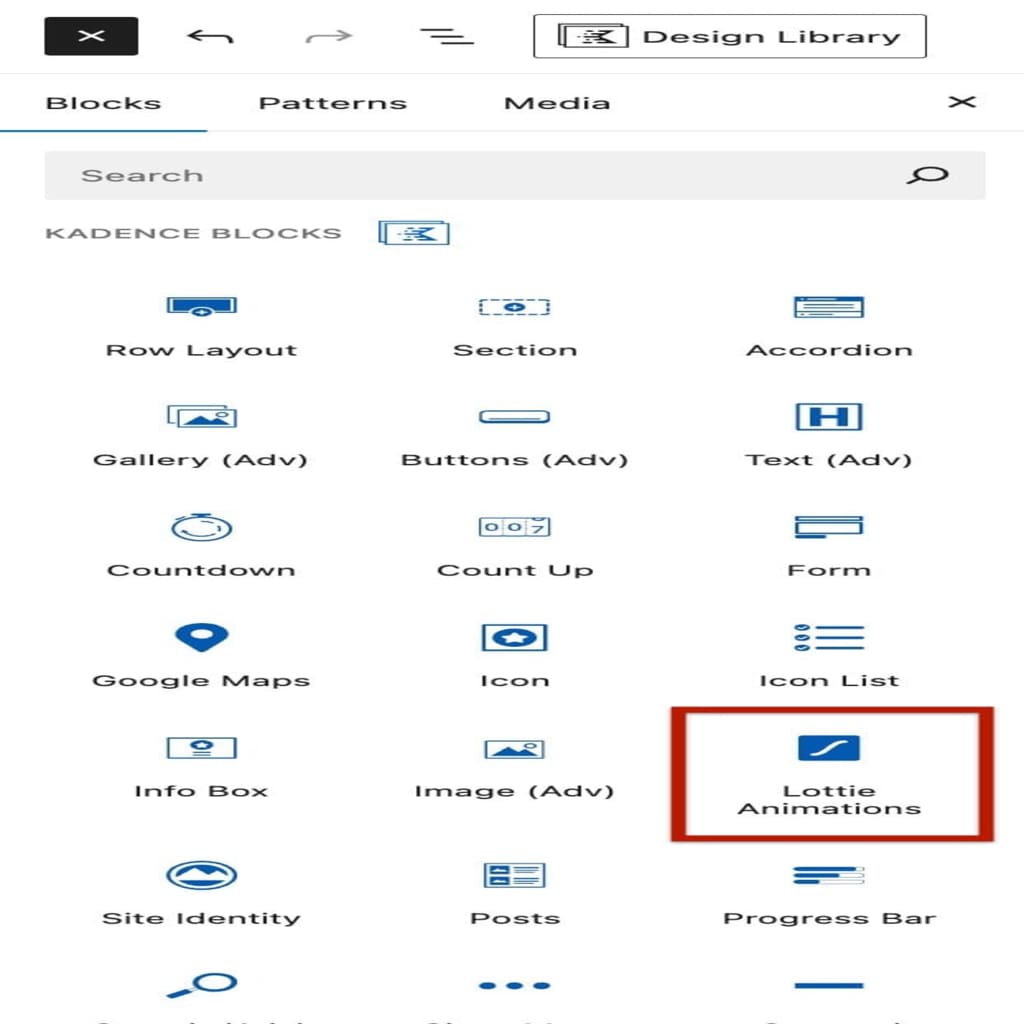
From here, you can use the Lottie Animations Block Settings to configure the Lottie Animation.
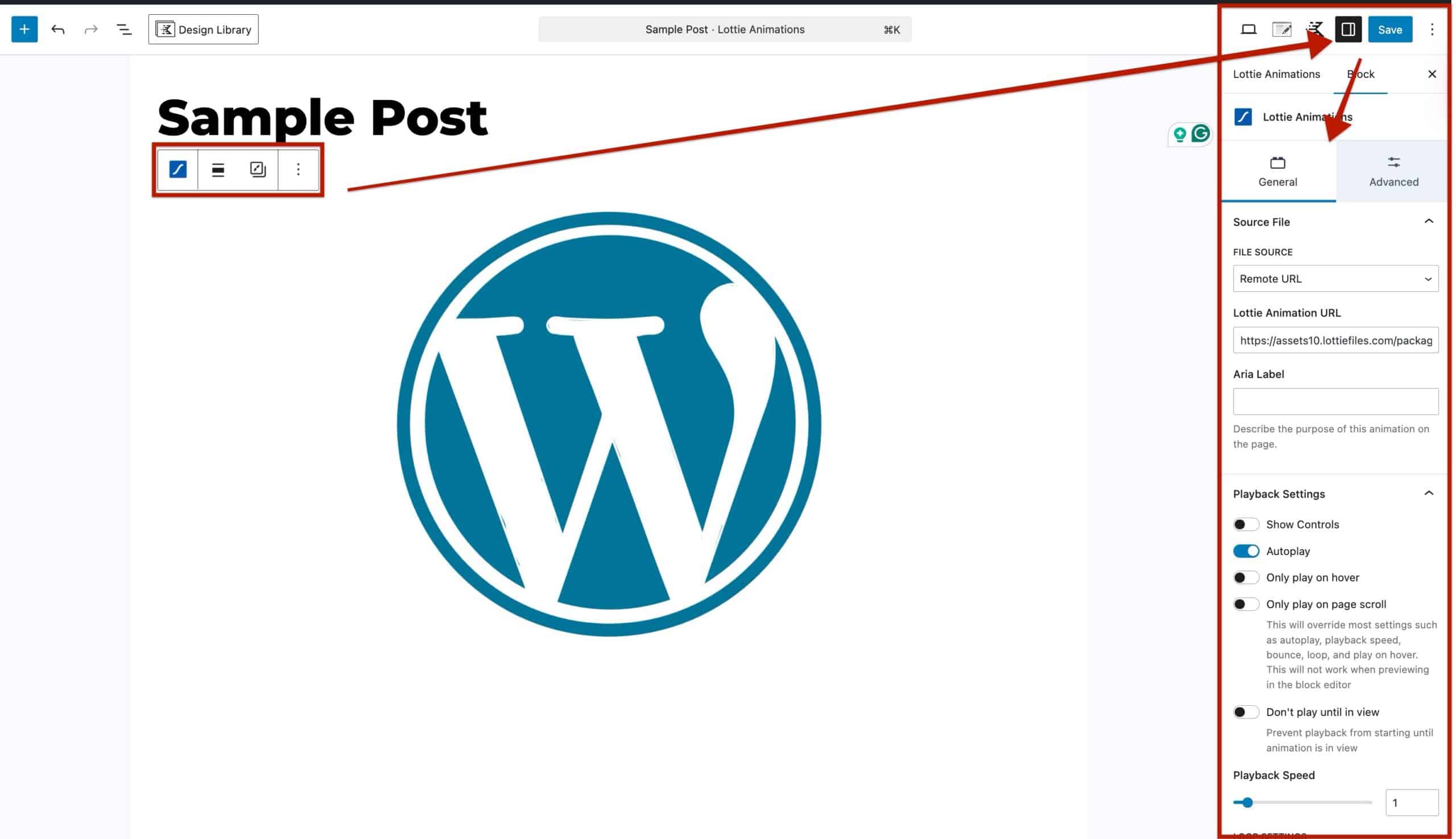
General Block Settings
The General Block Settings control the Lottie Animation Source File and controls.
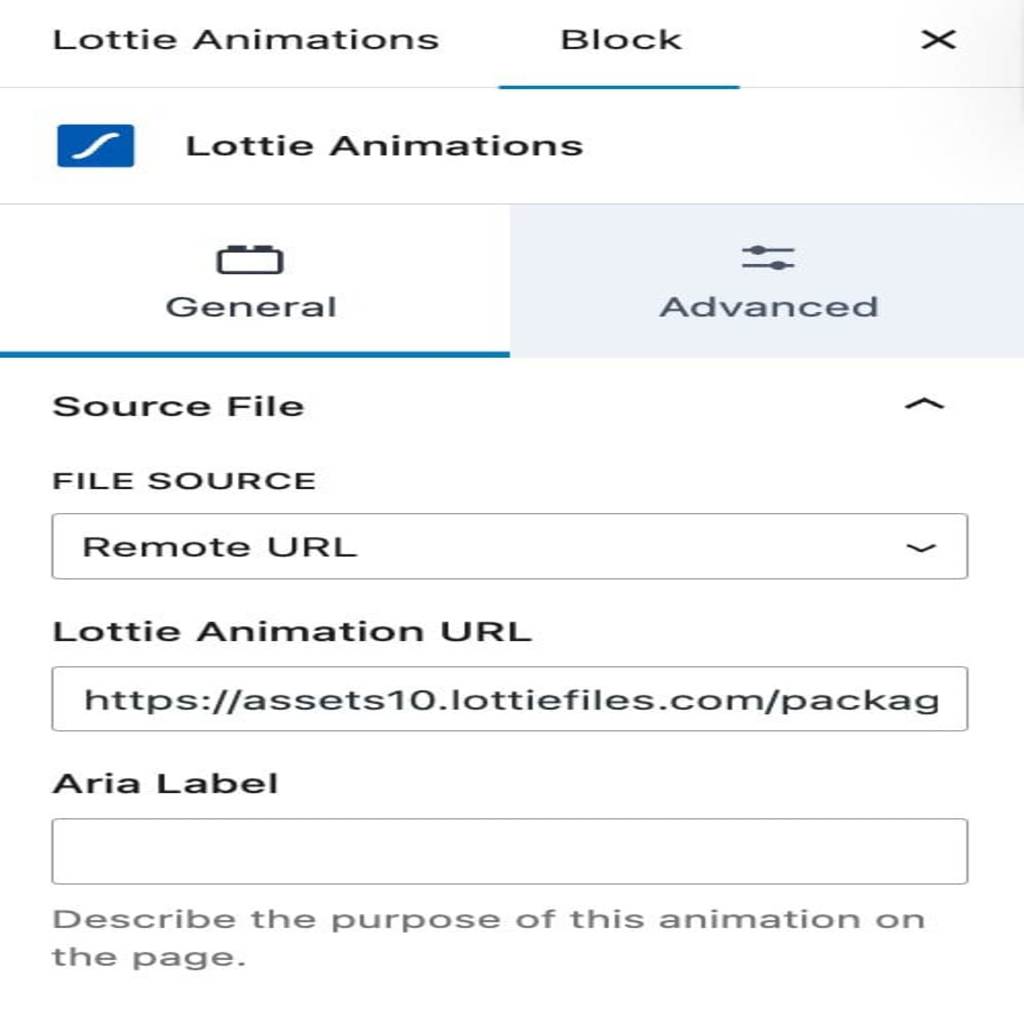
Selecting a File Source
Choose where your animation file comes from:
Remote URL – Paste in a direct link from LottieFiles or another host. (Learn more.)

Local File – Upload your own JSON animation file to host it directly on your website. (Learn more.)
Playback Settings
The Lottie Animations Block supports a variety of playback controls, allowing you to control how and when the animation plays:
- Autoplay – Automatically starts the animation when the page loads.
- Only Play on Page Scroll – Plays only while the visitor scrolls.
- Enables the selection of a Starting and Ending Frame.
- Note: This option overrides most other playback settings, including autoplay, playback speed, bounce, loop, and play on hover. It also won’t function while previewing the animation inside the block editor; view it on the front end to see the effect in action.
- Don’t Play Until In View – Begins playback only when the animation becomes visible in the viewport.
- Playback Speed – Adjusts how fast or slow the animation plays.
- Loop Playback – Repeats the animation continuously.
- Bounce Playback – Plays forward and then reverses back to the start for a seamless looping effect.
- Delay Between Loops – Adds a delay (in seconds) between loop cycles.
- Limit Number of Loops – Restricts how many times the animation repeats (applies to both loop and bounce modes).

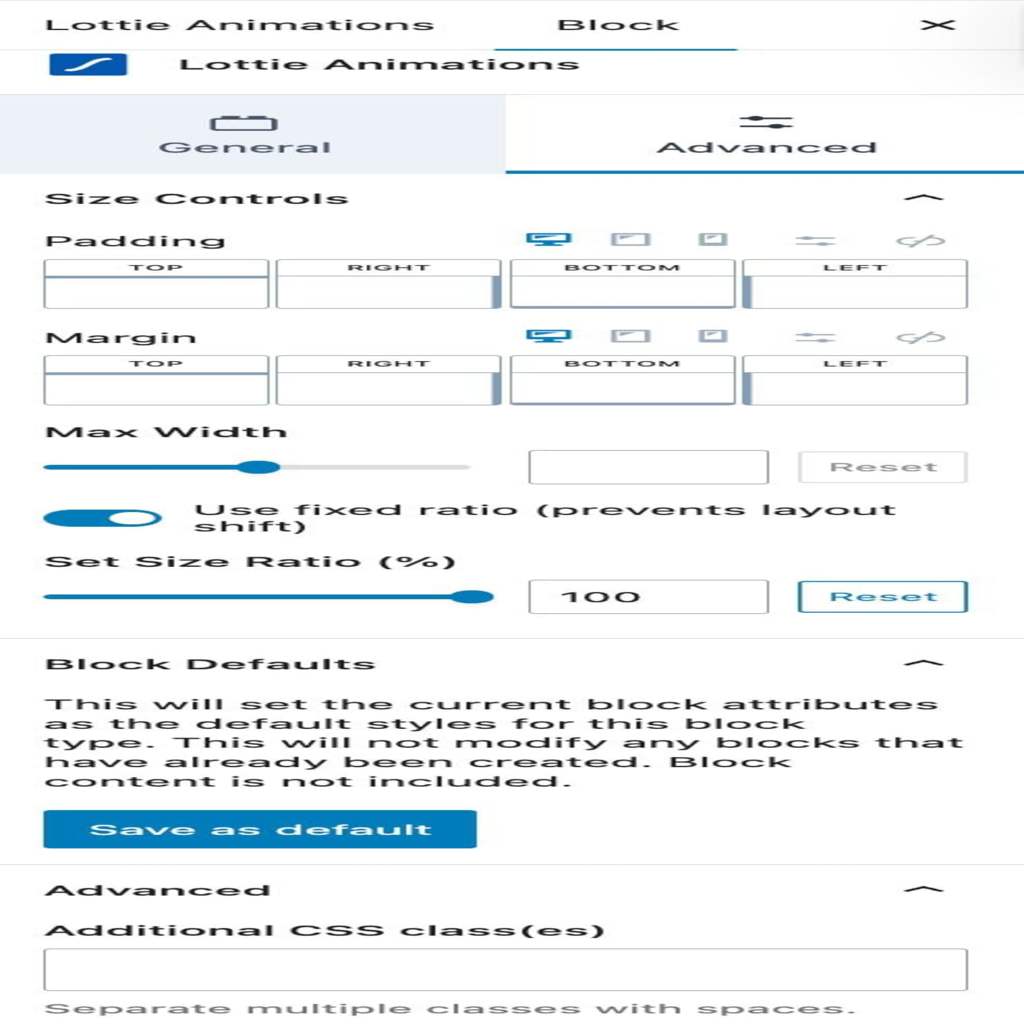
Advanced Block Settings
Padding and Margin: Add a padding and/or margin around the Lottie Animations Block.
Max Width: Set a maximum width to prevent the animation from scaling too large on larger screens
Use Fixed Ratio: Optionally enable the Use fixed ratio (prevents layout shift) setting to maintain a consistent aspect ratio during page load.
When Use fixed ratio is enabled, a Size Ratio (%) to control the proportional scaling of the animation container.
Block Defaults: Use Save as default to set the current styling choices as the default for future Lottie Animations blocks. This will not affect existing blocks already placed on your site. (Learn more.)
Additional CSS Class(es): Add custom CSS classes for advanced styling or targeting via custom code.
Removing Self-Hosted Lottie JSON files
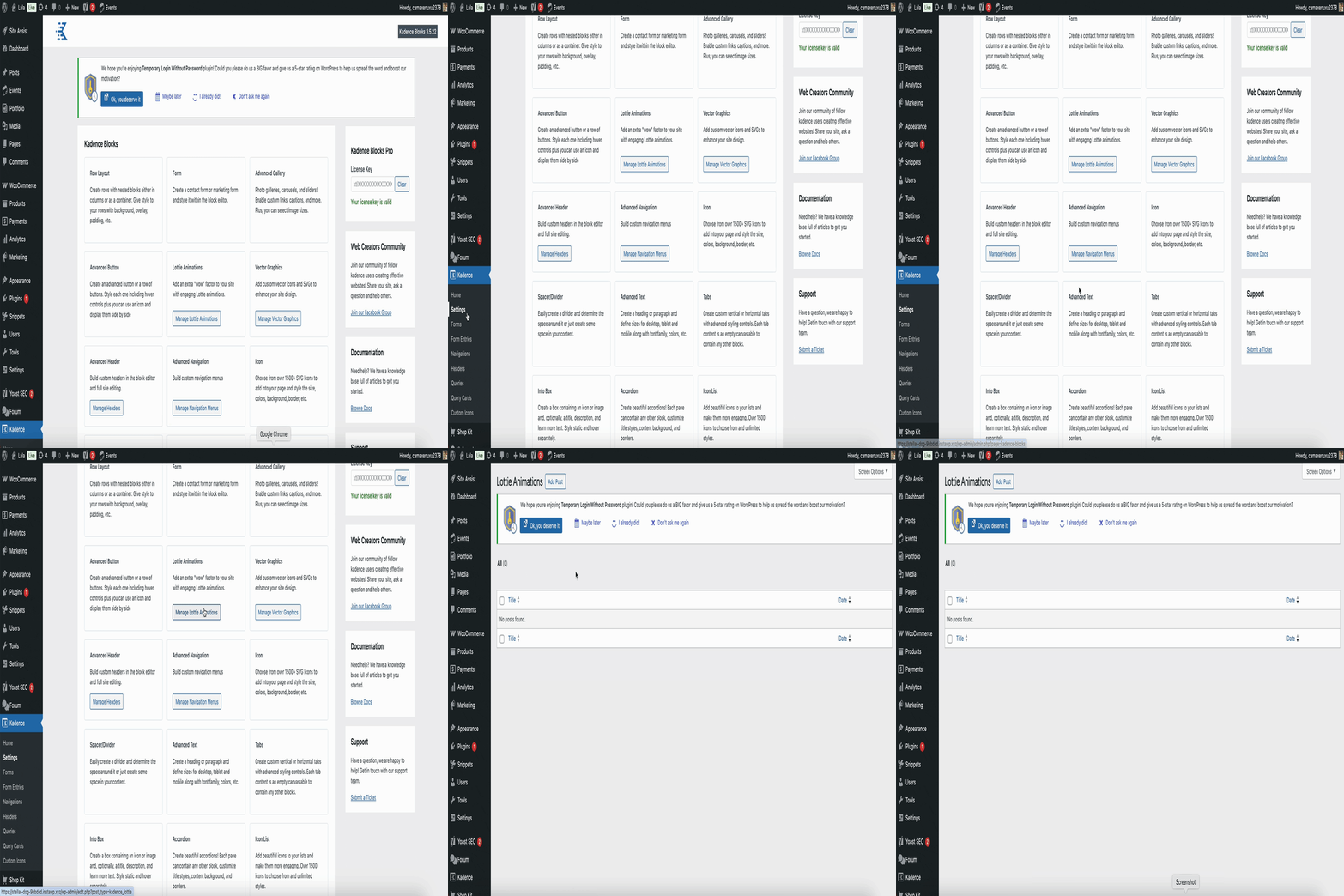
You can manage and delete your uploaded Lottie Animation files from the Kadence Blocks → Settings → Manage Lottie Animations page.
This area is primarily for removing previously uploaded files. Uploading new animations is typically done directly from the block editor when adding or replacing a Lottie file.