

Importing & Exporting Advanced Headers & Navigations
Kadence Advanced Headers and Advanced Navigations can be exported and imported from website to website. This allows you to take existing Headers and/or Navigations and export them to a different website.
(Please note that exporting Headers and Navigations will not export Custom Icons or Images. These things have to be transferred over manually.)
Importing/Exporting Advanced Headers
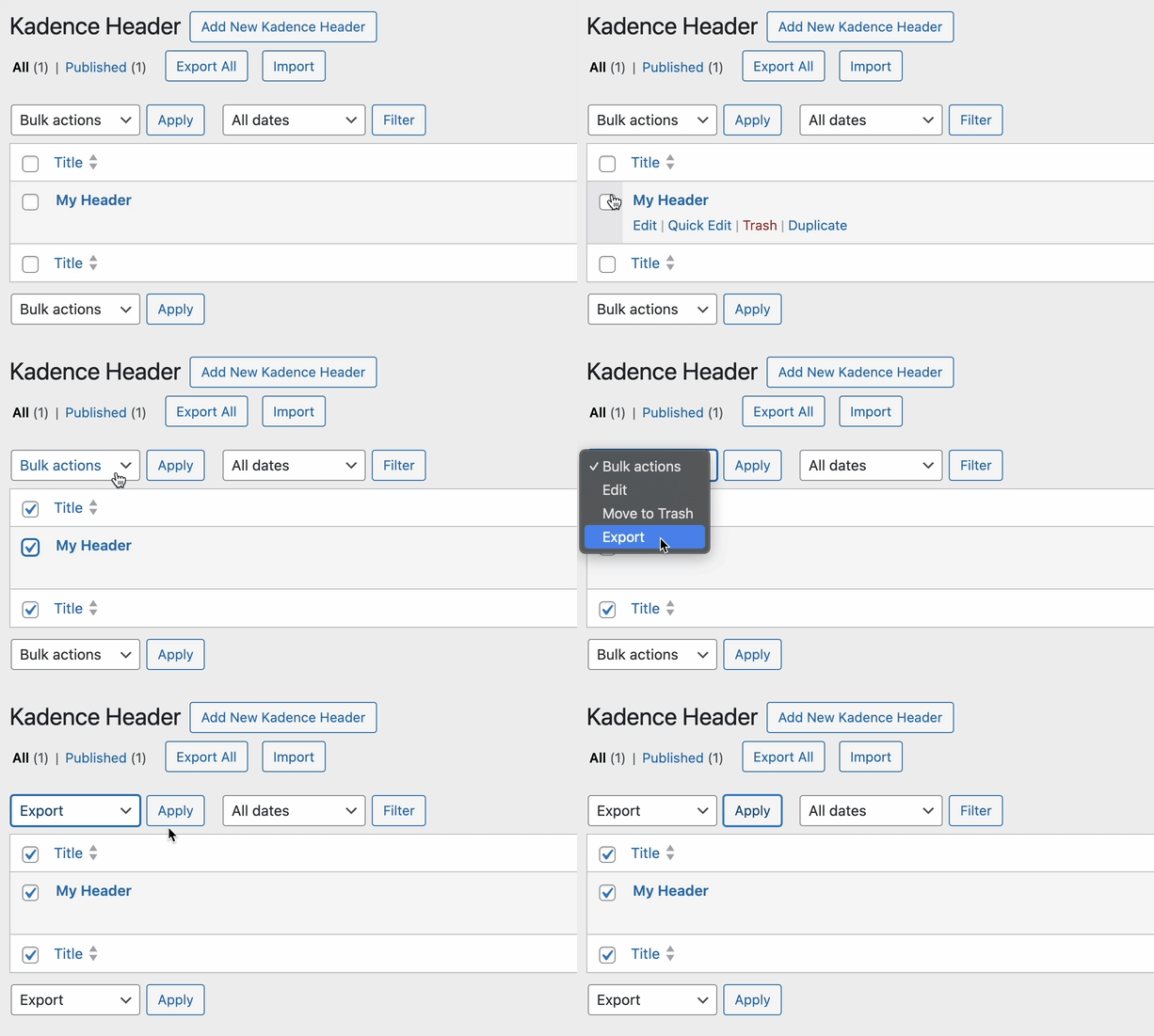
To Export a Kadence Header, head over to the Dashboard -> Kadence -> Headers page. You can use the Export All Button at the top of the page to export all of your Headers at once. Additionally, you can use the Checkbox to select an Individual Header or a selection of Headers you wish to Export. Once finished, click on the Bulk Actions dropdown, select Export, and you will receive a ZIP download of your Header(s).
Use the Import Button on the website where you wish to add the Header(s) to import the exported headers. Upload the downloaded ZIP file that was exported from the original website to import the Header(s).

Importing/Exporting Advanced Navigations
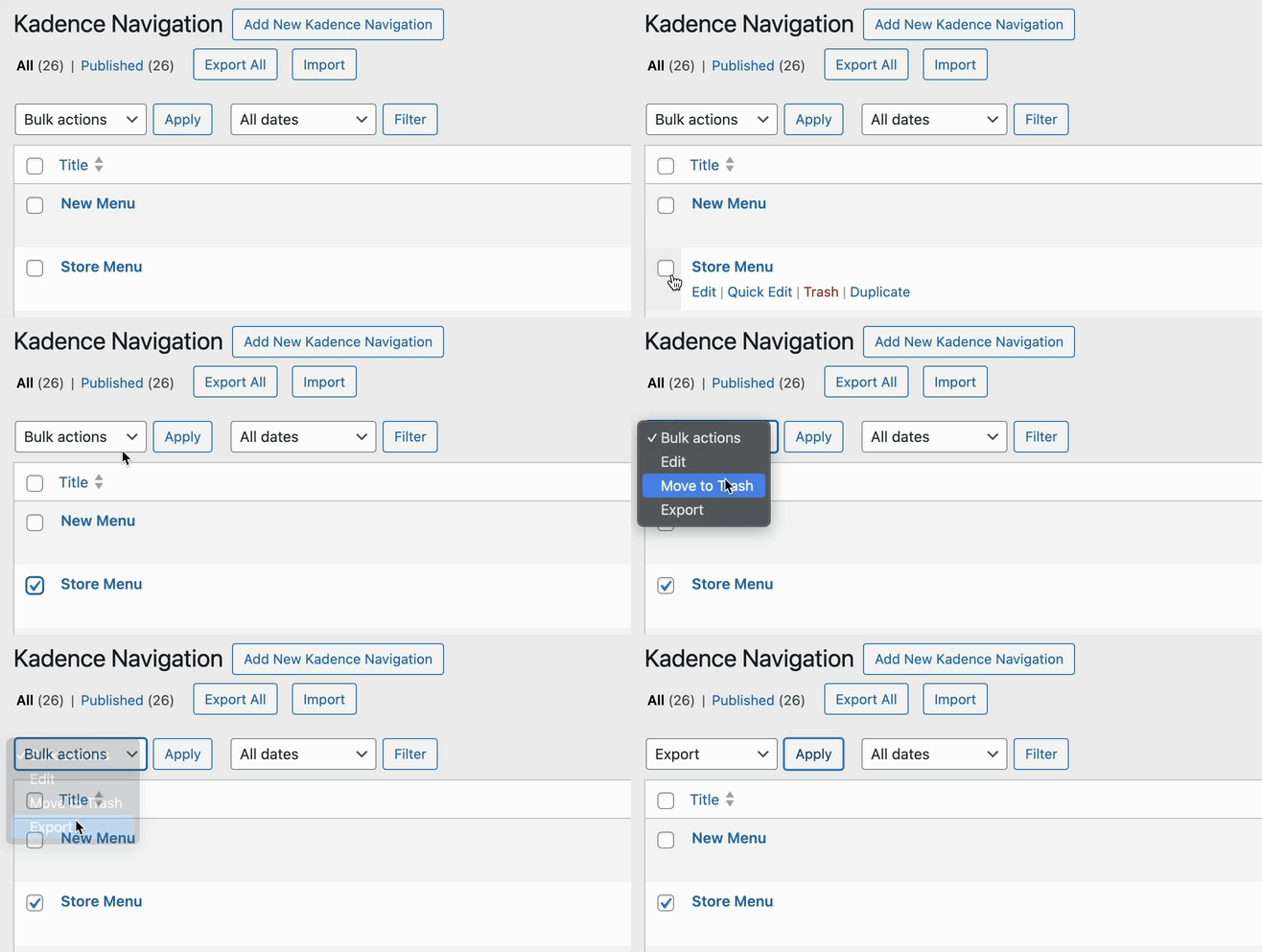
To export an Advanced Navigation, go to the Dashboard -> Kadence -> Navigations page. You can use the Export All Button at the top of the page to export all of your Navigations at once. Additionally, you can use the Checkbox to select an Individual Navigation or a selection of Navigations you wish to Export. Once finished, click on the Bulk Actions dropdown, select Export, and you will receive a ZIP download of your Navigation(s).
Use the Import Button on the website where you wish to add the Navigations(s) to import the exported navigations. Upload the downloaded ZIP file that was exported from the original website to import the Navigation(s).