

Stripe Integration
NOTE: The Stripe plugin was discontinued on June 13, 2023, and will no longer receive feature updates. Stripe Connect should be used to link a Stripe account to a LearnDash site moving forward. Current Stripe plugin users can easily migrate to Stripe Connect. Learn more about this deprecation in the FAQ on the Stripe Add-on Deprecation. This documentation is intended for users who have not chosen to upgrade, or who are still actively using the Stripe Add On.
The LearnDash Stripe integration is one of the simplest ways to start selling your LearnDash courses. Stripe is also one of the easiest payment gateways to set up, and their processing fees are on par with most other gateways. To get started, you’ll need to make sure Stripe is available in your country, and then you’ll need to register for a free Stripe account.
While the Stripe integration provides a quick and easy way to sell courses, it doesn’t come with a ton of flexibility. If you’re looking for more robust member management, a customizable checkout experience or integrations with other WordPress plugins or services, check out our ecommerce & membership add-ons, or consider the built-in PayPal integration.
Who Should Use the Stripe Integration?
You should consider using the Stripe for LearnDash integration if:
- You’re looking for a quick & easy way to start selling courses
- You offer one course, or only a few courses, with a simple payment structure
You might not want to use Stripe for LearnDash if:
- You want to customize the user’s checkout experience
- You are creating a fully functional membership site
- You’re selling other products in addition to courses
- You want to closely manage the account creation and login process
Walkthrough Video
This video was created using LearnDash version 2.x, but the general setup and all the settings are the same in LearnDash 3.x.
Sign Up for a Stripe Account
Navigate to stripe.com and follow the instructions for registering a new account. Once your account is set up, you can navigate to dashboard.stripe.com to access all of your account settings, as well as the information you’ll need to set up the LearnDash integration
Install the Stripe Integration
Option 1: Add-ons Menu (requires an active LearnDash license)
- In your WordPress admin area, navigate to LearnDash LMS > Add-Ons
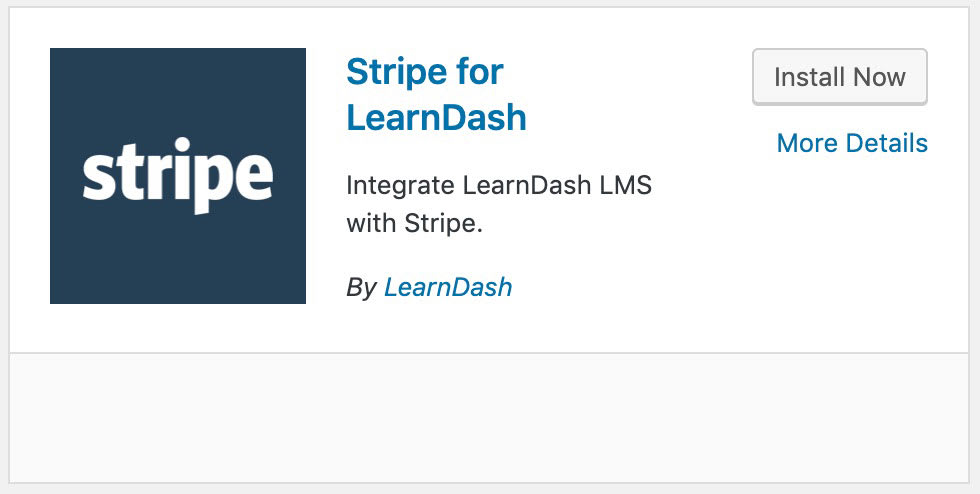
- Locate the Stripe for LearnDash add-on
- Click Install Now
- Click the Activate Plugin button
Option 2: Manual Upload
- Download the plugin file (must be logged in to download)
- In WordPress, navigate to Plugins > Add New
- Click Upload Plugin
- Browse for the
.zipfile you downloaded in Step 1 - Click Install Now
- Click Activate Plugin
Stripe Settings
There are a few unique keys that Stripe creates for you when you set up a new account. You’ll need to provide these keys to LearnDash so that LearnDash can deposit your money in the proper Stripe account.
Test Mode / Live Mode
There are two ways you can set up the LearnDash Stripe integration: test mode or live mode.
- Test mode should be used when youre still testing your site internally. No money will actually change hands, but Stripe will record if the transaction succeeded or failed.
- Live mode should be used when youre ready to launch your course. All transactions in this mode are real transactions, and money will exchange hands. Once youve launched your site, you should stay in live mode indefinitely.
There are two different sets of keys, depending on which mode you’re using.
IMPORTANT: Stripe has announced and updated the Test Mode Subscription Data Retention policies and introduced atest clocks feature. Learn more below.
Stripe’s Test Clocks feature for Stripe Billing offers powerful testing capabilities and dramatically reduces the need to keep test mode subscriptions indefinitely. Test clocks simulate what your subscriptions and billing integrations would look like as if time has advanced to a future date. This will cause Billing resources, such as Subscriptions, to change state and trigger webhook events for testing purposes. You can learn more about that here.
On February 1, 2023, Stripe updated the Data Retention policies for Test Mode data:
- Automatically cancel test mode subscriptions 90 days after creation
- Automatically delete test mode subscriptions 30 days after cancellation
- You can mark up to 50 test mode subscriptions as exempt in the Dashboard
This data retention policy only impacts Test Mode subscriptions. Stripe’s subscription testing guide can walk you through testing an entire subscription life cycle. You can check out the additional FAQs from Stripe here. If you have any questions about this testing process, you reach out to Stripe’s support team.
Integration Type
There are two options for integration type: Legacy Checkout or Checkout (Support SCA).
- Legacy Checkout captures customer payments in a light-box popup checkout form on your website.
- Checkout (Support SCA) captures customer payments in a checkout form hosted on the Stripe website. This is to comply with the European PSD2 regulation.
NOTE: See The User Experience section for examples of each checkout method.
Stripe Settings
Regardless of which integration type option you choose, there are two additional setting fields below the Stripe Keys fields.
- Webhook URL is an auto-generated URL. This URL needs to be pasted to your Stripe account’s webhook settings.
- Endpoint Secret is a key that is created after you configure your Webhook URL in Stripe. This key is required for both checkout types.
Adding a Stripe Webhook
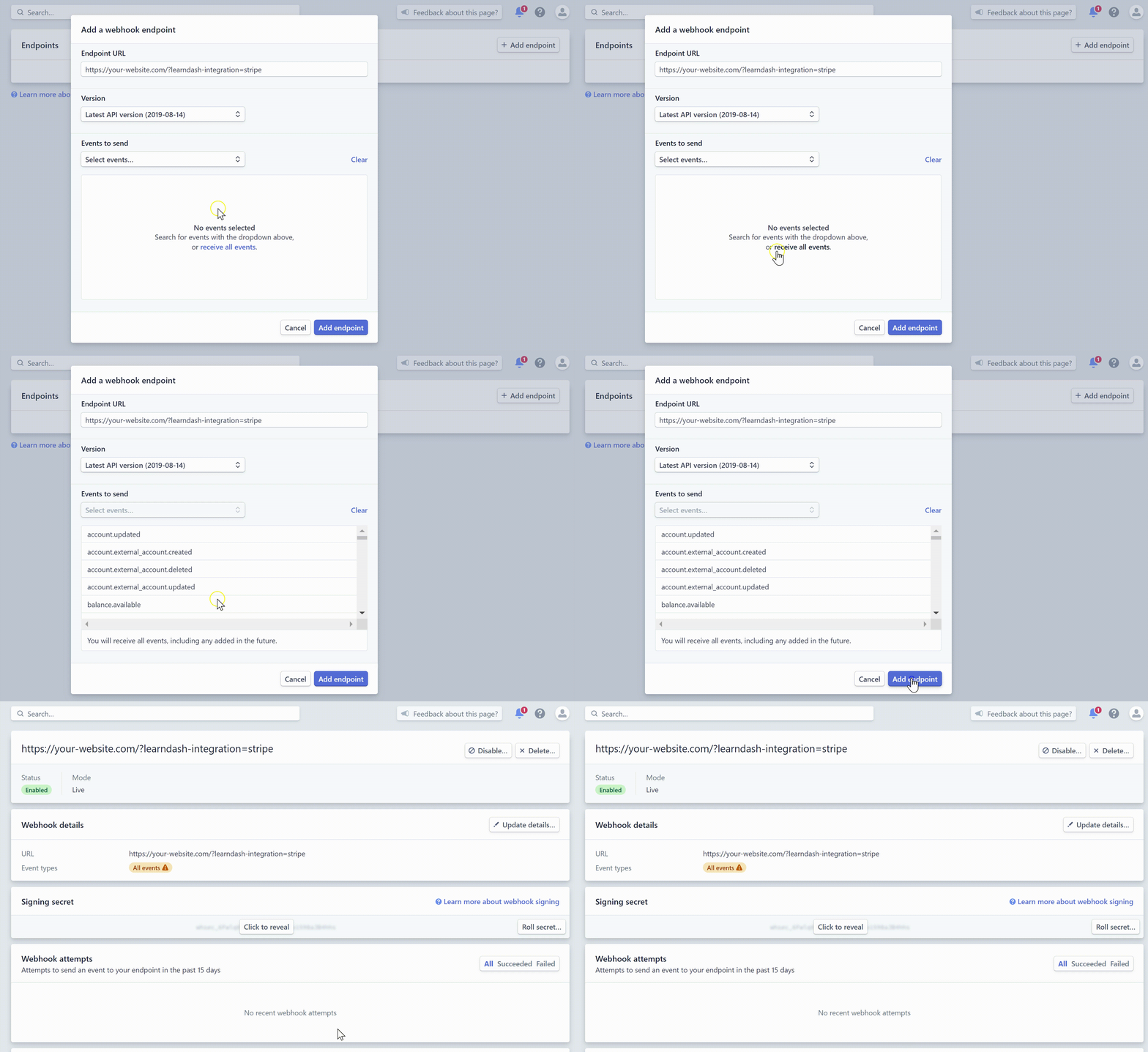
- Log into your Stripe account and navigate to https://dashboard.stripe.com/webhooks
- Click the Add Endpoint button
- From your WordPress dashboard, navigate to LearnDash LMS > Settings > Stripe Settings and copy the auto-generated Webhook URL
- Back in Stripe, paste the Webhook URL you copied into the Endpoint URL field
- For Version, select the latest API version
- Under Events to Send, enable ONLY the following events:
customer.subscription.deletedinvoice.payment_failedinvoice.paidcheckout.session.completed
If you’re having issues with duplicated users after a failed payment or cancelled transaction, you can also include the following events:
charge.failedpayment_intent.payment_failedpayment_intent.canceled
Click Add Endpoint
Insert the Endpoint Secret
Now that your new webhook is created and enabled, the last thing you need to do is to retrieve your Endpoint Secret so that you can add it to the LearnDash > Stripe integration settings.

- Locate the Signing Secret section in the webhook you just created and select Click to Reveal
- Copy the secret key
- From your WordPress dashboard, navigate to LearnDash LMS > Settings > Stripe Settings and paste the signing secret into the Endpoint Secret field
Locate Your Stripe Keys
- Navigate to your Stripe Dashboard
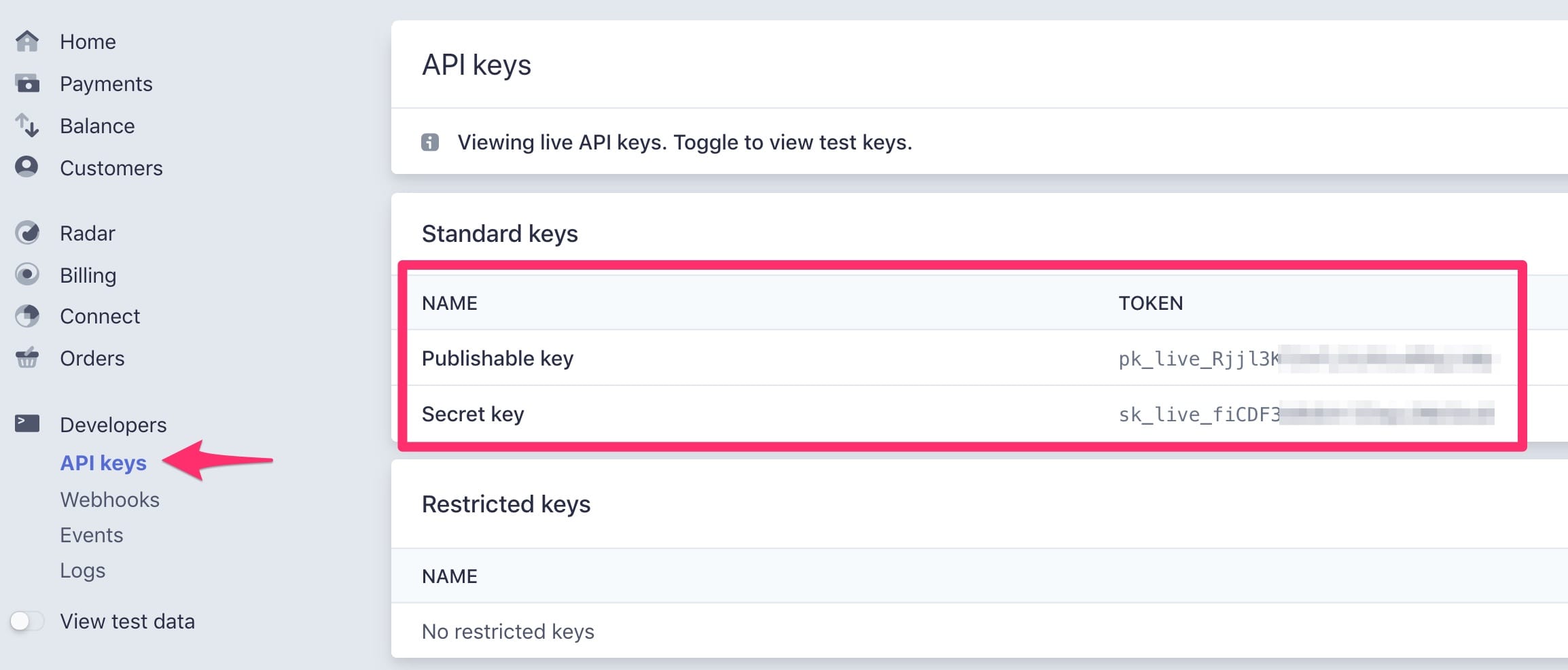
- Click on Developers, then API keys
- In the Standard Keys section, you’ll see both a Publishable Key and a Secret Key. You’ll need both of these keys to set up the LearnDash integration.
- Your Live keys will be prefixed with
pk_live_andsk_live_
NOTE: These are your LIVE keys. They should be used when you’re ready to launch your site to the public.
To find your TEST keys…
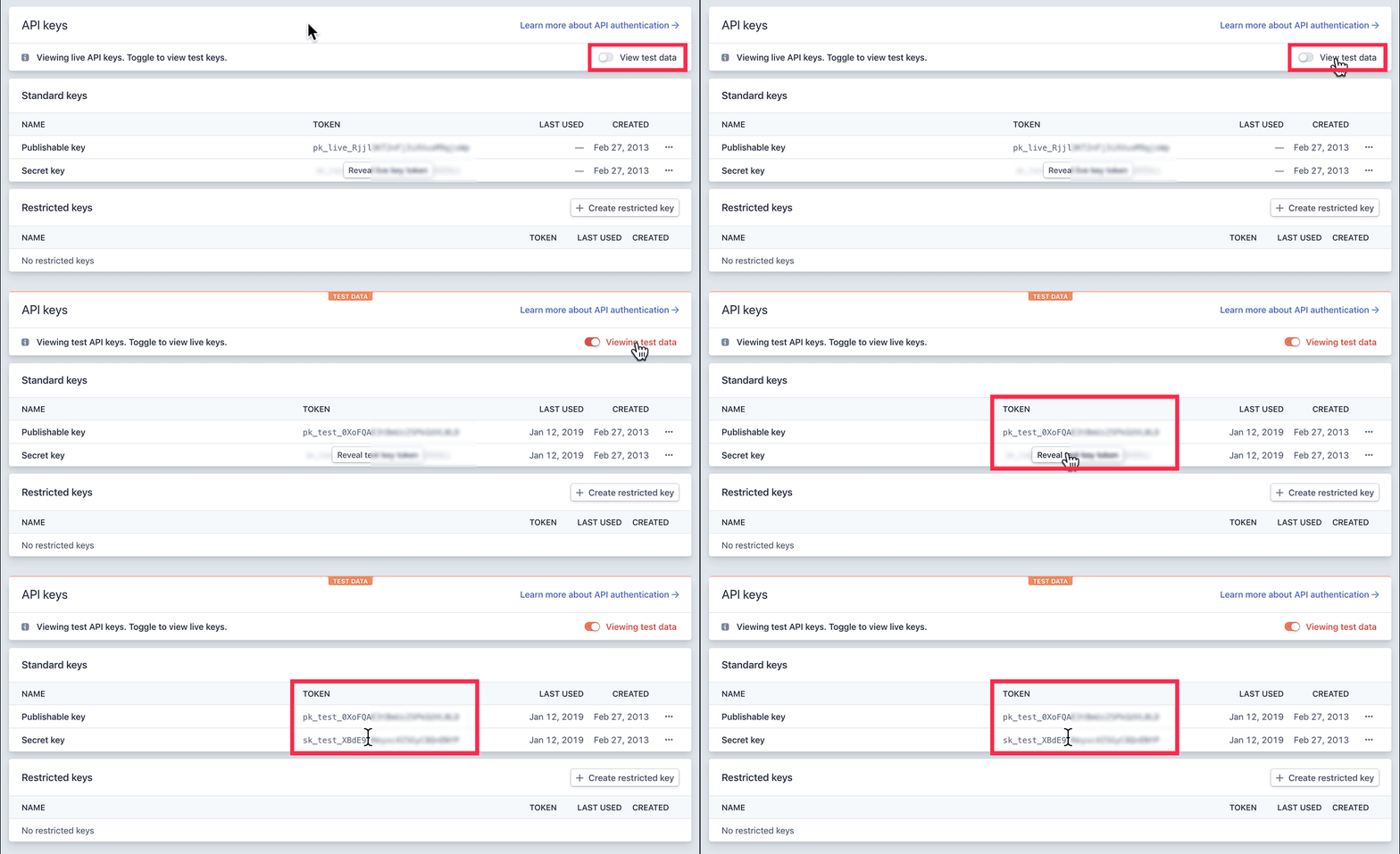
- From the same API keys page, click the “View test data” toggle in the top-right corner
- You may need to click the “Reveal key token” button to access your Secret key
- You’ll know these are your TEST keys because they’ll be prefixed with
pk_test_andsk_test_
Insert Stripe Keys
Now that you know how to access your Stripe keys, you need to provide them to LearnDash.
- In your WordPress admin area, navigate to LearnDash LMS > Settings
- Click the Stripe Settings tab at the top
- For TEST mode… check the “Test Mode” box to enable test mode, then input your Stripe test keys
- For LIVE mode… make sure “Test Mode” is unchecked, and input your Stripe live keys

Currency
You need to set the 3-letter ISO code for the currency you want to use.
For example:
USDfor United States DollarCADfor Canadian DollarAUDfor Australian Dollar
See Stripe’s list of supported currencies & ISO codes here.
Payment Methods
By default, Credit Card is selected and is what most people will use.
There is also the option to accept iDEAL Payments instead, or to offer both options (Credit Card & iDEAL) upon checkout.
Return URL (optional)
If no return URL is provided, the user will remain on the course page after their transaction is processed.
But you can choose to send the user to a confirmation page instead. This can be a page you create on your site, with WordPress, a page builder, etc. Or even a page on a completely different domain. It’s entirely up to you.
Enter the full URL, beginning with https://.
Course Configuration
After you’ve configured your Stripe for LearnDash settings, the final thing you need to do is set up your course to accept payments.
- In the WordPress admin area, navigate to LearnDash > Courses
- Click on the course you’d like to sell with Stripe
- Click on Settings at the top
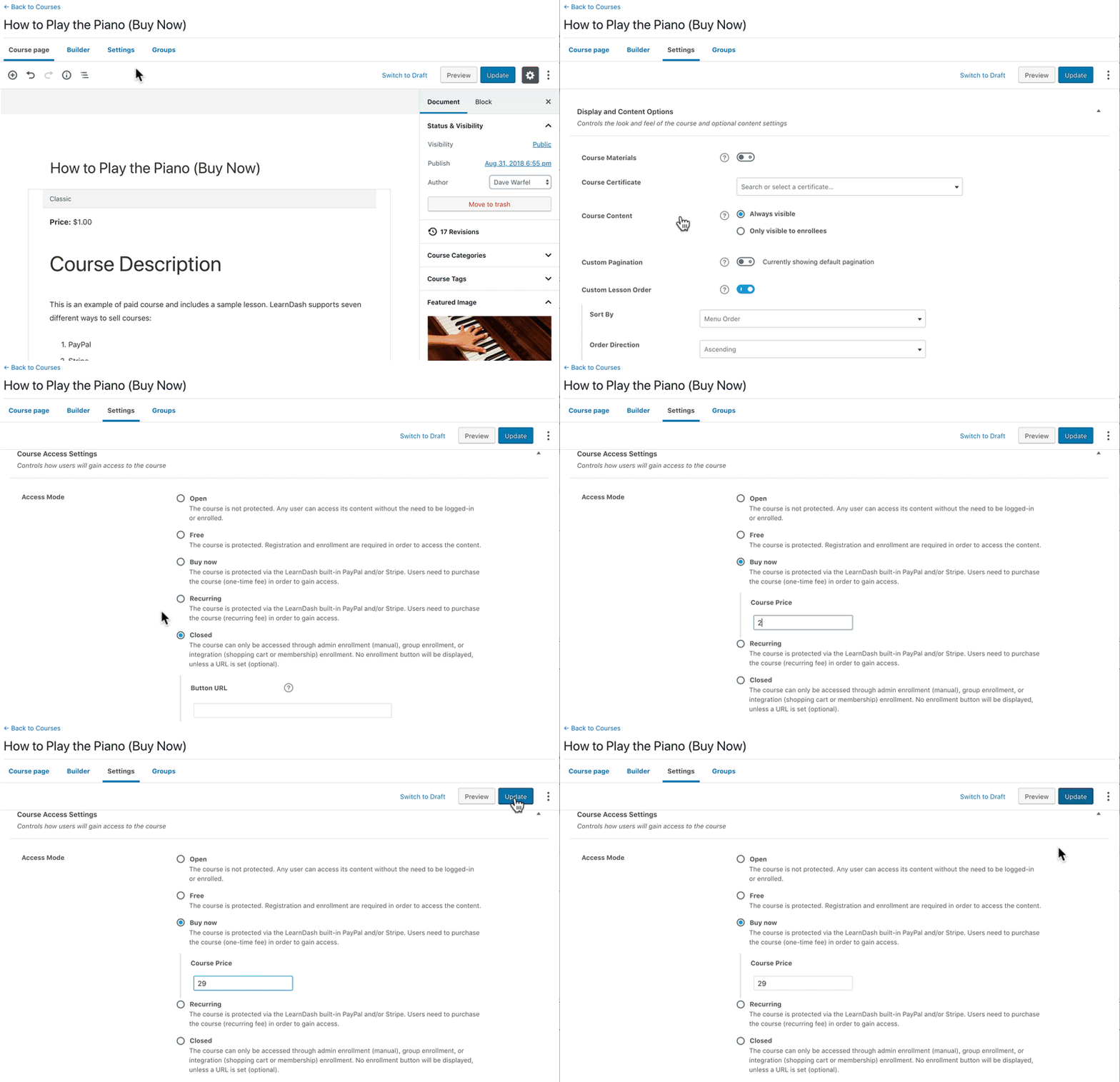
- Scroll down to Course Access Settings
- Set the Access Mode to one of two values:
- Buy Now: Use Buy Now for one-time payments
- Recurring: Use Recurring if you’d like to set up a recurring payment (aka: subscription)
And finally, enter your price in the Course Price field. Ex: 29.99
- The currency symbol will be added automatically for you
- If your price is an even dollar amount, you may omit the decimal point & cents (ex:
29)
For recurring payments, you need to include the Billing Cycle in days, weeks, months or years.
The User Experience
When users visit your course page, they will see a Take This Course button (this language can be customized using custom labels). The user experience will depend on which option you select for the Integration Type.
Legacy Checkout User Experience
When a user clicks the purchase button, they will be presented with a popup window (powered by Stripe), where they can enter payment details and complete their purchase.

- The first line is your site’s title, auto-generated from the Settings > General page in WordPress
- The smaller text underneath the site title is your course title, which is what you’ve named your course in LearnDash
- The button will display the price you entered in the “Course Price” field
After payment is complete, a new user account is automatically created, and that user is enrolled into the course they just purchased.
Checkout (Support SCA) User Experience
When a user clicks the purchase button, they will be taken to a secure checkout page (that is hosted on Stripe’s secure servers), where they can enter payment details and complete their purchase.

After payment is complete, a new user account is automatically created, and that user is enrolled into the course they just purchased.
NOTE: To prevent duplicate customer accounts in Stripe or failed transactions, existing users must be logged in before purchasing an additional course via Stripe.
Stripe Integration FAQs
Yes. You will need to configure the PayPal settings within LearnDash, but once you’ve added that information, along with all the Stripe information, users will be presented with two options when they click the “Take This Course” button. It will look like this: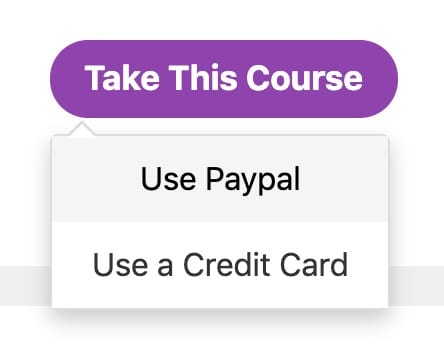
(design may vary based on your theme)
This is determined by your settings in Stripe. Please reference Stripe’s documentation on payouts.
Yes. In the course settings, just set your “Access Mode” to “Recurring,” and choose a billing cycle.
No. The LearnDash Stripe integration does not allow you to offer discounts. Consider using one of our other ecommerce or membership add-ons.
Issuing refunds and canceling subscriptions is done from your Stripe account, not from LearnDash or this add-on.
No. You can remove the course access from their profile.
See this article in Stripe’s documentation for more details.
For LearnDash 4.5.0 or newer, there will be 2 transaction record per single transaction. This is normal and your user will not be charged twice for each transaction. See our explanation on this on our Payment Transaction Records documentation.
Troubleshooting
By default, all site administrators are automatically enrolled in all courses, so they will not see the “Take this Course” button. You can either log out of your account and refresh the page, or view your course page in a private browsing window (or a completely different browser).
Please make sure your webhook settings are configured correctly. In order for the webhook to work it needs to have at least these events active in your Stripe account:
* checkout.session.completed
* invoice.paid
* invoice.payment_failed
* customer.subscription.deleted
If you are seeing the above error when checking out, make sure that the webhook settings are configured to ONLY the following events (enabling all events will likely cause a timeout error).
* checkout.session.completed
* invoice.paid
* invoice.payment_failed
* customer.subscription.deleted
If you see duplicate customer accounts being created after an initial failed or cancelled transaction, and a subsequent successful purchase, you must have the following events enabled on your webhook settings in addition to the events above:
* charge.failed
* payment_intent.payment_failed
* payment_intent.canceled
In case your user is an existing user or customer, kindly ask them to first log in to their account prior to purchasing another course via Stripe to avoid account duplication.