

GiveWP Donor Wall Shortcode
The [give_donor_wall] shortcode allows you to display donor information publicly on your website when donors opt in. This shortcode can be customized with the Shortcode builder anywhere on your website. It can display a modal window donation form pop up, or redirect your donors to the individual form page.
All About the GiveWP Donor Wall Shortcode
The Donor Wall shortcode is a great way to display a grid with details about past donors and donations.
Donors appear on the Donor Wall only when they do not opt in to “Anonymous Donations.” Additionally, enable the donor note functionality for the note to appear in the donor wall.

Additional Donor Wall Shortcode Attributes
The following attributes are also available to use in conjunction with the give_donor_wall shortcode:
- IDS: A comma-separated list of donor IDs to display. It allows you to display all donors or only specific donors. If this attribute is not set, the shortcode will display all donors. To find the donor ID, go to the Donors screen, hover over the donor name and the ID appears.
- Shortcode attribute:
ids - Attribute value: numbers only, comma-separated.
- Shortcode attribute:
- Donor company: Choose if the donor’s company is shown
- Shortcode attribute:
show_company_name - Attribute values:
false(default),true
- Shortcode attribute:
- Show Form: Show or hide the title of the form the donor donated towards.
- Shortcode attribute:
show_form - Attribute values: false, true
- Shortcode attribute:
- Show Avatar: Choose to display the donor’s gravatar image if available.
- Shortcode attribute: show_avatar
- Attribute value: true (default), false
- Show name: Choose to display the donor’s full name, first and last.
- Shortcode attribute: show_name
- Attribute value: true (default), false
- Show Comments: Choose to display a donor’s comment.
- Shortcode attribute: show_comments
- Attribute value: true (default), false
Add-on Features for the Donor Wall
- Show Tributes: Display a message that indicates this donation was made as a tribute. For use exclusively with the Tributes Add-on.
- Shortcode Attribute:
show_tributes - Attribute values: false, true
- Shortcode Attribute:
Example Donor Walls
Here are some examples of how you can customize the Donor Wall in a variety of ways for different types of campaigns and use-cases.
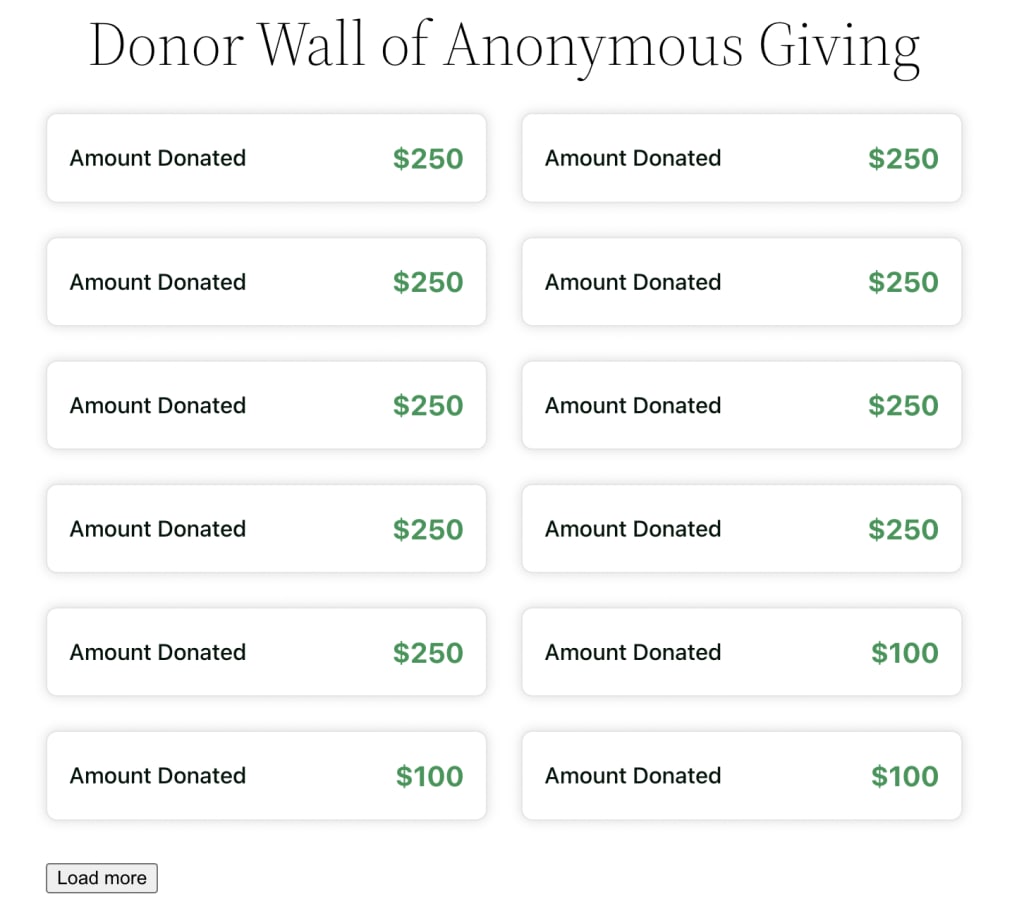
Sample Layout – Anonymous Giving
This example is great for an anonymous fundraiser. The Donor Wall only shows the amount given and the date, and is sorted to show the largest donations first. It hides images, names, and comments.
Sample Layout – Global Supporters
This example is good for when you have lots and lots of donors who have given and you want to highlight them but not the amount they’ve given. This Donor Wall will show only their name, photo and date. It has more columns and shows more donors per page. It hides the amount and any comments and is organized by date.

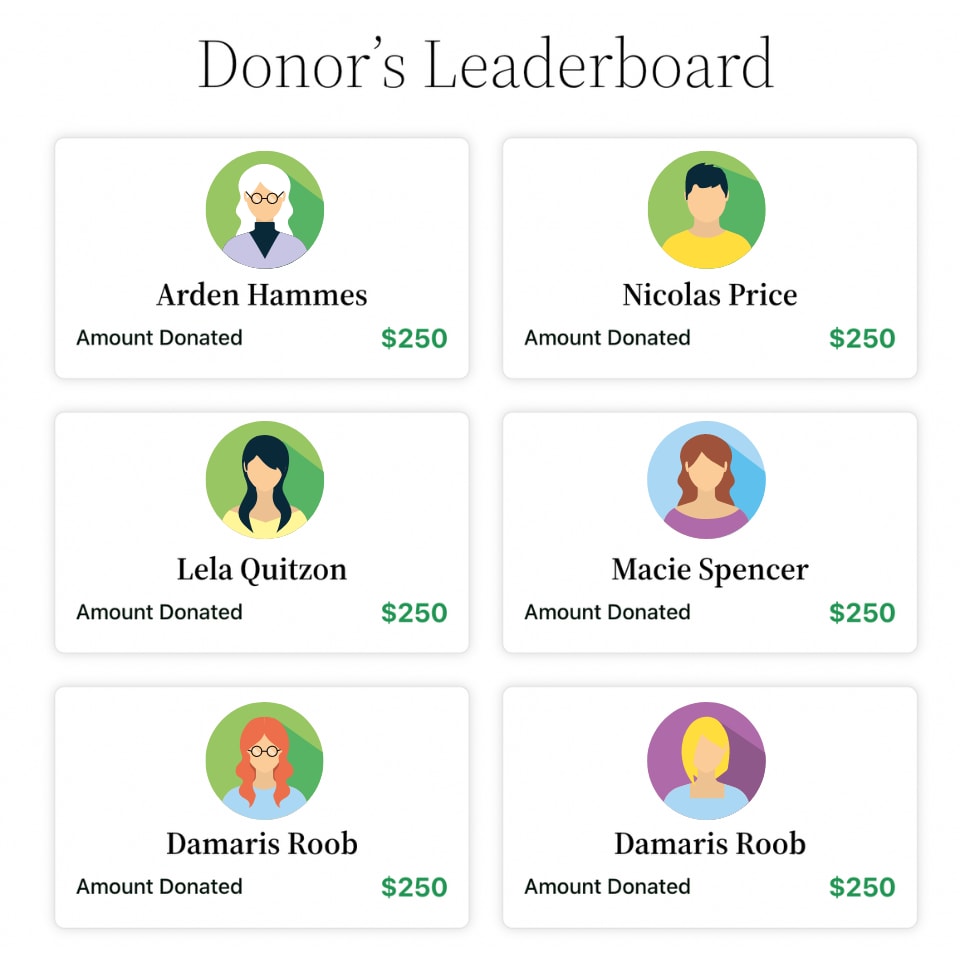
Sample Layout – Donation Leader board
This example is great for when you want to create a public leaderboard to display the largest donations received on your site and their respective donors. The following donor wall will show the default fields, such as Name, Donation Amount, and the Donation’s Date in two columns with the top ten donors.
All donor walls have a load more button that, in this case, you can hide that with some custom CSS.
If you need assistance to adding CSS to your site, click here.