


Tributes
The Tributes Add-on allows admins to provide an option for donors to designate a person they are giving in tribute of. Most commonly, this is used for “In Honor of” or “In Memory of”.
Allow Donors to Give in Tribute using the Visual Donation Form Builder Tributes Block
The Visual Form Builder brings the power of Tributes to your donation forms with a new, intuitive block builder interface. By empowering your donors with the ability to give in honor or in memory of someone special, you create new opportunities for donors to stretch their style of philanthropy. The customizable block baked into the builder includes a wide array of settings and options to make Tributes the best possible experience for your donors with custom messages and options for designees. All you need is to have GiveWP and the Tributes add-on active, and you’re ready to add a Tributes block.
Enable Tributes
Once you have activated the GiveWP Tributes add-on, the block can be added to any new forms you create.
Note: Do you need guidance creating donation forms with the GiveWP Visual Form Builder? Read our docs about that here.
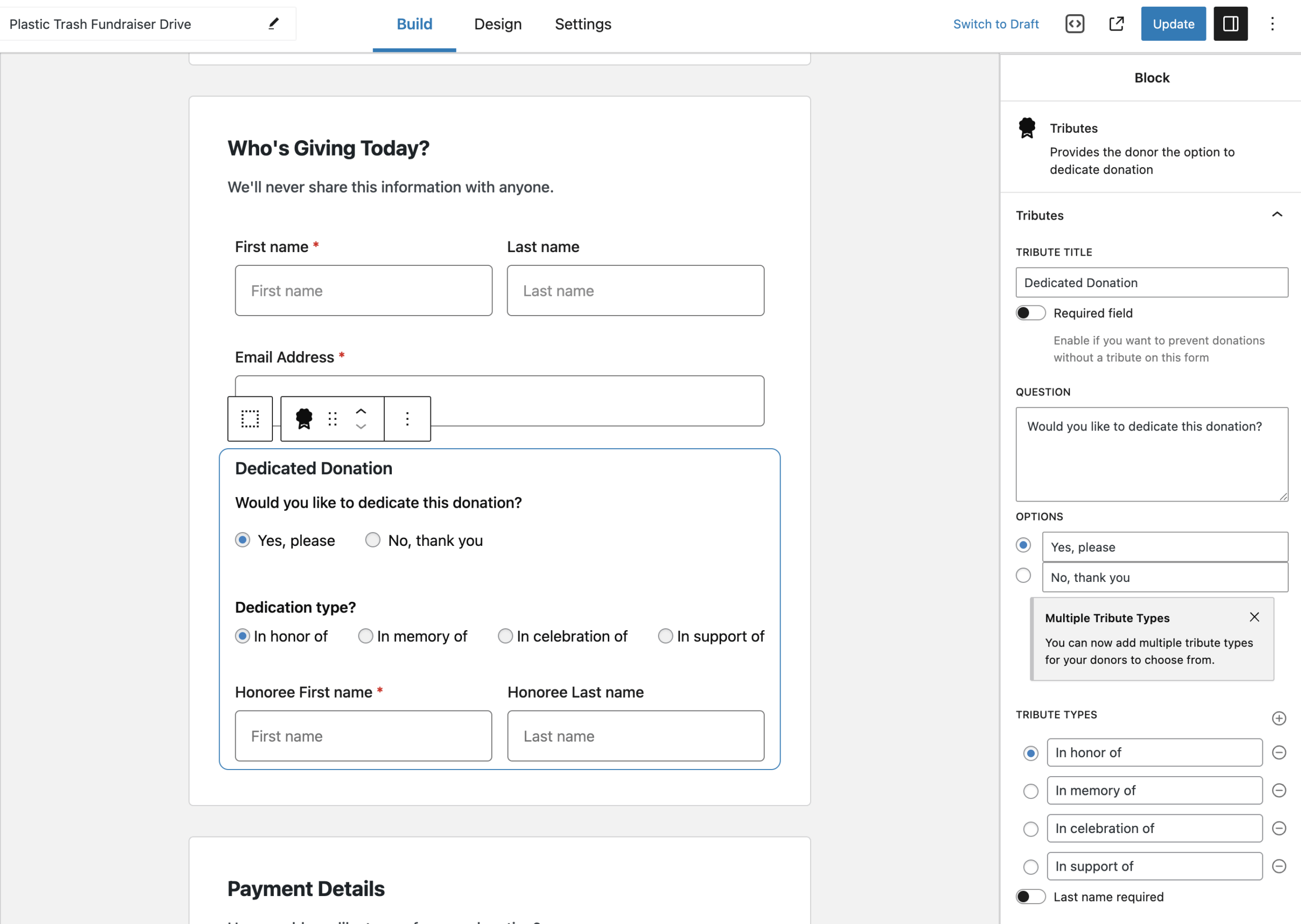
To add the Tributes features to your donation form, start in the Build tab in the edit screen, then select the Tributes block from the Add-Ons section and drag to a section on the form. Or, hover over a build section, then click the + symbol, type in “Tributes” in the Search field and select it from the list.
Tribute Block Settings
The Tributes Block houses a number of helpful settings for customizing the way your donor can give in honor or in memory of a designee. Below you’ll find a brief overview of the power of the Tributes Block, all available with the click of a button.

Tribute Title
Settings Type: Text field
Default: Dedicate Donation
Description: This setting contains the title that is at the top of the Tributes Block.
Required field
Settings Type: Toggle
Options: Enabled | Disabled
Default: Disabled
Description: This setting controls whether you want to prevent donations from being submitted without a tribute.
Question
Settings Type: Text field
Default: Would you like to dedicate this donation?
Description: This setting allows you to add more text to describe the tribute.
Options
Settings Type: Radio option with text labels
Default: Yes, Please | No, thank you
Description: This setting allows donors to opt-in or out of the tribute
Tribute Types

Settings Type: Radio option with text labels
Defaults: In honor of | In memory of | In celebration of | In support of
Description: This setting allows you to enter your preferred prompt for the tribute and include as many options as you like.
Last name required
Settings Type: Toggle
Options: Enabled | Disabled
Default: Disabled
Description: This setting controls whether you want the last name (of the person this tribute to be dedicated to) to be a required field.
Prepended label
Settings Type: Toggle
Options: Enabled | Disabled
Default: Disabled
Description: This is the label that appears before the tribute’s First and Last name labels on the donation form. Once this is enabled the “Tribute Prepended Label” setting will be displayed.
Tribute Prepended Label
Settings Type: Text field
Default: Honoree
Description: This setting allows you to enter the text that will be displayed before the “First name” and “Last name” labels.

Notifications
Enable eCard
Settings Type: Toggle
Options: Enabled | Disabled
Default: Disabled
Description: If you’d like to give your donors the ability to have a customizable eCard emailed to their designee automatically, enable this setting. Once enabled you will have the option of customizing the eCard Settings by clicking on the “Customize eCard” button settings.


eCard Settings
Custom Message
Settings Type: Radio buttons
Options: Enabled | Disabled
Default: Disabled
Description: If you want to give your donors the option to enter a custom message in their eCard, enable this setting. Once enabled, you will have the option to set the maximum length of the message with the “Message length” setting.
Message Length
Settings Type: Number field
Default: 255
Description: This setting allows you to adjust the maximum number of characters the custom tribute message can hold.
ECard Email Subject
Settings Type: Text field
Default: Empty
Description: This setting allows you to enter the subject line for the eCard email. You can use the template tags displayed in the “Template Tags” section.
Last Name Required
Settings Type: Radio buttons
Options: Enabled | Disabled
Default: Disabled
Description: This setting controls whether or not the “Last Name” for the card recipient is required.
ECard Content
Settings Type: WYSIWYG text editor
Default: Empty
Description: This is the eCard message that will be sent to the Honoree. Because it is a rich editor, you can use all the editor tools you like to customize this message. Keep in mind that you can use any of the template tags displayed in the “Template Tags” section.
Logo Graphic
Settings Type: File upload
Default: Empty
Description: This field allows you to upload your own custom logo graphic which will be included at the top of your eCard. Here’s a preview of an eCard with the GiveWP logo placed at the top.

ECard Header Graphic
Settings Type: File upload
Default: Empty
Description: This setting allows you to upload the image of your choice as the header of the eCard. In the preview image above that is the image with the bears.
Preview eCard
Settings Type: Action Button
Default: NA
Description: Clicking this button will open a new window in your browser where you can preview the eCard.
Send a test email
Email address
Settings Type: Text box
Default: Empty
Description: Use this setting to enter the email address you would like to send the test eCard.
Send test email
Settings Type: Action Button
Default: NA
Description: Clicking this button will send an eCard email to the email address entered
Template Tags
Settings Type: NA
Description: This section contains a list of all the available tags that you can use for both the “ECard Email Subject” and “ECard Content” settings. You have the option to copy and paste each tag.
Tributes for V1 and V2 Forms
Tributes Settings


The General settings screen for the Tributes Add-on allows you to set site-wide globals for how all your forms handle Tributes. Keep in mind that all settings can be customized per-form as well.

Enable Tributes
Settings Type: Radio buttons
Options: Enabled | Disabled
Default: Disabled
Once you activate GiveWP Tributes, you’ll be able to see the settings screen above, found in GiveWP > Settings > Tributes. But nothing will yet be enabled. To enable Tributes for your forms and/or eCards or Mail a Card, enable Tributes here.
Once you select “Enable” for Tributes, you’ll see all the general settings available to you. These General settings serve as defaults for all your forms but can be over-written per-form as well.
eCards
Settings Type: Radio buttons
Options: Enabled | Disabled
Default: Disabled
If you’d like to give your donors the ability to have a customizable eCard emailed to their loved one automatically, set this to “Enabled”. Similarly to the “Mail a Card” setting, the sub-menu item will only appear once this setting is enabled.
Fieldset Title
Settings Type: Text field
Default: “Dedicate this Donation”
This is the title that will appear directly in your form above the Tribute options.

Tribute Options
Settings Type: Repeater field, text field
Default: “In honor of” and “In memory of”
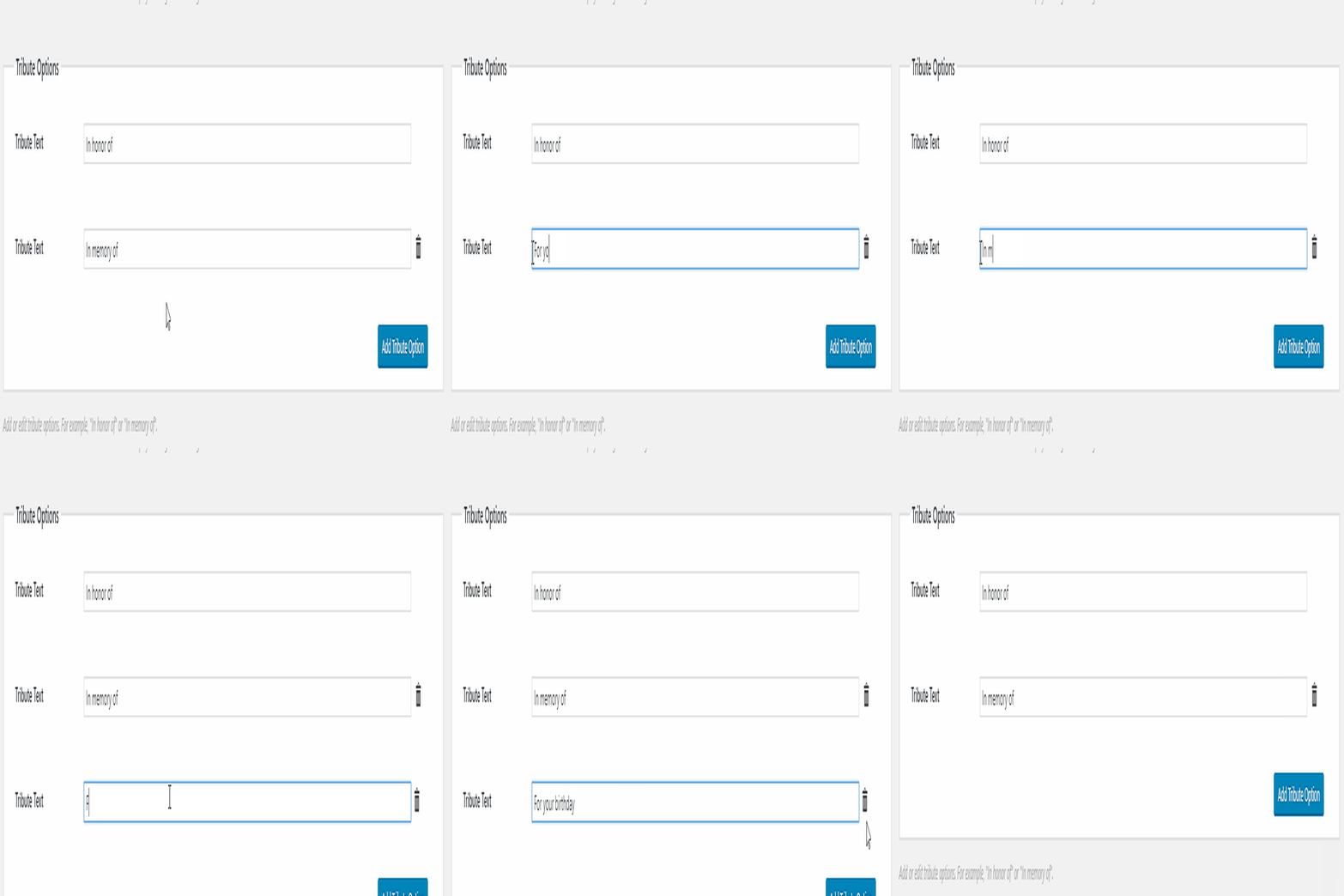
This setting allows you to create as many custom tribute types as you like. By default the most common tribute types are included: “In honor of” and “In memory of”. To add more simply click on “Add Tribute Option” and give your new Tribute type a name. You can also simply change the names of the default Tributes. You can also delete Tribute types by clicking on the “Trash” icon.
Tribute Prepended Label
Settings Type: Text field
Default: “Honoree”
This is the label that appears before the tribute name on the frontend GiveWP donation form.
Tribute Section Location
Settings Type: Dropdown field
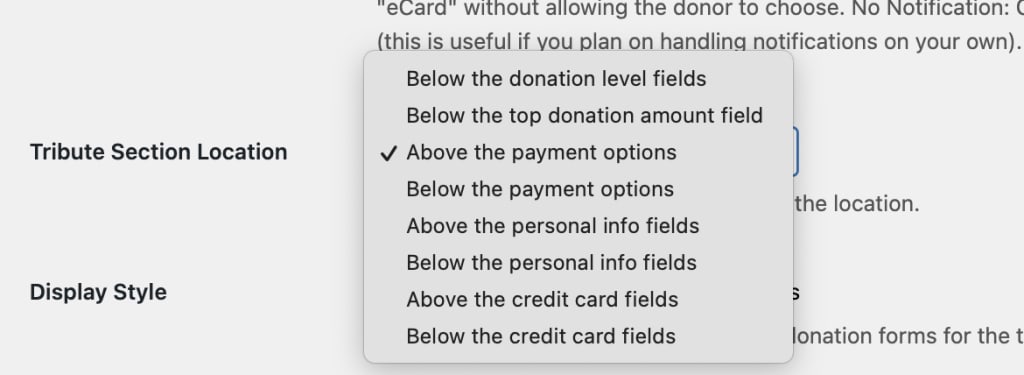
Options: Below the donation level fields | Below the top donation amount field | Above the payment options | Below the payment options | Above the personal info fields | Below the personal info fields | Above the credit card fields | Below the credit card fields
Default: Below the personal info fields
This setting allows you to choose where in the donation form you would like the Tribute options to appear. This is a handy guide to understand the positions well:

Display Style
Settings Type: Radio buttons
Options: Radios | Dropdown | Buttons
This setting dictates the display style of your Tribute options. Similarly to GiveWP’s multi-level options, you can display the Tribute options as inline Radio buttons, a dropdown (select field), or as buttons.
Required or Optional
The Required or Optional section of the Tributes add-on provides you the ability to make Tributes required to complete the donation, pre-selected as yes, or pre-selected as no.
When Tributes is set to “required”, the fields will automatically display on your donation form. The button for Dedication Type will be auto-selected.

When Tributes is set to Optional: Yes, the button will be automatically set to “yes”, and fields will be displayed for donors to complete.

When Tributes is set to “Optional: No, thank you”, no fields will display, and the button will be set to “no”.

Enable eCards
Once Tributes are enabled, you’ll need to enable eCards. After saving your settings, on page refresh you’ll see a new sub-menu item to set your eCard settings.
The Tributes eCards feature allows you to give your donors the ability to have an eCard emailed to their Honoree with a custom message automatically.
Custom Message
Settings Type: Radio buttons
Options: Enabled | Disabled
Default: Disabled
This options provides your donors with the ability to set their own custom message in the eCard.
eCard Email Subject
Settings Type: Text field
Default: “{donor_name} just gave {amount} {tribute} you!”
This is the subject line of the eCard that is emailed to the Honoree. Keep in mind that you can use any of the email tags available to you here. See the “eCard Content” section below for a list of all email tags available.
Multiple eCard Recipients
Settings Type: Radio buttons
Options: Enabled | Disabled
Default: Disabled
This option allow the donors to provide multiple notification names and emails for their dedicated donation. This will send a dedication email to each notification recipient the donor provides.

Logo Graphic
Settings Type: Image upload field
Default: Empty
This field allows you to upload your own custom logo graphic which will be included at the top of your eCard. Here’s a preview of an eCard with the GiveWP logo placed at the top.

eCard Header Graphic
Settings Type: Image upload field
Default: Empty
This setting allows you to upload the image of your choice as the header of the eCard. In the preview image above that is the image with the bears.
eCard Content
Settings Type: WYSIWYG Editor
Default:
Dear {honoree_name},
A donation was made {tribute} you by {donor_name}. The {amount} donation that {donor_name} made to the “{form_title}” fund in your name will help our cause and be put to good use making a difference.
With our thanks,
{sitename}
This is the eCard message that will be sent to the Honoree. Since it is a rich editor you can use all the editor tools you like to customize this message, including adding additional images.
You can also use any of the following email tags within the message to add dynamic information into your eCard message:
{donation}– The donation form name, and the donation level (if applicable).{amount}– The total donation amount with currency sign.{form_title}– The donation form name.{donor_name}– The donor’s first name.{donor_email}– The donor’s email address.{donor_fullname}– The donor’s full name, first and last.{tribute}– The tribute choice given by the donor.{honoree_name}– The name of the honoree.{honoree_fullname}– The full name of the honoree.{card_address}– The address of the honoree.{sitename}– The name of your site.{download_card}– The PDF Download link.
These tags can also be used in the eCard Subject line.
Preview eCard
Settings Type: Action Buttons
Default: NA
There are two ways that you can preview your eCards.
- Preview eCard — this will open a new window in your browser where you can preview the eCard live. At the top of the screen is a dropdown of all your recent donations so you can see what the eCard would look like populated with that specific information. This is a nice option that doesn’t require sending an email.
- Send Test Email — this will send an actual eCard email to your user account email address.
Fieldset Title
The Fieldset Title defaults to the text “Dedicate this Donation”. This field is editable, any text of your choice can be entered to customize your dedication section.

In the example below, the Fieldset Title has been changed from “Dedicate this Donation” to “Donations for the Mason Wedding”:

Tributes Notification Option
With this option, you can provide your donor with a method of notifying the recipient of their tribute donation. This can be donor’s choice, admin’s choice, or no notification at all.
These notifications can be set per-tribute type.

Tributes Section Location
The Tributes Section Location features a pop up menu with a list of options for locations where you can display Tributes fields.
Tributes Reporting Features
If your donors want you to mail cards on their behalf, you’ll want a way to manage those. GiveWP Tributes has powerful reporting features that makes printing your card and tracking whether they are mailed or not as simple as a few clicks.
Additionally, you can track what eCards were sent on your donors’ behalf as well.
Tribute Reports
The Tributes Reports are found under the Legacy Reports within GiveWP. You can find all Tribute Reports by going to GiveWP > Reports > Legacy Reports > Tributes. There you’ll find different sub-menu links depending on what features of Tributes you have enabled. When all features are enabled you’ll see these options:
- Tribute Donations
- eCards
The Tribute Donations Report

This report simply lists all donations that you’ve received that have a Tribute named in one form or another. This table can be sorted by the Donation ID, Honoree Name, or the Date/Time.
The eCard Report

This report lists all donations that were made where an eCard was sent. The table can be sorted by the date the eCard was sent or by the Donation ID. The “Options”