

GiveWP Shortcode Builder
Introduction
The easiest way to add shortcodes to your posts and pages is through the GiveWP Shortcode Builder. It is the quickest way to add a shortcode without worrying about getting the syntax or attributes wrong.
If you are using the Classic Editor, you can find the shortcode builder button labeled “GiveWP Shortcodes” located right next to the “Add Media” button above your text editor.
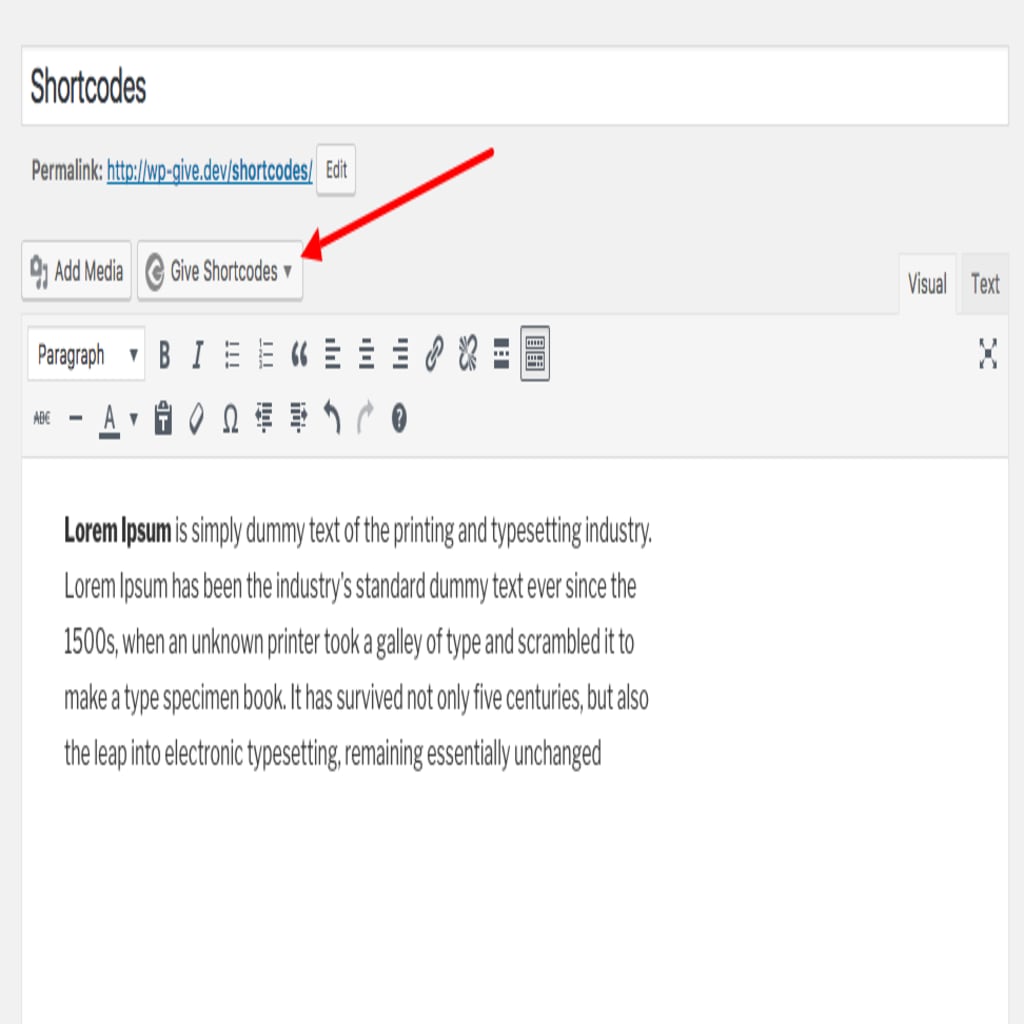
Click on the shortcode builder button and choose the specific shortcode you want to create from the dropdown list. Selecting an option (like “Donation Form”) produces a pop-up window with various options to configure your form.

Once you are done configuring the optional settings, click the “Insert Shortcode” button. Once it is added to the post or page, you can publish it or copy and paste it to a different part of the content anywhere on your site.
Troubleshooting Missing Buttons
If you do not see the Shortcode Builder button available in your editor, it is likely due to one of the following reasons:
1. You are using the Block Editor (Gutenberg)
- The Issue: The modern WordPress Block Editor does not use the Classic Visual Editor that the Shortcode Builder is tied into.
- The Solution: Instead of the shortcode builder, use the native Shortcode Block or our dedicated GiveWP Blocks to embed features directly into your pages and posts.
2. You are using a Custom Page Builder
- The Issue: Many third-party page builders (like Elementor or Divi) disable the Classic WordPress editor by default.
- The Solution: You will need to use the specific text or shortcode modules your page builder provides, and create your shortcode by hand. All of our shortcode documentation articles have detailed explanations for how to build shortcodes manually with “attributes.”
3. Your Visual Editor is Disabled
- The Issue: Your specific WordPress user profile has the Visual Editor disabled. By default, it should be enabled.
- The Solution: If you see a plain text editor and do not see our Shortcode Builder button, go to your Profile in the WordPress admin dashboard and ensure the “Disable Visual Editor when writing” option is unchecked.
Shortcode Attributes
If you are writing shortcodes by hand, you need to use “attributes” to control the output. Here is a quick breakdown of the terminology:
- Shortcode: The core command (e.g.,
[give_form]). - Attribute: The specific setting you are targeting (e.g.,
id=). - Value: The exact data you input, wrapped in quotation marks (e.g.,
"7").
With that in mind, a fully formatted shortcode requires at least one attribute and looks like this:
[give_form id="7"]All GiveWP shortcode documentation articles provide descriptions of available attributes. Each attribute will indicate whether it is required for the shortcode to render or whether it is optional. If it is optional, it has a default value. This means that to render a form correctly, you only have to set the required attributes—all others have smart defaults that you can customize only if you need to.
Keep in mind that you can copy and paste your full shortcode anywhere on your website via a post, a page, or even paste it directly into an HTML widget.
Adding Shortcodes Programmatically
If you are a developer and want to output your shortcode programmatically directly in your theme template files or via a functionality plugin, you can use the WordPress do_shortcode function like so:
echo do_shortcode('[give_form id="87"]');Next Steps & Related Guides
Ready to start building? Explore these related guides to learn exactly how to use specific shortcodes and blocks: