

Recommended Server Resources
When working with WordPress, ensuring that your server’s settings meet the minimum requirements is essential for a seamless experience on both the front end and back end of your website. Common errors, such as those related to WP memory limits, upload sizes, or maximum execution times, often stem from insufficient server resources allocated to your site.
Recommended Server Settings
Here you’ll find a chart detailing the recommended minimum resource values. When troubleshooting Kadence, it’s crucial to confirm that your server meets or exceeds these minimum requirements. For larger websites such as e-commerce sites, you may need to adjust these values beyond these recommendations to accommodate increased demands.
You should ensure you are using the recommended server resources for WordPress. These values can often times be modified by editing your php.ini file.
You can either modify these manually or contact your hosting provider to ensure these requirements are met.
| Server Setting | Value |
| PHP Memory Limit | 512MB |
| Max Post Size | 50MB |
| WP Memory Limit | 256MB |
| WP Max Memory Limit | 512MB |
| Max Upload Size | 50MB |
| Max Input Vars | 5000 |
| Max Execution Time | around 300 |
Checking Your Server Settings
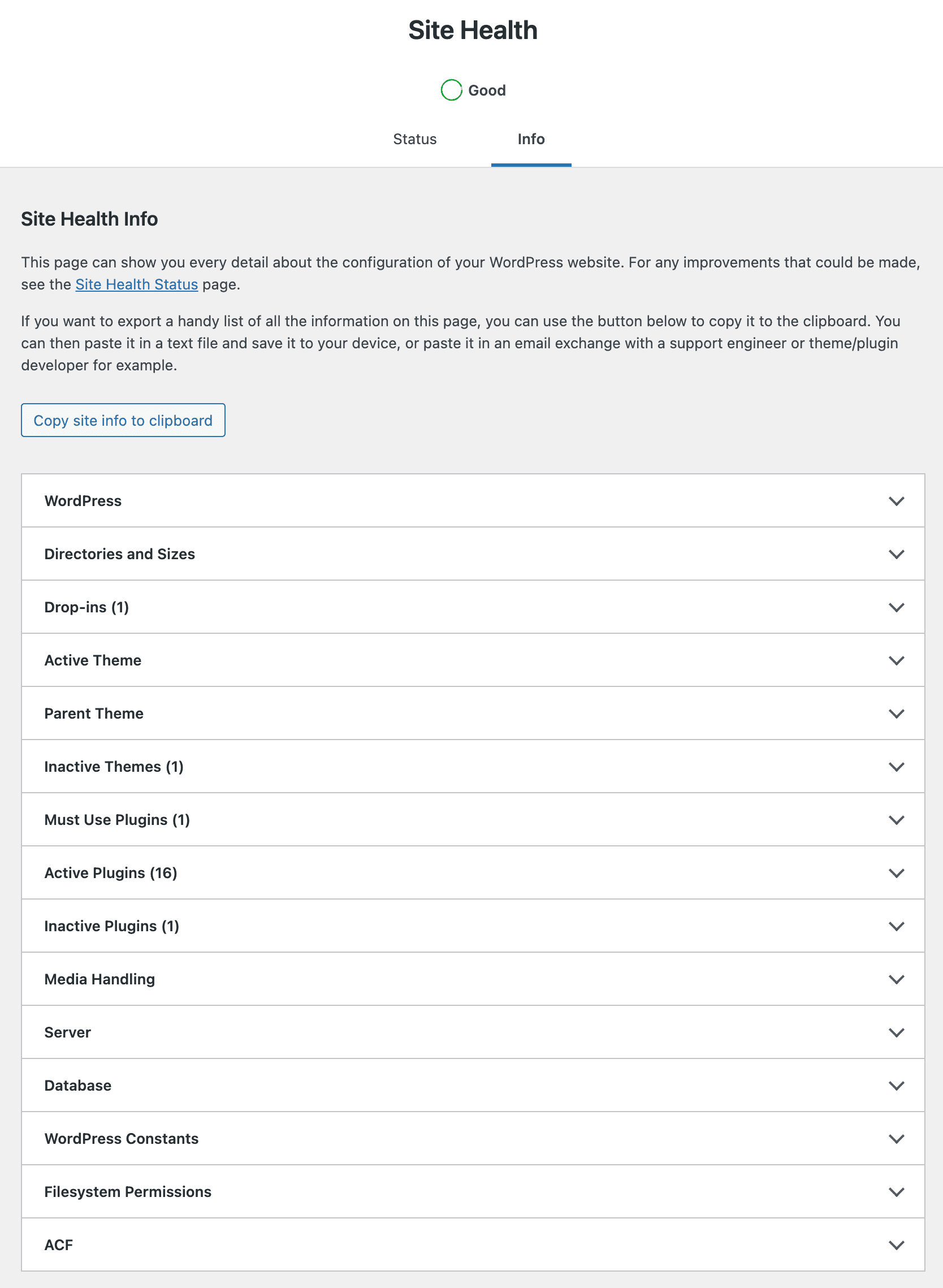
One way to check your current server settings is to use the WordPress Site Health tool. To access this tool, click on Tools → Site Health. Then click on the Info tab. Here you’ll have access to several areas of information.
The settings you’ll need to check can be found under two separate sections:
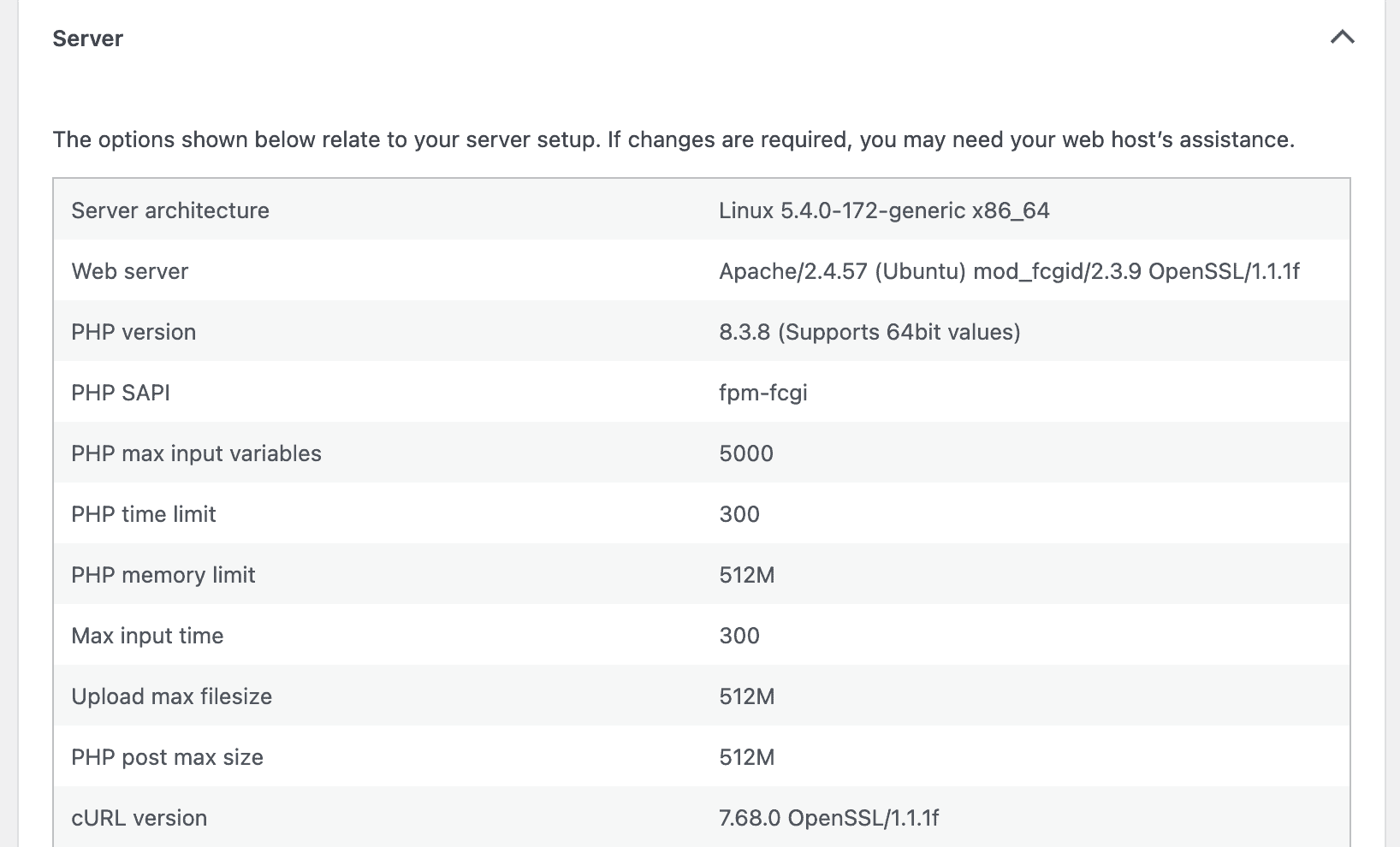
Server Section
In this section, you’ll find settings such as:
- PHP max input variables (Max Input Vars)
- PHP time limit (Max Execution Time)
- PHP memory limit
- Upload max filesize (Max Upload Size)
- PHP post max size (Max Post Size)
WordPress Constants Section
In this section, you’ll find settings such as:
- WP_MEMORY LIMIT
- WP_MAX_MEMORY_LIMIT

For more information regarding WordPress memory limits, please see: Editing wp-config.php in the WordPress Advanced Administration Handbook.