

Size Settings
Kadence Conversion items can be sized in a variety of ways dependent on your marketing goals and the needs of your site visitors.
Popups
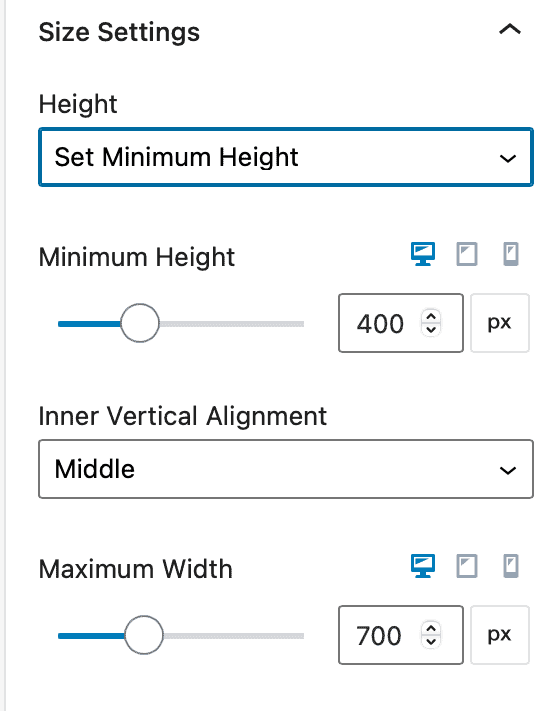
For Popups, you can set the Height to: Auto, Set Minimum Height, or Full Screen Height.
When Auto is selected, you can also set a Maximum Width for desktop, tablet, and/or mobile.
When Set Minimum Height is selected, you can set the Minimum Height and unit (px, em, rem, vh) for desktop, tablet, and/or mobile.
When Full Screen Height is selected, you can set the Inner Vertical Alignment (top, middle, bottom) as well as the Maximum Width (px or vw) for desktop, tablet, and/or mobile.
Slide-Ins
For Slide-Ins, you can set the Height to: Auto, or Set Minimum Height
Inner Vertical Alignment can be set to: top, middle, or bottom
Maximum Width can be specified (px or vw) for desktop, tablet, and/or mobile.

Banners
For Banners, you can set the Height to: Auto, or Set Minimum Height
Inner Vertical Alignment can be set to: top, middle, or bottom
Inner Content Max Width can be specified (px or vw) for desktop, tablet, and/or mobile.
