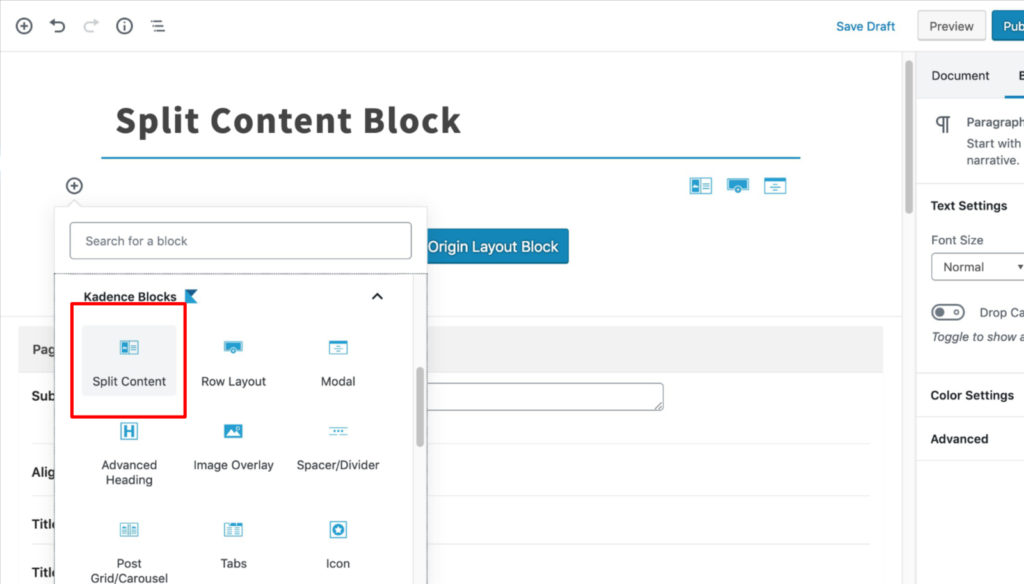
Split Content Block
Have you ever heard of split content? It’s a popular web design layout that showcases an image and accompanying text side by side. Unfortunately, the default WordPress block editor doesn’t allow for this style. But don’t worry, there are alternative methods available to achieve this visually stunning look!
The Split Content block is only available with Kadence Blocks Pro.
General
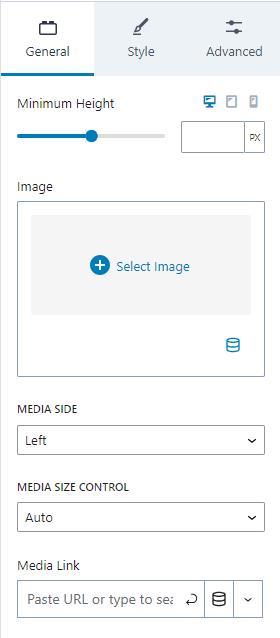
The Split Content block has general settings that allow you to adjust the minimum height for desktop, tablet, and mobile devices.
The image for the split content block is also added in the general settings. The media side option lets you place the image on the left or right side of the block.
The media size control allows you to set the size to auto, cover, or contain.
You can also apply a link to the media using the media link setting.
Style
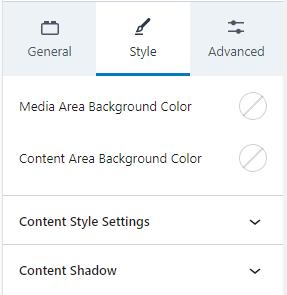
Style settings for the Split Content block let you set the media and content area background colors.
Additionally, there are content style and shadow settings.
Content Style Settings
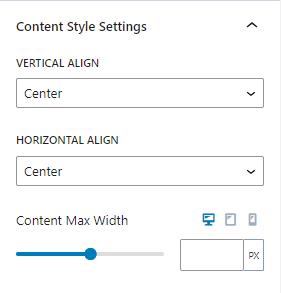
Content style settings allow you to set the vertical and horizontal alignment, as well as the content max width.
Vertical alignment can be set to center, top, or bottom. Horizontal alignment can be center, left, or right. The content’s max width can be set for desktop, tablet, or mobile devices.
Content Shadow
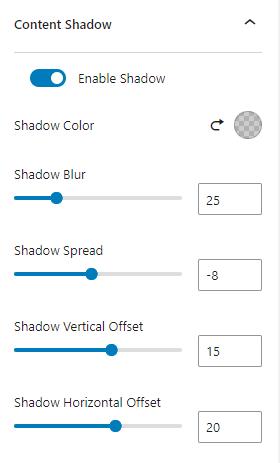
The Split Content block also provides a shadow feature for the content. You can adjust the shadow color, blur, spread, and vertical and horizontal offset.
Advanced
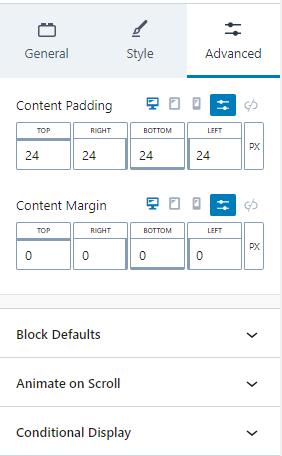
The Advanced tab has spacing settings, as well as sections for block defaults, animate on scroll, and conditional display.
Content padding and margin can be adjusted for desktop, tablet, and mobile devices.