

How to Change The Image Transition Effect
WooThumbs for WooCommerce allows you to change the effect shown to customers when they scroll through your new product image gallery.
With just a few changes to the plugin settings, you can choose between horizontal slide, vertical slide, and fade.
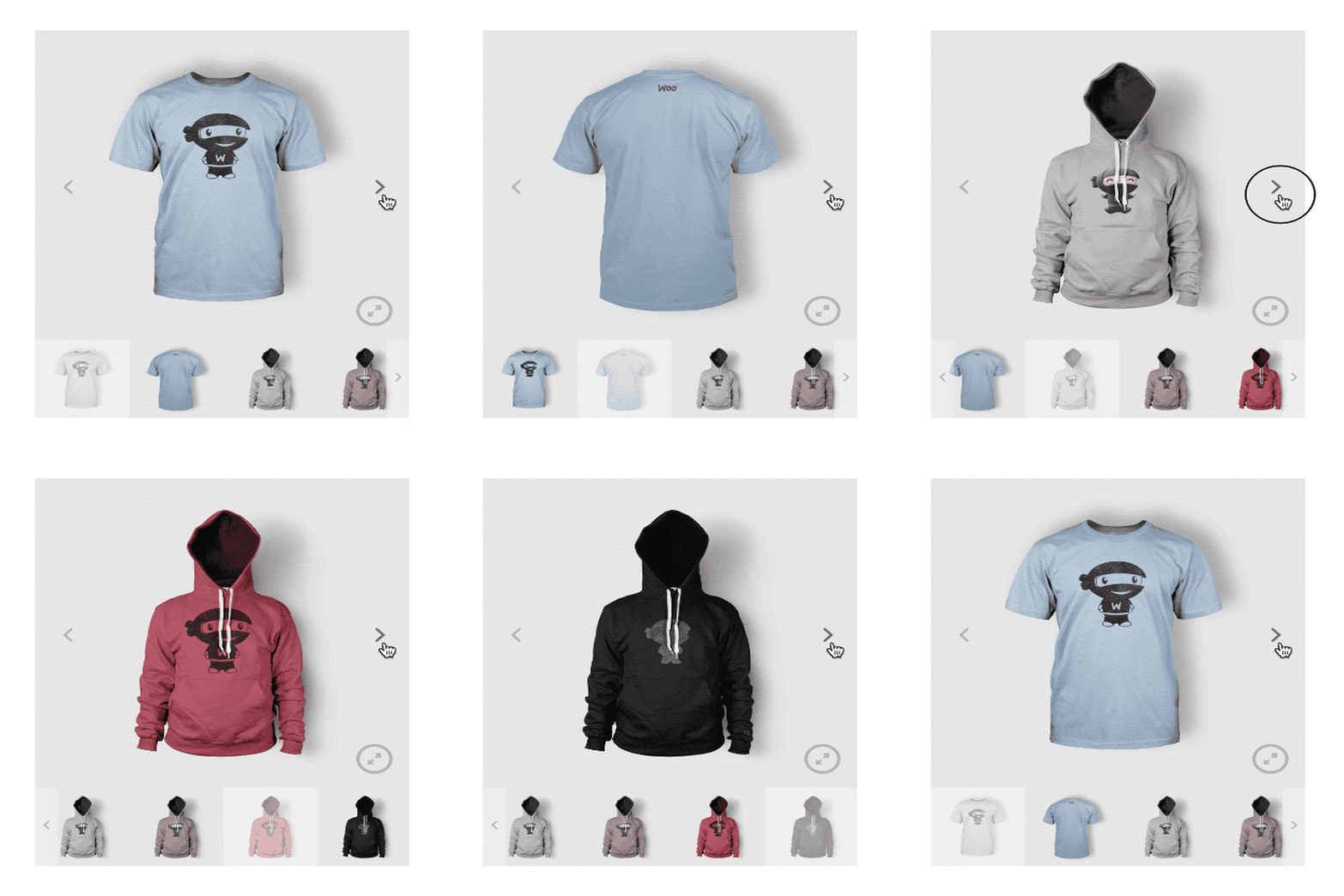
To change the transition effect, take the following steps:
- From your WordPress dashboard, go to WooCommerce > WooThumbs > Carousel.
- In the Carousel Settings section, you’ll see a dropdown next to Mode. Use this to pick your preferred transition.

- Next, you can set the Transition Speed. This is the speed at which the gallery changes from one image to another. It’s best to make this fairly quick, as customers don’t want to wait.

- You can set the images to automatically slide/fade after the page loads by enabling the Autoplay option. This will begin after the length of time entered into the Slide Duration setting.

- Finally, you can enable or disable Infinite Loop. This means when you get to the end of your images it will go back to the start when you click the next icon.

- Once you’re happy with all your settings, scroll to the bottom of the page and click the blue Save Changes button.