

Editing a Membership
Memberships in MemberDash can be edited at any time to adjust details, payment settings, access options, and more. This guide walks you through the different areas you can update within a membership and highlights key considerations to prevent disruption for existing subscribers.
Accessing Membership Edit Options
To edit a membership:
- Go to MemberDash > Memberships.
- Hover over the membership you want to edit.
- Choose one of the following:
- Access Options: Jump directly to access-related settings.
- Edit: Open the full membership editing interface.
Membership Details
When you click Edit, you’ll first land on the Details screen.
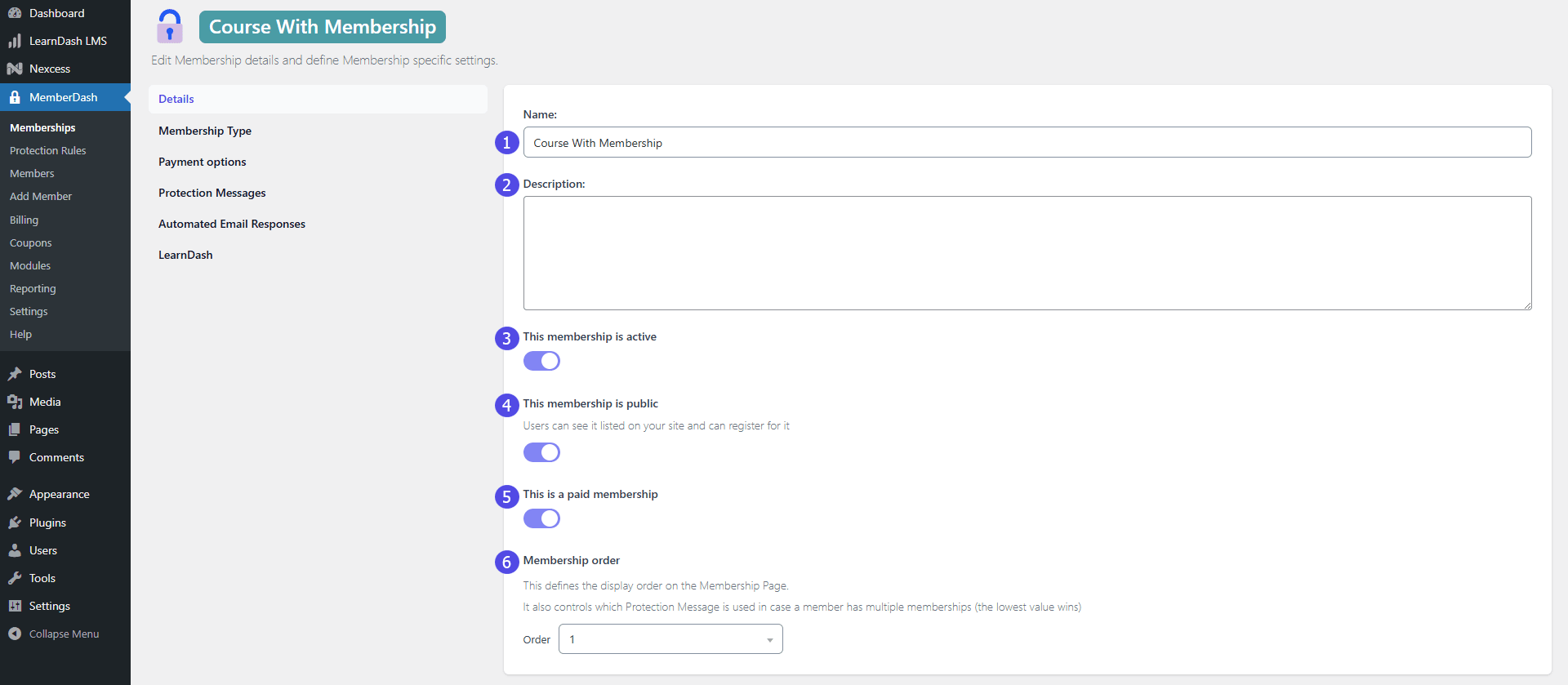
Editable Fields:
- Membership Name: You can update the name, but do so with caution—it may disrupt billing if users are actively subscribed.
- Description: Appears on the registration form, if used.
- Active State: Temporarily deactivate the membership; invoices will not be generated while inactive.
- Public State: Make the membership private to hide it from the registration form.
- Payment Status: Change from Paid to Free or vice versa.
- Membership Order: Adjust the display order on the registration form (alphabetical by default).
Membership Type
You can update the membership type to:
- Standard
- Dripped Content
- Guest
- Default
Important: Changing the membership type may affect existing Protection Rules. Review these rules carefully if you make changes.
Learn more about Membership Types here.
Access Options and Payment Options
Access Options:
Configure membership behavior, including:
- Access Structure
- After this Membership Ends (e.g., restrict access or assign another membership)
- Registration Redirect URL
- Login Redirect URL
- User Role Assignment for New Members
Note: Changes here only apply to new subscribers. Existing subscribers’ invoices and access settings will remain unchanged.
Payment Options:
Configure payment settings, including:
- Membership Requirements
- Setup Fee
- Payment Amount
- Registration Redirect URL
- Login Redirect URL
- User Role Assignment for New Members
Note: Like Access Options, payment changes will only affect new subscribers.
Upgrade Paths
The Upgrade Paths feature lets you control who is eligible to purchase the membership:
- You can restrict access to users with specific existing memberships or open it to the general public.
Note: If the Multiple Memberships Module is enabled via MemberDash > Modules, you’ll see additional options here.
Protection Messages
You can override the global Protection Messages for this specific membership.
To customize:
- Toggle Define Custom Message for any of the three available messages.
- Enter your custom text.
- Click Save to apply changes.
Automated Email Responses
Customize automated emails on a per-membership basis.
To edit:
- Click Automated Email Responses in the membership settings.
- Select a template from the dropdown menu.
- Toggle Define Custom Template to enable custom editing.
- (Optional) Click Load Template to pull in the default template as a starting point.
- Once complete, ensure the Enable Custom Template option is turned on.
- Click Save Changes when finished.

LearnDash Course Enrollment
You can automatically enroll members into LearnDash courses when they join this membership.
To assign courses:
- Click inside the white course selection box.
- Select the desired course from the dropdown list.
- Repeat to add multiple courses.
Conclusion
Editing memberships in MemberDash gives you full control over access, payment settings, and user experience—without affecting existing subscribers’ invoices. Always double-check membership type changes and protection rules to ensure smooth transitions. With MemberDash’s granular controls, you can fine-tune memberships to support your evolving content and access strategies.