

Rollback a plugin or theme using WP-Admin or WP-CLI

Managing plugin, theme, and WordPress core updates are an essential part of a WordPress site administration that ensures a website owner can leverage new features and keep their website protected from various security threats. However, the increasing amount of code involved for your website as new plugins and themes are installed and activated can often lead to compatibility issues and break the website’s functionality.
Knowing how to rollback plugin updates in WordPress can save a lot of time when debugging and fixing WordPress critical errors. So let’s talk about how to rollback plugins and themes to a particular version to prevent updates from breaking your WordPress site.
Get fast, reliable hosting for WordPress
Power your site with the industry’s fastest, most optimized WordPress hosting
Overview of WordPress plugin and theme updates
WordPress plugin and theme updates are essential to ensure website security and leverage new features that plugin and theme developers present with each new version released. Increasing security and performance, and adding new functionality, are the main reasons why performing regular software updates is so important.
When a new update is released for a plugin, theme, or the WordPress core, it usually contains various security patches for the vulnerabilities discovered in the previous versions. Plugin and theme updates often have new functionality that can help manage a website more efficiently.
In addition, new, enhanced versions of software ensure better performance and security.
Why would you want to rollback your plugin and theme updates?
Even a few plugins can lead to code incompatibility issues and poor website performance.
Furthermore, each plugin activated results in an increased website complexity, which in turn can lead to breaking the whole site or certain components of it.
A mindful approach to WordPress plugin updates includes testing new versions in the staging environment and disabling automatic updates for some add-ons. You can perform updates of specific plugins manually to ensure that you can quickly address any issues tan update can cause.
You may want to roll back a plugin or theme update to get your website back to a working state after a plugin or theme update was installed, which caused certain issues or even led to a critical error. This way, you can resolve the issue immediately and then work on resolving plugin conflicts.
How to rollback updates
Rollback of a plugin or theme means switching to one of the previous versions of it after an update. This feature ensures that any plugin or theme update that leads to issues can easily be reverted without manually reinstalling a particular plugin or theme.
You can rollback plugin and theme updates from the WordPress Admin Dashboard or use WP-CLI. As well, a specific plugin like WP Rollback can be used for to facilitate easy rollbacks.
Using the admin panel
Using a plugin like WP Rollback, you can rollback plugin and theme updates from the WordPress Admin Panel (WP-Admin) — also known as the WordPress Admin Dashboard. The plugin provides excellent functionality that can help you rollback a plugin or a theme to any version that was previously released in a matter of seconds.
After the plugin has been installed and activated, we can learn how to rollback plugin updates in WordPress and easily switch to any version of the currently used theme:

Open the list of currently installed plugins from the WordPress Admin area by choosing Plugins > Installed Plugins from the menu.
After installing the WP Rollback plugin, you will see the Rollback option added under each plugin name.
Next, click on the Rollback link shown on the line under the plugin you want to rollback updates for:
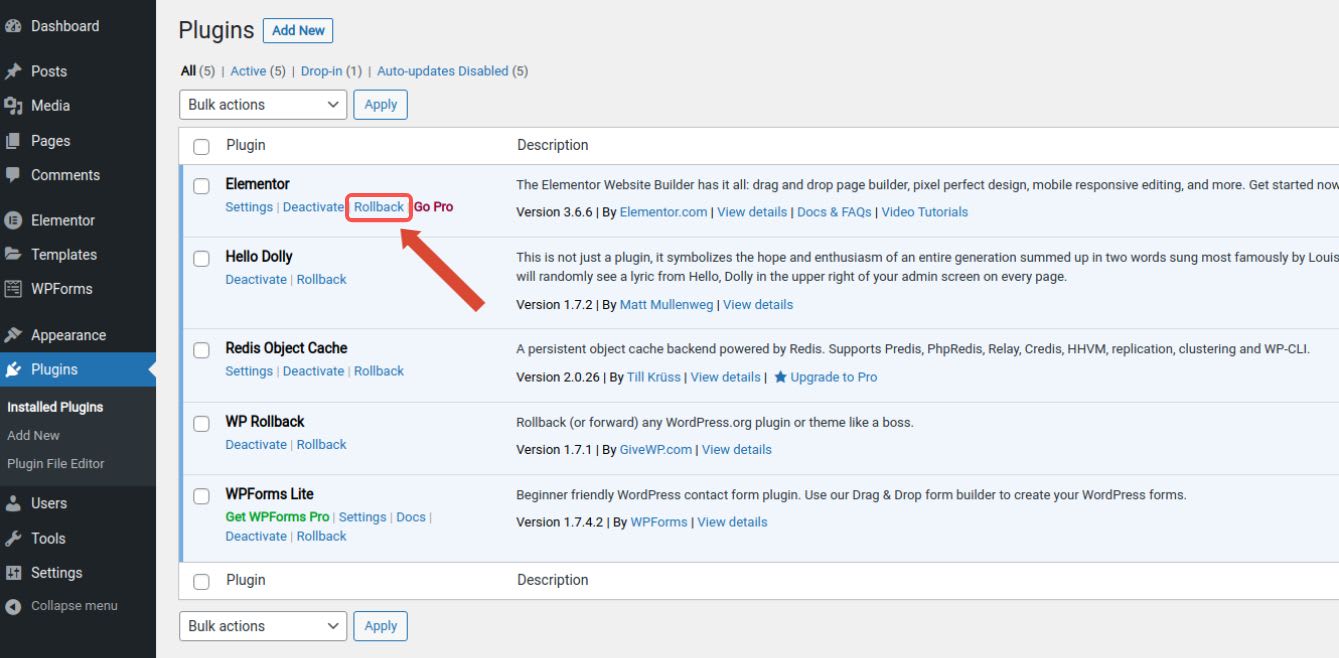
A new page will open, allowing you to choose what version of the selected plugin you would like to switch to. The currently installed version will be highlighted in the list of all versions to understand the upgrade path better:

Choose the version, click the Rollback button, and confirm the changes. Then, the chosen version of the plugin will be installed.
Rollback a theme using the WordPress admin panel (WP-Admin)
In a similar fashion, to rollback a theme:
Open the list of installed themes from the Appearance > Themes area and hover over the theme you want to rollback.
Next, click the Theme Details button, and a new page will open, allowing you to customize the chosen theme or rollback its updates:
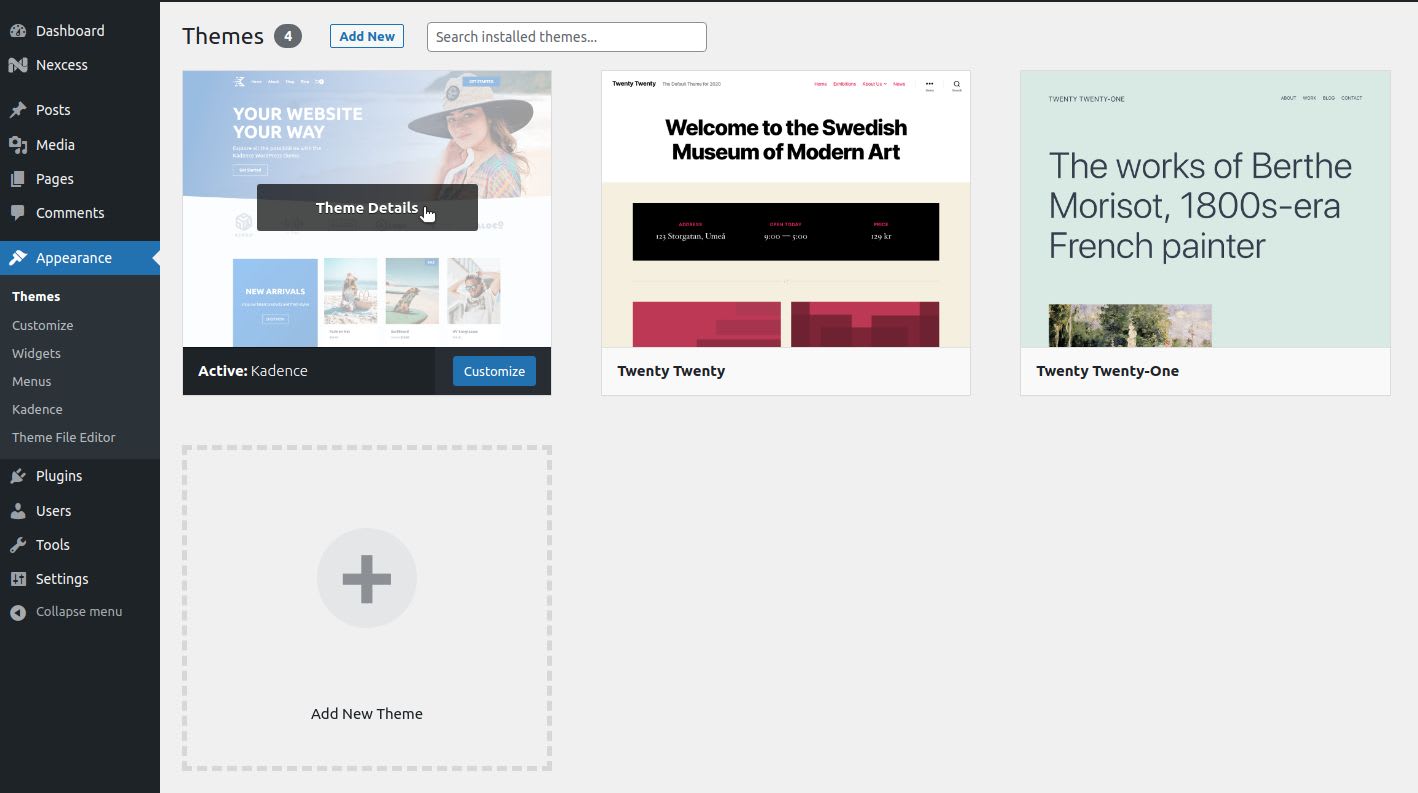
Choose the version of the theme you would like to switch to and confirm the update:

Don’t let AI break your WordPress site
We like Google’s AI Overviews and other LLM summaries as much as the next person who has to search ‘how to’ do something new. But when they cite inaccurate or outdated content, your site suffers.
Solution: Take control of your search results by adding Liquid Web as a preferred source. You’ll see our guides more readily when you search for help with your site.
Using WP-CLI
The WordPress Command Line Interface is a powerful tool for managing your WordPress installation. For example, you can easily rollback a plugin or theme using WP-CLI — or perform updates manually.
The wp plugin and wp theme commands in WP-CLI are used for managing plugins and themes, including installs, activations, and updates. You can install any version of the chosen plugin or theme, but you will not be able to choose from the list of versions like we did using the WP Rollback plugin.
Display currently installed themes and plugins
You can see the list of all plugins and themes installed using the wp plugin list or wp themes list commands. It is beneficial for finding the right plugin name to use when working with WP-ClI and checking the current version installed:
[wordpress@host html]# wp theme list +-----------------+----------+--------+---------+ | name | status | update | version | +-----------------+----------+--------+---------+ | generatepress | active | none | 3.1.3 | | oceanwp | inactive | none | 3.3.2 | | twentynineteen | inactive | none | 2.3 | | twentytwenty | inactive | none | 2.0 | | twentytwentyone | inactive | none | 1.6 | | twentytwentytwo | inactive | none | 1.2 | +-----------------+----------+--------+---------+
Rollback plugin updates using WP-CLI
To rollback a plugin or a theme update and switch to one of the previous versions, you can use the --version flag to specify the version you would like to rollback to. The chosen version of the plugin or theme will be installed and activated for you. If the version is not specified with the update option, it will automatically update a theme or plugin to the latest version available:
[wordpress@host html]# wp plugin update elementor --version=3.6.5 Installing Elementor Website Builder (3.6.5) Downloading installation package from https://downloads.wordpress.org/plugin/elementor.3.6.5.zip... Unpacking the package... Installing the plugin... Removing the old version of the plugin... Plugin updated successfully. Success: Installed 1 of 1 plugins.
If you display the list the plugins you have installed after the rollback procedure has been completed, you will see the version you switched to, and that the plugin has updates available:
+------------------+--------+-----------+---------+ | name | status | update | version | +------------------+--------+-----------+---------+ | elementor | active | available | 3.6.5 |
Rollback theme updates using WP-CLI
You can rollback a theme the same way by using the update option and specifying the desired version:
[wordpress@host html]# wp theme update twentytwentyone --version=1.5 Installing Twenty Twenty-One (1.5) Downloading installation package from https://downloads.wordpress.org/theme/twentytwentyone.1.5.zip... Unpacking the package... Installing the theme... Removing the old version of the theme... Theme updated successfully. Success: Installed 1 of 1 themes.
Update a plugin or theme to the newest version using WP-CLI
You can update a theme or plugin to the newest version using the update option without having the version specified. WordPress will check for updates and install the latest one available:
[wordpress@host html]# wp plugin update elementor Enabling Maintenance mode... Downloading update from https://downloads.wordpress.org/plugin/elementor.3.6.6.zip... Unpacking the update... Installing the latest version... Removing the old version of the plugin... Plugin updated successfully. Disabling Maintenance mode... +-----------+-------------+-------------+---------+ | name | old_version | new_version | status | +-----------+-------------+-------------+---------+ | elementor | 3.6.5 | 3.6.6 | Updated | +-----------+-------------+-------------+---------+ Success: Updated 1 of 1 plugins.
Getting started
Managing plugin and theme updates is crucial to ensure your WordPress website stays fast and secure. Often, in addition to new features and security patches that a plugin or theme update provides, you can fix issues with or enhance the existing functionality of your website.
Addressing plugin conflicts is not an easy task that may take hours. However, you can rollback a plugin or theme to the previous version to bring your website back to a functional state by using WP-Admin, WP-CLI, or the WP Rollback plugin.
When you’re ready to upgrade your WordPress hosting, Liquid Web can help. We’ve been offering the premium hosting for WordPress sites for decades—with the fastest speeds, best uptime guarantees, and most robust security features. Click below to explore options or start a chat to connect with one of our WordPress hosting experts right now.
Additional resources
6 quick fixes to get rid of error 521 in WordPress website →
Resolve WordPress Error 521 to restore site access.
How to create an online course website with WordPress →
Create a WordPress course website to sell lessons online.
How to provide secure access to your WordPress site →
Grant secure WordPress access while protecting your site.