

How to set up SSL in Magento 2
Key takeaways
- SSL must be active on your server before Magento 2 can use HTTPS.
- Magento 2 SSL setup requires secure base URLs for the storefront and admin.
- You can configure SSL in Magento Admin or through SSH.
- After setup, flush cache and test HTTPS, checkout, admin, redirects, and mixed content.
Learn how to configure your Magento 2 store to use SSL certificates using either the Magento 2 Dashboard or SSH.
Setting up SSL in Magento 2 is a two-part process. First, the SSL certificate must be installed and active on your hosting server. Then, Magento needs to be configured to use secure HTTPS URLs across the storefront and admin area.
Host Magento at full throttle.
Get secure, reliable Magento hosting so you can scale faster.
What are SSL certificates?
SSL certificates are digital certificates that create an encrypted link between a server and a client. A functioning SSL certificate allows users to transmit sensitive information between servers and browsers without fear of third-party eavesdropping.
For Magento 2 stores, SSL helps protect customer logins, account details, checkout activity, forms, and payment-related interactions. It also helps customers see that your store uses HTTPS instead of a browser “Not Secure” warning.
Before you set up SSL in Magento 2
Before changing Magento settings, confirm the SSL certificate is installed, active, and assigned to the correct domain. Magento cannot use HTTPS correctly if the certificate is missing, expired, or installed on the wrong domain.
You should also have access to Magento Admin, SSH if using the command line, current Magento base URLs, and cache-clearing tools. For multiple domains, subdomains, or store views, confirm which certificate and secure base URL apply to each one.
Step 1: Install the SSL certificate on your server
Install the SSL certificate before updating Magento.
If you use cPanel or managed hosting, look for the SSL/TLS Manager, AutoSSL, Let’s Encrypt, or your host’s certificate installation tool. If you use a VPS, cloud, NGINX, or Apache environment, you may need to generate a Certificate Signing Request, obtain certificate files from a Certificate Authority, install them in the correct server block or virtual host, and reload the web server configuration.
Before moving to the Magento settings, confirm that your HTTPS domain loads in the browser.
Step 2: Configure SSL in Magento 2 Admin
- Log in to your Magento 2 Dashboard.
- Select Stores > Configuration.
- On the Configuration page, from the General list, select Web.
- Expand Base URLs (Secure).
- In Secure Base URL, enter https:// followed by your domain.
- Set Use Secure URLs on Storefront to Yes.
- Set Use Secure URLs in Admin to Yes.
- Click Save Config.
Your store is now configured to use the SSL certificate through Magento Admin.
Magento 2 SSL settings explained
Before you flush the cache, it helps to understand what each SSL setting controls.
| Setting | What it does |
| Secure Base URL | Sets the HTTPS version of your store URL |
| Use Secure URLs on Storefront | Enables secure URLs for customer-facing pages |
| Use Secure URLs in Admin | Enables HTTPS for the Magento Admin Panel |
| Base URLs | Controls the default non-secure URL if still used |
These settings should match the exact domain covered by the SSL certificate.
Step 3: Flush Magento cache
Magento may not show SSL changes until cache is cleared.
Use the Admin path:
System > Tools > Cache Management > Flush Magento Cache
Or use SSH from the Magento root directory:

If HTTPS changes still don’t appear, clear server cache, CDN cache, full-page cache, and browser cache.
Alternative method: Configure SSL through SSH
Login to your server via SSH.
Navigate to your Magento installation, but replace the bracketed placeholders accordingly:

To enable secure URLs for both the customer-facing storefront and the admin area, run:
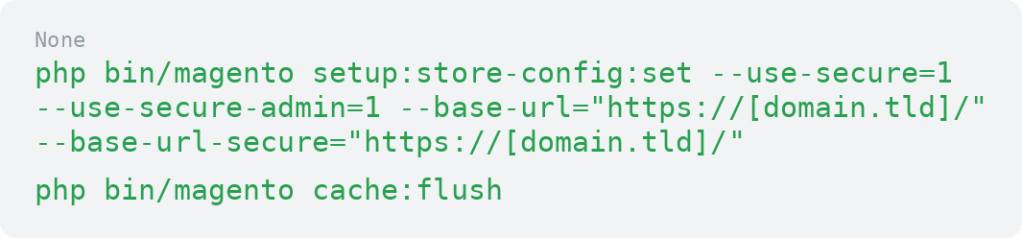
Replace [domain.tld] with your domain. Match the trailing slash format used by your store’s current base URLs.
If you only need to enable secure URLs for the admin area, use the admin-specific setting carefully and confirm that your storefront configuration still matches your intended setup.
Step 4: Set up HTTP to HTTPS redirects
After SSL is enabled, HTTP requests should redirect to HTTPS so customers and search engines use the secure version consistently.
Redirects are usually handled at the server level through Apache or NGINX. Test redirects on the homepage, product pages, category pages, cart, checkout, and admin area. Avoid stacking conflicting redirects in Magento, the web server, and a CDN, because that can create redirect loops.
Work with hosting support if you aren’t sure where redirects should be configured.
Step 5: Test Magento 2 SSL setup
After setup, test more than the homepage.
Check that:
- The homepage loads with HTTPS
- Product pages and category pages load with HTTPS
- Cart and checkout load securely
- Customer login and account pages load securely
- Magento Admin loads with HTTPS
- Images, CSS, and JavaScript load without mixed content warnings
- Forms submit correctly
- Payment and third-party integrations work
- HTTP redirects to HTTPS
- The certificate matches the correct domain
- Each store view, domain, or subdomain uses the right SSL certificate
How to fix common Magento 2 SSL issues
Magento still shows “Not Secure”
Common causes include a missing, invalid, expired, or wrong-domain SSL certificate. Incorrect secure base URLs, cache, or mixed content can also trigger browser warnings.
Mixed content warnings
Mixed content happens when the page loads over HTTPS but images, scripts, stylesheets, theme files, extension assets, or third-party embeds still load over HTTP. Update hardcoded HTTP URLs to HTTPS, then clear cache and test again.
Redirect loops
Redirect loops can happen when server rules, Magento base URLs, CDN/proxy SSL settings, or forced HTTPS settings conflict. Review each redirect layer and remove duplicate or conflicting rules.
Admin login issues after enabling SSL
Check the secure base URL, admin secure URL setting, cache, cookies, and redirects. If you cannot access Admin, use SSH or ask hosting support to help correct the configuration.
Checkout or payment issues
Confirm payment gateway URLs, webhooks, API endpoints, and third-party scripts support HTTPS. Test checkout before assuming the SSL setup is complete.
SSL for multiple Magento store views, domains, or subdomains
Multistore Magento setups may need additional SSL planning. Each storefront domain or subdomain should be covered by the correct certificate, secure base URL, redirect rules, and CDN/proxy configuration.
Check the configuration scope before saving Magento URL settings. A change at the wrong scope can affect the wrong store view or leave one storefront using HTTP.
SSL certificate renewal and monitoring
SSL certificates expire, and an expired certificate can create browser warnings, checkout issues, and customer trust problems.
Track expiration dates, use auto-renewal when available, and confirm renewals apply to every domain and subdomain your Magento store uses.
Magento 2 SSL FAQs
Getting started with SSL in Magento 2
Magento 2 SSL setup starts with a valid certificate on the server, then continues inside Magento with secure base URLs, secure storefront/admin settings, cache clearing, redirects, and testing.
Start by confirming the SSL certificate loads correctly at your HTTPS domain. Then update Magento’s secure URL settings, flush cache, and test the storefront, admin, cart, and checkout.
Magento SSL setup is easier when your hosting environment, certificate management, redirects, cache, and support are clear. Explore Liquid Web Magento hosting for infrastructure and support built to help secure Magento stores with confidence.
Additional resources
http://devdocs.magento.com/guides/v2.0/install-gde/install/cli/install-cli-subcommands-store.html
For 24-hour assistance any day of the year, contact our support team by email or through your Client Portal.
Ready to get started?
Get the fastest, most secure Magento hosting on the market
Additional resources
A guide on how to backup your Magento 2 store →
Discover how to back up Magento to protect store data and support easier recovery.
What is ecommerce fraud? Plus tools for fraud protection →
Explore fraud protection tips to help secure transactions and reduce store risk.
Magento tasks to keep your store running smoothly →
Use this maintenance checklist to keep your store secure, updated, and running smoothly.
