

How to patch your Magento 1 store

Use this method with extreme caution unless you are a developer.
Get fast, reliable hosting for WordPress
Power your site with the industry’s fastest, most optimized WordPress hosting
Caution
As a Magento store administrator, it is your responsibility to stay current on patch releases. We do not monitor our clients’ Magento versions or their patches, and we do generally do not notify our clients of new patches as they are released.
To stay current, we urge all clients to sign up for security alerts at the Magento website. In addition, watch for alerts posted within the Administrative area of your specific Magento installation or installations.
How to install patches
Apply Magento patches immediately upon release. Most releases address significant security threats. Ignoring them exposes your store and your customers to malicious activity.
ATTENTION: We strongly recommend you enlist the services of a developer when applying patches. Some patches may affect your store in unpredictable ways or cause downtime. If you do not yet have a developer, consider starting your search with our list of Magento development partners.
 Read How to Improve the Security of Your Magento Store.
Step 1: back up your store
ATTENTION: Always back up you store before installing a patch.
See How to back up your Magento 1 store.
Step 2: download the patch
Visit the Resources page of the Magento website.
- Click RELEASE ARCHIVE.

- Locate your desired patch, select your format, and click DOWNLOAD. If you are unsure of which patch to download, scroll to the Version1.9.x section and download the first one.ATTENTION: Your most current version may vary from the one pictured below.

Step 3: disable the compiler
The compiler is disabled by default. If you have not previously enabled the compiler, skip to Step 4. If you have previously enabled the compiler, or are unsure:
- From the Magento Admin panel, select System > Tools > Compilation.
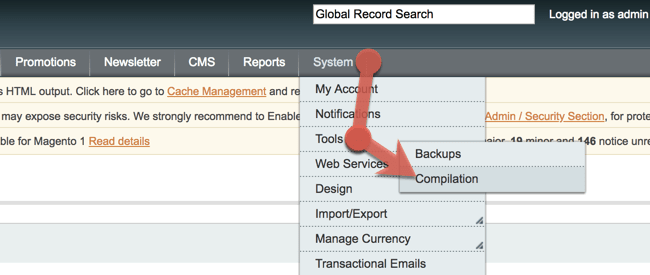
- Choose the option that applies to you:
- If the compiler is disabled, go to Step 4: Install the patch.

- If the compiler is enabled, click Disable.

- If the compiler is disabled, go to Step 4: Install the patch.
Step 4: install the patch
Choose your method:
Method 1: use SSH
ATTENTION: To use this method, you must first enable SSH on your account. See How to enable SSH for details. Secure Shell (SSH) is the preferred method. This method assumes familiarity with SSH. For more detailed instructions about how to install a Magento patch with SSH, see the Magento website.
- Upload the patch files to the root of your [magento] installation folder.
- Verify the compiler is disabled.
- In the console, run the following commands according to the patch extension, but replace patch_file_name with the actual file name:
- .sh extension sh patch_file_name.sh
- .patch extension patch –p0<patch_file_name.patch
- Confirm installation by running the patch file with the -list argument: sh patch_file_name.sh –list Your output will resemble: Your output will resemble:

Method 2: run a script
- Upload the patch files to the root of your [magento] installation folder.
- Verify the compiler is disabled.
- Use a text editor to create a file named patch.php containing the following script, but replace patch_file_name with the actual file name:print(“
"); passthru("/bin/bash patch_file_name.sh"); print("“); echo “Done”; ?>
- Upload the
patch.phpfile to the root of your[magento]installation folder. - Run the script below, but replace yourstore.com with your domain name.
http://www.yourstore.com/patch.php If you see the message below, installation was successful:Checking if patch can be applied/reverted successfully... Patch was applied/reverted successfully. Done
- After installing the patch, delete the patch.php file from your server. If you encounter an error and are a Nexcess client, note the error and contact our support team.
- Refresh your cache from the Magento Admin panel by selecting System > Cache Management, then Flush Magento Cache.
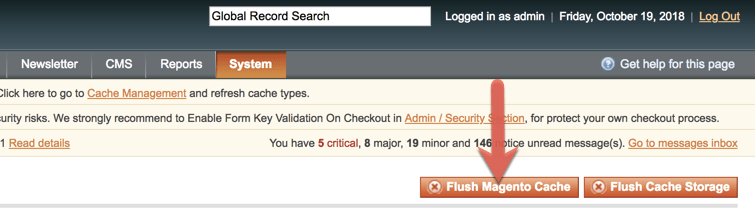
- If your store is compiled, rerun the compiler. See Step 3: Disable the compiler for more information.
Method 3: patch files locally and upload
Although it is possible to download your site to your local machine, execute the patch, and then upload the patched files to your server, this method should only be attempted by experienced Magento developers.
For 24-hour assistance any day of the year, contact our support team by email or through your Client Portal.
Additional resources
How to setup, optimize, and manage your shopping cart →
Review cart tools and settings that support a smoother checkout experience.
Magento 2 product types: a beginner’s guide →
Browse product tools for managing and organizing your store catalog.
Magento extensions vs plugins: what’s the difference? →
Understand how Magento extensions and plugins add features to your store.
