

How to issue a reindex in Magento 2

Magento 2 doesn’t necessarily have the lowest resource usage footprint, and with good reason. A standard Magento installation generates and stores a considerably high volume of data in the form of stores, catalogs, users, offers, etc. Here is where indexers come in handy.
Indexers are objects that create an index of all this data to help increase our storefront’s performance and response time, increasing conversion rates. Knowing that, our indexes must be up to date, always showing the most accurate information at any time.
In this post, we’ll be discussing the two methods to reindex in Magento 2: via the admin panel and through the command-line interface.
Get fast, reliable hosting for WordPress
Power your site with the industry’s fastest, most optimized WordPress hosting
How to reindex Magento 2 through the admin panel
Unlike Magento 1, it is not possible to manually issue a reindex for Magento 2 from the admin panel. Instead, the “Magento_Indexer” performs the tasks for us. We can still set the indexing mode, though. There are two options: “Update on Save” and “Update by Schedule.”
The first option allows the indexer to reindex in real-time, as changes are being made in the admin panel. When we select “Update by Schedule,” it proceeds with the reindex at a specified time, with the help of a Magento cron job. To access the index management panel, we need to go to:
System >> Index Management:
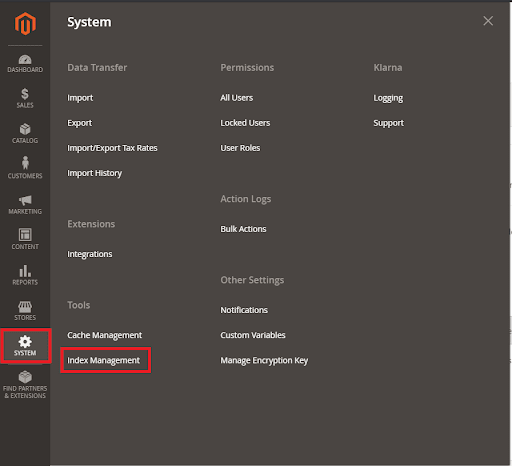
Once we are in the index management panel, we can select the indexing mode of our preference:

In some instances, our indexers will be invalidated:
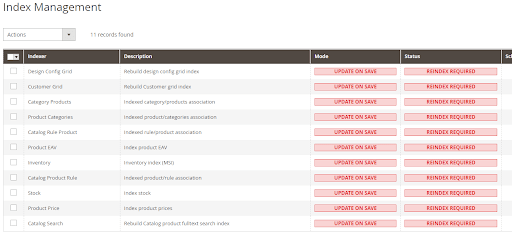
In those cases, we need to reindex all the affected indexers manually, and this has to be done via the command-line interface, as we will show below.
How to reindex Magento 2 via ssh
As previously mentioned, when the indexers are invalid, or if we want to make sure all indexers are reindexed, it is convenient to issue a reindex via the command-line (SSH).
The first step is to go to your Magento’s root directory (in this case, /home/coolmsite/public_html). Optionally, we can verify the status of the indexers using the indexer:status command:
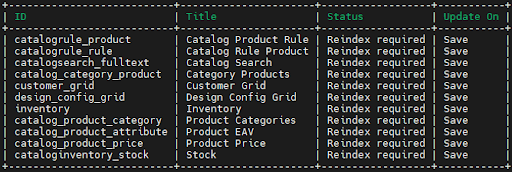
As we can see, a reindex is required for all indexers. So the last step would be to issue the indexer:reindex command to reindex and fix that up:
That is the expected output, and it was a success. We can verify running again the indexer:status command:
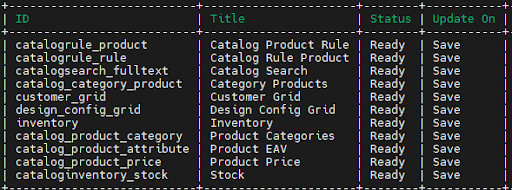
If we don’t need to reindex all the indexers, we can specify the indexers. In the following example, we will reindex the “Design Config Grid” index and the “Inventory” index:
Need more help?
If you need additional help in this topic or any other related matter, reach out to us for 24-hour assistance any day of the year by email or through your Client Portal.
Additional resources
How to flush your Magento cache →
Flush cache to clear stored data and help your store show updates correctly.
Change the Magento 2 admin login url →
Update your Magento admin login URL to help strengthen store security.
Best Magento 2 search extensions →
Find top extensions to add features and improve your store’s functionality.
