

Fixing Magento issues with “error processing your request”

One of the most frequent Magento issues you will encounter while working with Magento sites is the “error processing your request” condition. This article will delve into what this Magento issue means, what causes it, and how to fix it.
This guide to meant to augment our other help articles for fixing Magento issues, including:
- Magento 2 help for frequently asked questions
- Troubleshooting Magento admin panel login issues
- Magento 2 — http 500 “internal server error” fix
Get fast, reliable hosting for WordPress
Power your site with the industry’s fastest, most optimized WordPress hosting
Overview of Magento 2 error reporting
The “error processing your request” condition is not a specific issue, but rather it is a general notification of a category of errors in your system. This Magento issue usually occurs when you install a new Magento 2 theme or extension, update Magento 2 or Magento 2 extension, change the template code, set up configuration, or overload the server memory.
In Magento 1, we can see the entire error message from our browser. Here is the sample output from this kind of Magento issue:

Magento 2 error reporting differs from Magento 1. For security concerns, Magento 2 hides the whole error message. Instead, it only displays the “error processing your request” message and an error log record number. Here is the sample output from this kind of Magento issue:

There are many ways to check and fix this Magento issue.
Flush your Magento 2 cache
Clearing the Magento 2 cache will fix the issue usually. You can flush your Magento cache using the Magento Admin Panel or SSH.
For Magento 2 using the Magento Admin Panel:
1. Log into your Magento Dashboard.
2. From the System tab, click Cache Management.
3. Then, click the Flush Magento Cache option:

4. You will get a “The Magento cache storage has been flushed.” message once the system finished the task:

5. For Magento 2 via SSH:
5a. Once you access the server via SSH, you can run the following command from the Magento root directory.
php bin/magento cache:flush
5b. Here is the output:
[a0bcc4e7@cloudhost-2685648 html]$ php bin/magento cache:flush Flushed cache types: config layout block_html collections reflection db_ddl compiled_config eav customer_notification config_integration config_integration_api full_page config_webservice translate vertex
6. For Magento 1 using the Magento Admin Panel:
6a. Log into your Magento Admin Panel.
6b. Then, from the System tab, click Cache Management.
6c. Next, click Flush Magento Cache. Then, the message, “The Magento cache storage has been flushed.” message will appear to confirm that the action has been completed in the system.
7. For Magento 1 via SSH:
7a. Once you accessed the server via SSH, you can run the following command from your site’s root folder:
php -r'require "app/Mage.php"; Mage::app()->getCacheInstance()->flush();'
7b. If the issue still continues, you must manually read the log file in /var/reports.
Manually read the log files in /var/report
If you have an error log record number, you must open a report file with the name corresponding to the number to get the entire error message and detailed information about where it happened. All reports are in the /var/report folder.
For example, if you want to find the entire error message and detailed information of an error log record number such as 1a2b3c4d5f1a2b3c4d5f1a2b3c4d5f, you will need to follow the below steps:
1. Log into your Magento 2 account via SSH or FTP:
[a0bcc4e7@cloudhost-2685648 html]$ll total 1796 drwx--x--x 4 a0bcc4e7 a0bcc4e7 89 Jun 25 07:50 app -rw-r--r-- 1 a0bcc4e7 a0bcc4e7 150 Jun 25 07:50 auth.json.sample drwx--x--x 2 a0bcc4e7 a0bcc4e7 38 Jun 25 07:50 bin -rw-r--r-- 1 a0bcc4e7 a0bcc4e7 766543 Jun 25 07:50 CHANGELOG.md -rw-r--r-- 1 a0bcc4e7 a0bcc4e7 2651 Jun 25 07:50 composer.json -rw-r--r-- 1 a0bcc4e7 a0bcc4e7 998932 Jun 25 07:50 composer.lock -rw-r--r-- 1 a0bcc4e7 a0bcc4e7 650 Jun 25 07:50 COPYING.txt drwx--x--x 4 a0bcc4e7 a0bcc4e7 49 Jun 25 07:51 dev drwx--x--x 3 a0bcc4e7 a0bcc4e7 35 Jun 25 07:55 generated -rw-r--r-- 1 a0bcc4e7 a0bcc4e7 55 Jun 25 07:51 grunt-config.json.sample -rw-r--r-- 1 a0bcc4e7 a0bcc4e7 2994 Jun 25 07:50 Gruntfile.js.sample drwx--x--x 4 a0bcc4e7 a0bcc4e7 50 Jun 25 07:51 lib -rw-r--r-- 1 a0bcc4e7 a0bcc4e7 10376 Jun 25 07:50 LICENSE_AFL.txt -rw-r--r-- 1 a0bcc4e7 a0bcc4e7 10364 Jun 25 07:50 LICENSE.txt -rw-r--r-- 1 a0bcc4e7 a0bcc4e7 3 Jun 25 07:51 magento_umask -rw-r--r-- 1 a0bcc4e7 a0bcc4e7 6945 Jun 25 07:51 nginx.conf.sample -rw-r--r-- 1 a0bcc4e7 a0bcc4e7 1275 Jun 25 07:51 package.json.sample drwx--x--x 2 a0bcc4e7 a0bcc4e7 58 Jun 25 07:51 phpserver drwx--x--x 6 a0bcc4e7 a0bcc4e7 182 Jun 25 07:51 pub -rw-r--r-- 1 a0bcc4e7 a0bcc4e7 700 Jun 25 07:50 SECURITY.md drwx--x--x 7 a0bcc4e7 a0bcc4e7 115 Jun 25 07:51 setup drwx--x--x 9 a0bcc4e7 a0bcc4e7 163 Jun 26 11:47 var drwx--x--x 85 a0bcc4e7 a0bcc4e7 4096 Jun 25 07:51 vendor
2. Go to the location var/report:
[a0bcc4e7@cloudhost-2685648 html]$cd var/report [a0bcc4e7@cloudhost-2685648 report]$ ll total 4 -rw-rw-r-- 1 a0bcc4e7 a0bcc4e7 329 Jun 26 11:53 1a2b3c4d5f1a2b3c4d5f1a2b3c4d5f
3. Open the report file with the name corresponding to the error log record number. Here is the sample output:
[a0bcc4e7@cloudhost-2685648 report]$cat 1a2b3c4d5f1a2b3c4d5f1a2b3c4d5f [2022-06-25 22:35:20] main.CRITICAL: Class MagentoFrameworkAppHttpInterceptor does not exist {"exception":"[object] (ReflectionException(code: -1): Class MagentoFrameworkAppHttpInterceptor does not exist at /chroot/home/a0bcc4e7/e7a48f50bf.nxcli.net/html/vendor/magento/framework/ Code/Reader/ClassReader.php:24)"} []4. If Magento doesn’t return the error log record number, you must temporarily switch Magento to Developer mode in the file /app/bootstrap.php and add the below lines:
/** * Environment initialization */ error_reporting(E_ALL); ini_set('display_errors', 1); $_SERVER['MAGE_MODE'] = 'developer';5. It will create a detailed error message displayed with a full backtrace.
Enable exception printing errors
If you enable exception printing errors, it will help to identify the problem and troubleshoot your Magento issues quickly. So, you don’t need to check the /var/reports each time a Magento issue occurs:
1. To enable exception printing errors, you must switch your Magento mode from production to developer mode by using this command from Magento’s root directory:
php bin/magento deploy:mode:set developer
2. Here is the output:
[a0bcc4e7@cloudhost-2685648 html]$ php bin/magento deploy:mode:show Current application mode: production. (Note: Environment variables may override this value.) [a0bcc4e7@cloudhost-2685648 html]$ [a0bcc4e7@cloudhost-2685648 html]$ php bin/magento deploy:mode:set developer Enabled developer mode. [a0bcc4e7@cloudhost-2685648 html]$ [a0bcc4e7@cloudhost-2685648 html]$ php bin/magento deploy:mode:show Current application mode: developer. (Note: Environment variables may override this value.) [a0bcc4e7@cloudhost-2685648 html]$
3. Once you switch your Magento mode to developer mode, you can go to /pub/errors and find the local.xml.sample file:
[a0bcc4e7@cloudhost-2685648 html]$ cd pub/errors/ [a0bcc4e7@cloudhost-2685648 errors]$ ll total 52 -rw------- 1 a0bcc4e7 a0bcc4e7 329 Jun 25 07:51 404.php -rw------- 1 a0bcc4e7 a0bcc4e7 329 Jun 25 07:51 503.php drwx--x--x 4 a0bcc4e7 a0bcc4e7 124 Jun 25 07:51 default -rw-r--r-- 1 a0bcc4e7 a0bcc4e7 174 Jun 25 07:51 design.xml -rw-r--r-- 1 a0bcc4e7 a0bcc4e7 1973 Jun 25 07:51 local.xml.sample -rw------- 1 a0bcc4e7 a0bcc4e7 333 Jun 25 07:51 noCache.php -rw------- 1 a0bcc4e7 a0bcc4e7 721 Jun 25 07:51 processorFactory.php -rw------- 1 a0bcc4e7 a0bcc4e7 20537 Jun 25 07:51 processor.php -rw------- 1 a0bcc4e7 a0bcc4e7 616 Jun 25 07:51 report.php
4. Then, take a copy of local.xml.sample file and rename the file to local.xml:
[a0bcc4e7@cloudhost-2685648 errors]$ cp -r local.xml.sample local.xml [a0bcc4e7@cloudhost-2685648 errors]$ ll total 56 -rw------- 1 a0bcc4e7 a0bcc4e7 329 Jun 25 07:51 404.php -rw------- 1 a0bcc4e7 a0bcc4e7 329 Jun 25 07:51 503.php drwx--x--x 4 a0bcc4e7 a0bcc4e7 124 Jun 25 07:51 default -rw-r--r-- 1 a0bcc4e7 a0bcc4e7 174 Jun 25 07:51 design.xml -rw-r--r-- 1 a0bcc4e7 a0bcc4e7 1973 Jun 27 01:35 local.xml -rw-r--r-- 1 a0bcc4e7 a0bcc4e7 1973 Jun 25 07:51 local.xml.sample -rw------- 1 a0bcc4e7 a0bcc4e7 333 Jun 25 07:51 noCache.php -rw------- 1 a0bcc4e7 a0bcc4e7 721 Jun 25 07:51 processorFactory.php -rw------- 1 a0bcc4e7 a0bcc4e7 20537 Jun 25 07:51 processor.php -rw------- 1 a0bcc4e7 a0bcc4e7 616 Jun 25 07:51 report.php
5. Once it is done, refresh your error page, and you can see a list of errors.
6. To enable Exception printing in Magento 1, you can rename file /errors/local.xml.sample to errors/local.xml.
About Magento error logs
To enable Magento error logs in Magento 2, follow these steps:
1. Run the following command from the Magento root directory:
php bin/magento config:set dev/debug/debug_logging
2. In Magento 1, you must enable Magento Error Log from your Magento Admin Panel by following the steps below:
2a. Log into the Magento Admin Panel.
2b. Go to System > Configuration > Advanced > Developer.
2c. Set the Enabled option under the Log Settings to Yes.
2d. Lastly, click Save:
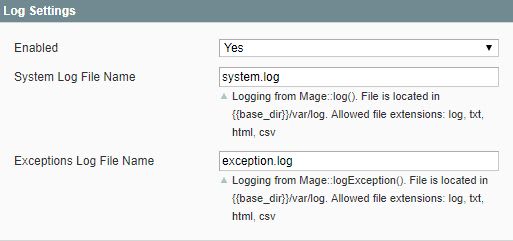
3. You can find the Magento error log files in /var/log within your Magento root directory (/var/log/). The types of Magento error logs are as follows:
- Debug Log: /var/log/debug.log
- This log will be for debugging purposes.
- Exception Log:/var/log/exception.log
- This log will show all the exceptional cases when Magento fails to handle data for any reason.
- System Log: /var/log/system.log
- This log will show all the PHP warnings and issues with XML files.
- Connector Log: /var/log/connector.log
- This log will show the actions connected with outgoing messages to the Magento Order Management System (OMS) and related statuses, such as for product or order exports.
- Cron Log:/var/log/cron.log
- This log will be for cron logging.
4. Here is the sample output:
[a0bcc4e7@cloudhost-2685648 log]$ pwd /chroot/home/a0bcc4e7/e7a48f50bf.nxcli.net/html/var/log [a0bcc4e7@cloudhost-2685648 log]$ ll total 100 -rw-r--r-- 1 a0bcc4e7 a0bcc4e7 1285 Jun 25 07:51 connector.log -rw-r--r-- 1 a0bcc4e7 a0bcc4e7 6631 Jun 25 07:50 cron.log -rw-r--r-- 1 a0bcc4e7 a0bcc4e7 39648 Jun 25 07:53 debug.log -rw-r--r-- 1 a0bcc4e7 a0bcc4e7 1768 Jun 25 07:53 exception.log -rw-r--r-- 1 a0bcc4e7 a0bcc4e7 54743 Jun 25 08:07 system.log
5. If you set up cron to update and upgrade the Magento system, you can also see the log files magento.cron.log, update.cron.log, and setup.cron.log under the /var/log within your Magento root directory.
Conclusion
You can quickly resolve the “error processing your request” condition and related Magento issue by following the methods in this article.
If you encounter problems attempting to resolve this Magento issue or have any queries about Magento hosting plans, don’t hesitate to contact our Magento specialists.
Additional resources
How to change the admin password in Magento →
Reset your admin password using several proven methods.
How to backup my cms tables on Magento 2 →
Learn how to back up cms tables to protect store content.
Best abandoned cart email solutions for Magento 2 →
Recover more sales with abandoned cart emails.
