

Redis Object Cache: How to Enable
Object caching can improve database query performance both on the front end of your site and in wp-admin. Redis object caching is helpful for dynamic sites such as those running a membership site or WooCommerce.
Automatic installation of Object Cache Pro
Redis object caching is enabled by default on all new sites. We automatically install the Object Cache Pro plugin to do this.
Steps for installing Object Cache Pro using the Nexcess Installer
Adding Object Cache Pro is made very easy for existing sites by using the Nexcess Installer found in the WordPress Admin Dashboard of your site.
- Navigate to Nexcess > Install Plugins
- Select Object Cache Pro in the Performance section of the Nexcess Installer, and then click on the install Selected Plugin button.
- After the Object Cache Pro plugin has been installed, the next step is to license the plugin by following the licensing process and clicking on the Click Here link:
Object Cache Pro has now been installed and licensed on your site to gain Redis object caching performance. Take note of the increased speed when it comes to page loading times.
Manually installing Object Cache Pro
If Redis object caching is not present on your site, you can install, activate and license it from the Nexcess Installer. If the Object Cache Pro plugin exists on the site, it can be activated from wp-admin or using the following WP-CLI command:
wp plugin activate object-cache-pro
Also, check that the object-cache.php drop-in file exists in your site’s wp-content folder.
Enabling Redis
To enable Redis from the WP-CLI, then run this command:
wp redis enable
Forcing an update of the Object Cache drop-in file
To force an update of the object cache drop-in file if using the Object Cache Pro plugin, use this WP-CLI command:
wp redis enable --force
The object cache drop-in can also be updated in wp-admin on the site from the following area in the user interface:
Settings > Object Cache
Checking the Redis status in both plugins now is done with identical commands
With the wp redis info command now being an alias of the wp redis status command in WP-CLI, the command to check on the Redis status if using Object Cache Pro is now:
wp redis status
The WP-CLI command to check on the Redis status if using Redis Object Cache is identical:
wp redis status
Flushing the object cache
Flushing the object cache will clear out your site’s Redis object cache. This is the same as clearing the page cache, but in this case, it would be just for the object cache. To be able to flush the object cache, you will need to run this WP-CLI command from terminal or Putty on your site server:
wp cache flush
If you are using the Object Cache Pro plugin, then you can use this WP-CLI command to clear the cache:
wp redis flush
To asynchronously flush the object cache if using the Object Cache Pro, use the –async argument at the end of the WP-CLI command:
wp redis flush --async
You can also flush the object cache from Settings > Object Cache in wp-admin on the site if you use Object Cache Pro.
If you are using the Redis Object Cache plugin, then you can flush the object cache in wp-admin. You will need to go to the following area in the user interface:
Settings > Redis

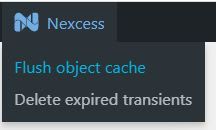
It is also possible to flush the object cache (applies for both Object Cache Pro and Redis Object Cache plugins) from the admin bar on your site. Click on the Flush Object Cache section under the Nexcess logo in the admin bar. Taking this action will clear the Redis object cache from your site’s server:
Checking that Redis working
You can check that Redis is working if using Object Cache Pro on your site in wp-admin from the following area in the user interface:
Settings > Object Cache
To check if Redis is working in the Redis Object Cache plugin, then from wp-admin, go to the following area in the user interface:
Settings > Redis
Checking for the current version
To check that you are using the most current version of the Object Cache Pro plugin, then from wp-admin, go to the following area in the user interface:
Setting > Object Cache > Updates
Turning on automatic updates for the Object Cache Pro plugin
The Object Cache Pro plugin can be automatically updated with a new release from within wp-admin.
The WP-CLI command to set the Object Cache Pro plugin to be automatically updated:
wp plugin auto-updates enable object-cache-pro
If you are using the Redis Object Cache plugin, it can also be automatically updated. The WP-CLI command to set the Redis Object Cache plugin to be automatically updated:
wp plugin auto-updates enable redis-cache