

Magento 2 Go-Live Checklist: Turning on Your Site!
Magento 2 Go-Live Checklist – Overview
The Magento 2 application is a popular open source ecommerce platform. In fact, its popularity is so broad that Magento 2 is the most used Content Management System (CMS) to create online stores worldwide. It is renowned for its robust, scalable architecture. It is compatible with the latest technologies such as PHP 7.x (and greater), which means faster load times than Magento 1. Furthermore, Magento 2 has many advanced features that allow the admin to update the ecommerce website automatically.
Magento 2 Go-Live Checklist – Guide
This Magento 2 Go-Live Checklist will help you manage the go-live process with your application. Once you are familiar with the flexible sizing and pricing options offered with the different Managed Magento Hosting Plans to fit the size of your business, we are ready to dive into the necessary setup steps. We are here to guide you along the way to a successful go-live event with the Magento 2 Go-Live Checklist.
As you create a new Magento 2 site, or after the domain content is migrated to Nexcess, you may follow our provided checklist to bring your Magento 2 site to live status in production. In this Magento 2 Go-Live Checklist, we are outlining the step-by-step process to turn on your site. The checklist will help you keep track of the necessary steps to take the domain live.
The basic steps in the Magento 2 Go-Live Checklist are as follows:
- Setting Up Your Domain Name
- Making Your Base URL Updates
- Securing Your Site with a HTTPS Connection Setup
Setting Up Your Domain Name
- Log in to your sites-portal.liquidweb.com portal and pick the product plan you have with Nexcess.
- Add your domain as the master domain from the panel. You will find the option via the Nexcess Site Panel >> Domain Options >> Modify Master Domain set of navigational options.
By renaming the master domain, you are replacing the temporary domain name of the application. So once the domain name is changed, reverting back to the temporary domain name is not possible:

Modify Master Domain Option

- Modify Master Domain Prompt to Change the Temporary Domain to Your Custom Domain Name
Once the domain has been updated, the new domain will show in the portal. The Modify Master Domain option will run a search and replace in the site’s database, which replaces any references using the temporary domain with references to the live domain. But to go live from the portal, the DNS will need to have been updated before changing the domain, and the Let’s Encrypt SSL Certificate must have been enabled in the portal.
Making Your Base URL Updates
The base URL change to bring the store live is the next step in the Magento 2 Go-Live Checklist to bring your Magento 2 store live. You may make the changes either from the application or via the Command Line Interface (CLI).
The base URL needs to have the temporary domain name replaced with your custom domain name. The following are the methods that could be used.
Method #1: From the Magento Dashboard: Admin > Stores > Settings > Configuration
Method #2: From Command Line Interface (CLI):
bin/magento setup:store-config:set --base-url="http://sitedomain.com"

bin/magento setup:store-config:set --base-url-secure="https://sitedomain.com"
Securing Your Site with a HTTPS Connection Setup
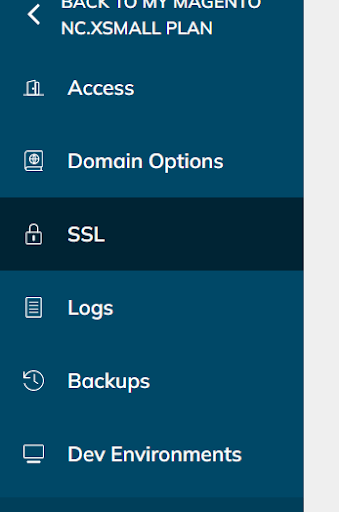
Securing the site by enabling SSL provided by Nexcess is the last step in the Magento 2 Go-Live Checklist. Your domain will be secured with the HTTPS protocol. Ensuring that the communication protocol of domain is protected has a significant role in keeping your domain genuine and secure. You may use the free SSL option from Nexcess (via the Auto Let’s Encrypt Certificate) or another SSL option for the domain. Ensure the domain is pointed correctly to the server using the DNS A Record (DNS Address Record), and the propagation is also completed (Check DNS Propagation). You may find the SSL option in the site panel as follows:
Enabling Free SSL
To enable the auto SSL from the panel, make sure the domain does not have an AAAA Record, and that the A Record is pointed correctly to the server. Also, ensure that the DNS propagation of the domain is completed before you try to enable free SSL. The auto SSL is the same as the SSL provided from Let’s Encrypt:
Auto Let’s Encrypt Certificate
Once you enable the SSL, you may find your custom domain (with or without WWW version) would be listed in this area. You may slide the bar from left to right to select the domain for which you wish to enable the SSL.
Conclusion
You have now completed the basic steps to take your site from development to live status.