

How to delete a website and data from a Nexcess plan
Overview
You might want to delete a website from your hosting plan in many instances. For example, whether you’re just replacing an old website with a new one or wish to give up on a project and start over, knowing how to delete a website is essential. Even if you moved your website hosting elsewhere and are canceling the hosting plan — the process of how to delete a website and its footprint are actions you’ll want to be familiar with as a savvy website admin.
Frequently, a person would think their website was already hosted elsewhere and would delete the website off their Nexcess hosting plan, only to discover that wasn’t exactly the case. Either the website wasn’t entirely set up on the new server or set up there at all.
Maybe the emails were still hosted on the Nexcess server, and now parts of the website’s and domain’s functionalities are down. The critical thing to remember is that Nexcess keeps 30 days of daily backups, so if you find yourself in a pickle as previously mentioned, our Heroic support team will be happy to help restore your website from the latest backed up version.
DNS zone
An important thing to keep in mind is the DNS zone. If the website’s been hosted on one of our legacy plans (SIP – Secure Isolated Platform, OBP – Optimized Blog Platform, EEP – Expression Engine Platform, etc.), it’s quite possible that the DNS zone was hosted on the same server.
Even though you might’ve migrated the website’s data elsewhere, the email associated with the website might’ve been already hosted elsewhere. However, the DNS zone got overlooked, and so it’s still hosted on your Nexcess plan.
If you deleted a website off the legacy plan or canceled the whole plan, your website and its emails would stop working. Therefore, if migrating a website elsewhere, check which nameservers your domain is using and adjust them accordingly.
There are many ways to check which nameservers (NSs) the domain uses. You can do this by using a DNS checker website, for example, Liquid Web’s DNS Checker.
Check for the NS record with our free DNS Checker or use one of the WHOIS websites that provide the registrar information and the information about authoritative nameservers (for example https://whois.domaintools.com/).
Nexcess hosted email
Another vital thing to consider before deleting a live website from a hosting plan is the email service. If your domain’s emails were hosted on the Nexcess server, removing the website from the plan (or canceling the plan) will delete all the email data associated with that website.
Once you’ve migrated the emails elsewhere, you’ll need to update the MX record for the domain in question accordingly. You can confirm the MX records by using a DNS checker website. See above regarding the free from Nexcess.
Redirects
If you’re still using some data off the Nexcess server — or you have additional domains pointed to it — to avoid issues during the DNS propagation, setting up redirects might be a good idea. Our article on Best Practices for Setting Up WordPress Redirects can provide helpful information.
How to delete a website’s data
Let’s assume that you’ve migrated the website’s data elsewhere and pointed the A record for the domain to the correct server. The easiest way to ensure everything is loading correctly from that other server would be to rename the document root directory to something else. On most Nexcess hosted websites, the document root will be the “html” directory. You can easily rename it via SSH or FTP. The credentials can be easily retrieved following one of our help articles:
- FTP credentials on cloud plans
- FTP credentials on non-cloud plans
- SSH credentials on cloud plans
- SSH credentials on non-cloud plans
If you’ve confirmed after a while that everything is still fully functional, you can proceed with deleting the website’s root directory and its data through SSH or FTP.
Once you’re confident you’re ready to delete the website from the plan, you’ll need to log in to sites-portal.liquidweb.com, go to Plans, click on the appropriate plan.
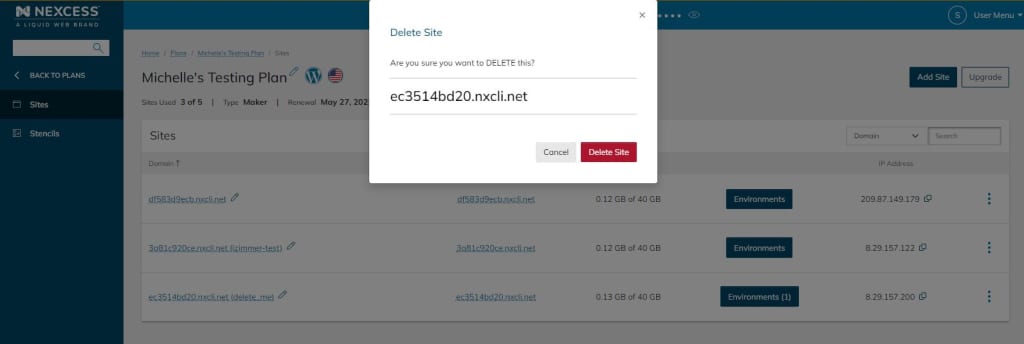
Next, click the Delete Site option from the list of sites as seen here:

Depending on the plan you have, this action will have different consequences. For example, on Managed WordPress and Managed WooCommerce, plans this will remove the website’s data (filesystem) from the server, as well as the database. In contrast, on other cloud plans, including Magento plans, the website’s data will be removed, but the database will still stay on the server. You’ll need to delete it manually. You can do so in the Databases section of your Plan Dashboard:

You’ll also need to delete the MySQL user attached to the deleted database:

It’s important to remember that if you are deleting a site that’s on a Managed WordPress or Managed WooCommerce plan, deleting the main site will also delete its Staging or Development environment if it exists:
Non-live sites
If you’re working on a website that’s still under development and you’re looking to scratch the whole project and start over, feel free to skip previously mentioned checks, but only if you’re sure there’s nothing left here that you’d like to keep. If you delete and add a new website to a Managed WordPress or Managed WooCommerce plan, the Nexcess Applications will be automatically installed. However, if you’re adding a new site to another Nexcess Cloud plan, the applications will need to be installed manually:
Non-cloud servers
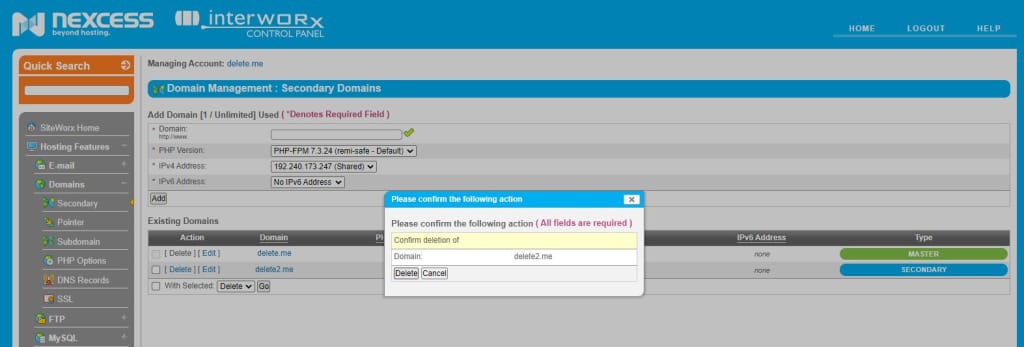
If you’re looking for how to delete a secondary website on a non-cloud legacy, or dedicated server, you can do so from your SiteWorx account. Firs, you’ll need to log in and go to Hosting Features > Domain Management > Secondary Domains. Here, you’ll be able to click on Delete, and you’ll be prompted to confirm the deletion of the secondary website:
Please note that you’ll never be able to delete the first site on a Nexcess Cloud plan, as it’s considered a primary website on the plan and will need to remain on the plan. This condition also applies to all the master domains on non-cloud legacy, or dedicated servers.
Conclusion
Deleting a website from your Nexcess plan is a significant action that requires careful preparation to avoid unintended downtime. Before proceeding, it is critical to confirm that your essential services—particularly DNS zones (by checking NS records) and email hosting (by checking MX records)—have been fully migrated and are pointing away from the Nexcess server.
Once you have verified your external services are functional, the deletion method varies. A safe preliminary step is to rename the document root directory to test your site’s operation from its new location. The final deletion process through the Nexcess portal differs by plan: Managed WordPress and WooCommerce plans remove both the site files and the database automatically, whereas other cloud plans require you to delete the database and its associated MySQL user manually.
Finally, remember that primary sites on cloud plans and master domains on non-cloud servers cannot be deleted. If you do make a mistake on a site you intended to keep, the Nexcess support team can assist in restoring it from the available 30-day backups.