

How to manage SSL certificates for system services
SSL certificate management menu
NodeWorx provides an interface for managing SSL certificates. From here, you can generate a self-signed SSL certificate, view and edit a certificate, and update all services.
Generating self-signed SSL certificates
- Log in to your NodeWorx account.
- From the main menu, select Server Server > SSL Certificates.
- From the SSL Certificates panel, select Generate a Self-Signed SSL Certificate.

- In the SSL Certificate section, fill every field.
- Select the Email SSL Certificate check box and, in the Email Address field, enter your desired email address.
- In the “Install to” section, select the services to receive the SSL certificate.
- You will likely need to restart the service before the SSL certificate can be applied. In the Restart Services now field, select Yes if you prefer to restart services immediately; otherwise, select No.
- Click Generate.
Viewing SSL certificates
- From the main menu, select Server Server > SSL Certificates).
- Locate the service to be viewed and click View in the Action column.
Editing SSL certificates
- From the main menu, select Server Server > SSL Certificates.
- Locate the service to be edited and click Edit in the Action column.
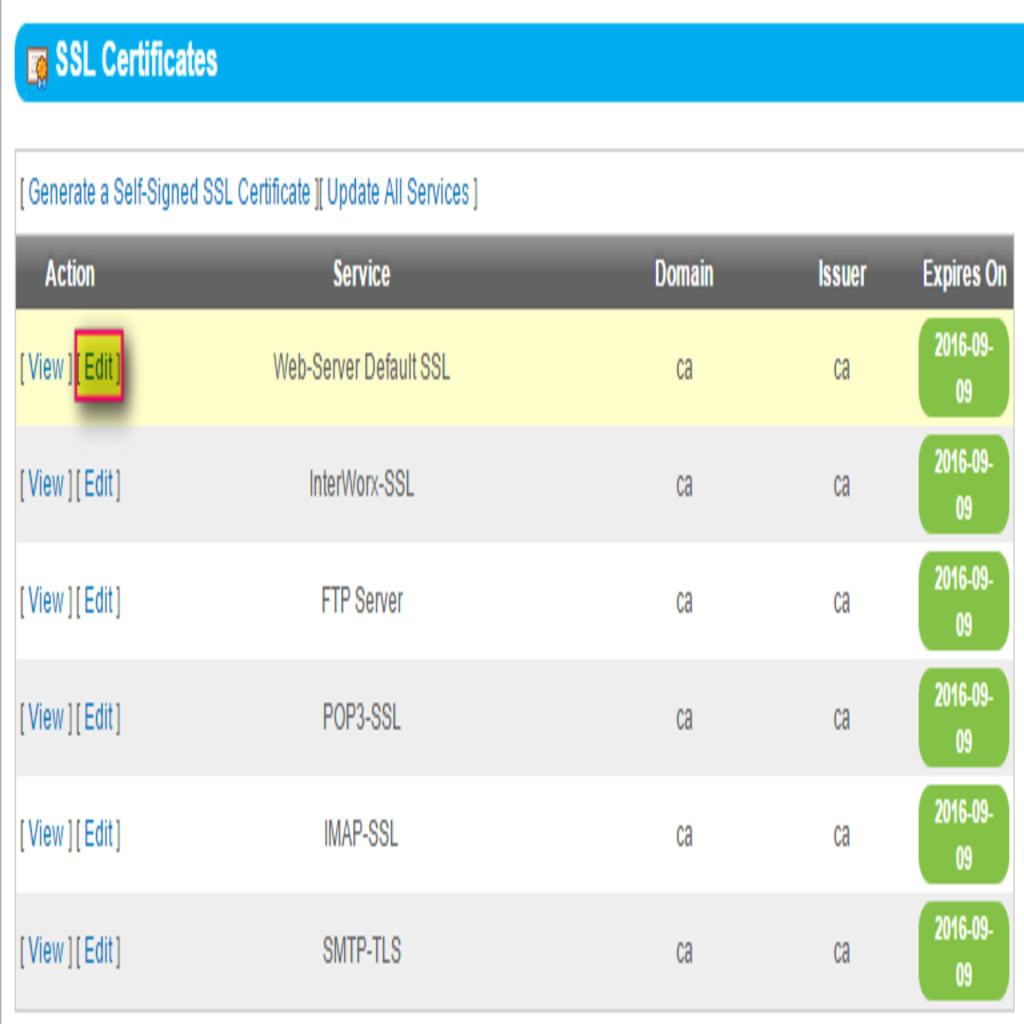
- Using cut-and-paste, enter the Private Key.
- Using cut-and-paste, enter the SSL certificate.
- You will likely need to restart the service before the SSL certificate can be applied. In the Restart Services now field, select Yes if you prefer to restart services immediately; otherwise, select No.
- Click Save.
How to update all SSL certificates
- From the main menu, select Server Server > SSL Certificates.
- Click Update All Services.

- In the Update All Services selection, select any or all of the check boxes corresponding to the services to be updated.
- Using cut-and-paste, enter the Private Key.
- Using cut-and-paste, enter the SSL certificate.
- You will likely need to restart the service before the SSL certificate can be applied. In the Restart Services now field, select Yes if you prefer to restart services immediately; otherwise, select No.
- Click Save.