

◦ Comprehensive security
◦ 24/7 support
WordPress Guide → Development → Media Library Folders
WordPress Media Library folders: plugins, steps, and best practices

Tired of scrolling endlessly through a chaotic media library? If you’ve uploaded hundreds of images, PDFs, or videos to WordPress, you already know how messy things can get. Media folder plugins help you organize everything into tidy, searchable folders, without touching a line of code.
Let’s explore the top folder plugins, walk through setup steps, and highlight best practices to keep your library clean and manageable.
Get fast, reliable hosting for WordPress
Power your site with the industry’s fastest, most optimized WordPress hosting
Why organize your WordPress media library?
WordPress stores media files in a flat structure by default. Over time, that makes it hard to find what you need, especially for large or multi-author sites.
Organizing your media library with folders helps you:
- Quickly locate assets for reuse or editing
- Keep brand and project content separated
- Avoid media duplication
- Improve backend performance and load times
- Stay sane when managing WooCommerce, blog, or LMS content at scale
Best WordPress media library folder plugins
The plugins below% let you visually organize media files into folders, categories, or collections—most with simple drag-and-drop interfaces.
| Plugin Name | Folder Type | Drag-and-Drop UI | Media + Post Support | Page Builder Compatible | Free Folder Limit | Pro Features Starting At |
|---|---|---|---|---|---|---|
| FileBird | Virtual | ✅ | Media only | ✅ Elementor, Gutenberg | 10 folders | Unlimited folders, sorting, integrations – Starts at $39/year |
| Media Library Organizer | Virtual | ✅ | Media only | ✅ Gutenberg, WooCommerce | Unlimited (basic) | Nested folders, multisite support – Starts at €49/year |
| WP Media Folder | Virtual + Real | ✅ | Media only | ✅ Elementor, WPBakery | Basic features | Real folders, cloud sync, galleries – Starts at $49/year |
| Folders by Premio | Virtual | ✅ | Media + Pages/Posts | ✅ Elementor, Gutenberg | 10 folders per type | Unlimited folders, color tags – Starts at $39/year |
1. FileBird

FileBird is one of the most popular media folder plugins, known for its intuitive drag-and-drop interface. It creates virtual folders that don’t change the physical file path, so you won’t break image links or affect performance. The layout mimics desktop file explorers, making it easy for new users to get the hang of.
FileBird integrates with Gutenberg, Classic Editor, WooCommerce, and even popular page builders like Elementor. You can create unlimited folders in the Pro version and filter media by file type, size, or keyword.
Key features:
- Drag-and-drop folder management
- Virtual folders (doesn’t move actual files)
- WooCommerce and Elementor compatibility
- Works in both Classic and Block Editor
- Multilingual and RTL-ready
Free vs Pro:
- Free: Up to 10 folders
- Pro: Unlimited folders, advanced sorting, plugin integrations
2. Media Library Organizer by devowl.io
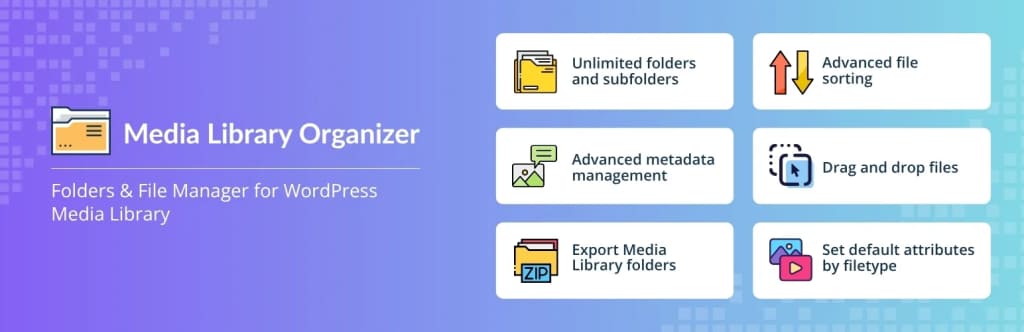
Media Library Organizer by devowl.io is a performance-optimized plugin that offers structured folder views inside your existing media library. It focuses on accessibility and speed, making it ideal for sites with very large media collections.
This plugin uses virtual folders, meaning no changes are made to actual file locations. It also supports filtering by folder, bulk moving, and works with multilingual plugins like WPML and Polylang.
Key features:
- Fast, scalable performance for large libraries
- Virtual folders
- Drag-and-drop interface
- Compatibility with WPML, Polylang, WooCommerce, and Gutenberg
- REST API support for developers
Free vs Pro:
- Free: Create and manage folders
- Pro: Nested folders, dynamic filters, bulk folder operations, multisite support
3. WP Media Folder
WP Media Folder is a powerful plugin that offers both virtual organization and real server folder management in its premium version. It has deep integrations with page builders, gallery plugins, and cloud storage tools.
The plugin lets you embed folders directly into your media interface. WP Media Folder is especially useful for users who want to sync folders to Google Drive, Dropbox, or OneDrive.
Key features:
- Drag-and-drop folder creation
- Real folder management (Pro)
- Cloud sync with Google Drive, Dropbox, OneDrive
- Gallery and page builder integration
- SEO-friendly URL support
Free vs Pro:
- Free: Basic folder creation and drag-and-drop organization
- Pro: Real folder structure, cloud sync, WooCommerce support, advanced gallery tools
4. Folders by Premio

Folders by Premio gives you folder organization not just for media files but for posts, pages, and even custom post types. It’s a great option for editorial teams that want folder-based control across more than just the media library.
The plugin works inside the WordPress dashboard and offers a drag-and-drop UI that feels native. The folder structure is virtual, and there are options to color-code folders, set user permissions, and duplicate folder trees.
Key features:
- Folder support for media, pages, posts, and more
- Drag-and-drop interface
- Virtual folders
- Color-coded folders
- User role permissions and bulk operations
Free vs Pro:
- Free: 10 folders per post type
- Pro: Unlimited folders, folder locking, duplicating, and advanced filtering
How to create media folders in WordPress (step-by-step)
Let’s walk through organizing your library using FileBird as the example plugin:
- Install and activate FileBird from the WordPress Plugin Directory.
- Go to the Media Library, and switch to the “Folders” view.
- Click “+ Folder” to create a new folder. Name it something descriptive, like “2025 Blog Headers” or “Product Photos.”
- Drag existing files into the folder, or click “Add New” inside a folder to upload files directly.
- Use filters (by file type, keyword, or date) to narrow down files and organize faster.
- Optional: Create subfolders and reorder them via drag-and-drop.
Best practices for media folder organization
Keeping your folders organized from the start saves hours later. Here’s how to do it well:
- Use consistent naming conventions: Think “year-month-project” or “campaign-type.”
- Group by content type: Separate photos, icons, videos, documents, etc.
- Clean out unused files regularly to reduce clutter and save storage.
- Keep SEO in mind by naming image files descriptively (e.g., “organic-tea-packaging.jpg”).
- Use tags or alt text alongside folders for even better media discoverability.
Should you use real folders or virtual folders?
One of the biggest choices when organizing media is whether to use real or virtual folders.
- Virtual folders don’t touch your file structure on the server. They’re safe, fast, and plugin-based. You can rearrange files visually without worrying about breaking links or affecting SEO.
- Real folders, offered by plugins like WP Media Folder (Pro), actually move your files into physical directories. That gives more control but comes with higher risk—changing URLs, breaking media links, or needing to reindex backups.
For most users, virtual folders are the safer and easier option, especially if you work with other plugins, themes, or site contributors.
FAQs about WordPress media folders
Next steps for organizing WordPress media library folders
A messy media library can slow down your workflow and frustrate clients or teammates. Folder plugins give you the structure you need to work faster and stay organized—without technical headaches.
Pick a plugin from the list above, install it, and spend a few minutes creating a logical folder structure that fits your content.
Ready to upgrade your WordPress experience? Professional hosting improves speeds, security, and reliability for a website and a brand that people find engaging and trustworthy. Liquid Web’s WordPress hosting options configure business-class servers and support plans specifically for WordPress websites.
Don’t want to deal with server management and maintenance? Our fully managed hosting for WordPress is the best in the industry. Our team are not only server IT experts, but WordPress hosting experts as well. Your server couldn’t be in better hands.
Click through below to explore all of our hosting for WordPress options, or chat with a WordPress expert right now to get answers and advice.
Additional resources
WordPress development guide →
An overview of the basics and how to get started as a WordPress developer
Add a custom field box to WordPress media files →
… with or without a plugin, plus how to use custom fields
A complete guide to WordPress shortcodes →
Shortcodes make life easier. Learn how to get started!