

◦ Comprehensive security
◦ 24/7 support
WordPress Guide → Plugins → Migration
7 best WordPress migration plugins that take the scary out of moving your site

Moving a WordPress site doesn’t have to be intimidating. Whether you’re switching hosting providers, duplicating a site, or setting up a staging environment, the right plugin can handle the heavy lifting—no manual database exports or FTP uploads required.
Let’s walk through the best WordPress migration plugins that are safe, simple, and actively maintained.
Get fast, reliable hosting for WordPress
Power your site with the industry’s fastest, most optimized WordPress hosting
Why use a WordPress migration plugin?
Migration plugins eliminate most of the technical risk and time involved in transferring a WordPress website.
- They ensure your database, files, themes, and plugins move together.
- Many handle serialized data, which prevents broken links and corrupted settings.
- Most offer one-click migrations, even for large or complex sites.
- Many include backup and restore functionality to protect your site during the move.
What to look for in a migration plugin
Not all plugins offer the same features. Here’s what to consider when choosing one:
- Full-site vs selective migration: Some plugins copy your entire site, while others let you choose specific files or database tables.
- File size limits: Free versions may restrict how much data you can transfer at once.
- Hosting compatibility: Some work best with certain hosts or environments.
- Ease of use: One-click or guided workflows are best for beginners.
- Multisite support: Not every plugin can handle multisite networks.
1. Duplicator
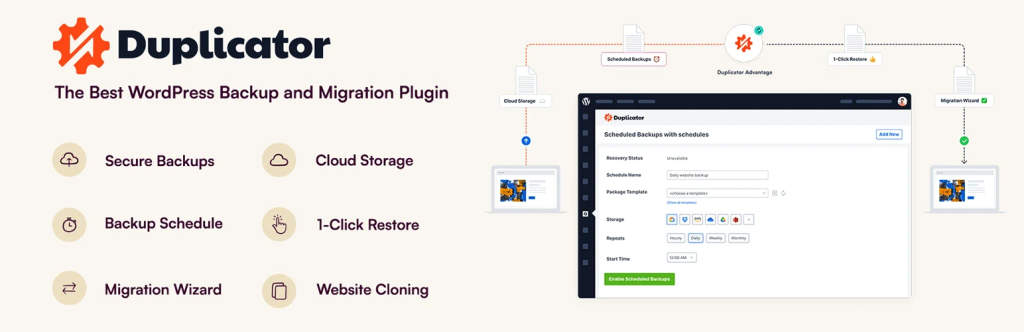
Duplicator is one of the most popular WordPress migration plugins, and for good reason. It packages your site into a downloadable archive that includes files, themes, plugins, and the database. Then, you use the included installer to move it to a new host or location.
It’s great for developers cloning client sites, but beginners will find the guided migration process just as useful.
- Drag-and-drop archive installer for new hosting environments
- Manual or scheduled migrations
- Handles large sites with ease
- Supports both standard and multisite WordPress
Best for: Developers and users who want control over the process
Starting at: Free (Pro starts at $69/year)
2. All-in-One WP Migration

The AIO WP Migration plugin is incredibly beginner-friendly. It exports your entire WordPress site into a file you can drag into another WordPress install. No database or FTP access needed.
The free version has a 512MB upload cap, but it works great for small to medium-sized sites. Extensions unlock features like multisite support and cloud storage.
- Simple drag-and-drop import
- Bypasses common server upload restrictions
- Supports older PHP and WordPress versions
- One-click backup and restore
Best for: Beginners and quick site transfers
Starting at: Free (Premium extensions start at $69)
3. WPvivid Backup Plugin
WPvivid is a powerful all-in-one tool for backup, migration, and staging. It supports direct site-to-site transfers via a token system and includes features usually locked behind paywalls in other plugins.
Its flexible interface works for both beginners and advanced users looking to move complex websites.
- One-click staging and migration
- Remote storage support (Google Drive, Dropbox, etc.)
- Incremental backups
- Compatible with popular page builders
Best for: Users who want a free all-in-one backup and migration tool
Starting at: Free (Pro starts at $39/year)
4. Migrate Guru
Migrate Guru is built specifically for large sites. It handles the entire migration process from the cloud, so your own server doesn’t time out or run out of memory.
It supports multisite, WooCommerce, and 200+ web hosts—and it’s completely free.
- No local server stress (cloud-based processing)
- Handles sites over 200GB
- No add-ons required
- Email notifications on progress
Best for: Large or complex site migrations
Starting at: Free
5. Backup Migration

Backup Migration is a newer plugin and gaining popularity fast. It’s designed to create simple backups and migrate sites in a few clicks, without complicated settings. Just install the plugin on both the source and destination sites, and you’re ready to go.
Its dashboard is clean and geared toward non-technical users.
- Clean UI with step-by-step wizard
- Compatible with any host
- Full-site backups with scheduling
- Quick restoration options
Best for: Beginners who want a smooth, straightforward experience
Starting at: Free
6. UpdraftPlus WordPress Backup Plugin

UpdraftPlus is one of the most trusted WordPress backup solutions—and it can migrate your site with the help of the UpdraftPlus Migrator add-on.
If you’re already using it for backups, adding migration support is simple and cost-effective.
- Incremental and scheduled backups
- Secure remote storage (S3, Google Drive, etc.)
- One-click restore and clone
- Supports multisite with add-ons
Best for: Existing UpdraftPlus users or backup-conscious site owners
Starting at: Free (Migrator add-on is $30)
7. Prime Mover – WordPress Migration Plugin

Prime Mover supports full or partial migrations with no file size limits, even on the free plan. It also supports WordPress multisite, which is rare for free plugins.
It uses a simple export/import model and handles serialized data well, reducing the risk of corrupted settings.
- No upload size limit
- Compatible with all themes and plugins
- Full support for multisite (even on free tier)
- One-file migration package
Best for: Users with multisite or large exports
Starting at: Free (Pro features available)
Honorable mention: Migrate to Liquid Web
If you’re migrating your site to a managed WordPress hosting account at Liquid Web, the Migrate to Liquid Web plugin is the best tool for the job. It’s tailored for seamless transfers to Liquid Web’s optimized infrastructure.
- No manual setup required
- Built-in compatibility with Nexcess managed hosting
- Free and supported by Liquid Web/Nexcess teams
- Tracks real-time migration status
Best for: Users moving to a Nexcess-managed WordPress site
Starting at: Free
Best practices for migrating a WordPress site
Keep your migration smooth and safe by following a few simple rules:
- Always back up your original site before starting. If anything goes wrong during the migration, you can quickly restore your site without data loss.
- Place your site in maintenance mode during the move. This prevents users from making changes that might not carry over or interfere with the migration.
- Use a staging environment to test your migrated site. It lets you catch errors or broken links before pushing the new site live.
- Clear your cache and re-save permalinks after migration. This ensures that URL structures and design elements load correctly on the new host.
- Update DNS settings only after verifying the new site works. Waiting to point your domain ensures that users won’t see a broken or incomplete site.
Common mistakes to avoid
Even with the best plugins, migration issues can arise if you overlook a few critical details. Here are some of the most common pitfalls and how to avoid them:
- Not checking plugin or PHP compatibility on the new host. Some themes and plugins may not function correctly if your new server uses a different PHP version. Review your hosting environment and update plugins before the move.
- Ignoring internal links or old URLs. Migrating a site can break internal links or media paths if domain names or file structures change. Use a search-and-replace plugin to update URLs site-wide after the migration.
- Forgetting to set up SSL certificates and redirects. Moving to a new host often requires reapplying SSL and configuring 301 redirects. This step helps maintain site security and preserves SEO value from your old URLs.
FAQ about WordPress migration plugins
Next steps for WordPress migration plugins
WordPress migration plugins can save hours of manual work and reduce the risk of broken links, missing files, or downtime during your site move.
Choose the plugin that matches your skill level, hosting setup, and site size—then run a test migration to make sure everything looks and works the way it should.
Ready to upgrade your WordPress experience? Professional hosting improves speeds, security, and reliability for a website and a brand that people find engaging and trustworthy. Liquid Web’s WordPress hosting options configure business-class servers and support plans specifically for WordPress websites.
Don’t want to deal with server management and maintenance? Our fully managed hosting for WordPress is the best in the industry. Our team are not only server IT experts, but WordPress hosting experts as well. Your server couldn’t be in better hands.
Click below to explore options or start a chat with one of our WordPress hosting experts now to get answers to your questions and further guidance.
Additional resources
What is a WordPress plugin? →
A complete beginner’s guide to WordPress plugins and how to manage them
Easy SEO for WordPress →
7 SEO tasks anyone can do, to set your WordPress site up for success in organic search.
How to check if a plugin is safe →
Simple steps to evaluating a plugin before you install and activate it

Leslie Bowman is an Organic SEO Manager at Liquid Web and expert wordsmith. She specializes in driving revenue through organic and paid channels with SEO and CRO. When she’s not bending search algorithms to her will, she’s most likely spending time with animals, reading nonfiction, or marveling at nature’s beauty.