

◦ Comprehensive security
◦ 24/7 support
Magento Guide → Cart → Add To Cart
Magento 2 add to cart popup: show a popup after Add to Cart
Key takeaways
- A Magento 2 add to cart popup confirms when shoppers add a product to the cart.
- The cleaner approach is to use a custom module or RequireJS mixin instead of editing core files.
- A useful popup should offer simple next steps, such as continue shopping, view cart, or proceed to checkout.
- Test the popup on product pages, category pages, mobile screens, cart, and checkout.
Adding a popup after someone clicks the Add to Cart button in Magento 2 gives shoppers clear confirmation that the product was added. Instead of relying only on a small success message, you can show a popup that confirms the cart update, suggests another action, or lets shoppers keep browsing from the same page.
This guide explains how to create a Magento 2 add to cart popup with a custom module and the ajax:addToCart event. It also covers a RequireJS mixin option, popup content ideas, testing steps, and common troubleshooting issues.
Host Magento at full throttle.
Get secure, reliable Magento hosting so you can scale faster.
Before you customize the Add to Cart popup
Before editing code, confirm your Magento setup and test plan.
Check these items first:
- Test changes in staging when possible
- Confirm your Magento version
- Confirm whether the store uses Luma, a custom theme, Hyvä, or a PWA frontend
- Back up custom theme or module files
- Decide whether to use a custom module, theme override, RequireJS mixin, or extension
- Plan to clear cache and deploy static content after changes
- Test accessibility, responsive design, cart behavior, and checkout flow
Frontend JavaScript changes can affect product pages, category pages, the mini-cart, cart, and checkout. Cart actions affect revenue, so test this carefully before using it on a live store.
Recommended approach: use a custom module and Magento modal
A custom module keeps the popup feature separate from Magento core files. That makes the change easier to maintain, disable, or update later.
Magento also includes frontend tools you can use for this type of feature. You can listen for Magento’s add-to-cart JavaScript event, then open a popup or modal after the cart action runs.
The ajax event approach has advantages over modifying core JS files because it does not change Magento’s internal cart logic, and you can reuse the same event for other frontend features.
Method 1: show a popup with ajax:addToCart
Magento fires the ajax:addToCart event after an AJAX add-to-cart action. You can listen for that event in custom JavaScript and show a popup after it fires.
Create a custom module
Create this folder structure:

Inside that folder, create registration.php:

Create etc/module.xml:
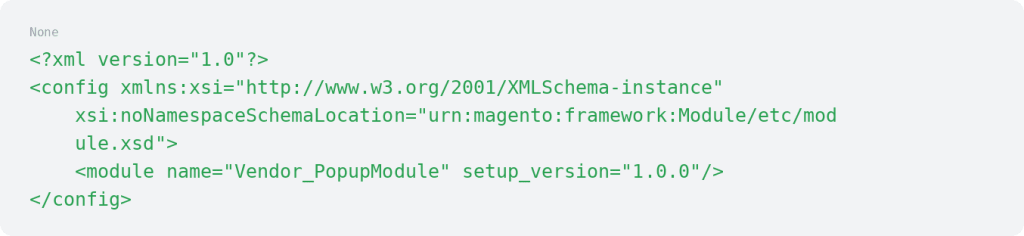
Enable the module:

Create a layout XML file for the popup
Create this file:

Add:

Create the popup template
Create this file:

Add a basic popup:

You can add product details, related products, or checkout buttons later, but start with a simple confirmation popup.
Add the JavaScript file
Create:

Add:

This code opens the popup when the Add to Cart event fires and closes it when the shopper clicks the close button. The off(‘click.popup’) line helps prevent duplicate click handlers if the event runs more than once.
Configure RequireJS
Create:

Add:

Style your popup
Create:

Add basic CSS:
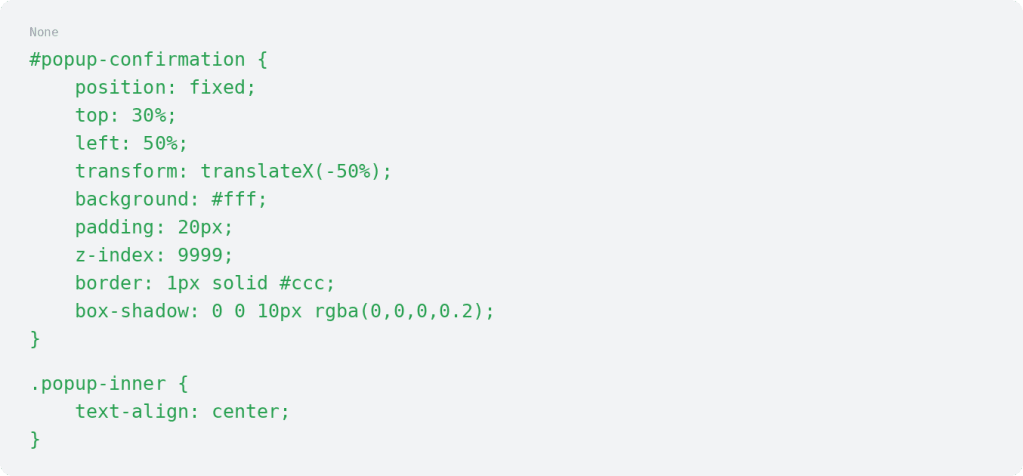
Add this CSS file to your layout XML or include it in your theme’s stylesheet.
Keep the styling light and test it on mobile. A popup that looks fine on desktop can block important actions on a small screen.
Method 2: use a RequireJS mixin for catalog-add-to-cart.js
A RequireJS mixin can extend Magento’s native Magento_Catalog/js/catalog-add-to-cart behavior without editing the original file.
This method may fit better if you want to intercept the native add-to-cart behavior more directly.
Create requirejs-config.js
Create this file:

Add:

Create the mixin file
Create this file:

A simplified mixin can look like this:
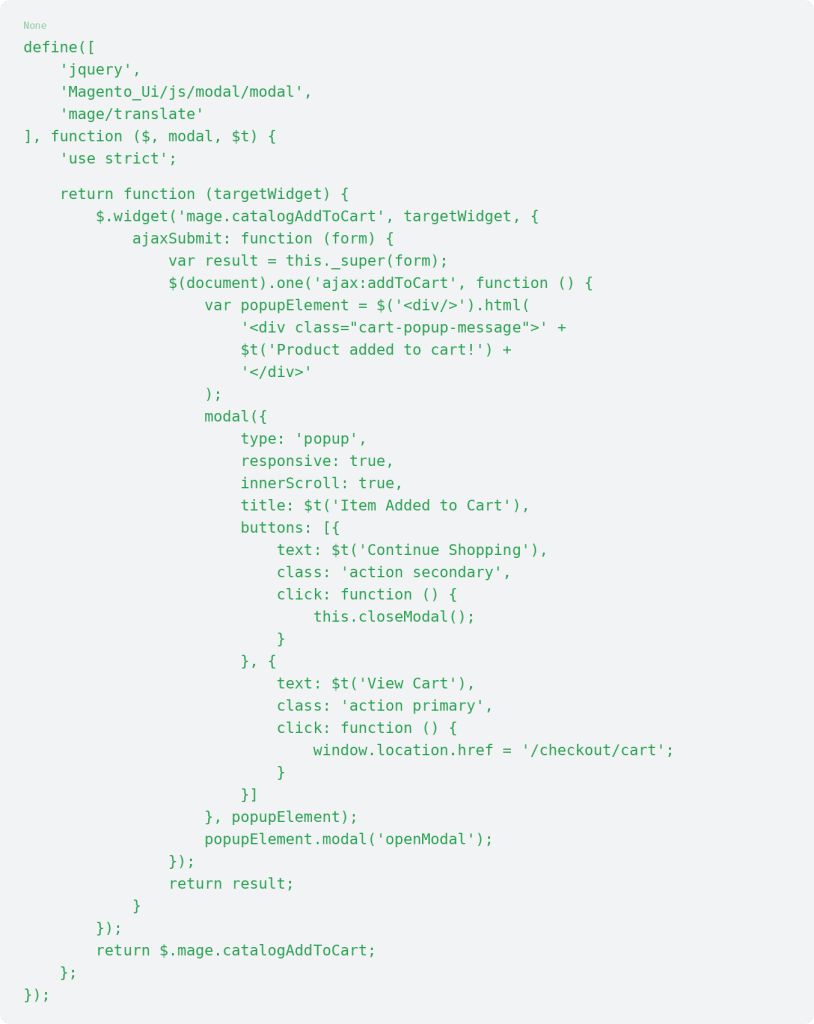
Use this as a starting point, not a final production file. Your theme, checkout path, translation needs, and cart behavior may require adjustments.
Avoid binding the same event repeatedly. Duplicate event bindings can cause the popup to open more than once after one cart action.
Clear cache and deploy static content
After adding or changing frontend files, clear Magento cache and deploy static content.
Run:

If the store runs in production mode, deploy static content:

After clearing cache, test the popup by clicking Add to Cart on the storefront.
You may also need to clear browser cache if old JavaScript continues loading.
What to include in the popup
A useful add to cart popup should confirm the cart update and give shoppers a clear next step. Include a short success message, an easy close option, and buttons such as Continue Shopping, View Cart, or Proceed to Checkout.
For more advanced popups, you can add a product image, mini-cart preview, free shipping message, limited promotion, or relevant cross-sells. Keep the popup responsive, accessible, and lightweight so it doesn’t slow the cart action or block checkout.
Extension route: when to use a Magento add to cart popup extension
Use a Magento add to cart popup extension if you need advanced features without managing custom code. This may make sense when you need admin controls, product images, cross-sell sliders, design settings, or multiple popup rules.
Custom code may fit better if you need a lightweight popup with fewer dependencies and a specific design.
Before installing an extension, check Magento version support, reviews, support history, performance impact, and compatibility with your theme and checkout flow.
Troubleshooting a Magento 2 add to cart popup
If the popup doesn’t work, check these common issues first.
- Popup doesn’t open. Check the browser console for JavaScript errors. Confirm that RequireJS loads your file and that the ajax:addToCart event fires on the page you are testing.
- Popup opens more than once. Check for duplicate event bindings. Use .one() for one-time events where appropriate, or unbind old handlers before attaching new ones.
- Product adds to cart, but mini-cart does not update. Check whether your custom code interrupts Magento’s normal add-to-cart flow. The popup should not stop the mini-cart from refreshing.
- Popup works on product pages but not category pages. Product pages and category pages may use different templates or event behavior. Test both and confirm your JavaScript loads on each page type.
- Changes do not appear on the storefront. Clear Magento cache, redeploy static content, and clear browser cache. Also confirm that the deployed static files contain your latest JavaScript.
- Popup breaks on mobile. Review modal width, button spacing, close behavior, and scrolling. The popup should never block cart or checkout actions.
What to test after adding the popup
After you add the popup, test the Add to Cart button on product and category pages, including simple products, configurable products, and products with required options.
Also check the mobile layout, mini-cart update, popup buttons, cart page, checkout flow, and JavaScript console errors.
When to ask for support
Ask for help if the popup affects cart behavior, mini-cart updates, checkout, mobile layout, or frontend performance.
Support can help review Magento cache, static content deployment, JavaScript loading, logs, theme compatibility, and performance issues that affect the cart experience.
Magento 2 popup FAQs
Magento 2 popup next steps
A Magento 2 add to cart popup should confirm the cart action, give shoppers clear next steps, and avoid interrupting the checkout path.
Start by choosing whether to use the event-based method, a RequireJS mixin, or an extension. Then test the popup on product pages, category pages, mobile screens, cart, and checkout.
If cart behavior, JavaScript changes, or storefront performance affect a live store, explore Liquid Web Magento hosting.
Ready to get started?
Get the fastest, most secure Magento hosting on the market
Additional resources
What is Magento Ecommerce? →
A complete beginner’s guide to the Magento Ecommerce platform
Magento shopping cart: How to setup, optimize, and manage →
Let’s walk through everything you need to know about configuring, optimizing, and maintaining your Magento cart the right way.
Best Magento ERP extensions →
Our top 10 compared so you can decide which is best for your business