

◦ Comprehensive security
◦ 24/7 support
WordPress Guide → Images → Bulk Optimize
How to bulk optimize images in WordPress

Using images that are larger than necessary for web browsing is one of the main culprits that cause your site to load slowly. Managed WordPress and Managed WooCommerce Hosting has partnered with TinyPNG to provide a fix for oversized images. The Compress JPEG & PNG images plugin from TinyPNG is available to you at no additional cost! This plugin allows you to easily slow the problem of slow loading sites due to large image files, without ever having to open an image editor.
Let’s see how you can access the Bulk Optimization feature in your Managed WordPress and Managed WooCommerce Hosting. You do not need to log into the control panel, just log into the wp-admin section of your WordPress site.
Get fast, reliable hosting for WordPress
Power your site with the industry’s fastest, most optimized WordPress hosting
Find the plugin
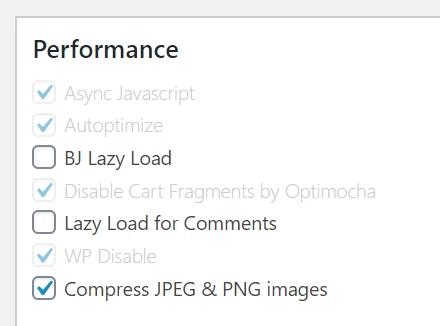
1. Click on the Plugins link.

2. In the plugins home page, scroll down until you see the Compress JPEG & PNG Images plugin. The plugin not only allows you to optimize the images, you can fix them in bulk, rather than one by one manually.

3. Confirm that the plugin is activated in order to begin the image compression.

To the Media library
4. Once the plugin is activated, navigate to the Media section of your WordPress Portal.

5. When you click on the link, you will see Bulk Optimization as an option to choose from.
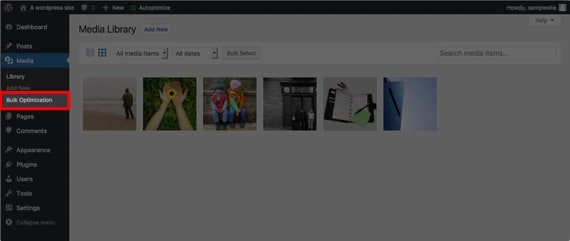
6. Click the link to be taken to the Bulk Optimization page.

Bulk Optimization
7. The plugin checks the images you have uploaded to your site and provides you with statistics on the size of uncompressed images and number of images.

8. To begin optimizing your images, click the Start Bulk Optimization button below the statistics.
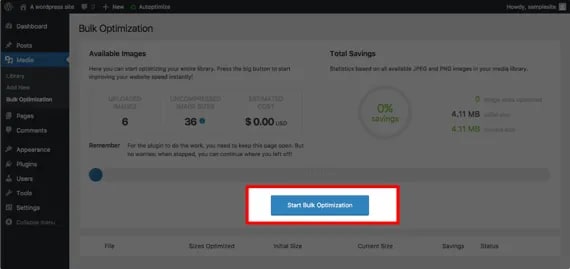
9. This will begin the compression and optimization of all the images in your media library. You will see the percentage of completion as the process works.

10. As it processes, you will see the Total Savings section change. This is total size savings of compressed images.

11. Once the optimization process is completed, you will see a listing of the images and the amount of compression that was performed.

12. As it processes, you will see the Total Savings section change. This is total size savings of compressed images.
In this example, the plugin recorded 59.1% savings for page load speed by compressing the images. Just think of how fast your site will load having images optimized for you!
More WordPress optimizations
And when you’re ready to take the training wheels off your WordPress site, upgrade to professional hosting and see how better speeds, security, and reliability provide a foundation for a website and a brand that people find engaging and trustworthy. Liquid Web’s WordPress hosting options configure business-class servers and support plans specifically for WordPress websites.
Click through below to explore all of our WordPress hosting options, or chat with a WordPress expert right now to get answers and advice.
Additional resources
What is WordPress? →
A complete beginner’s guide to WordPress.org
Storing images in object storage →
Learn how to store images in object storage to improve scalability, reduce server load, and enhance website performance.
What is managed WordPress hosting? →
Discover how an added layer of support takes server IT off your shoulders
Hero image by Soragrit Wongsa