

◦ Comprehensive security
◦ 24/7 support
WordPress Guide → Plugins → Jetpack Plugin
Backing up WordPress with the Jetpack backup plugin

Having a successful WordPress backup strategy and choosing the right backup tools for it are essential to guarantee the long-term success of your website.
Is the Jetpack Backup plugin free?
The core original Jetpack plugin is a free WordPress plugin created by Automattic:
It is one of the most popular WordPress plugins and has features for enhancing, monitoring, and managing a WordPress website.
The Jetpack Backup plugin is a newer plugin that upgrades the backup feature set when you have a paid Jetpack plan that includes Jetpack Backup:
If you bought the Jetpack backup Plugin or a Jetpack plan that includes the Jetpack backup plugin features, what are Your backup options?
If you have the paid Jetpack Backup plugin version, or the Jetpack Security or Jetpack Complete plans that include its features, there are several options for restoring your website:
– You can restore your site to the point in time of a site event.
– You can restore your site to the point in time of the last backup for a particular day.
– You can restore your site to the point in time when a manual downloaded backup was created.
Get fast, reliable hosting for WordPress
Power your site with the industry’s fastest, most optimized WordPress hosting
Using the Jetpack backup plugin
In this article, we have gathered everything you need to know about backing up WordPress using the Jetpack plugin in one place, so you no longer have to spend time searching for answers in Google.
The Jetpack set of solutions and features are powerful tools for your WordPress website. The Jetpack plugin’s extended functionality goes beyond providing you with a comprehensive and easy-to-use backup solution. Previously known as VaultPress, Jetpack presents security, performance, growth, and analytics tools to leverage:
Jetpack was developed by Automattic, the company behind the solutions that many website owners cannot imagine running their online business without, including the well-known WordPress.com and WooCommerce platforms. Having established a reputation and earned the community’s trust, Automattic remains one of the industry leaders in providing excellent solutions to extend and enhance your WordPress hosting capabilities.
Below, we will walk you through the process of backing up your WordPress website and restoring it using the Jetpack plugin’s backup solution in a thoughtful, step-by-step manner.
WordPress backups: building your backup strategy
Getting your WordPress backup strategy well built in general and choosing the right backup tools for it, in particular, are essential steps for guarantying the long-term success of your website. Unfortunately, skipping the important steps to ensure the well-being of your website, including not creating backups, can lead to a number of unpleasant consequences the website administrators find hard to deal with.
Here at Liquid Web, we believe in the optimizing the four essential aspects of your site’s overall design to ensure the long-term prosperity of every customer’s website:
- Performance
- Integrity
- Backups
- Security
These are key concepts to keep in mind to meet the challenges that putting your website online may create.
Before we jump into discovering all the core Jetpack plugin’s features for backing up WordPress websites, let’s review some of the most frequently asked questions website owners have when it comes to backups. These questions will help you understand why you need backups and how to create your backup strategy.
Question #1: Why do I need to back up my website?
Backups help ensure you can restore your website to a particular state in the past, most often to a point in time before a specific unwanted event happened. For example, security threats, plugin incompatibility, failed updates, and server crashes are some of the various events you need to be prepared for. Backups will help you minimize the destructive consequences of these incidents.
Please note that a system administrator should first investigate all issues that occur on the website. Although having backups can guarantee your data is safe, rushing to get your website restored is not what you should do if you see an error message on your website. We need to learn what exactly happened, when, and why it happened before we can choose the best approach to deal with it. Most server-side issues that lead to your website entering a dysfunctional state can be fixed without having to restore the website.
Question #2: Doesn’t my web host already provide backups?
Most hosting providers include their backup services as part of the hosting plans, but they may be standardized, and not optimized for backing up WordPress websites. That is not the case with Liquid Web, but all websites are different and, most of the time, require their own backup strategy. You, as the website owner who knows all the aspects of your business processes, can work out the solution that suits your needs.
Question #3: How often should i back up my website?
The frequency of backups depends on the following factors:
- How often you update your website. This aspect includes PHP version updates, WordPress version updates, new plugins and themes installs, updates of the existing ones, and changes to the custom scripts. Of course, you need to make a backup of your website before making any of the changes listed above.
- How often you add new content. This means anything you create and publish, including new blog posts, articles, videos, and more.
- How often your visitors interact with the content. Any visitors’ interactions with the website content — adding comments, submitting forms, or making purchases — are recorded in your WordPress database
Question #4: How many backups should i retain?
Keep at least 15 to 30 days of backups if you want to ensure maximum safety. Some backup solutions provide weekly and monthly backups in addition to daily ones, which is a great thing if you would like to compare the website versions or restore some of the features you removed or lost.
Moreover, when hackers find a way to infect a website, the website owner usually does not notice the changes right away. There can be days or even weeks until the attackers start utilizing the website, thus making the hack easy to spot. In this scenario, this is one of the situations where having weekly or monthly backups comes in handy.
Jetpack Backup’s plan provides 30 days of backups and 30 days of activity logging. The Jetpack Complete plan offers a full year of activity logs. We will discuss it further in the next section.
Question #5: Why do i choose plugins for backing up WordPress?
WordPress backup plugins can save you time and headaches while ensuring your website is backed up at all times and can be restored in one click. Restoring from server backups often requires technical knowledge and skills, which is not something business owners always have. While Liquid Web experts are here for you 24/7 and our knowledge base is constantly growing and introducing you to all technical concepts you need to know, WordPress backups are a great solution.
Question #6: Is using plugins like Jetpack backups enough to keep my website backed up?
The short answer is no. However, we need to ensure our data is kept in multiple places to protect us from unfortunate events like hardware failures and file system corruption, which is what the concept of data redundancy introduces.
Some backup solutions like the Jetpack plugin provide data redundancy by storing your backups on multiple servers in their secure data centers worldwide. Funny enough, by using Jetpack or another plugin for backing up WordPress, you choose to keep your data in one place, which contradicts the concept of data redundancy.
So, it’s best if you use multiple solutions; your backup plan can include WordPress backups and backups that are saved to the hard disk on your web hosting company server.
The questions above should help you build your backup strategy that, we guarantee, will significantly contribute to your website’s success in the long term. Please do not hesitate to contact our 24/7 technical support if you have any questions or need help working out the best way to have your WordPress website backed up regularly.
Creating backups using the Jetpack plugin
The Jetpack plugin makes it easy to back up, restore, migrate, and even clone your WordPress website in one click. Once you have built your backup strategy, we can move on to discover the key features Jetpack presents for backing up WordPress.
Step #1: Getting started by installing the Jetpack plugin & selecting a plan
Jetpack offers backups as part of the paid subscription. The Jetpack plugin’s basic features are included in the free version, but they do not include the backup option.
Installing the free jetpack plugin
Before we move on to the various Jetpack: WordPress Security, Backups, Speed, & Growth paid plugin plans and options, let’s install the popular free Jetpack plugin from the WordPress Admin Dashboard and activate it. In the activation process, you will need to approve to connect your website to WordPress.com. It is necessary to ensure the plugin’s features work correctly. If you do not have a WordPress.com account yet, it’s time to get one.
The paid Jetpack plugin plans: Jetpack backup, Jetpack security & Jetpack complete
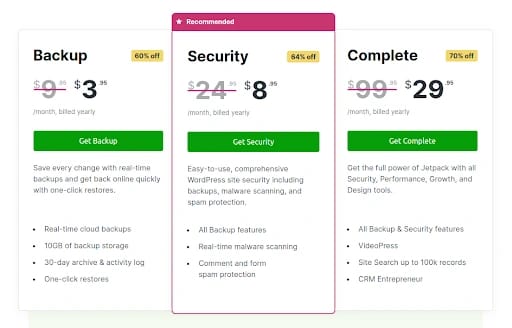
There are three main paid plans the Jetpack plugin offers: Jetpack Backup, Jetpack Security, and Jetpack Complete. The Jetpack Backup plan can be sufficient if you consider Jetpack as a backup solution only. Otherwise, you can leverage the extended list of features by choosing the Jetpack Security or Jetpack Complete plans. Each next more expansive plan encapsulates everything the previous one provides while adding new tools.
Below you can see the paid Jetpack plugin pricing at the time this article was published. The discounts shown in the image below are just an example and may vary as the pricing plans evolve over time. Furthermore, the discount percentages may change and only work for the first year if you pay for Jetpack for all 12 months with one payment.
The standard backup plan includes 10 GB of backup storage. You can upgrade to larger plans with up to 10 TB of backup storage for $16.90 monthly ($69.95 after the first year). The prices shown below are subject to change.
The amount of storage you need depends on the size of your website. If you are unsure, contact your hosting provider to determine how much disk space your website occupies.
Step #2: Discovering what Jetpack backs up
As the Jetpack plugin was developed for backing up WordPress websites, it does not just save all the files but backs up only what’s needed to be backed up, thus saving time and storage space.
Jetpack backs up the following data:
- Your WordPress database. Only the tables that utilize your WordPress table prefix and have a primary key.
- Everything in the uploads, plugins, must use plugins, and themes directories.
- All files in your WordPress website’s document root directory with a few exceptions. These exceptions include WordPress core files that you can update and redownload anytime, and subdirectories that contain other WordPress installations.
Excluding data from being backed up
You can exclude files in certain directories from being backed up by creating a .donotbackup file inside them. If you name a directory donotbackup, its files and all subdirectories will be excluded as well.
Step #2: Discovering what Jetpack backs up
As the Jetpack plugin was developed for backing up WordPress websites, it does not just save all the files but backs up only what’s needed to be backed up, thus saving time and storage space.
Jetpack backs up the following data:
- Your WordPress database. Only the tables that utilize your WordPress table prefix and have a primary key.
- Everything in the uploads, plugins, must use plugins, and themes directories.
- All files in your WordPress website’s document root directory with a few exceptions. These exceptions include WordPress core files that you can update and redownload anytime, and subdirectories that contain other WordPress installations.
Step #3: Real-time & daily: running backups
With all three Jetpack plugin plans, you can get your data backed up both in daily and in real-time backup intervals. As we discussed, you may need real-time backups if your website undergoes many changes daily.
Real-time backups: How they work & what data is backed up
The Jetpack plugin utilizes built-in hooks system in WordPress to receive alerts when information changes on your website. Jetpack immediately saves the changes to multiple servers to generate a new website backup.
Only specific changes get backed up in real-time, and here is a summary what you get backed up in real-time:
- WordPress core database tables changes
- WooCommerce database tables
- Any file changes like media uploads
All of the above and all other data points are backed up daily.
Viewing daily backups & the changes backed Up
A new daily backup is saved every 24 hours from the previous one. However, it is not possible to set a specific time for daily backups to occur.
Running a daily backup can take from a few minutes to several hours, depending on the size of your website. You can view your daily backups from the Backup tab.
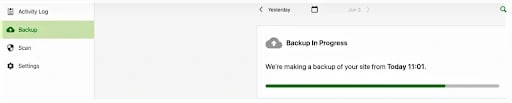
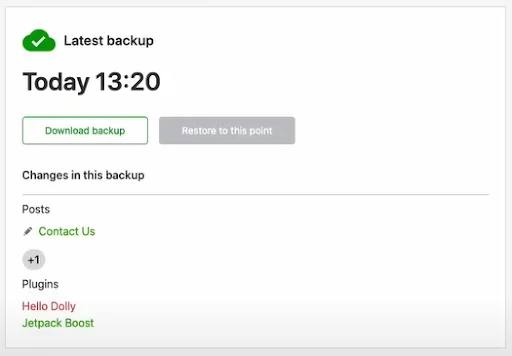
Once a new backup is saved, it will show you what changes to the website, if any, have been backed up from the last time a backup ran.
The Jetpack activity log for backups
The Jetpack plugin’s activity log shows the complete list of changes on your WordPress website. Some of the specific events that will be shown there are the following:
- Updates to the website’s posts and pages
- Comments added and forms submitted
- Plugin and themes installations, updates, or removals
- Registered users’ login attempts.
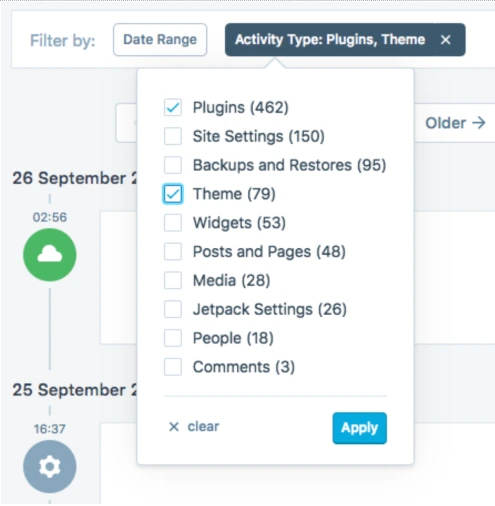
You can view the website’s activity log by choosing it from the menu on the left, just above the Backup tab. You can view all activity or use filters to select the events you would like to be shown. For example, the Jetpack plugin currently allows you to filter by Date Range and Activity Type.
Step #4: Restoring from Jetpack backups
The Jetpack plugin provides website restores in one click. You can restore your website to a particular event, day, or download a backup and perform the restoration manually from it.
Downloading a backup
Once you have more than one backup, you can navigate through them and see the changes made with each. To download any existing daily backups, navigate to the backup you need, and click on the Download Backup button.
The process of downloading one of the real-time backups is similar. You may select one of the events manually or opt to filter the events by Date Range and Activity Type, and click Download.
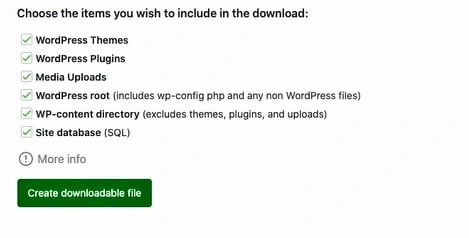
The process of downloading one of the real-time backups is similar. You may select one of the events manually or opt to filter the events by Date Range and Activity Type, and click Download.

Restoring your website in one click
For Jetpack to be able to restore your website, you need to provide a way to connect to the server that hosts it. For example, you can add your SSH, SFTP, or FTP/FTPS credentials.
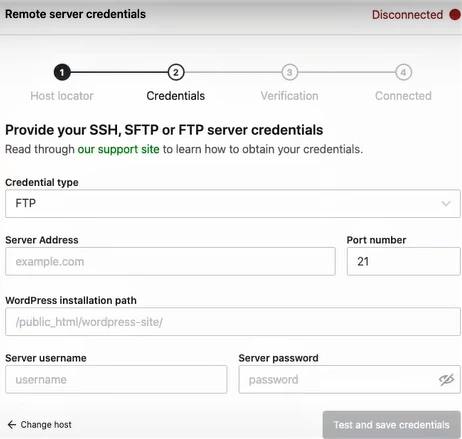
After you have saved the credentials and the Jetpack plugin has established a connection, you can easily restore your website from any existing backup.
Go back to the Backup or the Activity Log tabs, navigate to the backup you want to restore, and click Restore to this point. Like downloading a backup, you can deselect any items you do not wish to include in the restore. If you want to restore the entire site, leave all the boxes checked. Once you are ready to proceed, click on the Confirm restore button. You can watch the progress as your website is restored. Once the restore is complete, you can view your website.

Cloning & migration
The processes of site cloning and migration are similar. First, you need to download a backup of your website and restore it to the destination server manually. Cloning requires just one more step added to the process of migration — updating the links in your WordPress database to reflect the new domain name. That can be achieved using different tools, including WP-CLI Commands for Your WordPress Database. We recommend contacting your server provider for any assistance you may need.
The Jetpack plugin Frequently Asked Questions (FAQ)
Still got questions left? We got you! We have gathered the five most frequently asked questions about the Jetpack WordPress backups and their answers below.
FAQ – Question #1: Does Jetpack back up WordPress multisites?
Unfortunately, the Jetpack plugin does not support backing up WordPress multisites, at least not yet.
FAQ – Question #2: Can I save my backups to another location like AWS, Google Drive, or Dropbox?
Unfortunately, the Jetpack plugin does not support backing up WordPress multisites, at least not yet.
FAQ – Question #3: Can I download a backup of my WordPress database only?
Yes, Jetpack backups allow you to download certain parts of your website backups, including the database only.
FAQ – Question #4: If I restore my website from a particular backup, will i be able to restore it again from a more recent one that was saved before the restoration?
Yes, all daily backups and all events from the activity log will still be available as restoration points.
FAQ – Question #5: Can I restore my website if it’s currently down?
The short answer is — do not rush to get your website restored if it goes down.
Whether you need to restore your website depends heavily on the type of the error message you are seeing. But we typically do not recommend doing it until you know for sure what caused the error and when it appeared. For example, you can restore your website if it’s not working correctly after an update or a change you have recently made — if you are sure that change caused the error.
Your website will likely show the WordPress Critical Error page after a failed update, as this type of error message is often caused by PHP-related issues. For example, if you have recently updated the WordPress or PHP version on your website, you can restore it using the backup you created before making these changes.
However, it might not be possible or make sense to restore the website from WordPress backups or any other backups. Especially if the website shows database connection errors, timeout error messages, any web server status codes, or any other server-related error messages.
There is a wide range server-side and code-related issues that can lead to different error messages being displayed on your website. We recommend contacting your hosting provider to investigate all cases first. Support administrators should be able to tell you what exactly happened and how the issue can be resolved. However, you can let your hosting support team know you have WordPress backups. Restoring from these might still be a good option.
Getting started with backing up WordPress with the Jetpack Backup Plugin
As we discovered, Jetpack is one of the most powerful tools for backing up WordPress websites. You can rest assured that your website stays backed up. All backups are stored in the cloud, which means they stay available.
Performing important updates not being sure they will work out well — no worries, you are one click away from restoring your website to a functional state. The plugin’s user-friendly interface makes it easy to restore your website to any particular point in the past, no matter what changes have been made.
With real-time backups the Jetpack plugin presents, you no longer have to write down every change or try to remember when it was made to restore to a specific day — Jetpack has everything saved in the Activity Log for you.
Looking to break into ecommerce but thinking it is too difficult and the entry threshold is too high? We got you covered!
Liquid Web has been leading the industry in WordPress hosting for decades. And if you select managed WordPress hosting, our team of experts will manage server IT for you — so you can focus on growing your brand.
Click below to explore options or start a chat with one of our WordPress hosting experts now to get answers to your questions and further guidance.
Additional resources
What is a WordPress plugin? →
A complete beginner’s guide to WordPress plugins and how to manage them
4 best WordPress content plugins for editing blocks
→
Since creating content in a WordPress site now uses the block editor, we are going to cover a number of plugins that make managing content easier on your site.
How to check if a plugin is safe →
Simple steps to evaluating a plugin before you install and activate it

Kiki Sheldon works as a Security Specialist for Liquid Web. Before joining the Abuse & Security Operations Department, she worked on the Liquid Web Managed Hosting Support Team, where she gained extensive knowledge of Linux System Administration and popular Content Management Systems (CMSs).Kiki’s passion for writing allows her to share her professional expertise and help others. She keeps up with technology and always looks to improve her technical skills. In her free time, she enjoys reading, especially classic books and detective stories.