


 Liquid Web
 Managing a WordPress website is a bit like being the captain of a ship. Beneath the deck – hidden from the casual user – lies the engine room: the WordPress database.
This unsung hero quietly powers your website, storing everything from your blog posts and comments to user information and plugin settings. Without it, your site would be devoid of its content, functionality, and personality. In short, you’d quickly sink.
This article will dive deep into the WordPress database to help you explore its structure, understand its essential components, and learn how to optimize and manage it like a pro. From understanding the role of core database tables to leveraging tools like phpMyAdmin for database management, you’ll learn everything you need to know to keep your site running smoothly.
Key points
- The WordPress database is the backbone of your site, storing everything from posts and pages to user data and plugin settings. Understanding its core tables, like wp_posts, wp_users, and wp_options, is essential for managing and optimizing your site’s performance.
- You can use tools like phpMyAdmin to interact with your database, but always create a backup before making changes.
- For peak performance, regularly optimize your database and pair it with reliable hosting. Liquid Web’s managed WordPress hosting offers lightning-fast speeds, robust security, automatic backups, and expert support to keep your site running smoothly.
Essential WordPress database tables and their functions
A WordPress database is like a meticulously organized digital filing cabinet. Every single piece of data your website uses – from your homepage layout to that quirky comment someone left on your blog – is neatly stored in predefined database tables. Understanding these tables and their functions can help you troubleshoot issues, streamline your site’s performance, and even make informed decisions when customizing your website.
Here’s a breakdown of the essential WordPress database tables and what they do:
⚠️ By default, WordPress tables have the prefix wp_, but savvy users often change this during installation for added security.
wp_posts
The wp_posts table is the heart of your WordPress database. It stores all your posts, pages, and even custom post types like products or portfolio items. But there’s more – it also keeps track of revision history, menu items, and attachments. If it’s content-related, you’ll find it here.
Key use case: Want to remove outdated revisions to free up space? This is the table to focus on.
wp_postmeta
Think of wp_postmeta as the storage room for extra information about your posts. This table houses metadata such as custom fields, SEO settings, or product pricing in an ecommerce site.
Key use case: If your site relies heavily on custom fields, keep an eye on this table to avoid bloating your database.
wp_users
The wp_users table stores essential information about every registered user on your website, including usernames, email addresses, and encrypted passwords.
Key use case: Troubleshooting login issues or managing user roles starts here.
wp_usermeta
This companion to wp_users holds additional user-specific details, like profile preferences or access privileges.
Key use case: Use this table to tweak user capabilities or manage personalized settings for specific users.
wp_options
The wp_options table is the control center for your site’s configuration. It stores everything from your site’s URL and timezone settings to plugin options and theme customizations.
Key use case: Modifying site-wide settings or cleaning up after deactivating a plugin often involves this table.
wp_terms and wp_term_taxonomy
These two tables work together to manage your site’s categories, tags, and custom taxonomies.
Key use case: Organizing your blog posts into categories or adding tags for better SEO? These are the tables you’ll interact with.
wp_term_relationships
This table links your posts, pages, or custom post types to their respective categories or tags.
Key use case: If you notice a post missing from a specific category, you may need to check this table.
wp_comments
The wp_comments table stores all comments left on your site, including the commenter’s name, email, and IP address.
Key use case: Moderating comments or identifying spammy entries begins here.
wp_commentmeta
Similar to wp_postmeta, this table stores metadata for each comment, such as approval status or spam flags.
Key use case: Use this table to fine-tune your comment moderation strategy.
Multisite-specific tables
If you’re running a WordPress multisite network, additional tables like wp_blogs, wp_blog_versions, and wp_sitemeta come into play. These tables handle network-wide settings and individual site data.
Managing your WordPress database
Managing your WordPress database might sound intimidating, but it’s simpler than you think – especially with tools like phpMyAdmin at your disposal.
Interacting with your database using phpMyAdmin
phpMyAdmin is one of the most widely used database management tools, offering a user-friendly interface for navigating and editing your WordPress database. Most hosting providers include phpMyAdmin in their control panels, making it easily accessible.
Here’s how to get started:
- Log into your hosting control panel (e.g., cPanel, Plesk, InterWorx).
- Look for the phpMyAdmin option and click to open it.
- Select your WordPress database from the list on the left-hand side.

Once you’ve accessed your database, you’ll see all its tables neatly organized. From here, you can view, edit, or delete data – but proceed with caution!
Backup first: The golden rule of database management
Before making any changes to your WordPress database, create a complete backup. Why? Because even a small misstep can disrupt your entire website. A backup ensures you can quickly restore your site if something goes wrong.
Here’s how to back up your WordPress database using phpMyAdmin:
- Access phpMyAdmin and select your database.
- Click the Export tab.

- Choose the Quick export method and select SQL as the format.
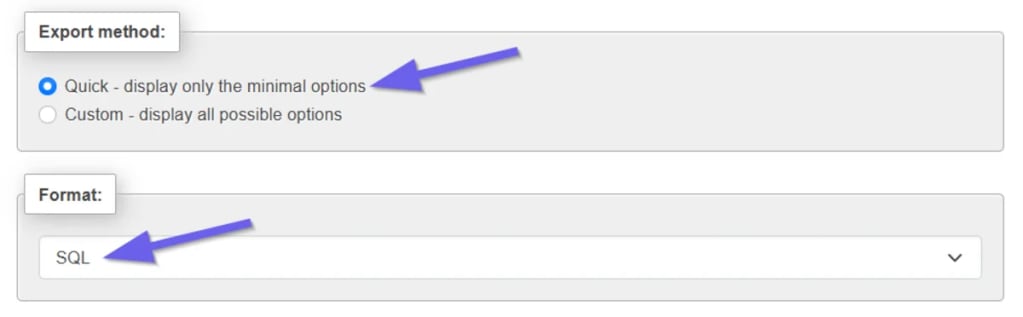
- Click Go to download the backup to your computer.
For added peace of mind, consider using a backup plugin like UpdraftPlus or Duplicator to automate this process.
Making basic changes to your WordPress database
Once you’ve backed up your database, you can safely make changes to improve your site’s performance or fix issues. Here are a few simple tasks you can handle via phpMyAdmin:
- Forgotten your WordPress admin password? No problem. You can reset it directly in the wp_users table:
- Locate the user account you want to update.
- Edit the user_pass field and set its value using the MD5 function to encrypt the new password.
- Too many post revisions can bloat your database. To clean them up, run the following SQL query in phpMyAdmin:
DELETE FROM wp_posts WHERE post_type = 'revision';- Spam comments can slow down your site. Use this query to delete them in bulk:
DELETE FROM wp_comments WHERE comment_approved = 'spam';- If you’ve migrated your WordPress site or switched to HTTPS, you may need to update your site’s URLs. Use this query:
UPDATE wp_options SET option_value = 'https://your-new-site-url.com' WHERE option_name = 'siteurl';⚠️While these tasks are relatively straightforward, always double-check your work and rely on your backup in case of unexpected issues. For more advanced changes, consult a professional to avoid accidental data loss or site downtime.
Optimize your WordPress database for peak performance
Every time a visitor loads a page on your WordPress site, your database is queried to fetch the necessary information. Over time, unused data like old revisions, spam comments, and temporary options accumulate, bloating your database and slowing down these queries. Optimization clears out this digital clutter, ensuring your database performs efficiently.
phpMyAdmin makes it easy to optimize your database tables with just a few clicks. Here’s how:
- Access phpMyAdmin and select your WordPress database.
- Click the Check All box at the bottom of the table list to select all tables.
- From the With selected dropdown, choose Optimize table.

- phpMyAdmin will automatically clean up and optimize the selected tables.
This process removes overhead (unnecessary data stored in the tables) and defragments the database, making it faster and more efficient.
Beyond basic table optimization, consider these additional steps to keep your database running smoothly:
- Delete unused data:
- WordPress stores every draft and update, which can pile up quickly. Remove old post revisions with this SQL query:
DELETE FROM wp_posts WHERE post_type = 'revision';- Transient options are temporary entries stored in the wp_options table, often left behind by plugins. You can safely clean them up using:
DELETE FROM wp_options WHERE option_name LIKE '_transient_%';- Index your tables: Indexes are like shortcuts that speed up database queries. If you notice slow performance, check whether your key columns (like ID) are indexed. Tools like Adminer can help you analyze and optimize indexes.
- Use a caching plugin: Caching plugins like WP Rocket or W3 Total Cache reduce the number of database queries by storing frequently accessed data in a cache. This can significantly speed up your site, especially for high-traffic pages.
- Consider storage engines and character sets: Switching to a more efficient storage engine, like InnoDB, can improve database performance. Additionally, ensure your database uses the utf8mb4 character set for better compatibility with modern emojis and characters.
If manual optimization sounds like too much work, consider using plugins like WP-Optimize or Advanced Database Cleaner. These tools automate the process, allowing you to schedule regular cleanups and keep your database lean without lifting a finger.
Also, don’t forget to monitor your site’s performance using tools like Query Monitor or your hosting provider’s analytics dashboard. Regular monitoring ensures you catch potential bottlenecks before they become bigger issues.
Boost your WordPress performance with Liquid Web
By now, you’ve seen how essential it is to manage and optimize your WordPress database for a high-performing site. But here’s the thing: even the best database management practices can only take you so far if your hosting provider can’t keep up. That’s where Liquid Web’s managed WordPress hosting comes into play.
Liquid Web’s managed WordPress hosting is designed to take the guesswork out of site performance. With features like automatic updates, daily backups, and a built-in Content Delivery Network (CDN), you can focus on growing your site while we handle the heavy lifting.
Here are the key benefits you’ll get with Liquid Web’s hosting:
- Blazing-fast speed: Liquid Web’s cloud platform is optimized specifically for WordPress, ensuring lightning-fast database queries and page loads. This means your visitors won’t be stuck waiting for content to load, reducing bounce rates and improving SEO.
- Automatic backups and easy restores: You get daily automatic backups that can be restored with just a few clicks. No need to worry about database mishaps or accidental deletions.
- Enhanced security: Your database contains sensitive information, from user credentials to site settings. Liquid Web’s managed hosting includes robust security measures like malware scanning, firewall protection, and proactive threat detection to keep your data safe.
- Staging environments: Want to test database changes or plugin updates without risking your live site? Managed WordPress provides free staging environments so you can experiment freely and push updates confidently.
- Expert support: Liquid Web’s experts are available 24/7 to assist with database issues, performance optimization, and any other challenges you face.
Ready to experience faster load times, increased security, and peace of mind? Check out Liquid Web’s managed WordPress hosting today and take your site to the next level!