

◦ Comprehensive security
◦ 24/7 support
WordPress Guide → Ecommerce → BigCommerce Integration
BigCommerce and WordPress: An easy integration guide

Want to turn your WordPress site into a moneymaker by adding an online store? You can’t go wrong with adding BigCommerce for WordPress.
Competition among WordPress plugins can be intense, and as a result, plugin providers have made it easier than ever for you to get your store up and running.
And while WooCommerce gets much of the plugin plaudits from WordPress experts, BigCommerce and WordPress are a good match too.
If you’re just here for a quick primer, don’t worry. We’ll explain what BigCommerce can do as your ecommerce platform and why you might pick it over WooCommerce. Then, we’ll walk you through installing BigCommerce’s WordPress plugin.
What is BigCommerce?
As its name suggests, BigCommerce is a big player in the ecommerce industry. While it’s not as popular as Shopify or Amazon, it has made serious headway in recent years.
This NASDAQ-listed firm powers the online stores of well-known enterprises, such as Ben & Jerry’s and GE Appliances, through its software-as-a-service (SaaS) platform.
You can integrate BigCommerce with most websites, meaning you can keep your website’s look and feel while tapping into a new revenue stream.
After a period of substantial growth, BigCommerce created a plugin to bring its ecommerce functionality to one of the web’s most popular content management systems (CMSs): WordPress.
WordPress is used by an estimated 42.3% of all websites, so it’s no surprise that BigCommerce would want in on the action. BigCommerce developed its plugin with help from WordPress experts Modern Tribe, and it was Gutenberg ready out of the box.
While the WordPress plugin was only made available in 2018, it has spared no time in amassing downloads.
BigCommerce and WordPress
One of the major benefits of BigCommerce for WordPress is the fact that it is headless. And headless commerce in WordPress has some great perks, such as increased security and flexibility.
Your BigCommerce store’s back end operates completely separately from your WordPress website’s customer-facing storefront (i.e., the front end).
But what if your WordPress front end and BigCommerce back end need to have a nice chat by the fireside?
Well, they can do so using an open API (application planning interface).
Benefits of BigCommerce over WooCommerce
A complete like-for-like comparison of functionality wouldn’t do either plugin justice. For the purpose of this article, we’ve pointed out a few areas where BigCommerce has the edge.
Pricing for credit and debit card transactions
If you use WooCommerce Payments for your ecommerce store, you’ll be charged a standard 2.9% + $0.30 for payments made by U.S. debit and credit cards. However, for payments from cards issued outside the U.S., you’ll incur a hefty 4.4% + $0.30.
BigCommerce customers can use various payment options, such as PayPal powered by Braintree. The card processing fee is 2.59% + $0.49 per transaction for the standard BigCommerce plan.
Pro and Enterprise plan customers with a certain revenue level can get an even sweeter deal at 2.05% + $0.49. That’s a great incentive to use the BigCommerce plugin to build your online store.
Separate ecommerce system
Because the commerce components of the WordPress admin are transferred to BigCommerce’s system, your WordPress site’s apps and themes have fewer performance impediments. The lack of ecommerce clutter also makes it easier to scale your website.
PCI compliance
With security threats growing, website visitors like to see security features like SSL certificates and PCI compliance before they enter their payment information.
One benefit of BigCommerce over WooCommerce is PCI compliance.
Although WooCommerce itself meets PCI standards, it leaves customers to sort out their own ecommerce store compliance.
In contrast, BigCommerce shoulders some PCI compliance responsibilities, so you can spend less time worrying about cardholder privacy and more time running your business.
How to install BigCommerce for WordPress
For the purpose of anyone still finding their feet on WordPress, we’ll start with the basics. The only real precondition is that you already have a WordPress site and web host.
Like most plugins, the BigCommerce WordPress plugin is available in the WordPress plugin library, so that’ll be your first port of call. Navigate here from the WordPress admin dashboard (you may also call it your admin panel or control panel — no judgment here).
Once you’re logged in, scroll down the left-hand panel until you see Plugins.
When you hover your mouse over Plugins, you’ll see Add New.

After you click it, you’ll see a search bar for finding WordPress plugins. Search for the BigCommerce for WordPress plugin.

Now, click the Activate button beside BigCommerce for WordPress.

You’ll be taken to the Welcome page for the BigCommerce WordPress plugin. The embedded YouTube video provides a quick tutorial on the BigCommerce plugin.

Let’s start from scratch and create a new account.

To create a BigCommerce account, you’ll need to fill in various details, such as your email address, store name, phone number, and physical address.
Once you fill in all your details, you’ll be prompted to set up a new channel. You’ll see a brief explainer of channels and instructions for connecting your ecommerce store to other ecommerce websites or WordPress multisites.
Generally, sales channels are where your BigCommerce products are sold, ordered, or marketed. They can be storefronts, marketplaces, point-of-sale (POS) systems for checkout, or marketing platforms.

Next, add a new channel name.

After you add this channel, you’ll be asked to configure your store. You can either set up a full-featured store or choose “simple blogging” to add products to your posts and pages.
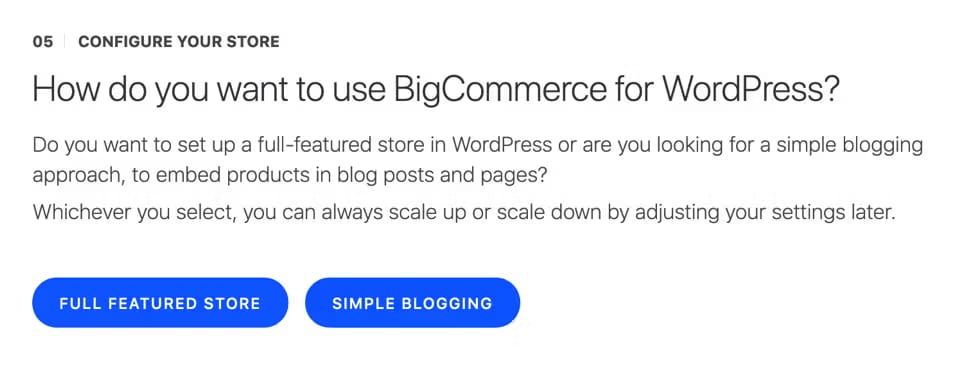
Let’s go for a full-featured store here. Once you do this, you’ll be prompted to set up your navigation menus. This step is optional.
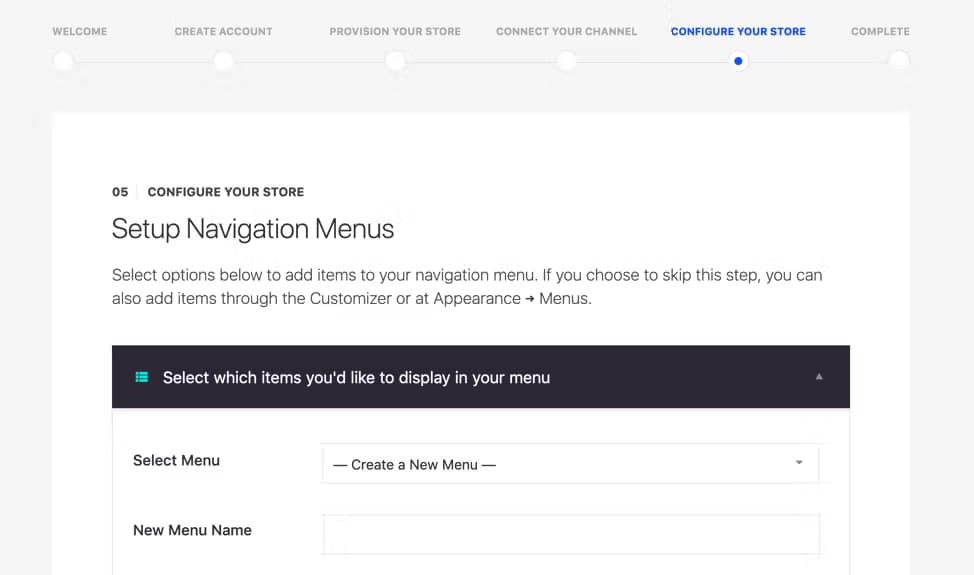
After that, you’re mostly done with the setup — congratulations on a successful BigCommerce WordPress integration.
You can now organize your store. A good place to start would be product page and catalog management. Also, don’t forget to perform a product sync every once in a while.

BigCommerce also has some useful resources, such as recommendations on WordPress themes, some of which are tailored toward BigCommerce stores.

Now that you’ve installed BigCommerce for WordPress, you can focus on leveraging its features to increase conversions on your ecommerce website.
If you’re just starting out on your ecommerce journey, BigCommerce may take some time to get used to. That said, you’ll find plenty of helpful resources in the BigCommerce Knowledge Base, and plugin support is available, too.
Getting started with BigCommerce and WordPress
With your BigCommerce WordPress integration complete, you can focus on fine-tuning other parts of your website to improve its user experience.
If you opted for a shared hosting plan, you may find that your website’s engine starts to sputter during high-traffic seasonal sales periods.
To ensure your website is ready to ramp up resources at the drop of a hat, go for a WordPress VPS or managed hosting plan from an experienced provider like Liquid Web. With autoscaling included in all our managed hosting plans, you can rest assured that your website is ready to keep selling until its digital shelves are bare.
Explore all your options for WordPress.org hosting below, or start a chat to talk to one of our expert support team members and learn more!
Additional resources
Using WordPress for ecommerce →
A complete beginner’s guide to using WordPress for your online store
What is managed WordPress hosting? →
Learn what it is, and what it’s not, benefits, and more
Easy SEO for WordPress →
Once your BigCommerce store is set up, make sure your audience can find it!

Maddy Osman is a WordPress expert, WordCamp US speaker, bestselling author, and the Founder and SEO Content Strategist at The Blogsmith. She has a B.A. in Marketing from the University of Iowa and is a WordCamp Denver organizer.