

◦ Comprehensive security
◦ Support
WordPress Guide → Build → Add a Contact Form
How to add and configure contact forms in WordPress
As customers seek more control over their buying journey, web forms offer a convenient way to access information and connect with brands, during business hours or after, ensuring leads and contact details are captured even when staff are unavailable.
The average form conversion rate is 1.7%, but you can optimize your approach to raise this number and gain a real competitive advantage.
WordPress doesn’t have contact forms built in, so we’ll show you how to add them.
What is a WordPress contact form?
A WordPress contact form helps your website visitors get in touch with you safely and securely. Visitors can send in their questions, feedback, or complaints through the contact form. You, in turn, can collect the details of potential leads and subscribers.
A contact form prevents your mailbox from being flooded by spam emails. A WordPress contact form helps collect the necessary information from visitors in an organized way.
Use cases for WordPress contact forms
A WordPress contact form helps your website visitors get in touch with you safely and securely. Visitors can send in their questions, feedback, or complaints through the contact form. You, in turn, can collect the details of potential leads and subscribers.
Lead generation is an obvious use case for contact forms, but there’s so much more you can do:
For bookings and reservations, contact forms allow customers to make appointments directly on a website’s service page. You can capture necessary details like date, time, and service type to more efficiently manage schedules.
Using contact forms for customer feedback lets businesses understand what’s working, what’s not, and where improvements can be made.
In handling support tickets and inquiries, contact forms provide a straightforward way for users to submit their issues or questions. This helps businesses respond to concerns in a more organized and timely manner.
Event registration with contact forms enables attendees to quickly sign up for events, share preferences, and provide necessary details. It’s also a hassle-free way to manage guest lists and event logistics.
For job applications, contact forms streamline the submission process, allowing candidates to upload resumes and provide relevant details.
7 best WordPress contact form plugins
Here’s a list of some of the best WordPress contact form plugins based on their features and ratings. We’ve included both paid and free WordPress contact forms.
1. WPForms
WPForms is a popular WordPress contact form plugin with a drag-and-drop feature. The free edition includes basic form fields, spam prevention, email notification, and confirmation and thank-you pages. The premium edition helps you build multi-page forms, email subscription forms, payment forms, and so on.
2. Contact Form 7
Contact Form 7 is one of the oldest and most downloaded free WordPress contact forms. This plugin is a bit complex since it’s HTML based. Contact Form 7 empowers you to create any number of forms you like, and you can use them in as many websites as you wish.
3. Gravity Forms
Gravity Forms comes only in the premium version. It’s loaded with advanced features to help you build more elaborate forms, such as surveys and user-submitted content.
4. Jetpack Forms
Jetpack Forms offers many pre-built forms, such as feedback, registration, and newsletter signup. It has both free and paid versions.
5. Formidable Forms
Formidable Forms is an advanced WordPress contact form plugin with a drag-and-drop interface. You can use it to build form-based solutions, such as job board postings, rating systems, and event calendars. It has free and premium versions.
6. HubSpot Forms
HubSpot Forms is a free WordPress contact form plugin. It’s an all-in-one marketing toolkit easily integrated with CRM and sales tools. Besides a form builder function, HubSpot Forms includes features like live chat, popups, and analytics.
7. Ninja Forms
Ninja Forms helps you create interactive forms quickly. The premium version lets you connect with services like Campaign Monitor, SMS notification, and Salesforce.
How to add a contact form in WordPress with WPForms
Here is how to add a contact form in WordPress using WPForms.
Step 1: Add a new form
First, log in to your WordPress admin area. Navigate to the admin sidebar and click on WPForms.
Select “add new” to access the WPForms form builder.

You can give your form a name (such as “Contact Us”) in the Form name field on the Setup page.

Below that field, you’ll find form templates in the Select a template section. These are the pre-built templates of commonly used forms.
Step 2: Customize your form
The form builder takes you to the Fields screen once you’ve chosen a form template. The accessible fields will be displayed in the left panel.

To add a field to your form, you can either click on it in the left-hand panel or drag and drop it directly into the form preview.
? The average form has five fields and we’d recommend you don’t go above this, otherwise you risk adding friction to the process.
To delete a field from your form, you can hover over it and click the red trash can icon.
Field options let you configure the details and settings of each field.
Step 3: Edit form settings
Click on the Settings tab on the left side of the form builder to access your form’s settings.

The first three settings are General, Notifications, and Confirmations.
- General: Here, you can change the form name and description. You can add custom CSS to your forms in the Advanced box.
- Notifications: Form alerts are emails automatically sent when users fill out forms. You can customize these emails under the notifications settings.
- Confirmations: This informs users that their form has been submitted successfully. You can utilize confirmations to give users extra information or options.
Step 4: Display the new contact form on your site
There are several ways to add your forms to your site.
Embedding your form on a WordPress page
You may utilize the Embed wizard directly from the form builder by clicking the Embed button.

Embedding a form with the block editor
After you’ve opened the page editor, select the plus-sign icon to add a new block. This will give a block options menu.
You can search for “WPForms” or scroll down to the Widgets category to find the WPForms block. Select the block.

How to add a contact form in WordPress with Contact Form 7
Now let’s try it with a different WordPress plugin.
Step 1: Add a new form
From Contact, go to Contact forms. After selecting “add new,” enter your chosen name.
You’ll get a new form with pre-added fields like name, email, subject, and message.
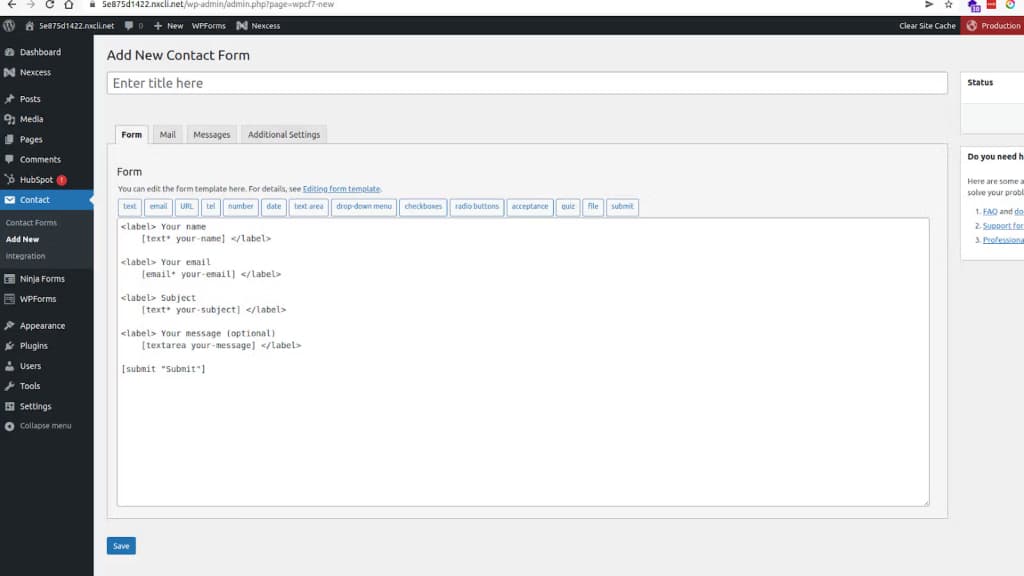
You might want to keep these fields and add a few more. To add a date field, for example, choose a tag from the list at the top of the form editor panel to add a new field. This is what it looks like:

To add a date field, click on the date tag.
You’ll get some options in the popup that appears, out of which you can keep the Name, Default value, Class attribute, and ID attribute.
Check the Required field box. Then choose “insert tag.”

Step 2: Configure mail delivery settings
You can personalize what happens when someone contacts you through the form. This is a crucial step since you will be notified when someone fills out the form only if the emails are properly configured.
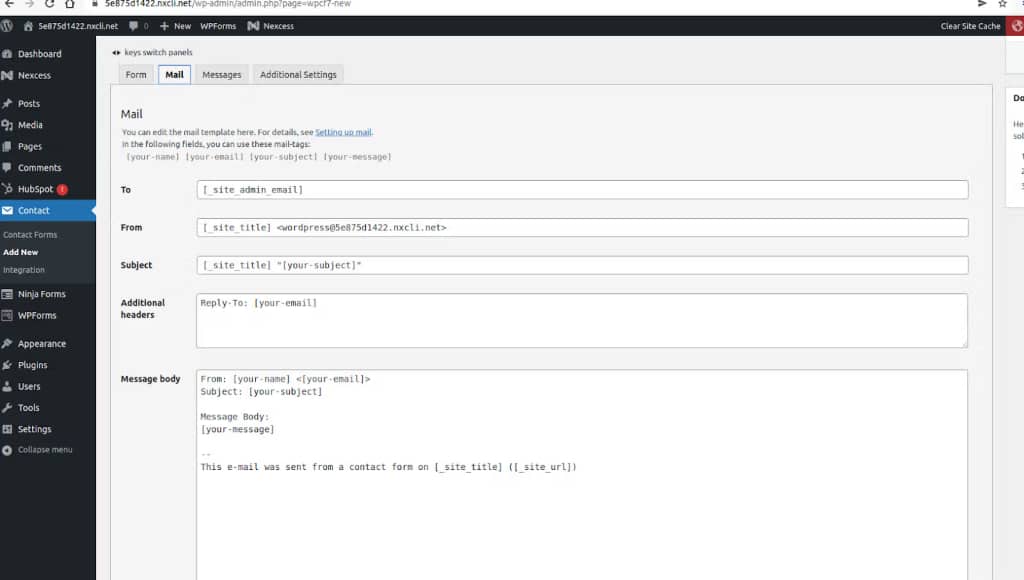
Let’s examine each of the options.
- To: The plugin will send an email to this email address whenever someone fills out the form. Contact Form 7 utilizes the site administrator’s email by default.
- Subject: This lets you customize the subject of the email.
- From: This allows you to change the emails’ from field. It’s recommended to put the name of your website here. The email address of the sender is also included.
- Additional headers: Here, you add the cc and bcc recipients.
- Message body: Here’s where you put the message you’d like to send.
- File attachments: Include your file tag here if you’ve checked the option to upload files on your contact form.
- Mail (2): This lets you craft an automated message that visitors receive when they use the contact form.
Step 3: Publish the form
From Contact, go to Contact forms. Here, you get the short code that you can include on your website.

Go to the page where you want the contact form to be displayed. In the post editor, paste the short code in the space for text.

Make sure to preview the page and make changes, if needed, before publishing.
Creating forms without plugins
If you’re worried about overloading your site with plugins, you have other options for creating contact forms: using page builders and doing it manually with code.
Using page builders
If you’re already using a page builder on your WordPress site, chances are it can also build fully functional contact forms. As usual, you can use them to create contact forms with drag-and-drop interfaces and pre-built templates without needing to code.
They focus on customization, allowing you to adjust form fields, layouts, and designs to match your site’s needs.
Many page builders integrate directly with email marketing platforms, CRM systems, or databases, allowing for efficient management of form submissions and customer data.
Additional features like spam protection, conditional logic (where form fields change based on user input), and multi-step forms offer enhanced functionality. These tools also ensure forms are responsive, working seamlessly across devices.
Elementor’s form builder, for example, provides full design control, integrates smoothly with third-party services, and includes advanced features such as dynamic field validation and automated actions after submission.

Using custom code
If you’re after as much control as possible and don’t mind a little elbow grease, you can code a contact form for your site:
1. In your theme’s folder, create a new template file, e.g., contact-form.php
2. Add HTML to define the form’s structure:
<form method="post" action="">
	<label for="name">Name:</label>
	<input type="text" id="name" name="name" required>
	<label for="email">Email:</label>
	<input type="email" id="email" name="email" required>
	<label for="message">Message:</label>
	<textarea id="message" name="message" required></textarea>
	<input type="submit" name="submit_form" value="Send Message">
</form>
3. Add PHP code at the top of the form to handle submissions:
if ($_SERVER['REQUEST_METHOD'] == 'POST' && isset($_POST['submit_form'])) {
	$name = sanitize_text_field($_POST['name']);
	$email = sanitize_email($_POST['email']);
	$message = sanitize_textarea_field($_POST['message']);

	$to = get_option('admin_email');
	$subject = 'New Contact Form Submission';
	$headers = 'From: ' . $email;

	wp_mail($to, $subject, $message, $headers);
	echo '<p>Thank you for your message!</p>';
}
4. In the WordPress admin, create a new page or edit an existing page, then insert this PHP template into the page via a custom template or shortcode.
5. Check the form on your website and test submissions.
WordPress contact form security
To keep your WordPress contact forms from becoming a security liability, implement the following measures:
Integrate CAPTCHA to prevent bot submissions and ensure your forms are filled out by real users only.
Validate inputs both on the client and server side to confirm the data submitted is correct and secure.
Add challenge tokens to your forms to protect against cross-site request forgery attacks by verifying legitimate submissions.
Limit submission attempts from the same IP address to avoid brute-force attacks and spam submissions.
Sanitize user data before processing it to eliminate any potentially harmful scripts or malicious content.
Encrypt data using SSL/TLS to secure sensitive information during transmission and protect against interception.
Power your site with the fastest, most secure hosting for WordPress
A contact form is an important feature on any site. Your visitors want to be able to get in touch, and you don’t want to publish your email address on the web. Get started by reviewing the plugins listed above and choosing the one you like best.
If you’re just thinking about setting up a site, or you’re ready to upgrade your WordPress site, consider your hosting partner. A secure site starts with secure, reliable hosting, and Liquid Web has been leading the pack for almost three decades.
We offer the widest range of hosting options specifically designed for WordPress sites — from a simple VPS, to WordPress cloud hosting, to dedicated WordPress servers for enterprise organizations. You choose your favorite OS and the level of management support you need. Get in touch today.
Additional resources
How to build a WordPress site →
A complete beginner’s guide that covers 9 key steps to a successful launch
Beginner’s guide to WordPress plugins →
A simple definition, examples of our favorites, how to use them, and more
Contact form placement tips →
Where should your WordPress contact form go? Explore best practices