

◦ Comprehensive security
◦ Support
WordPress Guide → Admin → Hubspot/WordPress Integration
Hubspot / WordPress integration: How to use the CRM on your site

HubSpot is an all-in-one CRM and marketing platform that adds a ton of value for WordPress users in their free plugin.
With HubSpot’s WordPress plugin, you can add live chat, chatbots, and forms to your pages to better capture leads on your website. Automatically sync those leads to the HubSpot CRM & easily manage your contacts, segment them into lists, and see every interaction they’ve had with your website (page views, live chat conversations, form submissions, etc).
Follow up with email marketing campaigns and see analytics on your performance, all from within the familiarity of your WordPress dashboard.
Get fast, reliable hosting for WordPress
Power your site with the industry’s fastest, most optimized WordPress hosting
Step 1: Install and activate the HubSpot plugin
In order to use HubSpot on your store, you will need to activate the plugin in wp-admin.
In wp-admin, on the plugins screen, search for HubSpot. Our managed WordPress accounts have pre-installed the plugin, you will need to activate it:
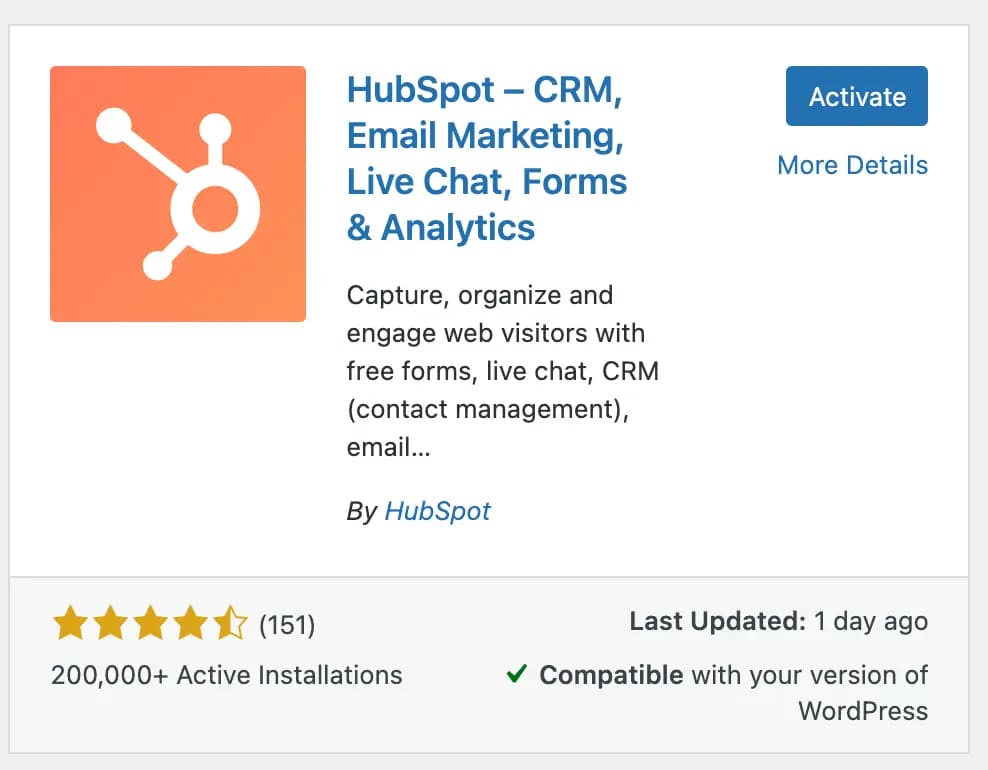
Step 2: If necessary, expand your menu
If you’re using certain Nexcess products, like Store Builder, you may not see the HubSpot plugin in the sidebar. Click Show Full Menu to see a sidebar with HubSpot included:

Step 3: Create your free HubSpot account or log into your existing account
Once you’ve activated the plugin, inside the HubSpot plugin, you’ll be prompted to create a free HubSpot account or log into your existing account.
If creating a new account, you can signup with Google or with your email address. The plugin will walk you through confirming your email address and creating a new HubSpot account:

Step 4: Connect your WordPress website and HubSpot
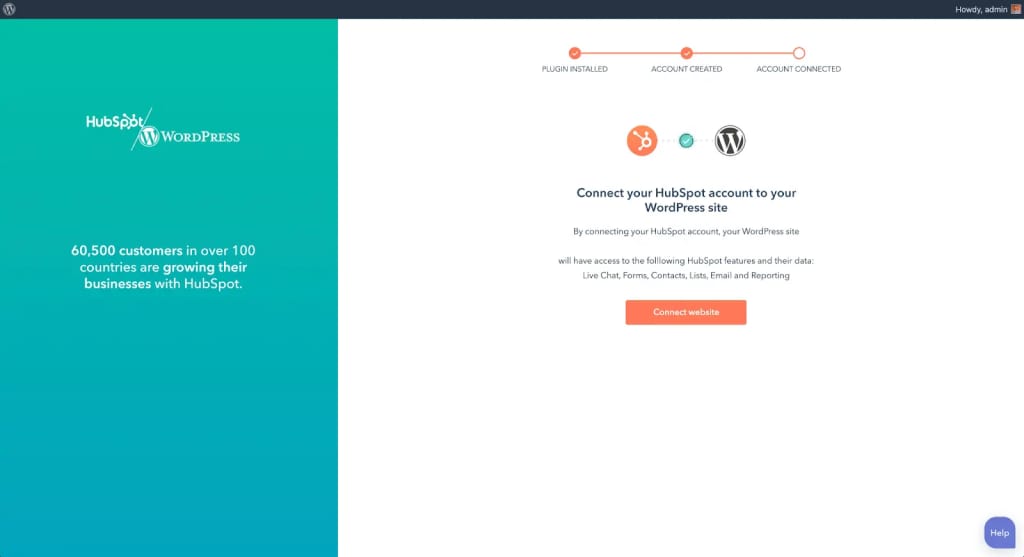
After logging in or creating an account, you’ll need to confirm that you want to connect your WordPress website and HubSpot.
Click the connect website button like in the image below:
Step 5: Explore the User Guide tab to get started with HubSpot
Once you’ve connected your website, you’re ready to get started with the plugin.
Explore the user guide to get an overview of HubSpot’s various free features in the plugin — live chat, forms, contacts, lists, email, and reporting.

If it’s your first time using HubSpot, you may also want to follow the get started tasks on the right hand column of your HubSpot dashboard or go through the Get To Know Your CRM section.
Getting started with Hubspot/WordPress integration
And that’s it! You’re up and running with a powerful CRM that will help you grow your business better.
Ready to upgrade your hosting service for your WordPress site? You’re in the right place. Liquid Web has been configuring specialized servers and hosting arrangements for WordPress for decades. We’re proud to offer the fastest speeds, tightest security, and best support.
Additional resources
How to use your WordPress admin login page →
How to find, use, and troubleshoot your admin page
Comprehensive WordPress security checklist →
18 security tasks anyone can do to make your site more secure
Easy WordPress website maintenance tips →
7 simple steps to keep on regular rotation

Brooke Oates is a Product Manager at Liquid Web, specializing in Cloud VPS and Cloud Metal, with a successful history of IT/hosting and leadership experience. When she’s not perfecting servers, Brooke enjoys gaming and spending time with her kids.