


 Maddy Osman
 Lost access to your WordPress admin after a URL change? Whether it’s from a plugin, migration, or developer changes, this is a common headache. Luckily for you, there are quick ways to get back in, all covered in this article.
First, we’ll look at hitting the default login URLs, like /wp-admin and /login, to see if that does the trick. If that doesn’t work, we’ll dive into SFTP access, where you can reset your credentials manually. For those running WordPress on a subdomain or in a subdirectory, we’ll cover how to handle those cases – because yes, it’s different.
The main aim of this article, though, isn’t just fixing the problem now; it’s making sure this doesn’t happen again. We’ll walk through ways to prevent future lockouts, no matter what type of WordPress setup you’re running – standard or custom.
If you’re managing a WordPress site, this is the stuff you need to know to avoid wasting time when you need to get in fast.
Key points
- Find your WordPress login URL based on your installation type (standard, subdirectory, or subdomain) or security plugin settings.
- Use hosting control panels or confirm the site uses WordPress to regain admin access if standard login methods fail.
- Resolve common problems like browser cache conflicts, plugin errors, or corrupted .htaccess files to restore login access.
- Secure your login page with custom URLs, strong passwords, two-factor authentication, and limited login attempts.
- Platforms like Liquid Web simplify WordPress access, ensure security, and prevent login-related issues.
How to find your WordPress login URL
To regain access to your WordPress site, the first step is identifying the correct login URL. Depending on how WordPress is installed – whether on a main domain, subdirectory, or subdomain – the URL to access the login page can vary.
Here’s a breakdown of common login URL formats to help you find the right one:
- For standard WordPress installations, the correct URL is usually yoursite.com/admin, yoursite.com/login, or yoursite.com/wp-admin.
- For WordPress installed in a subdirectory, the URL is usually yoursite.com/wordpress/admin, yoursite.com/wordpress/login, or yoursite.com/wordpress/wp-admin. Change the /wordpress/ part to the name of the installation folder.
- For WordPress installed in a subdomain, the URL is usually subdomain.yoursite.com/admin, subdomain.yoursite.com/login, or subdomain.yoursite.com/wp-admin.
? If you’re already logged into your account, these URLs should take you straight to your site’s WordPress admin dashboard.
Certain WordPress tools, usually security plugins, can change the default login URL to obscure it from would-be attackers. If this is the case, consult their documentation to figure out how to get the address.
In Solid Security, for instance, this is the Hide Backend feature, which you can access from the admin dashboard via Security > Settings > Advanced. If you expand the Hide Backend Settings section with the Hide Backend box checked, you should see the new URL.

Some WordPress-specialized hosting providers, like Liquid Web, allow you to log into your WordPress admin dashboard right from the hosting control panel, bypassing the need for the traditional login screen.
Alternative ways to access your WordPress admin area
If you’re, say, a developer or agency trying to help a client, and the usual WordPress login URLs won’t work, here’s a real kick in the teeth: it might not even be WordPress.
First, stop whatever you’re doing and view the site’s code to confirm what’s really powering the site.
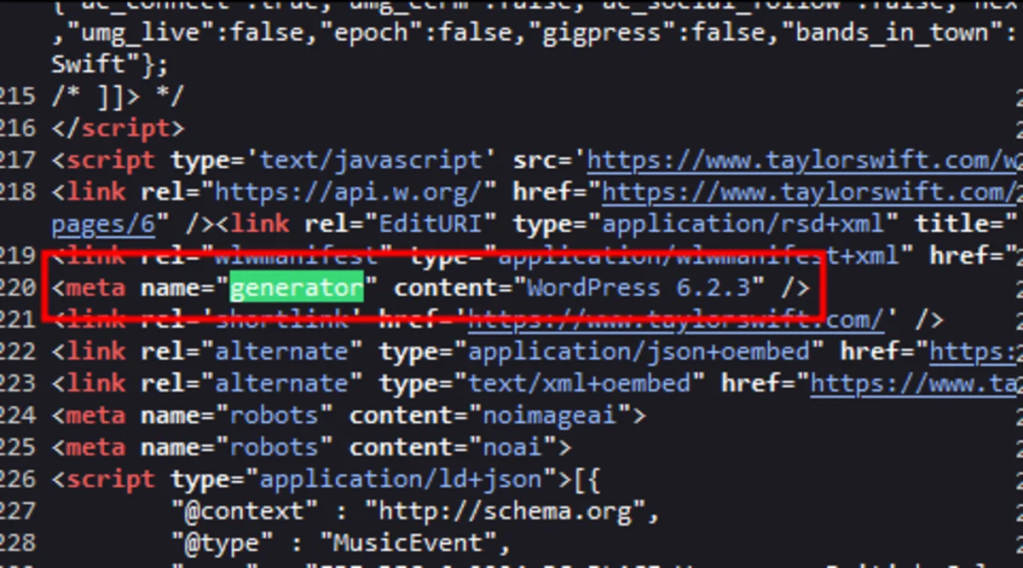
Right-click anywhere on the page then click on View page source. When the tab with all the code opens, hit Cmd/Ctrl+F and search for “generator”. This should bring up a line of code that reads <meta name=”generator” content=”WordPress [version]” />.
For example, here’s what happens when you run this search on the website of 8-time Nickelodeon Kids’ Choice Award winner, Taylor Swift:
Once confirmed, the next step usually involves accessing your WordPress dashboard through your hosting control panel.
The exact process varies between providers, but Liquid Web gives you three simple ways to log in, ensuring you regain access quickly without hassle.
If you want to get back in through your Liquid Web account:
- Visit sites-portal.liquidweb.com and log into your Liquid Web managed WordPress account.
- Navigate to the Sites tab and click on the site you want to access..
- Click Site login in the Application section to access your WordPress admin using the credentials sent to you via email.
To go through your browser:
- Open your browser and go to https://yourdomain.com/wp-admin/. If you have a custom admin address, use that instead of /wp-admin/.
- Enter the login credentials emailed to you when your Managed WordPress Portal service was activated.
- Click Login to access your dashboard.
To go through the Nexcess website:
- Visit www.nexcess.netand click Log in.
- Enter your username and password, then click Sign in.
- Select Plans and click on your WordPress plan to be directed to your Managed WordPress Portal.
Note: Liquid Web managed WordPress plans are powered by the Nexcess platform. Nexcess is part of Liquid Web.
Troubleshooting common WordPress login access problems
Once you’ve found the correct login URL, but still can’t access your WordPress admin, it’s time to troubleshoot. Here’s how to solve the most common login issues step-by-step, starting with the easy fixes and working our way up to more technical solutions.
Basic troubleshooting steps
Start with the basics. Often, a simple browser issue is to blame. Clear your browser cache and cookies – these can sometimes interfere with your login attempts.
If that doesn’t work, try accessing your site in a different browser or in incognito mode to rule out any browser-specific issues.
Lastly, check if a security plugin might have changed the login URL. If that’s the case, try accessing via the new URL specified by the plugin.
Login redirect loops
If you’re stuck in a redirect loop (“Too many redirects”), you’ll know because your browser repeatedly sends you back to the login screen. To fix this, add the following line to your wp-config.php file:
define('COOKIE_DOMAIN', false);This tells WordPress to reset cookie handling and can resolve redirect issues. If you’re not sure how to manage cookies in your browser, here are guides for clearing cookies on Chrome, Firefox, and Safari.
Plugin conflicts
Sometimes, plugins – especially security plugins – can block login attempts. To identify the culprit, rename your plugins folder via SFTP to disable all plugins. If you can log in after that, reactivate plugins one by one to find the problematic one.
If you’re hosted on a managed services provider like Liquid Web, their support team can help pinpoint and resolve plugin conflicts.
Corrupted .htaccess File
If you see a 403 Forbidden error, your .htaccess file may be corrupted. Rename it via SFTP to .htaccess_old and try logging in again.
If that works, go to your WordPress dashboard, navigate to Settings > Permalinks, and click Save Changes to generate a fresh .htaccess file. This should fix any issues with permissions or URL rewrites caused by a corrupt file.
Securing your WordPress login page
Now that you’ve resolved immediate login issues, it’s time to secure your WordPress login page against dangers like brute force attacks and unauthorized access.
Here are some tips to help you lock it down:
- Choose a secure hosting provider: A managed WordPress host like Liquid Web offers built-in security features such as DDoS protection, firewall defenses, automatic backups, and malware scanning.
- Install a WordPress security plugin: A reliable security plugin like Solid Security offers multiple layers of protection, including intelligent IP blocking, real-time threat monitoring, and brute force attack prevention.
- Change your WordPress login URL: The default WordPress login URLs are easy to guess. Use tools like Solid Security to change the login URL to something custom and reduce the chances of automated bots targeting your login page. Just be mindful of potential access issues.
- Use a strong password and two-factor authentication (2FA): Always use complex, unique passwords – password managers like LastPass or 1Password make this easy. Additionally, enable 2FA through Google Authenticator or similar apps to prevent unauthorized access even if passwords are compromised.
- Limit login attempts: Set login attempt limits using plugins like Solid Security, which can block users after a set number of failed login attempts to prevent brute-force attacks, where an attacker guesses your credentials through repeated tries.
Secure your WordPress login with managed hosting
Getting back into your WordPress admin doesn’t have to be a hassle. Whether you’re using the default /wp-admin or /wp-login, a custom URL, or a path specific to subdomains and subdirectories, knowing the right login URL is step one.
Security plugins can change the default URL, so consulting their documentation might be your next course of action if the usual addresses don’t work out.
For a hassle-free experience, Liquid Web offers managed WordPress hosting that eliminates login issues altogether. The platform lets you log in directly via your site’s control panel in a couple clicks, saving you from the frustration of chasing down the correct URL.
Login issues often signal bigger site management problems, and that’s where managed hosting makes a real difference.
Beyond ensuring you have reliable access to your dashboard, Liquid Web, for instance, handles core WordPress file maintenance so your login page doesn’t break in the first place.
And when issues do arise, a support team of experts is available to resolve them quickly, keeping your site running without any stress.With Liquid Web, you get a partner who helps prevent login access problems before they happen. Find out just how far you can go with managed WordPress hosting.