

◦ Comprehensive security
◦ 24/7 support
WordPress Guide → Admin
WordPress admin: a guide to logging in and using your dashboard

The WordPress admin (also called wp-admin or the WordPress admin dashboard) is the backend interface where you manage everything about your WordPress site.
Given that WordPress powers around 43% of all websites worldwide, the WordPress admin is one of the most used interfaces in web publishing, but it’s not always obvious where to find it or how to make the most of it.
This guide covers:
- How to find your WordPress admin login page.
- How to log in to your dashboard.
- A tour of the WordPress admin dashboard.
- The main sections of the WordPress admin area.
- User roles and what each one can do.
- How to customize your dashboard.
- What to do if you can’t log in.
Get fast, reliable hosting for WordPress
Power your site with the industry’s fastest, most optimized WordPress hosting
How to find your WordPress admin login page
The WordPress admin login page is the gateway to your dashboard. Finding it is straightforward once you know the URL pattern.
The default login URL is your site’s URL with /wp-admin/ added to the end:
- www.yoursite.com/wp-admin/
You can also use these shortcuts, which all redirect to the same login page:
- www.yoursite.com/login/
- www.yoursite.com/admin/
- www.yoursite.com/wp-login.php
Replace yoursite.com with your actual domain.
If WordPress is installed in a subdirectory
If your WordPress installation lives in a subdirectory (like /blog/), include that in the URL:
- www.yoursite.com/blog/wp-admin/
- www.yoursite.com/blog/login/
- www.yoursite.com/blog/admin/
If WordPress is installed on a subdomain
If your WordPress site is on a subdomain, the URL reflects that:
- www.subdomain.yoursite.com/wp-admin/
- www.subdomain.yoursite.com/login/
- www.subdomain.yoursite.com/admin/
If your hosting provider offers shortcut access
Some WordPress hosting providers (including Liquid Web’s managed WordPress hosting) offer direct shortcuts to your admin dashboard from their hosting control panel, which lets you skip the login screen entirely. This is convenient and also more secure since you’re not exposing your login URL publicly.
If your login URL has been changed
Some security plugins (like WPS Hide Login or Kadence Security) can change your WordPress admin URL to a custom path to hide it from brute force attacks. If you’ve installed one of these plugins, your login URL won’t be at /wp-admin/.
Check the plugin’s settings, your records, or the email where you noted the custom URL. For more on this, see Liquid Web’s guide on WordPress login URLs.
How to log in to the WordPress admin dashboard
Once you’re at the login page, logging in is simple:
- Enter the username or email address you set up when you installed WordPress.
- Enter your password.
- Optionally, check the Remember Me box to stay logged in for 14 days or until you clear your browser cookies.
- Click Log In.
After successful authentication, WordPress redirects you to the admin dashboard.
If you’ve forgotten your password, click the Lost your password? link below the login form. Enter your username or email address, and WordPress will send you a password reset link. The reset email usually arrives within a minute or two. If it doesn’t, check your spam folder.
A tour of the WordPress admin dashboard
When you first log in, you land on the main dashboard. This is the central hub for managing your WordPress site. Understanding the layout helps you navigate efficiently.
The WordPress Admin Toolbar (top bar)

The Admin Toolbar runs across the top of every page in the WordPress admin. It includes:
- The WordPress logo on the far left, with links to WordPress documentation and the dashboard home.
- A shortcut to your live site with a house icon next to your site name. Click this to visit your public-facing site while staying logged in.
- A ‘New’ menu on the right for quickly creating a new post, page, media item, or user.
- A ‘Howdy’ dropdown on the far right with your profile name, where you can edit your profile or log out.
The sidebar menu (left)

The sidebar menu is where you navigate to all the major sections of WordPress. The default sections include:
- Dashboard: The main overview screen (which you’re looking at).
- Posts: Where you write and manage blog posts.
- Media: Your media library for images, videos, audio, and documents.
- Pages: Where you create and manage static pages.
- Comments: All comments left on your posts, with tools to approve, edit, or delete them.
- Appearance: Themes, the Site Editor (for block themes), menus, and widgets.
- Plugins: Install, activate, deactivate, and update plugins.
- Users: Manage user accounts and roles.
- Tools: Import, export, site health, and other utility tools.
- Settings: General site settings, writing settings, reading settings, discussion settings, and more.
Plugins and themes you install often add their own menu items here too. A site running WooCommerce will have a Products menu, for example, and a site running The Events Calendar will have an Events menu.
The main dashboard area

The main dashboard area in the center of the screen shows several widgets by default:
- At a Glance: A summary of your site, showing the number of posts, pages, and comments at a glance.
- Activity: Recent posts published and recent comments.
- Quick Draft: A small editor where you can write a quick draft post without leaving the dashboard.
- WordPress Events and News: WordPress community news and upcoming events.
- Site Health Status: A summary of your site’s health checks (security, performance, and configuration).
You can rearrange, hide, or customize these widgets, which we’ll cover in the customization section below.
The main sections of the WordPress admin area
Here’s what each major section of the WordPress admin actually does.
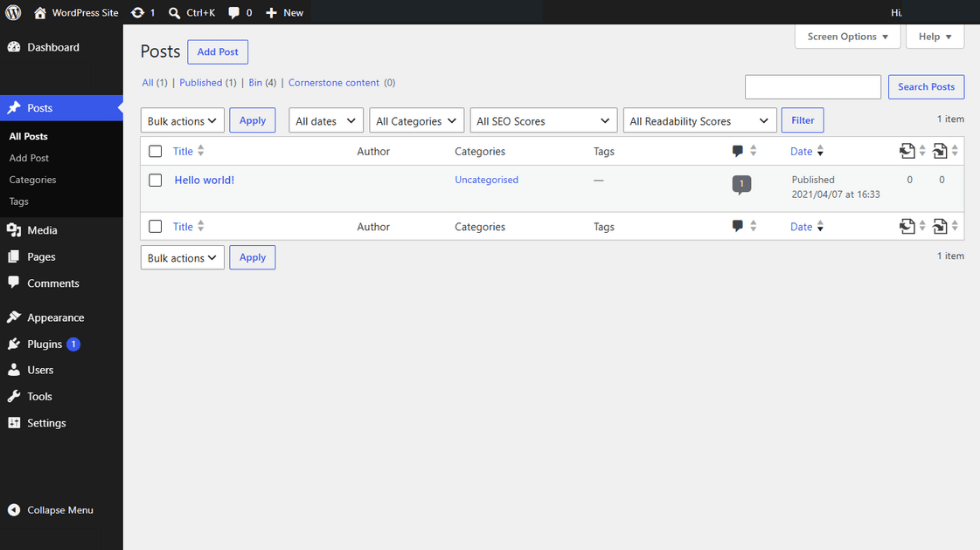
Posts
The Posts section is where you create blog content. From here, you can write new posts, edit existing ones, organize posts into categories and tags, and manage the trash. WordPress uses the block editor (introduced in WordPress 5.0) to create and edit posts, letting you build content with blocks for paragraphs, images, headings, lists, embedded media, and more.
For more on the difference between posts and pages, see WordPress page vs post.
Media
The Media section is your media library. Every image, video, audio file, or document you upload to WordPress gets stored here. You can upload new files directly, edit existing media (crop images, add alt text, etc.), and see where each file is used on your site.
Pages
The Pages section is for static content like your homepage, about page, contact page, and legal pages. Pages work similarly to posts but don’t appear in your blog feed and aren’t typically organized chronologically.
Comments
The Comments section is where you moderate comments left on your blog posts. You can approve, edit, mark as spam, or delete comments. WordPress has built-in spam filtering, but most sites use a plugin like Akismet for more aggressive spam detection.
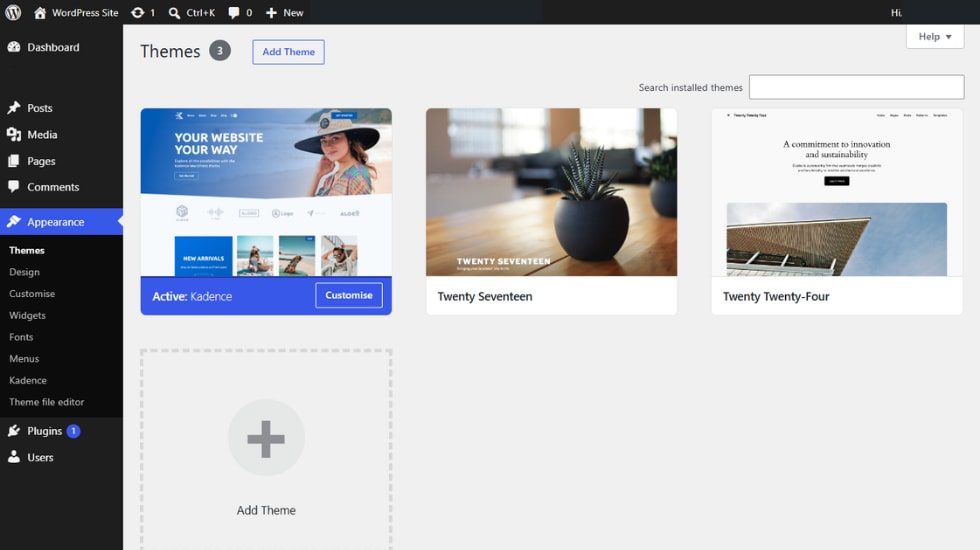
Appearance
The Appearance section is where you control how your site looks. Sub-items include:
- Themes: Install, activate, and customize WordPress themes.
- Site Editor (for block themes): A visual editor for your entire site, including header, footer, and page templates.
- Customize (for classic themes): A live preview customizer for your theme’s appearance.
- Widgets: Manage sidebar and footer widgets (less prominent in block themes since the Site Editor replaces this).
- Menus: Create and manage your site’s navigation menus.
Plugins
The Plugins section is where you install, activate, deactivate, update, and delete WordPress plugins. Plugins extend WordPress’s functionality with everything from SEO tools to ecommerce platforms to backup solutions. Be selective about plugins since each one you install adds some overhead and potential security exposure.
Users
The Users section is where you manage all the people who can log in to your site. You can add new users, edit existing user profiles, change user roles, and delete users. We’ll cover user roles in more detail in the next section.
Tools
The Tools section includes utility features:
- Available Tools: Press This and Category/Tag conversion tools.
- Import: Import content from another site or another platform.
- Export: Export your site’s content as an XML file for backup or migration.
- Site Health: Run checks on your site’s security, performance, and configuration.
- Export Personal Data / Erase Personal Data: GDPR-related tools for handling user data requests.
Settings
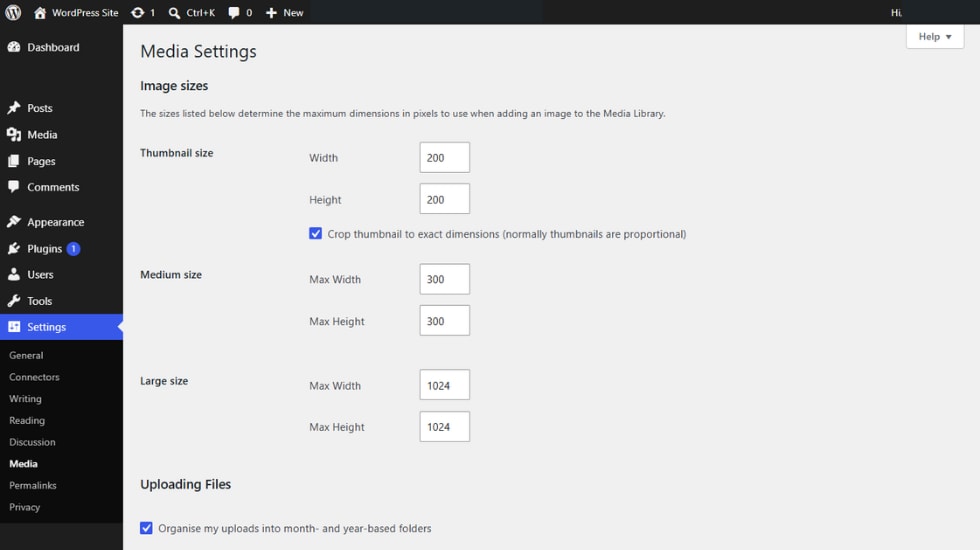
The Settings section contains your site’s configuration:
- General: Your site title, tagline, URL settings, email address, time zone, and language.
- Writing: Default post category, default post format, and email-to-post settings.
- Reading: Whether your homepage shows your latest posts or a static page, how many posts to display, and visibility settings (including the option to discourage search engines).
- Discussion: Comment settings, moderation, and notifications.
- Media: Image size defaults and file organization.
- Permalinks: Your URL structure for posts and pages.
- Privacy: Your privacy policy page settings.
Plugins often add their own settings pages here, too.
Customizing your WordPress admin dashboard
The default WordPress admin dashboard is functional, but most users benefit from tailoring it to their workflow. Here are the main customization options.
Screen Options
The Screen Options button in the top-right corner of most admin pages provides options to show or hide elements on that page. On the dashboard, this lets you toggle which widgets appear (At a Glance, Activity, Quick Draft, etc.). On the Posts screen, you can toggle which columns are shown.
Click Screen Options to expand the panel, check or uncheck what you want to see, then click elsewhere to close the panel. Your settings are saved per-user, so changes affect only your account.

Rearranging dashboard widgets
You can drag and drop the widgets on the main dashboard to reorder them. Hover over a widget’s title bar until your cursor changes to a move cursor, then click and drag to a new position. This is purely visual and only affects your view.
Collapsing the sidebar menu
The sidebar menu can be collapsed to icons only by clicking the Collapse menu button at the bottom of the sidebar. This is useful if you want more horizontal space for editing content.
Custom dashboard widgets via plugins
Several plugins let you add custom widgets to the WordPress admin dashboard. This is useful for displaying analytics, support contact information, or custom messages for client sites. White-label plugins go further, letting you customize the login page logo, footer text, and even hide certain WordPress branding entirely.
Changing your admin color scheme
The WordPress admin offers multiple color schemes to choose from. Go to Users > Your Profile and look for the Admin Color Scheme option. Pick whichever you prefer. Like Screen Options, this setting is per-user.
What to do if you can’t log in to your WordPress admin
If you’re stuck on the WordPress login page, work through these fixes in order from easiest to most technical.
You’ve forgotten your password
Click the Lost your password? link on the login page. Enter your username or email address. WordPress sends a reset link to your registered email. Click the link and create a new password.
If the reset email doesn’t arrive, check your spam folder. If it’s still missing, your site’s outgoing email might not be configured properly. You can reset your password via the database (using phpMyAdmin or WP-CLI), but this requires hosting-level access.
You’ve forgotten your username
If you’ve forgotten both your username and your password, the Lost your password? link also accepts email addresses, so try entering the email address you used to register. WordPress will send a reset link to that email if it matches a user account.
Constant refreshing or redirect to login
This is the WordPress login redirect loop. The most common cause is corrupted browser cookies. Clear your browser cookies and cache for your site, then try again. If that doesn’t fix it, see our dedicated guide on how to fix the WordPress login redirect loop.
Site stuck in maintenance mode
If you see a ‘Briefly unavailable for scheduled maintenance’ message that doesn’t go away, your site is stuck in maintenance mode. This happens when a plugin or theme update was interrupted.
To fix it:
- Connect to your site via FTP, SFTP, or your hosting provider’s file manager.
- Navigate to the WordPress root directory (where wp-config.php lives).
- Look for a file called .maintenance (note the leading dot).
- Delete the file.
Reload your site, and the maintenance message should be gone.
Too many redirects after login
If you see ‘Error Too Many Redirects’ after logging in, see our guide to troubleshooting too many redirects for the full diagnostic steps. The common causes are mismatched WordPress URL settings, plugin conflicts, and SSL configuration issues.
Custom login URL you’ve forgotten
If you set up a security plugin like WPS Hide Login or similar and forgot your custom URL, you can disable the plugin via FTP to restore the default login URL:
- Connect via FTP and navigate to /wp-content/plugins/.
- Find the folder for your security plugin.
- Rename it (add -disabled to the end).
- Try the default /wp-admin/ URL again.
Once you’re back in, re-enable the plugin and set a custom URL you’ll remember.
Get to grips with your WordPress admin area
The WordPress admin is where you spend most of your time as a WordPress site owner. Knowing how to find it, log in efficiently, and navigate the WordPress dashboard makes everything else about running a WordPress site easier. The interface might look intimidating at first, but it follows consistent patterns: the sidebar menu for major sections, screen options for customizing what you see, and the WordPress admin panel for quick actions.
If you’d rather not deal with hosting-level issues that can affect your admin access (like server configurations, SSL certificates, or stuck maintenance mode), Liquid Web’s managed WordPress hosting handles concerns so you can focus on content and growth instead of server management. Combined with Kadence Security, you’ll have a stable, secure WordPress admin environment that just works.
Next steps
What is managed WordPress hosting? →
Get details and decide if managed WordPress hosting is right for you.
How to build a WordPress site →
9 detailed steps to help walk you through your first setup
A complete guide to WordPress shortcodes →
Shortcodes make life easier. Learn how to get started!