


 Liquid Web
 Sometimes you just want to make a change, and your website is no exception.
The easiest way to adjust the look of your WordPress website is to switch to a different theme. And with over 10,000 free themes in WordPress’s official repository, you have plenty of options.
You might not know exactly how to change WordPress themes if you haven’t done this before. You also might wonder how this process could affect your pages and if the downtime will hurt your business.
Not to worry. If you make a plan and carefully prepare for the changes, you shouldn’t run into any problems when swapping your theme.
We’ll go over some reasons why you may want to switch to a new theme and how to prepare your website. Then, we’ll show you a few ways to change your WordPress theme.
Here’s what we’ll cover:
- When should you change your theme?
- What to look for in your new WordPress theme
- How to change WordPress themes
- What to do after a theme change
- Common problems when changing themes
- Final thoughts: How to change WordPress themes without crashing your website
When should you change your WordPress theme?
There are a few common reasons why you might decide to change your WordPress theme.
Reason #1: Your current theme isn’t working anymore
This could be for several reasons. Maybe your WordPress website is a few years old, and the theme you chose at the time is no longer supported. This could be an even bigger issue if your theme isn’t dynamic and won’t load well on mobile devices.
If that’s the case, changing your theme could significantly improve your website’s user experience. According to StatCounter, 63% of internet traffic in October 2024 was on mobile devices, and mobile traffic consistently outperforms desktop now.

Upgrading to a new WordPress theme can make your website mobile-friendly, offering more functionality, design capabilities, and future-proof responsive design.
Reason #2: Your website takes forever to load
This is a big reason why people decide to switch themes. If your website takes a long time to load, you could be losing visitors.
Not to mention, a slow-loading website can lead to lost conversions. For each second faster a page loads, conversions rise by 17%.
You should run a page load speed test on your website every few months to check how you’re doing. Google PageSpeed Insights is an excellent free option that will offer suggestions on how to help your website load faster.

If you see your loading speed start to drop, it might be time to switch to a faster theme.
Faster WordPress speeds are a click away
Power your website with the fastest WordPress hosting.
Reason #3: You want to add new features that aren’t supported by your current theme
Maybe you’re adding an online shop to your website and want to include WooCommerce support. If your current theme isn’t WooCommerce-friendly, this could be an issue.
Or you might change the scope of your website. Maybe you started out as a food blog but have grown to include product reviews and cooking tutorials. A new theme could help highlight these features better.
Your theme has a vulnerability.
A glitchy or vulnerable theme can be a big problem. WPScan found 6,990 new vulnerabilities in 2024. While 93% of the logged issues affect plugins, it’s still important to be sure that your theme isn’t open to malware. In fact, WPScan has found 820 vulnerable themes.
It’s important to note that the majority of vulnerabilities applied to free themes (as opposed to paid themes). Before you consider changing to a free WordPress theme, you’ll want to check if that theme has any historical security issues and how timely they were resolved.
What a theme won’t change
While changing the theme can greatly affect the look and navigation of your website, there are some things it can’t do. For example, switching themes won’t affect most of the files or website content.
All of your images and posts will still be there. The only exception is files that were theme-specific, like certain stock photos. The switch won’t remove any plugins you have, either. You do need to be careful to check that your new theme supports the plugins you use, however.
Keep in mind that if you want to make simpler adjustments, like a new font or color scheme, you don’t need to change the theme. You can take care of these tasks from the appearance tab of your WordPress site’s back end instead.

Look for your active theme and click Customize to change how your menus, header, footer, or other website design elements look.
What to look for in your new WordPress theme
Before you make any changes to your live website, make sure you’ve picked the best new theme for your needs. You’ll want to look for a fast, responsive theme that supports the features and widgets you need.
It’s helpful to read user reviews to see if there are any common issues and get a feel for the developer’s customer service. You can also check out recommendations for the best WordPress themes for different niches (like ecommerce) or features (like speed).
Think about why you want to change your installed theme to help you determine what’s most important for your next theme. Specifically, you should look out for:
- Speed: Does your website take a long time to load? Portent found that 86% of the B2C websites it checked in 2022 loaded in 5 seconds or less. This was also true for 82% of B2B websites. If your website is taking significantly longer, you probably want a “bloat-free” theme that will load lightning fast.
- Compatibility: If you rely on any WordPress plugins, like WooCommerce or Mailchimp, be sure to check for compatibility there, too. You should be able to find this information in either the theme developer’s documentation or reviews.
- Ease of use: Are you comfortable working with shortcodes and adding custom CSS from time to time? If the answer is no, you should pay attention to how user-friendly the theme is. Some include dozens of templates you can customize, while other premium themes will offer a unique page builder.
How to change WordPress themes
- Back up your website
- Switch your website into maintenance mode
- Copy any custom code snippets
- Consider a staging site
- Change the theme from your WordPress dashboard
- Change your WordPress theme manually
1. Back up your website
First, you need to make a full backup of your website before you make any major changes. You may want to store a copy in a few different places just to be safe.
This process doesn’t take too long, but it can have a significant impact. If anything were to happen to your live site while switching themes, you could quickly restore the previous theme from the backup.

This might seem overcautious, but imagine losing all of that data and content. It really is a good idea to have a backup.
2. Switch your website into maintenance mode

Next, you might want to switch your website into maintenance mode, especially if this is the first time you’re changing themes or if your current theme is a bit outdated.
When you put your website in maintenance mode, it’s like putting a sign up that tells your visitors you’re working on your website and you know they can’t access it at this moment. Google recommends doing this, as well as turning off crawling temporarily so your search ranking isn’t affected by accident.
However, switching to maintenance mode isn’t required, especially if you decide to opt to use a staging site, too.
3. Copy any custom code snippets
Have you made any custom CSS or PHP code changes in your current theme? If so, now is the time to copy them down, as you may need to add them to your new theme.
If you want to keep your color scheme, make sure you have the hex codes written down. Also, grab a copy of your font files and make a note of any stylistic options you want to stay the same.
4. Consider a staging site
Depending on how big the changes to your website are, you may want to consider setting up a staging environment.
This will make a temporary copy of your existing website and place it on a separate address, so you can make adjustments without affecting your live website.
Once you are done with your changes, you can replace the live version of your website with the staging site. To make this process even easier, one-click staging is included in all Liquid Web managed WordPress web hosting packages.
5. Change the theme from your WordPress dashboard
The easiest way to change your WordPress theme is through your dashboard. To do this, you’ll need to:
- Go to Appearances and then Themes.
- If you haven’t already, add the new theme you want to install.
- Click the Activate button to activate the new theme files.
- You can also choose to work with a live preview of your new theme and make any needed changes to your website’s appearance before it goes live.
- If necessary, copy over any custom code snippets to the functions.php file.
- Adjust the menus, fonts, and other elements until you’re happy with the appearance, and save your changes. Your updated website will now be available.
How to change your WordPress theme manually
Sometimes you want to change your theme, but you’re having trouble even accessing WordPress. Maybe you were running an old theme that wasn’t compatible with newer versions of WordPress, and eventually, this issue caught up to you.
If you can’t access your WordPress dashboard or would like to change your theme manually, you can do this through phpMyAdmin. Many hosts offer the ability to access the phpMyAdmin interface via their control panel. Here’s an example from Nexcess, a Liquid Web brand:

From your dashboard, go to Databases and then phpMyAdmin.
Next, you’ll need to find the wp_options folder in your database. This should be located in the left-hand group of folders on the sidebar.
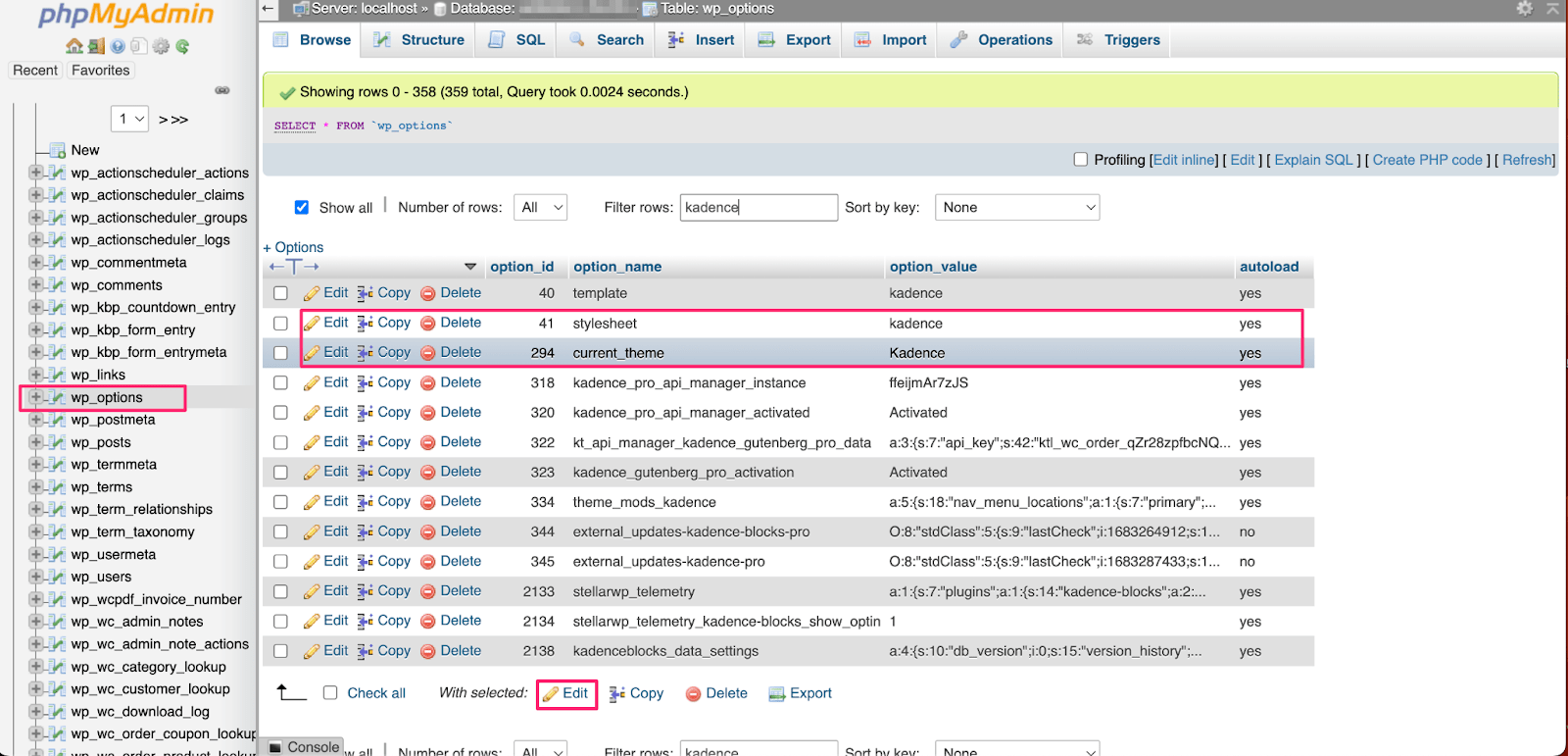
From here, you’ll be able to see all of the options in your current version of WordPress. You need to change two options here, your stylesheet and your current theme.
Once you start editing, you’ll need to change the option_value for both of these. You should see your current theme’s name here. You need to change that to the new theme that you’ve installed. This name should match the /wp-content/themes/ folder name that you added here earlier.
Note that if you haven’t yet installed your theme and can’t do so through WordPress, you’ll need to upload it through an FTP client, like CrossFTP.
What to do after a theme change
All right, you’ve changed WordPress themes successfully. But don’t call it a day just yet. Before you’re completely finished, you should do some post-change checks.
First, check your website
If possible, try to view your website using more than one kind of device and a few browsers, too. After all, sometimes a theme can look great on desktop, but it might not load quite as well on a tablet.
Look out for issues with different types of content. You want to thoroughly check items like:
- Widgets
- Images
- Contact forms
- Alignment
- Navigation menus
- CSS styling
- Font settings
- Page load speed
If your using a staging site, you can compare styling with your live website or use a tool that compares theme changes with your current site and your new theme. Liquid Web managed WordPress hosting provides this feature free of charge.
Check your plugins
Check a few plugins to make sure none of them have been impacted, either. Begin by visiting your site and testing each plugin’s functionality to make sure they display and work as expected.
You can also access your WordPress dashboard and review your active plugins for any plugin conflicts or errors. If any issues arise, you may need to update the plugin, adjust settings, or find an alternative that’s fully compatible with your new theme.
Test your links
Some themes handle URLs, menus, and internal linking differently. Link formatting, menu placements, or certain custom link styles might not carry over, causing 404s or incorrect redirects. By testing links, you verify that your WordPress links are fully functional and do not disrupt the user journey.
The link testing process varies from website to website. You can do it manually or utilize a site crawl tool to identify any errors and check redirect destinations, though you may need to configure some settings if you’re using a staging environment.
Merge all changes
Once you’re sure your website looks right, it’s time to turn off maintenance mode or merge the test website you’ve been editing in your staging environment with your live website. Now your new theme is live, and this is the version of your website visitors and search engines will see.
It’s probably a good idea to recheck your loading time now, too. It’s fine if the speed stays the same unless your website was too slow to begin with. But it’s even better if your performance has improved.
Finally, it’s time to spread the word. Share your new look on social media, let subscribers know with an email, and maybe even write a blog post about the experience.
How to build an enterprise site in under months
Learn how Liquid Web transformed their WordPress website in 45 days using Kadence AI.
Common problems when changing WordPress themes
After you switch WordPress themes, your website could run into any number of issues. Unfortunately, many of them depend on the unique situation of your own website. Each theme will have its own unique settings, and those will disappear once you switch, too.
Some themes default to the WordPress theme Customizer, while others have their own. If your old theme didn’t use the WordPress theme Customizer, you might have to completely redo this step.
If your Customizer seems unchanged, you may only need to reset some of these settings, like your logo, fonts, or color choices.
Another issue to keep in mind is that some themes bundle in tools, like SEO analytics. When you remove the theme, you also remove the tool. You can easily add Google Analytics or another free tool instead, however.
Final thoughts: How to change WordPress themes without crashing your website
If you take some precautions, you can change WordPress themes without crashing your website or running into other major issues.
Remember to always create a backup of your website before making any significant changes. This way, if you decide you don’t like the new theme after all, you can quickly restore your backup. It’s also helpful in the event you run into any issues during the installation process.
During this process, you can put your website into maintenance mode so visitors are in the loop. Or you can use a staging site so people can continue to visit while you make adjustments.
Switching your WordPress theme can help you feel more comfortable with the platform, and it’s a fun way to change up your website and keep it running quickly.
If you’re considering changing themes due to an increase in traffic to your business website, it might be time to check out scalable managed WordPress hosting from Liquid Web.
We offer free nightly backups, elite 24/7 tech support, one-click staging sites, and advanced security features to keep your website safe. Contact us today to learn more about what we can do for you.