

Troubleshooting: Local Mail Routing
Mail Routing can be a complicated issue. There can be many reasons why your mail isn’t routing properly. In this article, we will discuss issues around local mail routing and troubleshooting when your WHM/cPanel email is configured to route mail messages for your domain remotely instead of locally.
When you have a situation when all mail sent to your domain is failing to be delivered, and should be delivered to your Liquid Web server, you likely have local mail routing problem.
You can identify this being the cause of your issue, if the following are all true:
- The domain’s MX record is pointing to your Liquid Web server.
- A cPanel account exists for the domain on your server.
- The email account exist within cPanel.
When the above are true, your server isn’t routing local email correctly. This is caused by an incorrect setting with cPanel. The incorrect setting causes cPanel to treat messages for this domain as though the email should be delivered to a remote server.
Diagnose the Issue:
Your domain’s MX records point to an IP address on your Liquid Web server. The sender will also receive a bounce-back message with the following error.
Final-Recipient: rfc822; test@domain.com
    Action: failed
    Status: 5.0.0
    Remote-MTA: dns; mail.domain.com. (72.52.231.5, the server for the domain domain.com.)
    Diagnostic-Code: smtp; 550-The mail server could not deliver mail to test@domain.com.  The account or
     550-domain may not exist, they may be blacklisted, or missing the proper dns
     550 entries.
If the Remote-MTA field matches your servers hostname or your servers IP address then the error was generated by your server. This indicates your server is not routing local mail correctly.
Solution:
From your domain’s cPanel account navigate to cPanel >> Home >> Email >> Email Routing.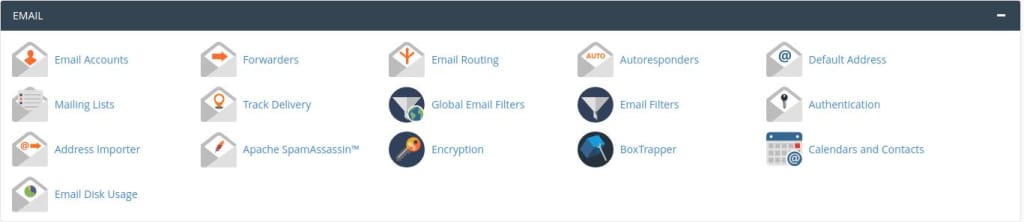
- Select the desired domain from the menu.

- Select the Local Mail Exchanger option under Configure Email Routing:

- Click the Change button to save the change to the Local Mail Exchanger.
Now that you’ve changed this setting, run a test email to see if the mail delivers correctly. If it does, congratulations! You’ve set your cPanel to local mail routing correctly.
Check out our Premium Business Email product offering that skips cPanel email setup and routing issues and can provide better spam protection for your emails!