

Taking a Manual Backup in Plesk
To make sure you can restore your website if something goes wrong, you should have periodic backups scheduled. If you aren’t already automatically backing up your websites, read our article about why and how to set up backups in Configuring Backups in Plesk.
Sometimes you’ll want to manually back up a website in addition to your automatic backups. For instance, if you’re going to make large changes to the website, it’s a good idea to back up your website just in case something goes wrong. That way, you can restore an old version of your website while your developer figures out the problem. It’s also a good idea to create a backup if you’re going to make major changes to your server.
We recommend downloading a backup right before you make major changes to your website. This ensures your backup has the most up-to-date website information. It’s easy to back up a website or even your whole server using Plesk!
Backing Up a Domain
- Log into Plesk. If you haven’t logged into Plesk before, read Getting Started with Plesk first.
- In Power User view, click on Websites & Domains in the left navigation menu. In Service Provider view, click on Subscriptions in the left navigation menu. Then click on the domain you’d like to back up.
- Click on Backup Manager. If you have more than one domain, choose the domain you’d like to back up and click OK.
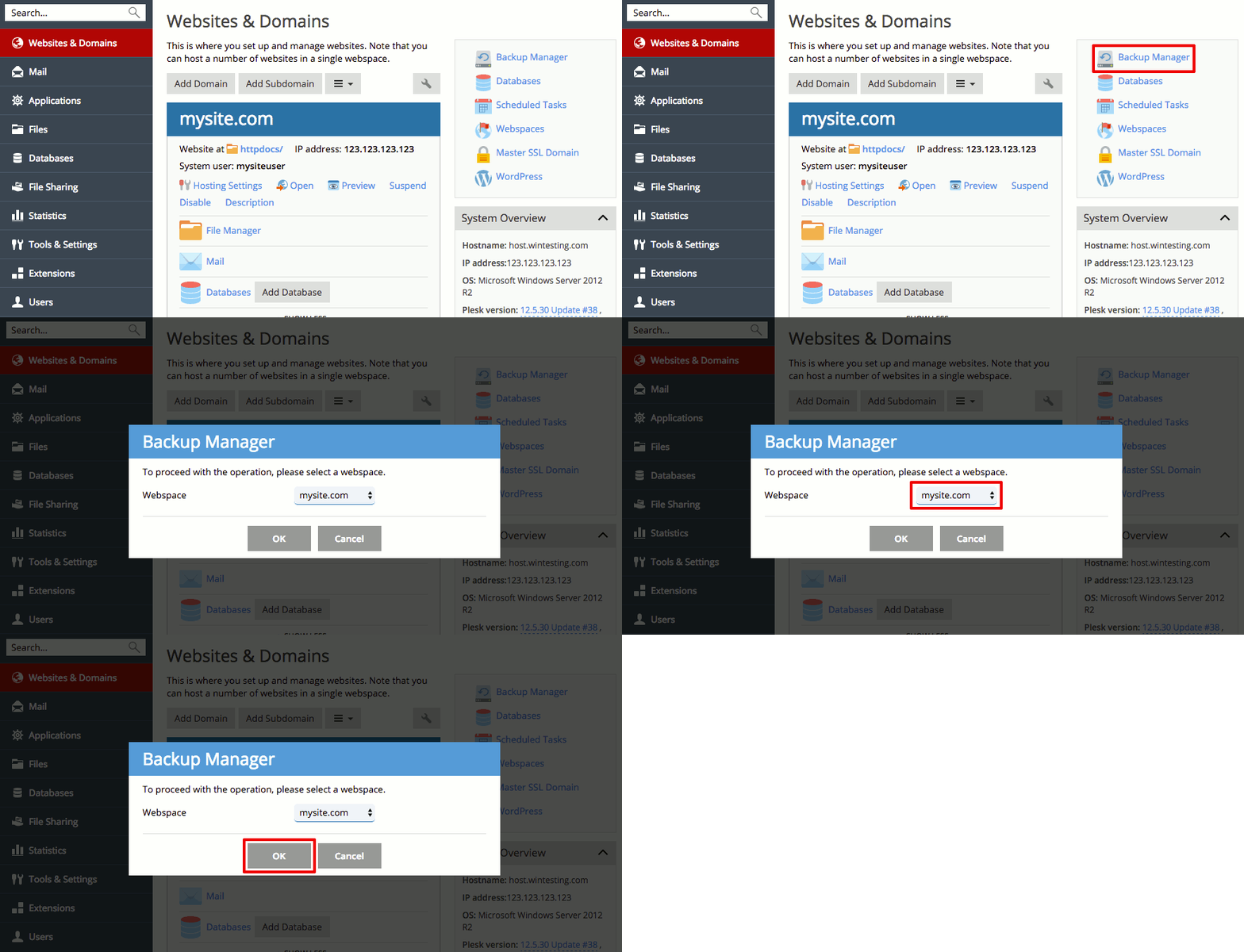
- Click on Back Up.
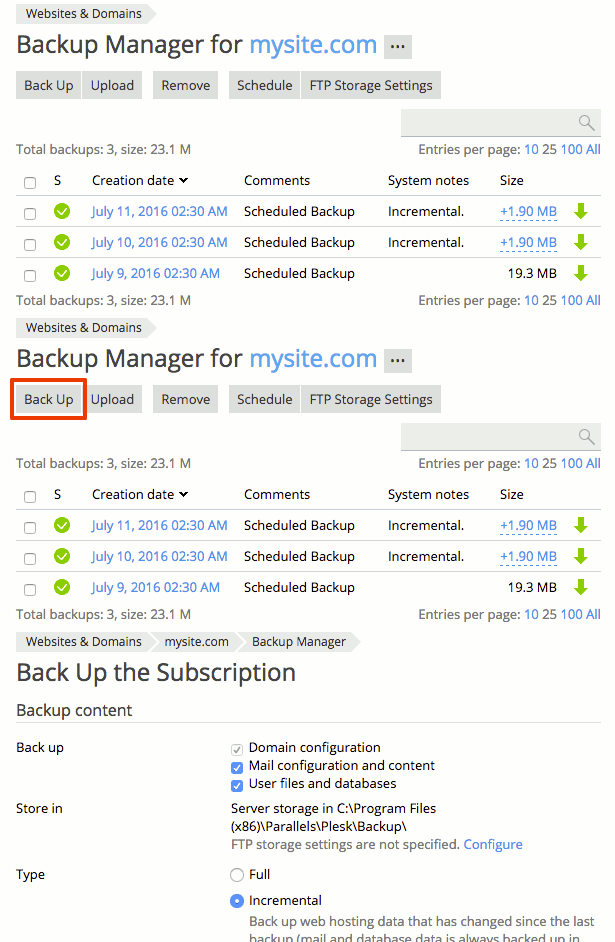
- Now, choose your backup settings.
- A manual backup will automatically back up the domain configuration, your mail configuration and email content, and all the user files and databases. Uncheck the boxes next to anything you don’t want to back up.

- Choose a Full or Incremental backup.

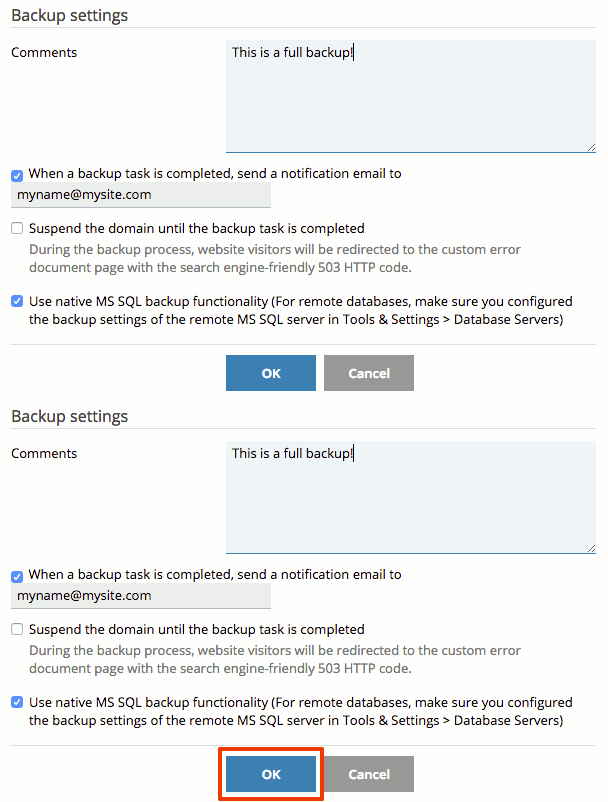
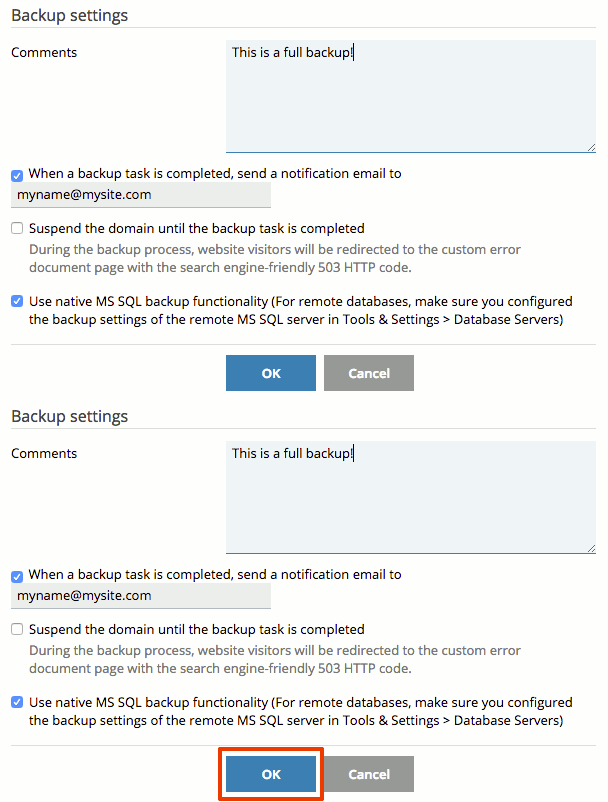
- You can add a backup Comment if necessary. If you have a lot of backups, it is a good idea to add a comment with what you backed up and why.
- If you’d like to get a notification email when your backup is finished, check the box for When a backup task is completed, send a notification email to and enter your email address.
- You can choose to Suspend the domain until the backup task is completed, which takes your website offline until the backup is completed. This results in a very clean backup, but if your site has a lot of traffic, it might not be ideal for your needs. Check the box if you’d like to suspend your domain.
- Plesk automatically uses native MS SQL backup functions. If you are an advanced user and have special database settings, you might uncheck this box. For most users, it makes sense to leave this box checked.
- A manual backup will automatically back up the domain configuration, your mail configuration and email content, and all the user files and databases. Uncheck the boxes next to anything you don’t want to back up.
- Click OK to begin backing up your files.
- If you need to download your backup to your local computer, simply click the green down arrow next to the backup.

Backing Up Your Server
- Log into Plesk. If you’ve never logged into Plesk before, read Getting Started with Plesk first.
- Click on Tools & Settings in the left navigation menu. Then, in the Tools & Resources section, click on Backup Manager.
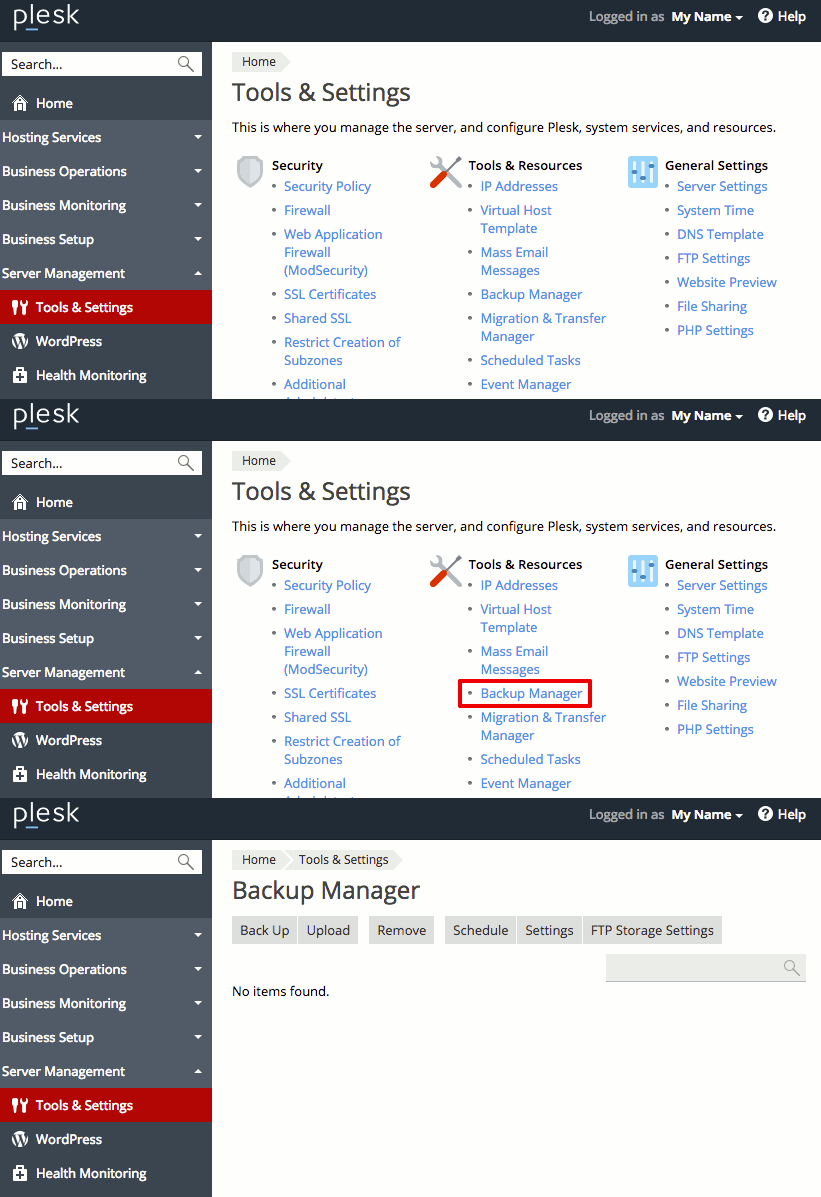
- Backup Manager will list any backups you have saved. Click on Back Up.
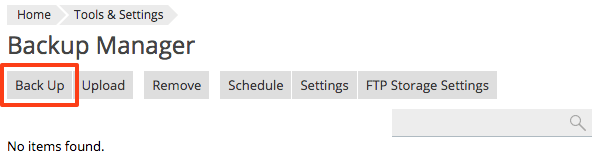
- A manual backup will automatically back up your server configuration and content. If you don’t want to back up your content, select the radio button next to Server configuration.

- Choose a Full or Incremental backup.

- You can add a backup Comment if necessary. If you have a lot of backups, it is a good idea to add a comment with what you backed up and why.
- If you’d like to get a notification email when your backup is finished, check the box for When a backup task is completed, send a notification email to and enter your email address.
- You can choose to Suspend the domain until the backup task is completed, which takes your website offline until the backup is completed. This results in a very clean backup, but if your site has a lot of traffic, it might not be ideal for your needs. Check the box if you’d like to suspend your domain.
- Plesk automatically uses native MS SQL backup functions. If you are an advanced user and have special database settings, you might uncheck this box. For most users, it makes sense to leave this box checked.
- Click OK to begin backing up your files.
- If you need to download your backup to your local computer, simply click the green down arrow next to the backup.

To Restore data from a Plesk Backup, see Restoring Data from Plesk Backups.