Unzip Files in Cloud Sites File Manager
Unzipping a file using the Cloud Sites File Manager is much like uploading a file or folder. You can choose to upload it as a zip file or to extract on upload. Using the steps below, you can unzip files easily through the file manager.
Unzipping a file using the Cloud Sites File Manager is much like uploading a file or folder. You can choose to upload it as a zip file or to extract on upload. Using the steps below, you can unzip files easily through the file manager.
- Log into the Cloud Sites File Manager (see Logging Into Cloud Sites File Manager).
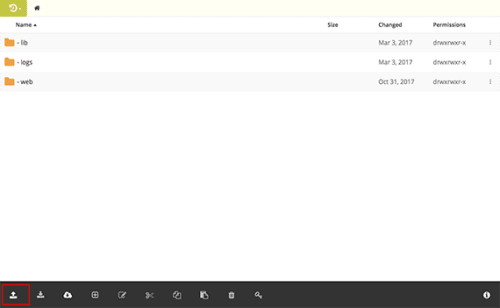
- Click on the upload icon in the menu at the bottom of the page.

- Select Upload Zip… from the pop-up menu.

- A pop-up will appear of your computer’s files. Select the zip file that you want to upload and click Open.
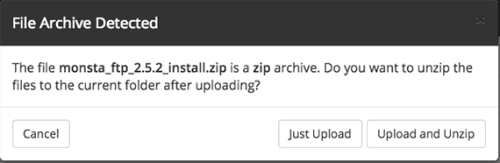
- Select if you want to upload the file as a zip file or upload it and unzip it.

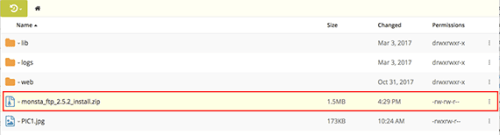
- The file will upload, once complete, it will show in the site directory.

Unzipping an Existing File
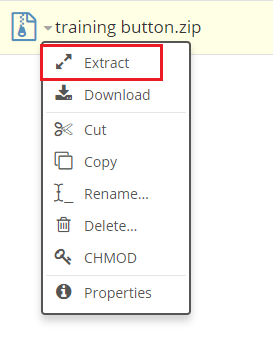
If you’ve already uploaded the zip file and now need to unzip it, just click on the file name and choose Extract from the pop-up menu.