

Delete Files and Directories in Plesk
We’ve gone over adding files and folders, now let’s take a look at how to delete files and directories within the File Manager in Plesk. Deleting them takes just a few clicks.
Warning: |
Deleting files and directories is permanent and irreversible. If you feel you may need the file or directory in the future, take a manual backup before proceeding with deleting anything (see Taking a Manual Backup in Plesk). |
Delete a File
- To delete a file, navigate to the httpdocs directory in the Plesk File Manager.
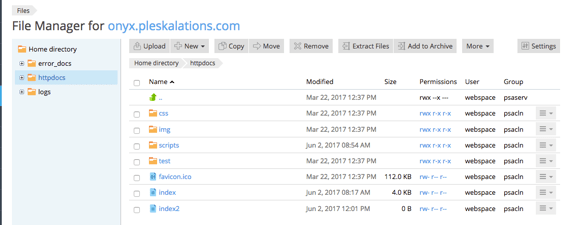
- Click the box next to the file you want to delete.
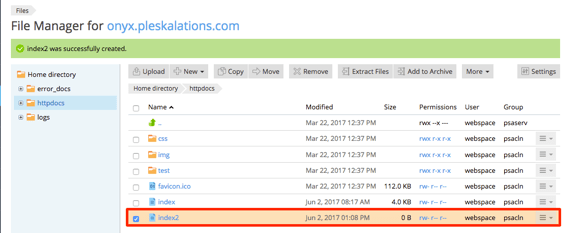
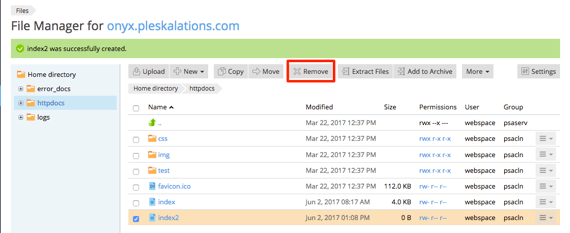
- Click on the Remove button at the top of the page.
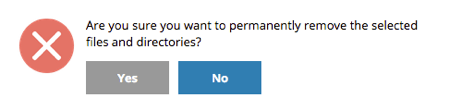
- A pop-up will appear to confirm you wish to permanently delete the file.
- Once complete, the file will no longer show in the httpdocs list.
- If you need to restore a file from a backup, see our article Restoring Data from Plesk Backups.
Delete a Directory
- From the httpdocs directory, select the directory by checking the box next to its name.
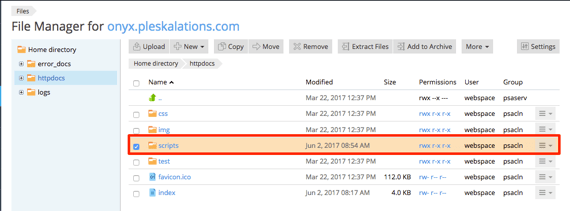
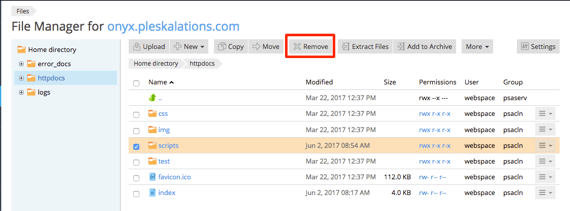
- Click the Remove button in the task bar at the top of the page.
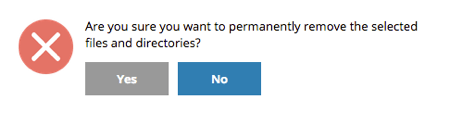
- A pop-up will appear asking you to confirm deleting the directory. Click OK to complete the process.
- The directory will be deleted and will no longer show in the httpdocs list.
- If you need to restore a file from a backup, see our article Restoring Data from Plesk Backups.
You can learn more information about Plesk file management with the following articles: